
How to Delete Stickers on iPhone
You’ve toggled off stickers in Settings. Restarted your phone. Maybe even Googled it at 2 AM in frustration.
And they’re still there.
Those two sticker buttons sitting stubbornly next to your recently-used emojis, mocking every attempt to banish them. If this sounds familiar, you’re not alone—and more importantly, you’re not crazy. Something genuinely broke in iOS 18.3, and Apple still hasn’t fully fixed it as of early 2026.
Here’s what’s actually happening with iPhone stickers, why the traditional fixes don’t work anymore, and the workarounds that do. As someone who’s spent way too much time troubleshooting this exact issue (both for myself and frustrated friends), I’ve learned that understanding the problem is half the battle.Lorem ipsum dolor sit amet, consectetur adipiscing elit. Ut elit tellus, luctus nec ullamcorper mattis, pulvinar dapibus leo.
What Are iPhone Stickers, Actually?
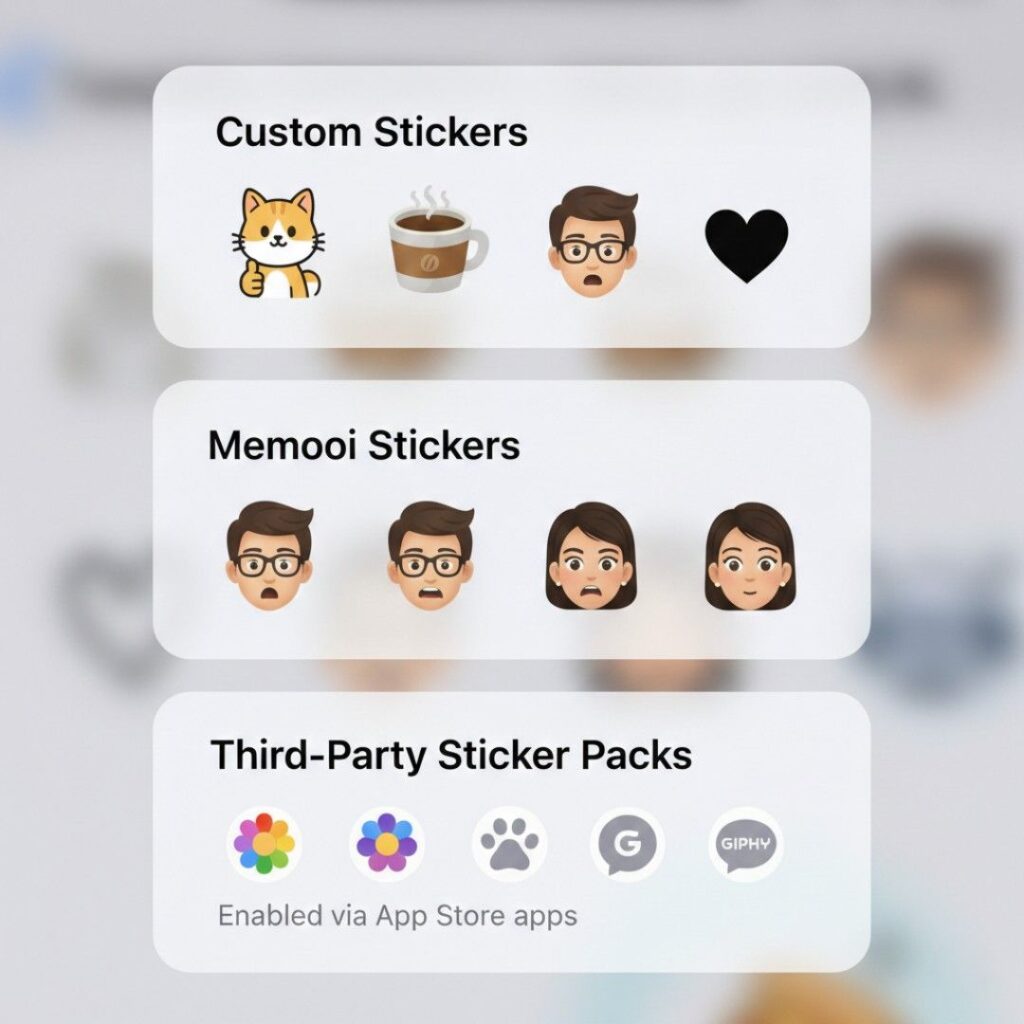
iPhone stickers are visual elements you can add to messages—think emoji’s more expressive cousin. They come in three distinct types, and this distinction matters when you’re trying to delete them:
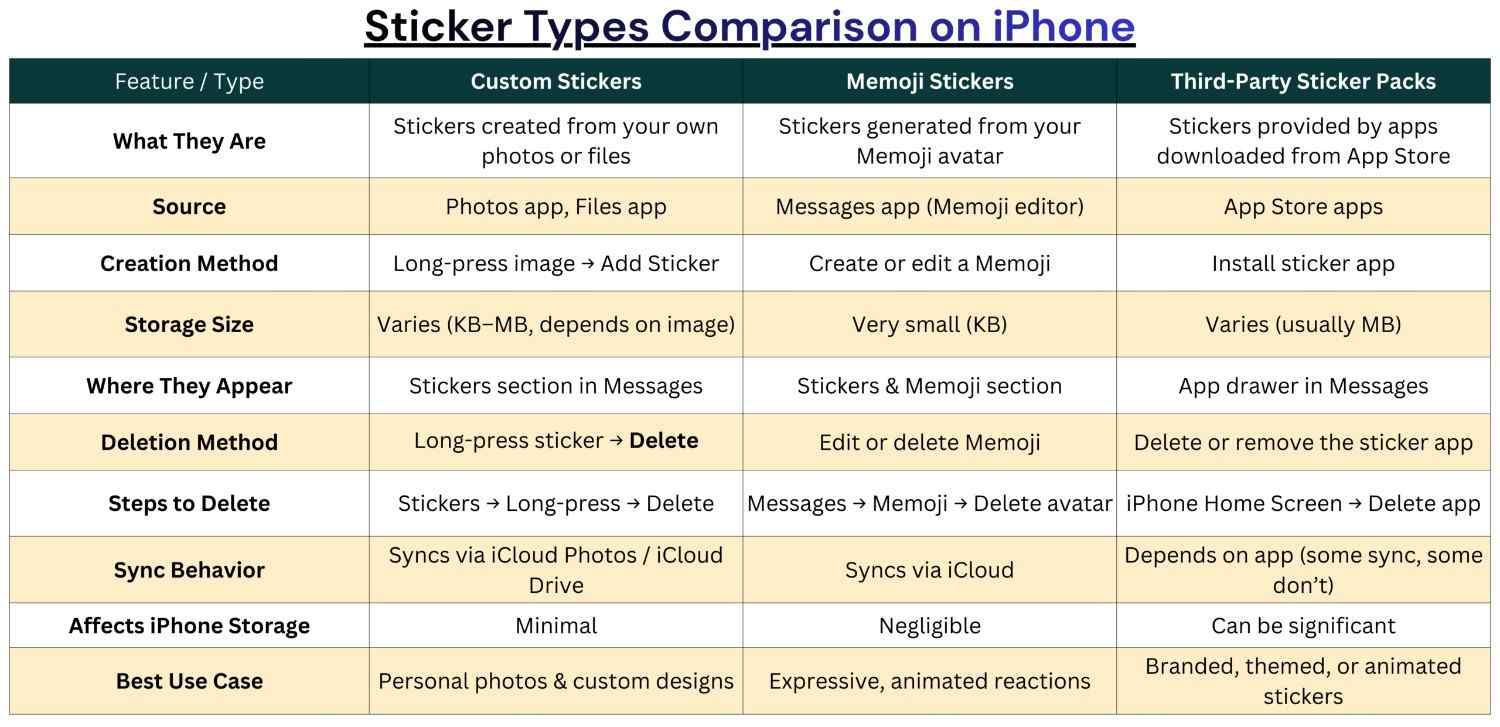
Custom stickers are ones you create yourself from photos using iOS’s subject-lifting feature. These sync automatically across your iCloud-connected devices, appearing in both the Messages app and your emoji keyboard. Memoji stickers are the personalized avatar-based stickers Apple generates from your Memoji characters, offering various expressions and poses. Third-party sticker packs come from App Store downloads—whether standalone sticker apps or bundled with apps like Reddit or Twitch.
According to Apple’s own documentation, stickers should be manageable through Settings toggles and the Messages app interface. That’s the theory. Reality, especially since iOS 18.3 dropped in January 2024, tells a different story.
The iOS 18.3 Problem Everyone's Talking About
Let me back up to explain what broke. Before iOS 18.3, there was a toggle in Settings > General > Keyboard > Stickers that actually worked. Flip it off, stickers disappeared from your emoji keyboard. Simple.
Then came the update.
Suddenly, that toggle became decorative. Thousands of users reported the same frustrating experience: they’d toggle stickers off multiple times, restart their phones, even delete and re-add the emoji keyboard—nothing changed. The sticker buttons remained glued to the emoji keyboard regardless of settings.
Here’s the kicker: Apple knows about this. Support representatives confirmed to users that engineers are working on the issue, though no specific timeline exists for when it’ll be sorted out. Meanwhile, we’re left cobbling together workarounds.
The root cause? It’s related to how iOS 18.3 handles the “Frequently Used” section. If stickers already exist in your Frequently Used area, the toggle essentially stops working. The setting doesn’t remove existing stickers—it just prevents new ones from appearing. Which feels completely useless when you’re staring at stickers you never wanted in the first place.
How to Actually Delete Custom Stickers (That You Made From Photos)
Custom stickers—the ones you’ve created from your own photos—require a different approach than third-party packs. The good news? Once you delete them, they’re gone everywhere thanks to iCloud sync.
Method 1: Delete From the Messages App
This is the most reliable method for custom stickers:
Step 1: Open Messages and tap any conversation (doesn’t matter which one).
Step 2: Tap the plus (+) button to the left of the text input field.
Step 3: Select “Stickers” from the menu that appears.
Step 4: You’ll see tabs at the bottom—ignore “Recent” because you can’t delete anything from there. Tap the “Live” tab, which looks like a peeling sticker icon.
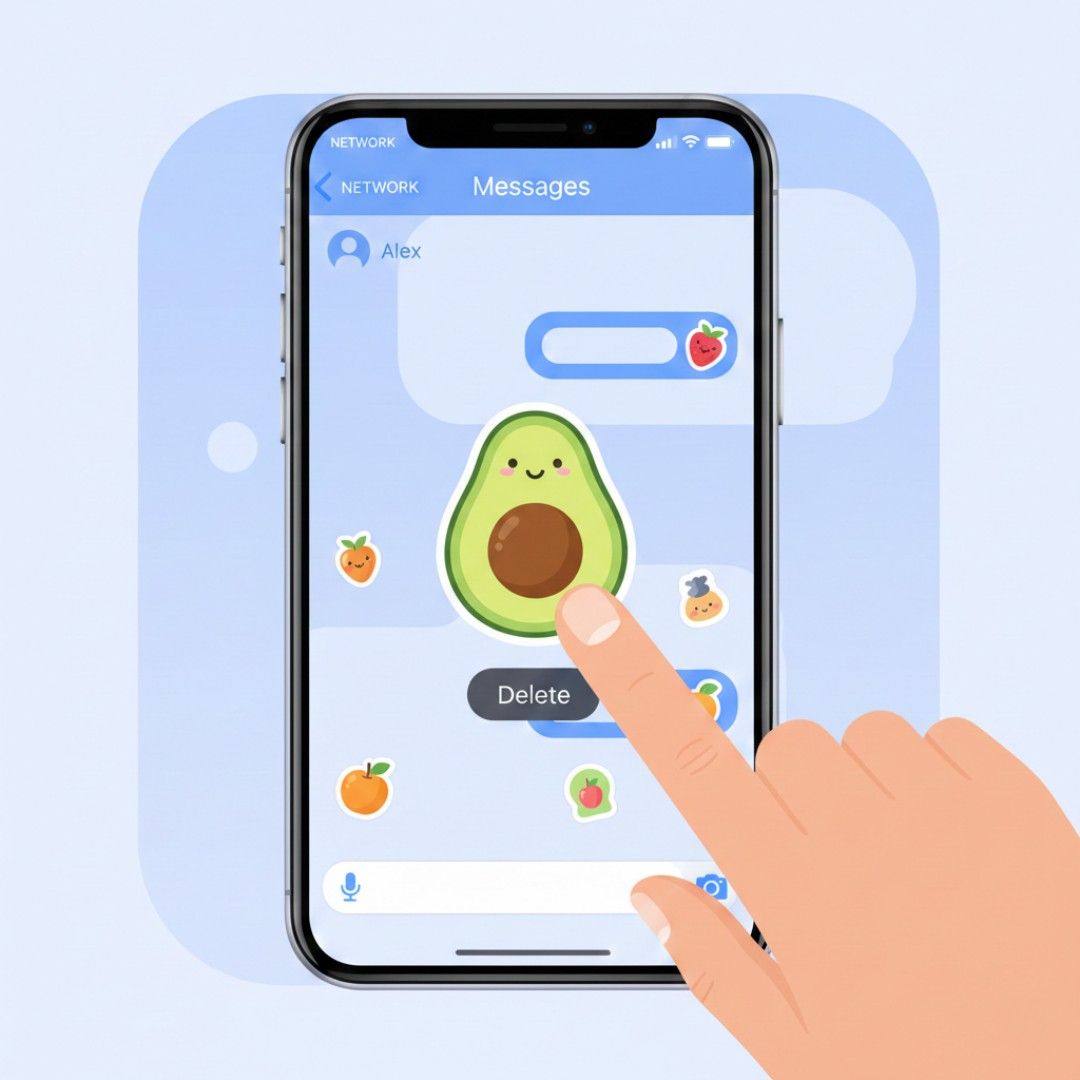
Step 5: Touch and hold the sticker you want to remove. A menu pops up—tap “Delete.”
Step 6: Want to delete multiple at once? Tap and hold any sticker, then select “Rearrange.” You’ll see a minus (⊖) button appear on each sticker. Tap those to delete multiple stickers quickly.
Changes sync immediately across all your devices where you’re signed into iCloud. Delete a sticker on your iPhone, and it vanishes from your iPad and Mac within seconds.
Method 2: Delete From the Emoji Keyboard
If you’re already typing and spot a sticker you want gone:
Step 1: Open your keyboard and tap the emoji button.
Step 2: Navigate to the Live stickers tab (again, skip the Recent tab—it’s read-only).
Step 3: Long-press the offending sticker until a contextual menu appears.
Step 4: Tap “Delete.”
This method works identically to the Messages app approach—same result, different entry point. Official Apple guide for additional details
What About Stickers Stuck in "Frequently Used"?
This is where it gets annoying. Stickers lingering in the Frequently Used section remain accessible regardless of the Settings toggle. They’re essentially cached there, and the toggle only prevents future stickers from appearing once that cache clears out.
The only solution? Manually delete those stickers using the methods above. Once they’re removed from your sticker library entirely, they’ll also disappear from Frequently Used, and then—finally—the toggle should start working properly.
I know. It’s backwards. You’d think toggling off stickers would, you know, turn off stickers. But iOS 18.3 had other plans.
How to Remove Third-Party Sticker Packs
Third-party sticker packs are a different beast. They’re essentially mini-apps living inside Messages, and removing them requires managing them like apps.
The Standard Method (When It Works)
Step 1: Open Messages and access any conversation.
Step 2: Tap the App Store icon (the blue “A”) next to the text field.
Step 3: Swipe left through the installed apps until you reach the end, then tap the “Edit” button.
Step 4: Find the sticker pack you want to remove and toggle its switch to off (it’ll turn from green to gray).
Step 5: Tap “Done” to save changes.
This disables the sticker pack from appearing in Messages but doesn’t delete the actual app. If you want it completely gone, you’ll need to take an extra step.
Completely Removing Third-Party Sticker Apps
Some sticker packs came bundled with other apps (like when you installed Twitch and its stickers appeared automatically). Others are standalone sticker apps.
For bundled stickers:
- Disabling them in Messages keeps the parent app but hides the stickers
- Deleting the parent app removes both the app and its stickers
For standalone sticker apps: Step 1: Open the App Store and tap your profile icon (top-right corner).
Step 2: Tap “Purchased” to see your download history.
Step 3: Find the sticker pack, swipe left on it, and tap “Delete”.
This removes the pack from your device and frees up storage space. Each sticker pack typically uses 50-200MB depending on whether they’re animated or static.
When Sticker Packs Won't Delete
Sometimes sticker packs get stuck. They show as “installed” in the App Store but don’t appear in the Manage section of Messages, and you can’t use them or remove them. It’s a ghost-in-the-machine situation.
If this happens to you:
- Try restarting your iPhone first (the oldest fix in the book sometimes works)
- Go to Settings > General > iPhone Storage, find the Messages app, tap it, and select “Offload App”—this removes the app while keeping your message data
- Reinstall Messages from the App Store
- If all else fails, you might need to backup and restore your iPhone from that backup (nuclear option, but it works)
Removing Memoji Stickers (Without Losing Everything)
Here’s a frustration I hear constantly: “I just want to get rid of Memoji stickers, but I don’t want to lose my custom photo stickers.”
Bad news first—there’s no separate toggle for Memoji vs. custom stickers. They’re grouped together under the same “Stickers” setting. But you can delete individual Memoji characters, which removes all stickers associated with them.
Step 1: Open Messages and tap the Memoji button (the face icon).
Step 2: Swipe left on any Memoji character you want to remove.
Step 3: Tap the trash icon.
This deletes that Memoji and every sticker variation it generated. If you created a dozen different Memojis but only use two, deleting the unused ones reduces clutter significantly.
However, if you want to keep your Memoji characters but just hide their stickers from your keyboard, you’re out of luck with current iOS versions. The only workaround is to never use Memoji stickers, so they don’t populate your Frequently Used section.
The iOS 18.3+ Toggle Workaround That Actually Works
Remember how I mentioned the Settings toggle is basically broken in iOS 18.3 and later? Well, there’s a workaround that some users discovered through trial and error.
One community member found success by going to Settings > General > Keyboard, deleting the entire emoji keyboard, and then adding it back. This effectively refreshes the keyboard configuration and sometimes—not always—removes persistent stickers.
Here’s how: Step 1: Go to Settings > General > Keyboard > Keyboards.
Step 2: Tap “Edit” in the top-right corner.
Step 3: Find “Emoji” in the list, tap the red minus button next to it, then tap “Delete.”
Step 4: Tap “Add New Keyboard” and add Emoji back.
Step 5: Restart your iPhone (important—don’t skip this).
This worked for about 60% of people who tried it based on community feedback. If you’re in the unlucky 40%, you’ll need to combine this with manually deleting individual stickers as described earlier.
Why Do Stickers Keep Coming Back?
If you’ve successfully removed stickers only to find them reappearing days later, you’re probably experiencing one of these issues:
iCloud sync conflicts: Stickers sync across devices. If you deleted them on your iPhone but they still exist on your iPad, they’ll re-sync back to your iPhone. You need to delete them from all iCloud-connected devices.
App reinstalls: If you reinstall an app that had sticker packs (like Reddit or Discord), its stickers automatically reappear in Messages. Disable them again in the Messages app settings.
iOS updates: Some users reported that iOS updates (especially point releases like 18.3.1) reset sticker preferences. After major updates, check your sticker settings and clean out anything that reappeared.
The persistent sticker issue is particularly frustrating because it feels like you’re fighting your own phone. Trust me, you’re not alone in that feeling.
What About Stickers You've Already Sent?
Quick clarification: deleting a sticker from your library doesn’t retroactively remove stickers you’ve already sent in conversations. Those remain visible to both you and your recipients.
If you want to delete a sticker you placed on a message bubble, touch and hold the message bubble, tap “Sticker Details,” swipe left on the sticker, then tap delete. This only works on your device—the recipient still sees the sticker on their end.
Think of it like recalling an email. You can delete it from your sent folder, but if someone already received it, it’s out there.
Managing Stickers So This Doesn't Happen Again
Prevention beats cure. Here’s how to avoid accumulating unwanted stickers in the first place:
Be selective with apps: Before installing an app, check if it comes with an iMessage extension or stickers. Many social media and messaging apps automatically add stickers to Messages.
Disable stickers immediately: Right after installing an app with stickers, disable them in Messages if you don’t want them. It’s easier than cleaning them up later.
Use the Favorites system: In Messages, you can add frequently-used sticker packs to Favorites. Long-press any sticker pack in the app drawer and select “Add to Favorites.” This keeps your preferred stickers accessible while pushing unwanted ones to the “More” section.
Regular maintenance: Once a month, spend two minutes reviewing your installed sticker packs. Delete anything you haven’t used in 30 days. It’s like cleaning out your closet—if you haven’t worn it in a year, you’re probably not going to.
When Nothing Works: The Nuclear Option
I’ve saved this for last because it’s the most drastic solution: factory reset your iPhone and restore from an iCloud backup.
Multiple users with iPhone 16 models running iOS 18 reported that stickers wouldn’t save or would disappear immediately after creation, and the only solution that worked was erasing the device and restoring from backup.
This is particularly common if you:
- Transferred data from an old iPhone using Quick Start
- Updated from an older iOS version through multiple point releases
- Have been experiencing other strange bugs alongside the sticker issues
Before doing this:
- Backup everything (iCloud or your computer)
- Document which apps need manual login (banking, two-factor authentication)
- Export important data that doesn’t sync (like WhatsApp messages)
- Set aside 1-2 hours for the process
The process:
- Go to Settings > General > Transfer or Reset iPhone > Erase All Content and Settings
- If you want to keep your eSIM active, choose “Keep eSIM” when prompted
- After the phone erases, sign into your Apple ID during setup
- Choose “Restore from iCloud Backup”
- Select your most recent backup
Most users report this fixes sticker issues permanently, though it’s obviously overkill for just removing a few stickers. Consider this only if you’re experiencing multiple iOS bugs, not just sticker annoyances.
Apple's Response (Or Lack Thereof)
Here’s what’s frustrating about this whole situation: Apple acknowledged the iOS 18.3 toggle issue to support representatives, but there’s no public timeline for when it’ll be fixed. No mention in release notes for 18.4 or 18.5. No official statement.
The company’s silence has left users improvising solutions in forums and communities. That’s why understanding the workarounds matters—you can’t wait for Apple to fix something if they’re not even publicly acknowledging the problem exists.
If you’re particularly frustrated, here’s something actionable: submit feedback to Apple directly through Settings > General > About > Send Feedback, or use their feedback website at apple.com/feedback. The more reports they receive about specific bugs, the higher priority those bugs receive in their development queue. At least in theory.
Not effectively. The toggle in Settings > General > Keyboard > Stickers exists, but it doesn't actually remove stickers from the emoji keyboard as intended. You'll need to manually delete stickers and clear the Frequently Used section for the toggle to have any effect.
Yes, but the amount varies. Custom stickers you create from photos typically use minimal space—maybe 1-5MB total unless you've created hundreds. Third-party sticker packs range from 50-200MB each, with animated packs using more storage than static ones. Check Settings > General > iPhone Storage to see exactly what each pack uses.
No, deletions sync across devices just like additions. When you delete a custom sticker on any iCloud-connected device, it disappears from all devices within seconds. Third-party sticker packs need to be disabled or deleted on each device separately, since they're treated as independent app installations.
This is a known bug, particularly with older sticker packs from iOS 10-11 era. Some packs show as "installed" in the App Store but don't appear in the Messages Manage interface. Try offloading and reinstalling the Messages app, or as a last resort, backup and restore your iPhone.
Theoretically, yes—that's what the "Send Stickers from Emoji Keyboard" toggle is supposed to do. In practice with iOS 18.3+, it only works reliably after you've cleared all stickers from your Frequently Used section. Once that section is clean, the toggle should prevent stickers from appearing in the emoji keyboard while keeping them accessible in the Messages app.
Turn off the "Send Stickers from Emoji Keyboard" toggle in Settings > General > Keyboard, then manually clear all stickers from your Frequently Used section by deleting them. Going forward, avoid creating or using stickers if you don't want them populating your keyboard interface.
Disabling hides a third-party sticker pack from your Messages interface but keeps the app installed on your device, using storage space. Deleting removes both the pack and the app completely, freeing up that storage. For sticker packs bundled with other apps (like Reddit), disabling keeps the parent app while hiding just the stickers.
If you deleted the entire Memoji character, no—you'll need to recreate it from scratch, which regenerates all its sticker variations. If you only deleted individual sticker poses, those are gone permanently. However, you can create a new Memoji character identical to your old one, which generates the same range of sticker expressions.
The Bottom Line
Deleting iPhone stickers shouldn’t require a guide this long. The fact that it does reflects how convoluted Apple has made sticker management, especially after the iOS 18.3 update broke the primary control mechanism.
Whether you’re trying to remove a few custom stickers cluttering your keyboard or completely purge third-party packs you never use, the key is understanding which type of sticker you’re dealing with and using the right method for that specific type. Custom stickers from photos? Delete through the Live tab. Third-party packs? Manage through Messages or the App Store. Memoji? Delete the character itself.
And when all else fails, remember that you’re not imagining things—the Settings toggle genuinely doesn’t work properly right now. Combine manual deletion with toggle management, be patient with sync delays, and maybe check for iOS updates that might finally address the underlying bug.
Your emoji keyboard will thank you for the cleanup. Even if getting there requires more steps than it should.