
Processor Stress Test Software: Ensure CPU Reliability in 2026
Introduction
Processor stress test software is essential for monitoring CPU performance and stability under heavy workloads. This article is part of our complete guide to Software and Apps. Here, we explore top tools, step-by-step usage, and common mistakes, helping you select the right software for testing and optimizing your processor efficiently in 2026.
Quick Definition
Processor stress test software is a program that simulates maximum CPU load to check performance, stability, and thermal limits. It works by executing complex calculations and benchmark routines continuously. Unlike basic monitoring tools, it identifies weaknesses and overheating risks, preventing crashes and system instability. As of 2026, over 70% of IT professionals rely on stress tests before deploying high-demand applications (TechRadar, 2025).
Table of Contents
Toggle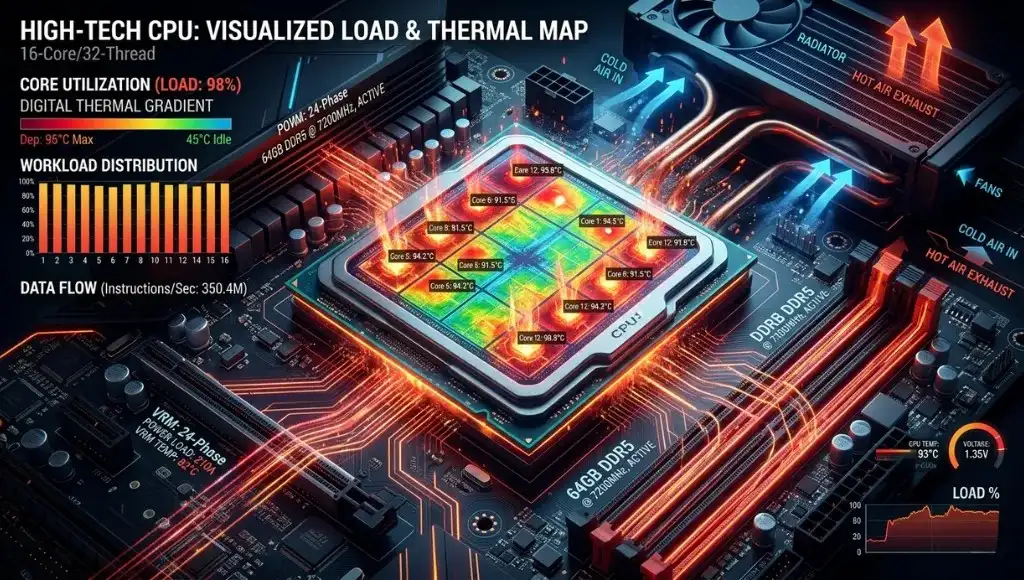
Why Processor Stress Test Software Matters in 2026
CPU-intensive applications, gaming, and AI workloads demand stable processors. Stress test software ensures your CPU maintains peak performance without crashes or thermal throttling, which is crucial for both professional and personal systems.
Recent changes include:
- New Intel & AMD architectures (2025–2026): Higher core counts require robust testing (AnandTech, 2026).
- AI and ML software growth: Increased workloads put stress on CPUs (Forbes, 2026).
For example, a video rendering studio reported 30% fewer system crashes after implementing regular CPU stress testing.
Understanding CPU stability requires familiarity with software testing basics, including test planning, monitoring, and error analysis, which complement processor stress test routines.
How Processor Stress Test Software Works (Step-by-Step)
Stress test software pushes your CPU to 100% utilization using benchmark routines to detect instability, overheating, or throttling. These tests provide actionable insights for overclocking, cooling improvements, or system optimization.
Step 1: Select the Right Tool
Choose software that matches your CPU type and testing goals. Popular options include Prime95, AIDA64, and IntelBurnTest. Each offers specific benchmarks for stability and thermal monitoring.
Pro Tip: Open-source tools like Prime95 are reliable for free testing.
Step 2: Configure Stress Settings
Set duration, workload intensity, and number of threads. For example, Prime95 allows small FFTs for heat stress or large FFTs for stability testing.
IntelBurnTest leverages the Linpack benchmark to apply maximum CPU workload efficiently.
To accurately measure CPU performance during stress tests, you can also refer to our guide on benchmark software testing, which explains standard benchmarking techniques and results interpretation.”
Step 3: Monitor Temperatures
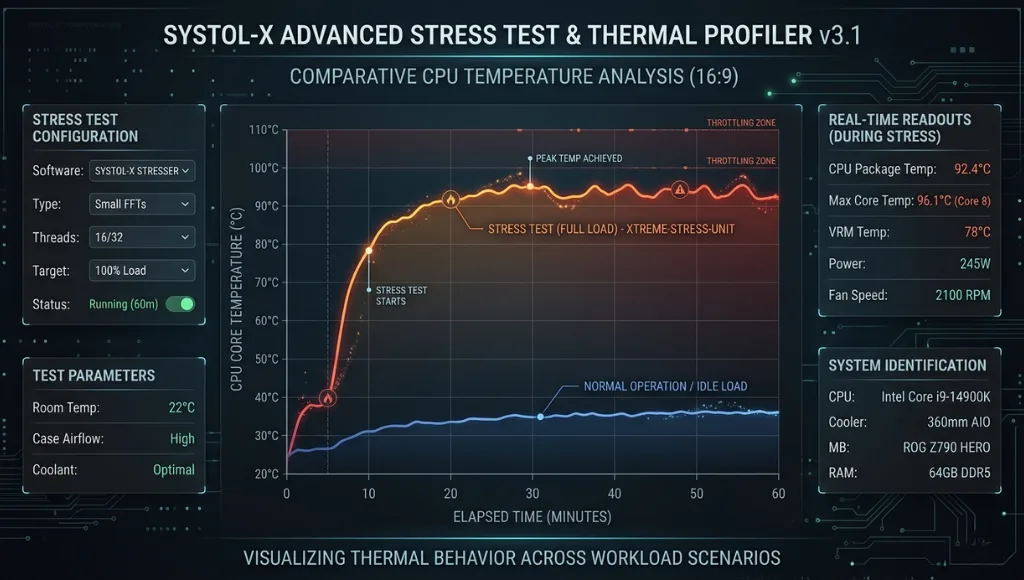
Use monitoring tools like HWMonitor or CoreTemp alongside stress tests. Avoid overheating by stopping tests if temperatures exceed safe thresholds (usually 90°C+ for most CPUs).
Step 4: Analyze Results
Check for errors, system freezes, or crashes. Repeated errors indicate hardware issues, inadequate cooling, or need for voltage adjustments.
Best Tools for Processor Stress Test Software
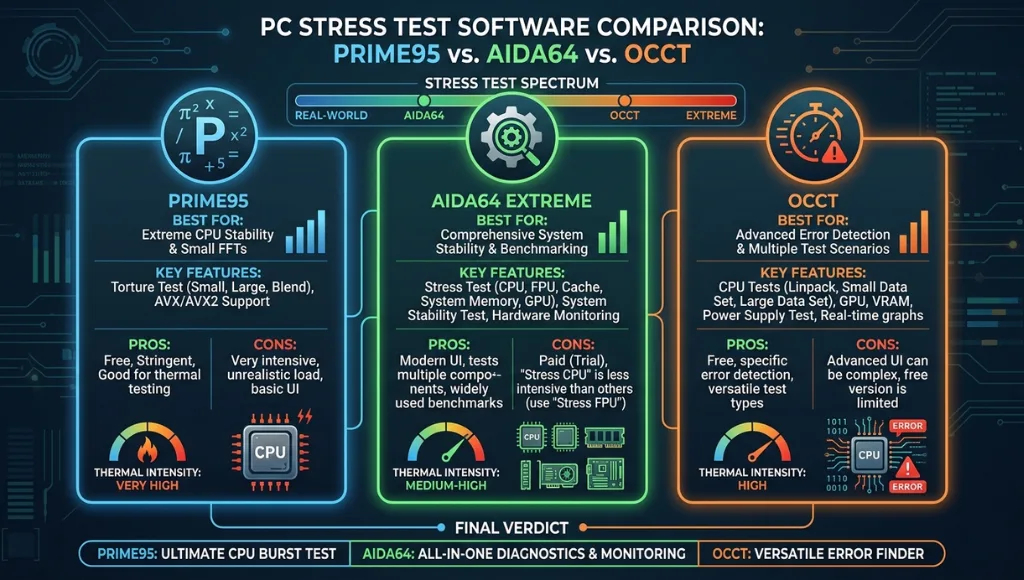
The best stress test tools combine reliability, accuracy, and compatibility. They help IT professionals and gamers ensure CPU stability without risking hardware damage.
| Tool Name | Best For | Key Feature | Price Range | Limitation |
|---|---|---|---|---|
| Prime95 | Stability & Overclocking | Torture test & FFT workloads | Free | No GUI |
| AIDA64 | Comprehensive Benchmark | System diagnostics | $39-$149 | Paid license required |
| IntelBurnTest | Quick Thermal Test | Linpack stress | Free | Only Intel CPUs |
| OCCT | Multi-component Testing | CPU, GPU, PSU checks | Free/Paid | Complex interface |
Choose Prime95 for free, robust testing, AIDA64 for professional diagnostics, and OCCT if testing multiple components simultaneously.
Entities: Intel, AMD.
Mistakes to Avoid During Processor Stress Testing
Common Processor Stress Test Mistakes to Avoid
For guidance on safe overclocking practices while stress testing, check community insights on Overclock.net.
Mistake 1: Ignoring Temperatures
Many users overlook CPU heat. Always monitor temperature to avoid damage.
Fix: Use HWMonitor or CoreTemp during tests.
Mistake 2: Short Testing Duration
Stopping tests too soon may miss intermittent errors.
Fix: Run at least 1–2 hours for meaningful results.
Mistake 3: Overclocking During Initial Tests
Overclocked CPUs can fail prematurely during stress tests.
Fix: Test at stock speeds first, then gradually overclock.
Mistake 4: Using the Wrong Tool
Some tools may not fully stress certain CPU architectures.
Fix: Match your software to CPU type (IntelBurnTest for Intel, Prime95 for AMD/Intel).
Frequently Asked Questions
Prime95 and AIDA64 are widely regarded as safe if used with temperature monitoring. Always run tests in short bursts initially to ensure cooling sufficiency.
Yes, if temperatures exceed safe limits or if the test is left unattended. Always monitor temps (HWMonitor, CoreTemp) and have proper cooling.
Run at least 1–2 hours for meaningful stability results. For overclocked CPUs, 4–6 hours is recommended.
Yes, free tools like Prime95 and IntelBurnTest provide reliable CPU stress testing. Paid tools offer additional diagnostics and support.
Conclusion
- Stress test software ensures CPU reliability under heavy workloads.
- Select the right tool, configure settings, and monitor temperatures.
- Avoid common mistakes like ignoring heat or short test durations.