Video Editing Tips
Good video editing is not about adding as many effects as possible. It is about making every scene easier to understand, more enjoyable to watch, and better suited to the platform where it will be published.
Whether you are creating YouTube videos, social media Reels, tutorials, product videos, online courses, or short-form content, the right Video Editing Tips can help you produce cleaner and more professional results without buying expensive equipment.
The biggest improvements usually come from simple things: better organization, tighter cuts, cleaner audio, consistent colors, readable captions, and correct export settings.
In this guide, you will learn practical Video Editing Tips that beginners and experienced creators can use to improve their editing workflow.
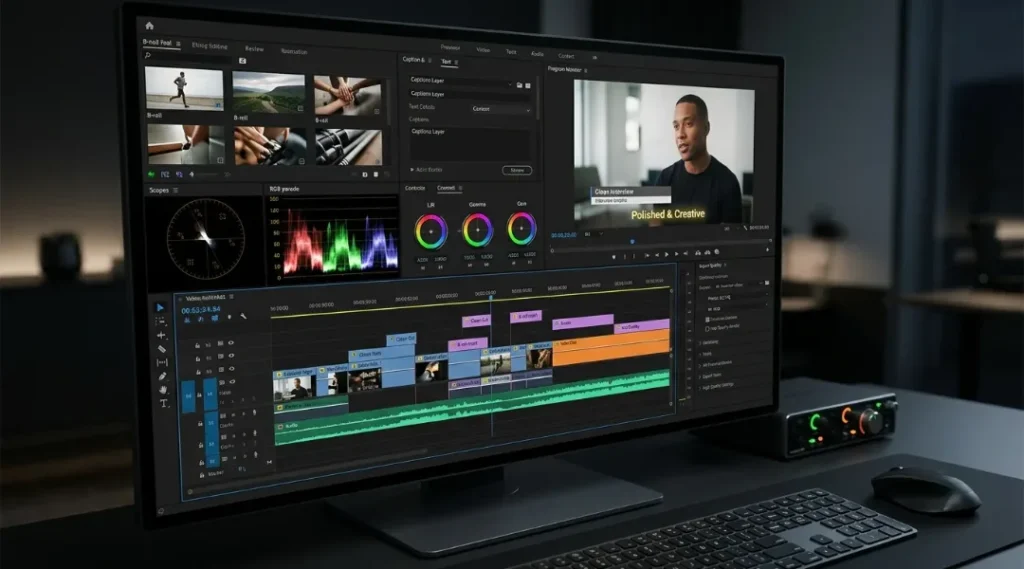
Table of Contents
ToggleWhy Video Editing Tips Matter
Raw footage rarely tells the complete story. Editing removes unnecessary moments, improves pacing, highlights important information, and guides viewers from one scene to the next.
A good editor does not simply cut clips together. They decide what the audience needs to see, hear, and understand at every moment.
These Video Editing Tips are especially useful when you want to:
- Make videos more professional
- Improve viewer retention
- Remove unnecessary footage
- Make dialogue easier to understand
- Create smoother transitions
- Improve color consistency
- Add useful captions
- Reduce editing time
- Export videos correctly for different platforms
The goal is not to make your video complicated. The goal is to make it clear.
Video Editing Tips for a Faster Editing Workflow
Before adding effects or transitions, build a clean editing workflow. Organization can save more time than any shortcut.
1. Organize Your Video Files First
Create separate folders for:
- Raw video
- Audio
- Music
- Images
- Graphics
- Project files
- Exports
Rename important clips so you can identify them quickly.
For example, instead of keeping filenames such as IMG_4587.MOV, use names such as intro-camera-a.mov or product-closeup-01.mov.
A well-organized project makes it much easier to find the right footage when your timeline becomes large.
2. Watch Your Entire Footage Before Editing
Do not immediately start cutting the first clip you see.
Watch your footage and identify:
- Strong takes
- Mistakes
- Repeated sections
- Useful B-roll
- Background noise
- Important reactions
- Potential opening shots
This simple preparation helps you understand the story before making editing decisions.
3. Create a Rough Cut First
A rough cut focuses on the story rather than visual polish.
Place your best clips on the timeline and remove:
- Long pauses
- Mistakes
- Repeated sentences
- Unnecessary introductions
- Empty sections
Do not spend ten minutes choosing a transition for a clip that may later be removed.
Build the structure first, then polish it.
4. Keep Your Cuts Purposeful
One of the most important Video Editing Tips is to cut with a reason.
A cut can:
- Move the story forward
- Remove unnecessary information
- Change perspective
- Show a reaction
- Introduce new information
- Improve pacing
If a clip does not contribute anything, ask whether the viewer really needs it.
Fast editing does not automatically mean good editing. The right pace depends on the subject, audience, and platform.
5. Improve Audio Before Adding Effects
Poor audio can make a video feel amateur even when the visuals look excellent.
Clean your dialogue and make sure the speaker is easy to hear.
Useful audio editing techniques include:
- Removing distracting background noise
- Reducing sudden volume changes
- Balancing dialogue and music
- Adding gentle fades
- Avoiding overly loud background music
For talking-head videos, tutorials, and educational content, clear speech should normally be more noticeable than the background music.
6. Use B-Roll to Hide Unnecessary Cuts
B-roll is additional footage placed over the main footage.
For example, if someone is explaining how to use a laptop, you can show close-up footage of the laptop instead of keeping the speaker on screen for the entire explanation.
B-roll can:
- Hide jump cuts
- Demonstrate what the speaker is discussing
- Improve visual variety
- Make explanations easier to understand
Use relevant B-roll rather than adding random footage simply to make the video look busy.
7. Use Transitions Sparingly
Another important principle among Video Editing Tips is knowing when not to use a transition.
Simple cuts work extremely well for most content.
Use fades, dissolves, or other transitions when they have a clear purpose, such as:
- Showing a change in time
- Moving between locations
- Separating major sections
- Creating a specific visual mood
Too many flashy transitions can distract viewers from the actual content.
8. Improve Color Correction Before Color Grading
Color correction and color grading are related but different.
Color correction focuses on making footage look natural and consistent. You may need to adjust:
- Exposure
- White balance
- Contrast
- Shadows
- Highlights
- Saturation
Color grading comes afterward and creates a particular visual style.
For beginners, consistency is more important than creating a dramatic cinematic look.
DaVinci Resolve is particularly useful for editors who want an advanced workflow for color correction and color grading.
9. Add Captions and On-Screen Text
Captions help viewers understand your content when they cannot or do not want to listen to audio.
They are especially useful for:
- Social media videos
- Tutorials
- Educational videos
- Interviews
- Short-form content
Keep captions readable. Use sufficient contrast, avoid covering important visual information, and give viewers enough time to read each line.
10. Remove Dead Space
Long pauses can make a video feel slow.
Look for moments where:
- Someone is searching for words
- A sentence contains unnecessary repetition
- The camera remains still for too long
- Nothing meaningful happens
- An introduction takes too long
Removing small pieces of dead space can make a video feel much more engaging without changing its core message.
If you use Premiere Pro, Adobe’s official documentation provides detailed information about editing workflows, effects, audio, and exporting.
Video Editing Tips for Better Visual Quality
After the basic edit is complete, refine the visual presentation.
11. Maintain Consistent Fonts and Graphics
Do not use five different fonts in a single video unless the design specifically requires it.
Choose a small visual system for:
- Titles
- Subtitles
- Section headings
- Lower thirds
- Callouts
Consistency makes the video easier to recognize and understand.
If you create thumbnails or supporting graphics separately, tools such as Canva can help maintain a consistent visual identity. ZProStudio’s comparison of Canva and Photoshop can also help when deciding which design workflow suits your needs.
12. Use Keyframes for Controlled Movement
Keyframes allow you to change properties over time.
You can use them for:
- Zooming into an important detail
- Moving text
- Adjusting image position
- Creating simple camera movement
- Animating graphics
Do not overuse zoom effects. A subtle movement can add energy without becoming distracting.
13. Match Your Video Format to the Platform
Before editing, know where the video will be published.
Common formats include:
- YouTube: 16:9
- YouTube Shorts: 9:16
- Instagram Reels: 9:16
- TikTok: 9:16
- Square social content: 1:1
Choosing the correct aspect ratio early prevents unnecessary cropping later.
14. Use the Right Export Settings
Export settings have a major effect on final quality.
Before exporting, check:
- Resolution
- Frame rate
- Video codec
- Bitrate
- Audio format
- Aspect ratio
For most standard YouTube projects, exporting at the same frame rate as the original footage is a sensible starting point.
Avoid repeatedly exporting and re-importing the same video because every unnecessary compression step can reduce quality.
15. Watch the Final Export Before Publishing
This is one of the easiest Video Editing Tips to overlook.
Do not assume the export is perfect just because the timeline looked correct.
Watch the final file and check:
- Audio synchronization
- Missing clips
- Black frames
- Spelling errors
- Caption timing
- Audio volume
- Transitions
- Color problems
- Exported resolution
A five-minute quality check can prevent an embarrassing publishing mistake.
A Simple Video Editing Workflow for Beginners
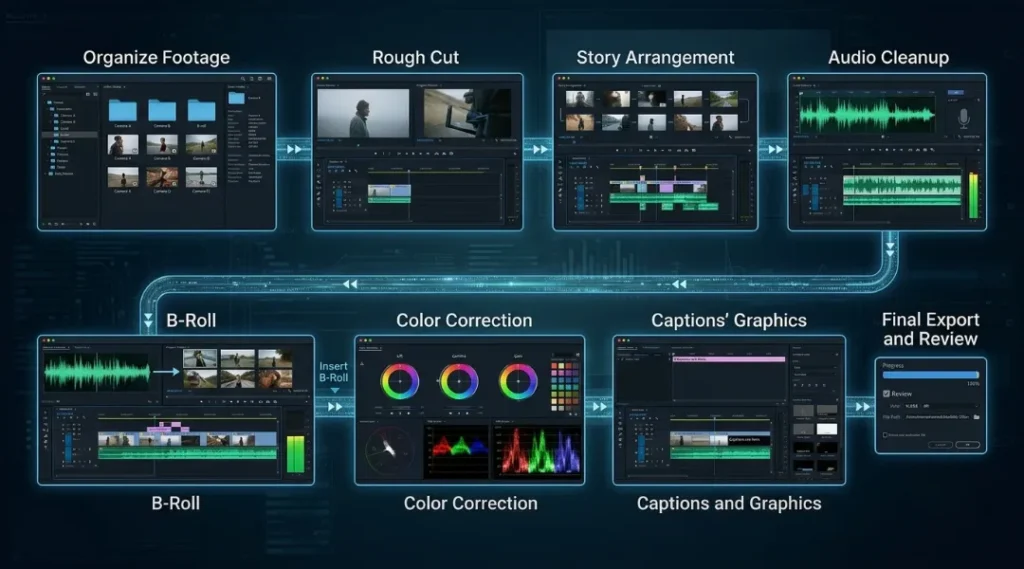
If you are new to editing, do not try to learn every feature in your software at once.
Follow this order:
Step 1: Import and organize footage
Create folders and label important clips.
Step 2: Build the rough cut
Remove mistakes, pauses, repeated sections, and unnecessary footage.
Step 3: Arrange the story
Make sure each scene naturally leads to the next.
Step 4: Clean the audio
Prioritize dialogue clarity and balance background music.
Step 5: Add B-roll
Use supporting footage where it improves the explanation or hides jump cuts.
Step 6: Correct the color
Fix exposure, white balance, contrast, and consistency.
Step 7: Add captions and graphics
Keep text readable and visually consistent.
Step 8: Add transitions and animation
Use effects only where they improve the viewer’s experience.
Step 9: Export
Select the appropriate resolution, frame rate, codec, and bitrate.
Step 10: Review the exported file
Watch the final version before uploading.
This workflow is much easier for beginners than trying to perfect every clip individually from the beginning.
Common Video Editing Mistakes to Avoid
Even a technically capable editor can create a weak video by making a few common mistakes.
Too Many Effects
Effects should support the story. If viewers notice the effect more than the message, reduce it.
Poor Audio
Never treat audio as an afterthought. Viewers are usually more tolerant of a minor visual problem than difficult-to-understand speech.
Long Introductions
Get to the useful information quickly. A long logo animation or unnecessary introduction can cause viewers to leave before the main content starts.
Inconsistent Colors
Different clips can have noticeably different brightness or white balance. Basic color correction can make the entire video feel more cohesive.
Excessive Text
Do not place entire paragraphs on screen. Use short phrases that reinforce the spoken message.
Editing Without a Story
A collection of beautiful clips is not automatically a good video. Every section should have a purpose.
Choosing the Right Computer for Video Editing
our editing software and footage resolution affect the computer hardware you need.
If you regularly edit 4K footage, work with multiple video layers, or use demanding effects, pay attention to RAM, processor performance, GPU capability, storage speed, and cooling.
ZProStudio’s Best Laptops for Video Editing guide covers these hardware considerations in greater detail.
You can also use the broader Laptop Buying Guide when comparing hardware requirements before purchasing a new computer.
If your existing laptop becomes slow during editing, upgrading RAM may also help depending on the machine. See ZProStudio’s guide to upgrading laptop RAM before purchasing memory.
Best Video Editing Tips for Faster Results
You do not need to memorize dozens of editing tricks. Start with the fundamentals.
The most useful habits are:
- Organize footage before editing.
- Build a rough cut before adding effects.
- Remove unnecessary pauses.
- Prioritize clean audio.
- Use B-roll with a purpose.
- Keep transitions simple.
- Correct colors consistently.
- Use readable captions.
- Export using appropriate settings.
- Always review the final video.
These Video Editing Tips work across many editing applications because they focus on the editing process rather than a specific software interface.
Frequently Asked Questions About Video Editing Tips
Start with organization, clean cuts, good audio, simple color correction, readable captions, and correct export settings. Beginners should learn these fundamentals before focusing on advanced effects.
Focus on clean cuts, consistent color, clear audio, purposeful B-roll, readable graphics, and controlled transitions. Professional-looking videos are usually more about consistency and storytelling than expensive effects.
Choose software based on your computer, budget, and type of content. Beginners can start with an accessible editor and move to more advanced software as their needs grow. The most important thing is learning editing fundamentals rather than constantly switching applications.
Organize files, create reusable templates, use keyboard shortcuts, build a consistent folder structure, and create a repeatable editing workflow. Over time, these habits can save more time than learning additional effects.
No. Most videos can be edited effectively using standard cuts, with occasional fades or other transitions when they have a clear storytelling purpose. Too many transitions can make a video feel distracting.
For a standard widescreen YouTube video, 1920 x 1080 is a common choice. If your original footage and workflow support higher resolution, you can export at 2560 x 1440 or 3840 x 2160. Always consider the original footage, editing performance, and intended viewing experience.
Conclusion
The best Video Editing Tips are not complicated tricks. They are practical habits that make your videos clearer, smoother, and easier to watch.
Start by organizing your footage and creating a strong rough cut. Then improve the audio, add useful B-roll, correct colors, refine graphics, and export using the right settings.
Most importantly, remember that editing should serve the story. A simple cut at the right moment is often more effective than an impressive visual effect.
Use these Video Editing Tips consistently, and your editing process will become faster while your finished videos become more polished and professional.