Video Conference Tips
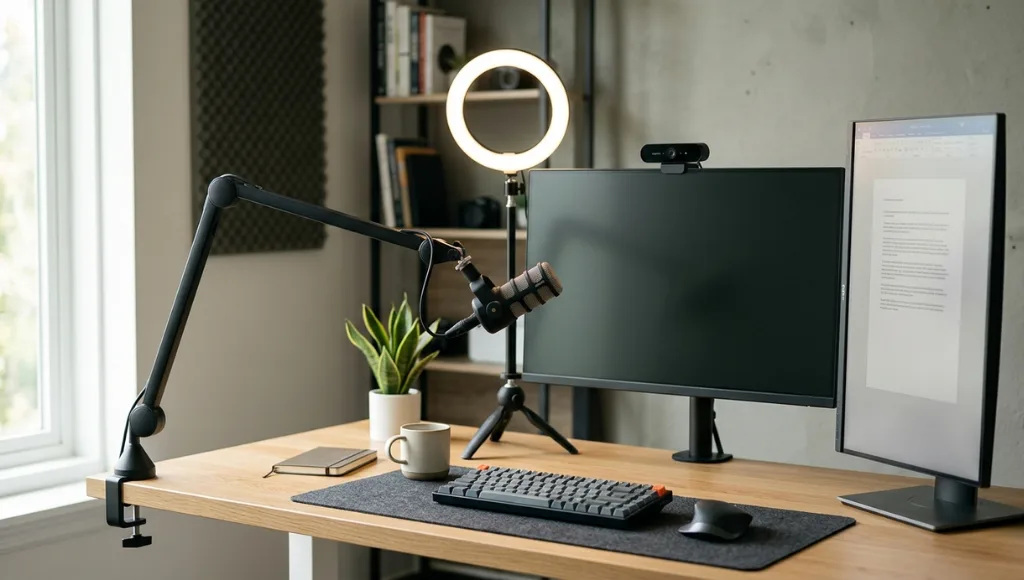
Table of Contents
ToggleYou’ve been on that call. Someone’s dog barked mid-sentence. Another person was backlit like a villain in a thriller. The internet dropped at the worst possible moment, right before you were about to say something important. We’ve all been there, and it’s frustrating in ways that feel weirdly disproportionate to how small the problems seem.
Remote work isn’t going anywhere. According to a 2024 Owl Labs State of Remote Work report, 62% of full-time employees work remotely at least part of the time, and video conferencing has become the primary way distributed teams stay connected. With 1 in 3 workers reporting that poor call quality actively erodes their confidence in colleagues’ competence, the stakes are higher than most people realize.
I’ve spent the better part of five years testing remote collaboration tools and coaching teams on digital communication, and the truth is this: most video call problems aren’t technical. They’re behavioral. The good news? Behavior is fixable.
Here are 15 battle-tested video conference tips that will genuinely improve how you show up on screen, whether it’s a daily standup, a client pitch, or a job interview.
What Are Video Conference Tips and Why Do They Matter?
Video conference tips are practical techniques and best practices designed to improve the audio quality, visual presentation, and overall communication effectiveness of online meetings. They cover hardware setup, software settings, body language, and connection reliability. Applying even a handful of these strategies can reduce meeting fatigue, increase perceived professionalism, and cut average call duration by up to 24%, according to research published by Harvard Business Review.
Why Most Video Calls Still Feel Broken in 2025
Here’s the uncomfortable reality: the average employee sits through 27 hours of meetings per month. According to Zippia’s 2024 Workplace Statistics, 71% of those meetings are considered unproductive. That’s not just a scheduling problem. It’s a setup problem.
Most people joined remote work overnight in 2020 and never course-corrected. They’re using built-in laptop microphones (which pick up every keystroke), sitting with a bright window behind them, and relying on the default 720p webcam that was included as an afterthought. Fast-forward to 2025, and those habits are still baked in.
The compounding effect is real. Poor audio forces participants to strain their listening, which increases cognitive load. According to research from Stanford’s Virtual Human Interaction Lab, that extra cognitive effort is one of the leading drivers of ‘Zoom fatigue,’ a phenomenon affecting 49% of video call users weekly.
And here’s what most guides don’t tell you: your colleagues are judging call quality as a proxy for competence. A 2023 study published in Computers in Human Behavior found that participants with clear audio were rated as more intelligent and prepared than equally qualified peers with degraded audio, even when the content of what they said was identical.
That’s the kind of invisible tax you can’t afford to keep paying.
How to Successfully Set Up a Video Conference: A 4-Stage Framework
Getting your setup right isn’t a one-time task. Think of it as four layers you build once and maintain over time. Here’s the framework I use with the teams I coach at zprostudio.com.
Stage 1: Audio First (Always Audio First)
If you can only fix one thing, fix your microphone. A $40 USB condenser mic like the Samson Go Mic or the Blue Snowball will outperform your laptop’s built-in hardware by a factor that’s almost embarrassing. Position it 6 to 8 inches from your mouth, slightly off-axis to reduce plosive sounds.
- Use a dedicated USB microphone or wired headset for professional calls.
- Enable noise suppression in Zoom, Google Meet, or Teams (Settings > Audio > Noise Suppression).
- Do a quick solo test recording before any important meeting.
Stage 2: Lighting for Trust
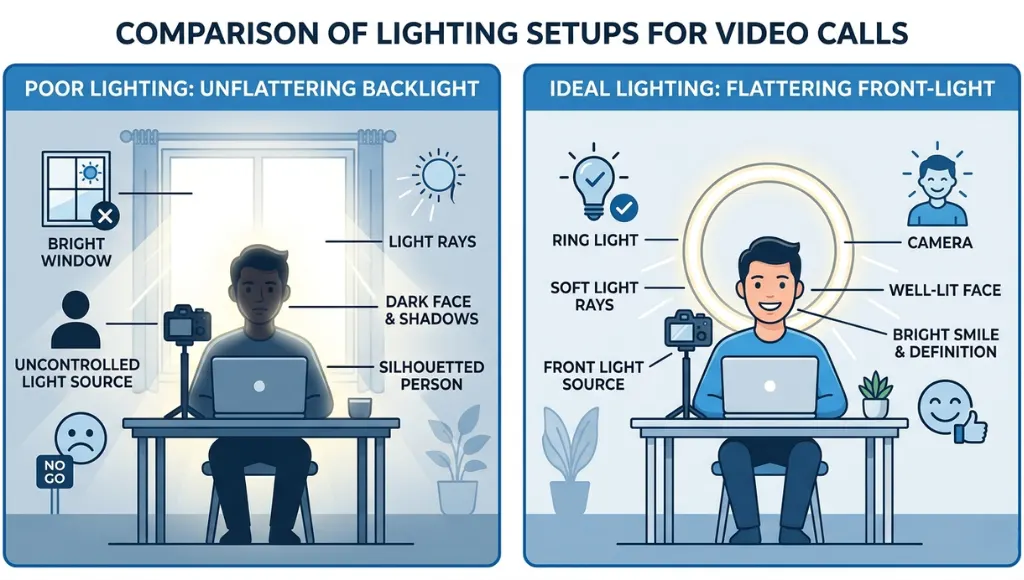
Lighting is a visual trust signal. A ring light or a simple softbox placed in front of you, at eye level, eliminates the grim shadows and harsh backlit silhouettes that make people look unapproachable. Natural window light works well too, as long as the window is in front of you, not behind.
- Position your primary light source directly in front of your face.
- Avoid overhead fluorescent lighting, it casts unflattering shadows.
- For video interview tips, a simple $25 ring light is genuinely enough.
Stage 3: Camera Height and Framing
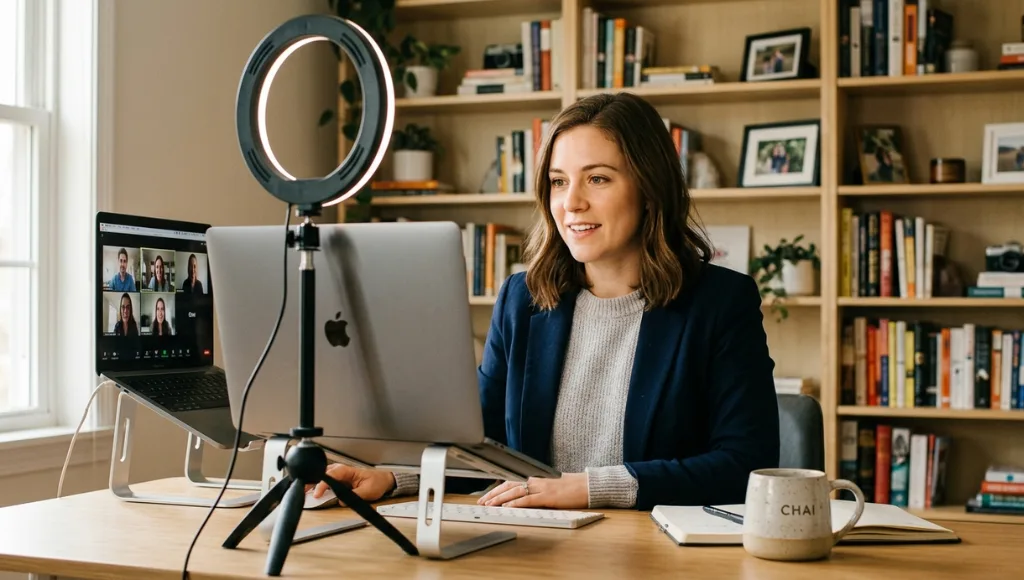
Your camera should sit at eye level or very slightly above. Looking down into a webcam is the fastest way to signal disengagement, even if you’re actively listening. Prop your laptop on a stack of books, use a laptop stand, or invest in a dedicated webcam mount.
- Frame yourself with your eyes in the upper third of the screen.
- Leave a small amount of headroom above your head, not too much.
- Use a neutral, uncluttered background or a subtle virtual background if your space is unavoidable.
Stage 4: Connection and Software Reliability
A wired Ethernet connection will always beat WiFi for stability, especially on calls over 30 minutes. If wired isn’t possible, sit close to your router and close unused browser tabs. Chrome tabs are notorious RAM consumers that quietly choke bandwidth and processing power during calls.
- Use a wired Ethernet connection when possible, especially for video interviews.
- Close bandwidth-heavy apps like Google Drive sync, Dropbox, or cloud backups before joining.
- Test your internet speed at fast.com before any high-stakes call. Aim for 10 Mbps upload minimum for 1080p video.
Tips for Video Conference From Home: What the Office Doesn’t Prepare You For
Working from home introduces a completely different class of challenges. The dog doesn’t know your meeting schedule. Deliveries happen at the worst times. Your partner’s call overlaps with yours in a space designed for one person to work quietly.
Here’s what actually helps:
- Create a ‘go signal’ for your household. A simple red light strip (around $12 on Amazon) mounted outside your workspace door is more effective than any polite conversation about not interrupting meetings.
- Use a virtual knock protocol. For recurring household interruptions, set a shared calendar block that mirrors your meeting schedule. Visibility is your first line of defense.
- Pre-configure your equipment. Spend 10 minutes the night before any important call confirming camera, microphone, and platform access. Nothing tanks confidence like scrambling to update Zoom at 9:01 AM.
- Background audio management is underrated. Tools like NVIDIA RTX Voice, Krisp, or the noise suppression built into modern meeting platforms use AI to strip ambient sound in real time. They work remarkably well.
I know a UX researcher in Austin who started scheduling 5-minute solo ‘tech checks’ before every external client call after one disastrous pitch where her screen-share software crashed mid-demo. That small habit cost her nothing and saved her from repeating a genuinely painful experience.
Interview Tips for Video Conferences: The Details That Separate Candidates
Job interviews on video carry a specific kind of pressure. You’re being evaluated on what you say, how you look, and whether the technology cooperates, all simultaneously. Getting the setup right removes one of those variables completely.
Pre-Interview Checklist
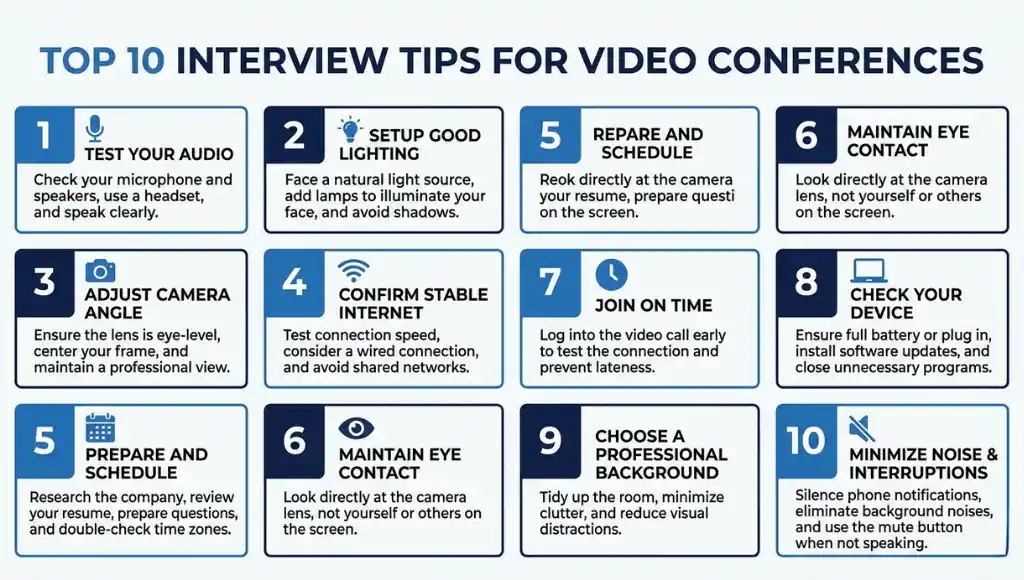
- Test your camera and microphone 30 minutes before, not 2 minutes.
- Close every app except the meeting platform. Chrome especially.
- Have the interviewer’s contact info and a phone number as a backup, just in case the platform drops.
- Charge your laptop fully or keep it plugged in.
- Silence all notifications, including Slack, email, and phone.
During the Interview
Look at the camera lens, not at the person’s face on screen. It feels strange, but it creates the illusion of direct eye contact, which reads as confidence and engagement to the interviewer. Most people look at the video thumbnail and appear slightly distracted as a result.
Pause deliberately before answering. A 2-second pause after a question before responding reads as thoughtfulness on video. In person, the same pause might feel odd. On screen, it signals that you’re processing rather than just reacting.
5 Quick Video Conference Tips You Can Apply in the Next 10 Minutes
No time for a full setup overhaul? These changes take under 10 minutes and make a noticeable difference on your next call.
- Enable HD video. In Zoom: Settings > Video > Enable HD. In Google Meet: Settings > Video > Send resolution (maximum).
- Blur your background. Built into Zoom, Meet, and Teams now. It removes visual clutter without requiring a tidy space.
- Switch to speaker view by default. Grid view is exhausting on long calls. Speaker view reduces visual processing load.
- Update your display name. First name + Last name + Company/Role. It’s a professional signal that costs nothing.
- Mute when not speaking. Even subtle keyboard sounds or breathing artifacts degrade call audio quality for everyone.
Frequently Asked Questions About Video Conference Tips
Audio quality is the most impactful single improvement you can make. Poor audio makes content harder to absorb and signals a lack of preparation to your audience. A basic USB microphone or a wired headset transforms call quality immediately, often more than upgrading your webcam.
Successfully setting up a video conference from home requires four things: a stable wired or strong WiFi connection, a dedicated USB microphone or headset, proper front-facing lighting (natural or a ring light), and a camera positioned at eye level. Close unnecessary apps before joining and test everything 30 minutes before your first call of the day.
For video conference interviews, test all equipment 30 minutes in advance, maintain eye contact by looking at the camera lens rather than the screen, pause 2 seconds before answering questions to project thoughtfulness, and have a backup contact method ready in case the platform fails. A neutral or blurred background keeps the focus on you.
Switch to speaker view to reduce visual overload, take your camera off for listening-only segments when appropriate, build in 5-minute breaks for calls over 60 minutes, and use the 20-20-20 rule (every 20 minutes, look at something 20 feet away for 20 seconds). According to Stanford research, hiding your own self-view during calls also significantly reduces fatigue.
For standard 720p video conferencing, you need at least 1.5 Mbps upload and download. For 1080p HD, aim for 8 to 10 Mbps upload minimum. For hosting a group call with 10 or more participants, 25 Mbps or higher upload provides a comfortable buffer. Use fast.com to test your current speeds before critical calls.
Virtual backgrounds are widely accepted in professional settings, particularly when they're neutral and clean (a blurred version of your actual background, a simple office scene, or a branded background from your company). Animated or novelty backgrounds are best reserved for casual team calls. Many companies like Apple and Google provide branded virtual background assets for employee use.
Google Meet and Zoom's free tier cover most individual and small team needs. Google Meet allows up to 100 participants for 60-minute calls at no cost. Zoom's free plan supports 40-minute group meetings. For open-source alternatives, Jitsi Meet offers unlimited calls with no account required, which is particularly useful for privacy-sensitive industries.
Echo on video calls is almost always caused by microphone feedback from speakers. The fastest fix is to use headphones or earbuds, which prevent the microphone from picking up audio output. Alternatively, enable echo cancellation in your platform's audio settings. If the echo is coming from someone else on the call, muting them briefly and asking them to use headphones usually resolves it.
Final Takeaways: Making Video Calls Work for You
Five years of coaching distributed teams has taught me that the difference between a draining video call and an effective one usually comes down to preparation, not budget. You don’t need a $2,000 studio setup to show up professionally. You need a $40 microphone, a lamp pointed at your face, and 10 minutes of testing before anything that matters.
Three things worth remembering:
- Audio is everything. Fix that before your camera, background, or lighting.
- Eye contact means looking at the lens. This single habit changes how engaged and confident you appear on every call.
- Preparation compounds. Every call where your setup works flawlessly builds professional trust that generic meeting behavior erodes.
Whether you’re preparing for a high-stakes job interview, leading a team standup from your kitchen, or pitching a client from three time zones away, these video conference tips are the foundation. The technology is already good enough. Now it’s your turn to use it well.
Try the best free video editing software right now? Tested and ranked options for Windows, Mac, and mobile, with and without watermarks, covering DaVinci Resolve, Kdenlive, CapCut, and more.