Laptop Buying Guide: How to Choose the Right Laptop
Buying a laptop can feel confusing when every product listing promises faster performance, longer battery life, sharper displays, and smarter features. Two laptops may look almost identical but deliver very different experiences once you start working, studying, editing videos, or playing games.
The solution is to compare laptops according to your actual needs instead of choosing the model with the biggest discount or the most impressive processor name.
This laptop buying guide explains how to evaluate the important specifications, set a realistic budget, compare operating systems, and identify features that are worth paying for. Whether you need an affordable laptop for college, a reliable computer for remote work, or a powerful machine for creative projects, you will learn how to narrow down your choices.
You do not need to understand every technical term before shopping. You need to know which specifications affect your daily experience, which features you can compromise on, and which limitations may become frustrating later.
Quick answer: Start by defining your main workload and budget. Then compare the processor, RAM, SSD capacity, display, battery, keyboard, ports, weight, warranty, and upgrade options. Finally, check independent reviews and confirm the exact configuration before buying.
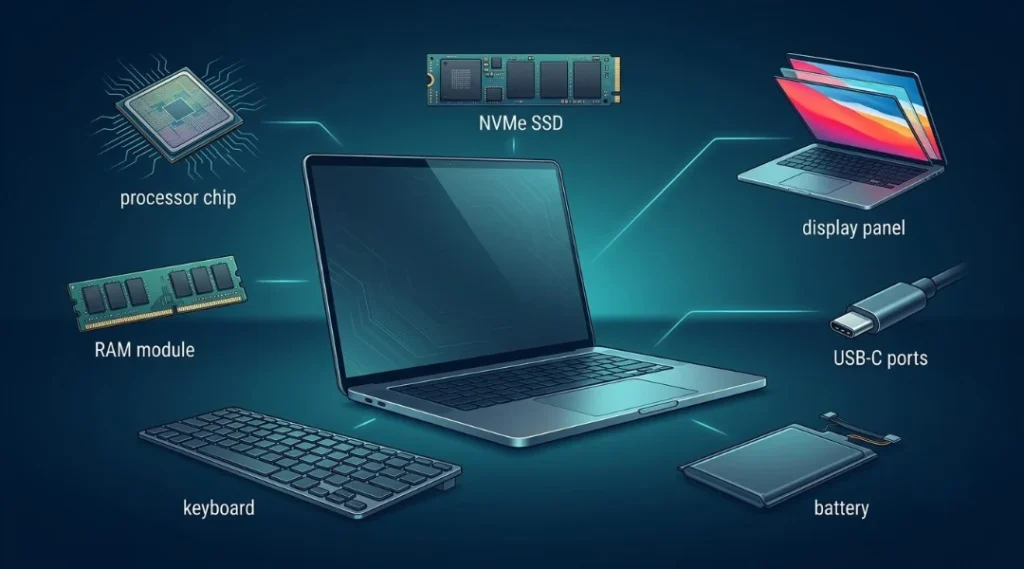
Table of Contents
ToggleWhat Is a Laptop Buying Guide, and Why Do You Need One?
A laptop buying guide is a practical framework for selecting a computer that fits your workload, budget, and expected period of ownership. Instead of treating specifications as a list of numbers, it explains what those numbers mean for everyday use.
For example, a student who mainly writes assignments and attends online classes may benefit more from a lightweight laptop with a comfortable keyboard and dependable battery than from a bulky gaming computer. A video editor, however, may need a more powerful processor, additional memory, substantial storage, and a display capable of reproducing colours accurately.
The right choice depends on the relationship between hardware, software, portability, and price.
A structured approach also prevents common purchasing mistakes, such as paying extra for graphics performance you never use, buying insufficient storage, or discovering that essential software is incompatible with your operating system.
Before comparing models, answer these three questions:
What applications will I use most frequently?
How much can I comfortably spend, including accessories?
How long do I want the laptop to remain useful?
Your answers provide a starting point for every decision that follows.
Laptop Buying Guide: How to Choose the Right Laptop in 7 Steps
Follow these seven steps in order. They help you move from a general requirement to a shortlist of suitable laptops without getting distracted by marketing claims.
Step 1: Identify Your Main Purpose
Begin with your primary use case. A laptop designed for everyday productivity does not need the same hardware as a machine used for 3D rendering or high-end gaming.
For students: Prioritise portability, a comfortable keyboard, dependable battery performance, a webcam, and sufficient memory for browsers, documents, presentations, and video calls.
For office and remote work: Look for stable performance, a good webcam and microphone, a reliable Wi-Fi connection, comfortable typing, and enough ports for your monitor and accessories.
For programming: Consider processor performance, memory, keyboard quality, screen resolution, and compatibility with your development tools. Developers working with virtual machines, containers, or large projects may benefit from 32GB of RAM.
For photo and video editing: Give more attention to sustained processor performance, GPU acceleration where supported, memory, fast storage, display quality, and external monitor connectivity.
For gaming: Compare the graphics processor, cooling system, power limits, display refresh rate, and performance in games you actually play. A powerful graphics chip cannot perform at its best if the laptop cannot cool it properly.
For general home use: Web browsing, online shopping, email, video streaming, and basic documents usually do not require a premium workstation. A well-built mainstream laptop may be sufficient.
Write down your three most frequent tasks. Use them to decide which features are essential and which are optional.
Step 2: Set a Realistic Budget
Your budget should reflect the complete cost of ownership, not just the advertised laptop price.
Remember to account for a protective sleeve or bag, a mouse, software subscriptions, a USB-C hub, external storage, and any accessories needed for your work. If you frequently travel, a spare charger may also be useful.
Rather than treating fixed price ranges as universal rules, compare the configurations available in your country at the time of purchase. Prices change with promotions, currency movements, product launches, and local availability.
Use these broad categories as a starting point:
| Budget category | Suitable use | Main trade-off |
|---|---|---|
| Entry-level | Browsing, documents, basic study | Limited performance headroom and sometimes smaller storage |
| Mainstream | College, office work, multitasking | May lack advanced graphics or premium display features |
| Upper mid-range | Programming, creative work, heavier multitasking | Higher upfront cost |
| Premium or workstation | Professional production and demanding applications | Expensive, potentially heavier, and not always necessary |
| Gaming-focused | Modern games and GPU-intensive tasks | Often shorter unplugged runtime and louder cooling |
Do not assume that the most expensive model is automatically the best choice. Compare the complete specifications and determine whether the extra cost solves a real problem for you.
A slightly older model with a suitable processor, sufficient memory, and a quality display may be a better purchase than a newer model with an entry-level configuration.
Step 3: Choose the Right Operating System
The operating system determines which applications you can run, how your files are managed, and how the laptop fits into your existing devices.
Windows: Windows laptops offer a wide variety of prices, sizes, and hardware configurations. They are useful when you need Windows-specific business software, particular engineering applications, broad peripheral compatibility, or a choice of manufacturers.
macOS: Mac laptops may suit users who already work with Apple devices or depend on macOS applications. Creative professionals should confirm that their editing software, plug-ins, accessories, and preferred workflow are supported before purchasing.
ChromeOS: Chromebooks are designed around browser-based work and supported applications. They can be suitable for students and users who primarily use web applications, but compatibility with specialist desktop software should be checked carefully.
Linux: Linux may be appropriate for developers, technical users, and people who prefer an open-source operating system. Check hardware support, drivers, application compatibility, and whether you can install your preferred distribution on the chosen model.
There is no universal winner. Select the system that supports your required applications with the least friction.
For Windows devices, check the official Windows 11 system requirements. Minimum operating system requirements are not the same as recommended specifications for demanding work.
Step 4: Compare Processor Performance
The processor, also called the CPU, handles general computing tasks and influences how quickly many applications respond.
When comparing processors, do not look at the brand or product family alone. Check the exact model, generation, core configuration, power limits where available, and independent performance tests for the type of work you perform.
For basic browsing and document editing, a recent entry-level or mainstream processor may be adequate. Software development, large spreadsheets, creative applications, and other intensive workloads may benefit from a faster processor with stronger multi-core performance.
Processor labels can be misleading when compared across different manufacturers or generations. A premium label does not automatically make one chip faster than every processor with a lower label.
Consider these practical factors:
Everyday responsiveness: How quickly do applications open and switch?
Multi-core performance: How well does the processor handle work that can use multiple cores?
Power efficiency: How does it balance performance with battery consumption?
Integrated graphics: Can it handle your video, display, and light gaming requirements?
Thermal behaviour: Can the laptop sustain performance during longer workloads?
Look for independent tests of the exact laptop configuration where possible. Cooling, power settings, and chassis design can affect performance even when two laptops use similar processors.
Step 5: Choose Enough RAM and Storage
Memory and storage are different components. RAM supports the applications and tasks currently running, while storage holds the operating system, applications, documents, photos, and other files.
How much RAM do you need?
The right amount depends on your operating system, applications, and multitasking habits.
| RAM capacity | Typical use |
|---|---|
| 8GB | Basic browsing and documents, if the operating system and workload are light |
| 16GB | A practical starting point for many general-purpose laptops and multitasking |
| 32GB | Demanding creative work, larger development projects, virtual machines, and heavier multitasking |
| 64GB or more | Specialist production, complex workloads, and applications with unusually high memory requirements |
For many buyers planning to keep a laptop for several years, 16GB is a sensible target. However, 8GB may still suit a low-cost machine used for simple tasks, while certain professional workflows need substantially more.
Check whether the memory is soldered to the motherboard, replaceable, or upgradeable through an available slot. On some laptops, the installed RAM cannot be upgraded later. That makes the original configuration particularly important.
SSD or HDD: Which storage should you choose?
An SSD generally provides faster startup times and application loading than a traditional mechanical hard drive. Most new mainstream laptops are best considered with SSD storage as the primary drive.
An NVMe SSD uses the NVMe protocol, commonly over PCIe, and can offer high transfer speeds. SATA SSDs are also solid-state drives but use a different interface. Actual performance depends on the drive, laptop design, workload, and other components.
Capacity matters just as much as speed.
256GB: May be enough for light use if most files are stored online.
512GB: A practical starting point for many students and office users.
1TB: Helpful for larger software collections, photos, games, and creative projects.
2TB or more: Worth considering for large media libraries and substantial local projects.
Before buying, check the drive interface, capacity, and whether the SSD can be replaced. If you handle large video files or game libraries, calculate your likely storage needs rather than relying on a generic recommendation.
Step 6: Evaluate the Display, Keyboard, and Battery
These features affect your daily comfort and are easy to overlook when the processor and memory dominate the product listing.
Display size and resolution
A 13-inch or 14-inch laptop is often convenient for travel. A 15-inch or 16-inch model provides more screen space for spreadsheets, editing timelines, and multitasking, although it may be heavier.
Full HD resolution is sufficient for many everyday tasks. Higher resolutions can provide sharper text and additional workspace, but they may increase cost and, depending on the system, power consumption.
Look beyond resolution. Check brightness, viewing angles, colour coverage, reflections, refresh rate, and panel type.
For photography, design, and video work, a display with suitable colour coverage and accurate colour reproduction is especially important. Gaming users may value a higher refresh rate, while office users may prefer a readable matte screen.
Keyboard and touchpad
If you type for several hours each day, keyboard comfort matters. Check key spacing, travel, layout, function-key behaviour, and whether the laptop includes a numeric keypad if you need one.
The touchpad should respond consistently and support the gestures you use. If possible, try the keyboard and touchpad in person before making your decision.
Battery life
Manufacturer battery figures are useful for comparison, but your actual runtime depends on screen brightness, wireless connectivity, applications, video calls, workload, and battery condition.
Search for independent tests that resemble your normal use. A laptop used mainly for documents and web browsing may last much longer than the same model used for gaming or rendering.
Check charging speed, charger size, USB-C charging support, and whether the included adapter meets your needs. If you work away from power outlets, battery performance and portability should carry more weight in your decision.
How to Fix a Laptop Battery That Is Not Charging: Step-by-step diagnostics for Windows and macOS users, including how to interpret battery health reports and when to repair versus replace.
Step 7: Check Ports, Connectivity, Build Quality, and Warranty
A laptop can have excellent internal hardware and still be inconvenient if it lacks the connections you need.
Check the available USB-A and USB-C ports, charging connector, HDMI output, headphone jack, memory card reader, and support for external displays. USB-C describes the connector shape, not necessarily every capability. Confirm whether a port supports charging, video output, or high-speed data transfer.
For wireless connectivity, compare Wi-Fi support, Bluetooth compatibility, and any mobile broadband option you genuinely need.
Inspect the hinge, chassis, keyboard deck, and lid. A lightweight metal chassis may feel premium, but material alone does not guarantee durability. Independent reviews can reveal flex, hinge issues, heat, fan noise, and other practical limitations.
Before purchase, confirm:
The exact model number and configuration.
The included charger and accessories.
Warranty duration and service availability in your region.
The return or replacement policy.
Whether memory and storage can be upgraded.
Whether the laptop supports the external monitors and peripherals you use.
These checks help you avoid surprises after opening the box.
Laptop Specifications Explained: What Should You Check?
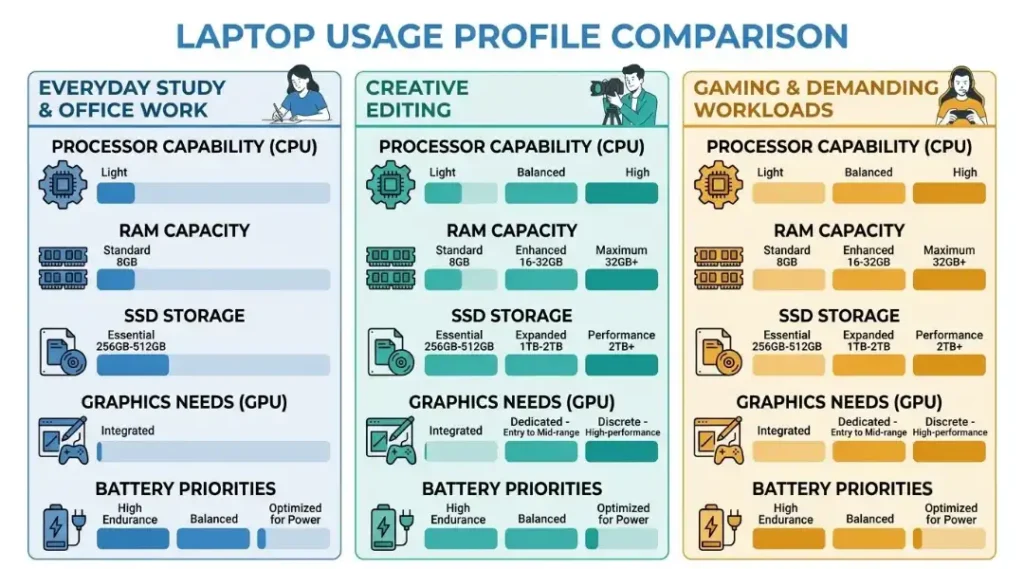
A specification sheet is useful only when you know how each item affects your work. Use this table to identify the components that deserve the most attention.
| Specification | What it means | What to check |
|---|---|---|
| CPU | General processing capability | Exact model and workload benchmarks |
| RAM | Working memory for active tasks | Capacity and upgradeability |
| SSD | Storage for files and software | Capacity, interface, and replacement options |
| GPU | Graphics and supported accelerated tasks | Integrated or dedicated graphics and application requirements |
| Display | Screen quality and workspace | Size, resolution, brightness, colour, and refresh rate |
| Battery | Unplugged operation | Independent runtime tests and charging options |
| Weight | Portability | Laptop, charger, and accessory weight |
| Ports | Wired connectivity | Monitor, storage, network, and accessory support |
| Cooling | Heat management | Fan noise and sustained performance reviews |
| Warranty | Repair and support coverage | Terms, duration, and local service access |
A balanced configuration is usually more useful than an impressive number in just one category. For example, an extremely fast processor paired with limited memory and insufficient storage may not be the right fit for a demanding workflow.
Similarly, a powerful GPU is unnecessary for many office tasks. Spend your budget on the features that solve your actual requirements.
Which Laptop Should You Buy for Your Needs?
Different users need different combinations of performance, portability, and price. Use these profiles to narrow your shortlist.
Best laptop type for students
Students often benefit from a lightweight laptop with a comfortable keyboard, reliable video-call hardware, adequate memory, and good battery performance.
If your coursework involves browser-based research, documents, presentations, and video lectures, a mainstream laptop may be sufficient. Engineering, design, architecture, and media students should check the specific software requirements of their course before purchasing.
Do not assume that every student needs a gaming laptop. A dedicated GPU adds cost, weight, heat, and power requirements that may be unnecessary for ordinary academic work.
Best Laptops for Students in 2026: A full breakdown of student-specific priorities including campus portability requirements, software compatibility by major
Best laptop type for office and remote work
Office users should prioritise everyday responsiveness, a comfortable keyboard, a clear webcam, microphone quality, stable wireless connectivity, and compatibility with workplace applications.
If you regularly connect to a large monitor, docking station, wired network, or multiple accessories, inspect the port selection carefully.
Business buyers may also need security features, device management compatibility, and warranty support. Confirm these requirements with your employer before buying a personal device for work.
Best laptop type for programming
Programming requirements vary considerably. Web development and basic scripting can run comfortably on many mainstream laptops, while mobile development, virtual machines, containers, and large codebases may require additional memory and processing power.
Check compatibility with your development environment, local databases, emulators, and any required operating system. A good keyboard, readable screen, and support for external displays can improve productivity over long working sessions.
Best laptop type for video editing and graphic design
Creative professionals should evaluate CPU and GPU performance alongside display quality, memory, storage, and thermal behaviour.
For video editing, check support for your preferred editing software, video formats, codecs, and effects. More memory and a larger SSD can be valuable when working with high-resolution footage and large project files.
For photography and design, colour accuracy and a suitable external-monitor connection may matter more than a high gaming refresh rate.
Read independent tests of the exact model, especially if you plan to render or export projects for long periods.
Best Laptops for Video Editing: Tested and Ranked: Hands-on display accuracy measurements and rendering benchmarks for every major video editing laptop
Best laptop type for gaming
Gaming performance depends on the GPU, processor, cooling system, graphics settings, screen resolution, and the games you play.
Compare benchmarks at the resolution you intend to use. A high-refresh-rate display can improve the experience in supported games, but the laptop must produce enough frames to take advantage of it.
Also consider fan noise, keyboard temperatures, charger size, and battery life away from a power outlet. Gaming laptops generally make portability compromises to deliver more graphics performance.
Gaming Laptop Buying Guide: What Spec Sheets Don’t Tell You: Fan noise levels, thermal throttling behavior, and display refresh rate explained for buyers who need a gaming laptop that also handles daily productivity work.
Best laptop type for everyday home use
For web browsing, streaming, online banking, video calls, email, and basic documents, focus on reliability and ease of use rather than premium specifications.
A good screen, comfortable keyboard, adequate SSD capacity, sufficient memory, and dependable support may be more valuable than a powerful GPU or a high-end processor.
If you mainly use browser-based services, a Chromebook could be worth comparing with a Windows laptop. Confirm that you can use the applications and peripherals you need before choosing.
- Chromebook vs Windows: Which One Actually Fits Your Life?: A direct comparison of real-world software access, performance under load, and total cost of ownership for both platforms over a four-year ownership period.
Common Laptop Buying Mistakes and How to Avoid Them
Even experienced buyers can choose the wrong laptop when they focus too heavily on specifications or discounts. Avoid these common mistakes.
Mistake 1: Buying a laptop based only on the processor name
A processor label does not tell you everything about performance. Generation, power limits, cooling, and the complete laptop design also matter.
How to avoid it: Compare reviews and benchmarks for the exact laptop model. Check performance in applications similar to your own.
Mistake 2: Choosing too little RAM
Limited memory can restrict multitasking, particularly when several demanding applications run simultaneously.
How to avoid it: Estimate your likely workload over the next few years. Check the installed memory and whether upgrades are possible before buying.
Mistake 3: Underestimating storage needs
Operating system files, applications, updates, games, and personal files can consume storage quickly.
How to avoid it: Estimate the space required by your applications and files. Choose a suitable SSD capacity and check whether an additional drive or external storage is practical.
Mistake 4: Trusting advertised battery life without checking tests
Battery estimates may use conditions that differ from your everyday workload.
How to avoid it: Look for independent battery tests and read the testing methodology. Prioritise reviews that include web browsing, productivity, or other activities you regularly perform.
Mistake 5: Buying a gaming laptop for every creative task
A gaming laptop may offer strong graphics performance but can compromise on portability, noise, battery runtime, or display characteristics.
How to avoid it: Identify which applications you use and whether they benefit from a dedicated GPU. Compare creative-work benchmarks and display reviews rather than assuming gaming performance guarantees suitability for every professional task.
Mistake 6: Ignoring the upgrade path
Some laptops allow memory or storage upgrades, while others have components soldered in place.
How to avoid it: Read the manufacturer’s specifications and service documentation. If upgrades are impossible, select a configuration that fits your realistic future needs.
Mistake 7: Buying a model without checking compatibility
A laptop may lack a required port, fail to support specialist software, or be incompatible with a particular peripheral.
How to avoid it: Confirm the exact application requirements, operating system support, display outputs, and accessories before placing your order.
Mistake 8: Ignoring warranty and return terms
A low advertised price may not provide the support you expect.
How to avoid it: Check the seller’s reputation, warranty coverage, return window, service availability, and whether the device is new, refurbished, or open-box.
How to Compare Laptop Prices and Value
Price comparisons are meaningful only when the configurations are similar. A laptop with a faster processor but less memory and a smaller SSD may not represent a better deal.
Create a shortlist of three models and compare the same categories for each one.
Configuration: Match the CPU, RAM, SSD capacity, and GPU as closely as possible.
Display: Compare panel quality, brightness, resolution, and refresh rate.
Portability: Include the weight of the charger if you travel frequently.
Battery: Use independent tests instead of relying only on advertised figures.
Support: Compare warranty terms and local repair options.
Upgradeability: Consider whether you can add storage or memory later.
Total cost: Include essential accessories, software, and any additional storage.
A useful way to think about value is to ask what each extra expense actually provides. A brighter display may be worthwhile if you work near windows. More memory may be essential for virtual machines. A dedicated GPU may be worth paying for if your applications use it, but not if your workload consists mainly of documents and web browsing.
Look for discounts on complete configurations rather than choosing a laptop simply because its price has been reduced.
How to Buy a Laptop Online Safely
Online shopping makes it easy to compare models, but listings sometimes use similar names for configurations with different hardware.
Before ordering, follow this checklist:
Find the manufacturer’s official product page.
Match the full model number to the retailer’s listing.
Verify the processor, memory, storage, display, and GPU.
Confirm the operating system and included accessories.
Read independent reviews for the exact configuration where available.
Check the seller’s return policy and warranty terms.
Save the order confirmation and product specifications.
When the laptop arrives, inspect the packaging and device for visible damage. Confirm the model and configuration, complete initial setup, install official updates, and test the keyboard, screen, webcam, ports, speakers, wireless connectivity, and charging.
If something does not match the advertised configuration, contact the seller promptly and follow the documented return or replacement process.
New or Refurbished Laptop: Which Is Better?
A new laptop usually provides a new battery, current retail warranty terms, and a straightforward purchase history. A refurbished laptop may offer stronger specifications at a lower price, but its condition and support depend on the seller and refurbishment process.
Before choosing refurbished, confirm:
Who inspected and refurbished the device.
Whether the battery has been tested and what condition is guaranteed.
Whether the device has a valid operating system licence.
Whether the screen, keyboard, ports, and charger have been checked.
Whether the warranty covers hardware faults.
Whether you can return the device if its condition is misrepresented.
Refurbished does not automatically mean poor quality, and new does not automatically mean better value. Compare the actual device condition, price difference, warranty, and expected years of use.
Frequently Asked Questions About Buying a Laptop
Start with your workload and software requirements. Then compare the processor, RAM, SSD storage, display, battery, and portability. The most important specification depends on how you intend to use the computer.
For many everyday users, 16GB is a sensible starting point. An 8GB configuration may suit light tasks, while video editing, virtual machines, large development projects, and demanding professional applications may benefit from 32GB or more. Check application requirements before deciding.
An SSD generally offers faster startup and application-loading performance, along with no moving mechanical parts. An NVMe SSD can provide high transfer speeds, although real-world performance depends on the drive and workload. SSD storage is a practical choice for most new laptops.
There is no single best processor for every buyer. Choose a processor that meets your application's requirements and compare independent benchmarks for the exact laptop. Efficiency, cooling, and sustained performance also matter.
A 13-inch or 14-inch laptop can be convenient for travel, while a 15-inch or 16-inch display offers more workspace. The best choice depends on portability, screen comfort, and the applications you use.
Look for independent battery tests that describe their brightness, workload, wireless settings, and testing conditions. Compare results from similar tasks rather than relying solely on manufacturer estimates.
Choose Windows if you need its software compatibility, hardware variety, or specific business applications. Choose a MacBook if macOS supports your applications and fits your workflow or existing Apple devices. Compare price, memory, storage, ports, battery performance, and warranty before deciding.
Yes. Gaming laptops can run office applications, but they may be heavier, louder, and less convenient to carry than mainstream productivity laptops. Buy one for office work only if you also need its extra graphics performance or other features.
For many students and office users, 512GB is a practical starting point. Users with large game libraries, extensive photo collections, or video projects may need 1TB or more. Consider your current files and likely future requirements.
A laptop's useful life depends on build quality, workload, repairability, battery condition, software support, and maintenance. Many buyers aim for several years of use, but no lifespan is guaranteed. Choosing suitable specifications and maintaining the device can help it remain useful for longer.
What to Read Next on ZProStudio
Choosing the right hardware is only the beginning. These related guides can help you understand laptop maintenance, upgrades, and troubleshooting.
Why Is My Laptop So Slow? Learn how software, storage, memory usage, and overheating can affect laptop performance.
How to Upgrade RAM on Laptop Understand compatibility and upgrade considerations before investing in additional memory.
New Laptop Status: How to Check System Health and Performance Check a recently purchased device and confirm that important functions work properly.
Laptop LCD Lines: Fix Horizontal and Vertical Screen Lines Learn about possible display problems and the checks to make before arranging a repair.
- Laptop cases in 2026 are no longer just basic protection accessories. Students, remote workers, and travelers now look for lightweight padding, water-resistant materials, charger storage, and slim designs that fit easily into backpacks without adding bulk.
- How to Operate a Laptop Efficiently: A practical beginner-to-advanced guide covering startup basics, keyboard shortcuts, battery optimization, multitasking, and safe daily usage for Windows and macOS laptops.
- Acer Laptop Flashing Screen Fix Guide: Learn how to diagnose screen flickering issues on Acer laptops, including display driver conflicts, refresh rate problems, loose connections, and hardware failures.
- How to Fix a Laptop Green Screen: A complete troubleshooting guide for resolving green screen display issues caused by graphics drivers, GPU overheating, loose display cables, corrupted system files, or hardware failure.
- Asus laptop power button issues in 2026 are commonly caused by motherboard faults, stuck switches, battery failures, or startup configuration problems that prevent the device from turning on properly. Understanding the difference between hardware failure and simple boot-related issues helps users troubleshoot faster before seeking repairs.
- Cracked laptop bezels in 2026 are a common structural issue caused by accidental drops, hinge pressure, overheating, or long-term wear that can affect both screen protection and laptop durability. Identifying whether the damage is cosmetic or impacting the display assembly is important before choosing a repair method.
- Blue screen errors on Acer laptops in 2026 are commonly triggered by driver conflicts, corrupted system files, overheating, RAM failures, or Windows update issues that interrupt normal laptop performance. Proper diagnosis helps users identify whether the problem is software-related or caused by failing hardware components.
Conclusion: Choose a Laptop That Fits Your Work
The best purchase is not necessarily the laptop with the highest specifications or the largest discount. It is the machine that supports your daily work, fits your budget, and remains practical for your expected period of ownership.
Use this laptop buying guide to identify your primary tasks, choose a realistic budget, compare processors and memory, select suitable SSD capacity, and check display quality, battery performance, ports, and warranty coverage.
Before buying, compare at least three configurations and verify their specifications using manufacturer information and independent reviews. Pay extra for features that solve a real problem, not merely for labels that sound impressive.
A little research before checkout can help you avoid unnecessary spending and choose a laptop that feels right long after the initial excitement of buying a new device has passed.