Why Is My Laptop So Slow
73% of laptop users report noticeable slowdowns within 18 months of purchase, according to a 2024 survey by Crucial. Most blame aging hardware. The real culprit is almost always software: bloated startup programs, a nearly full SSD, or a background process eating CPU without a single warning.
This article solves the specific question of why is my laptop so slow and gives you a clear action plan to fix it today. You will not walk away with vague tips like “restart your computer.” You will know exactly which settings to change, which tools to run, and which upgrades are worth buying in 2026.
This article is part of our complete guide to the laptop buying guide.
Start with Section 3. The fix you need is probably closer than you think.
Table of Contents
ToggleWhat Is “Why Is My Laptop So Slow”?
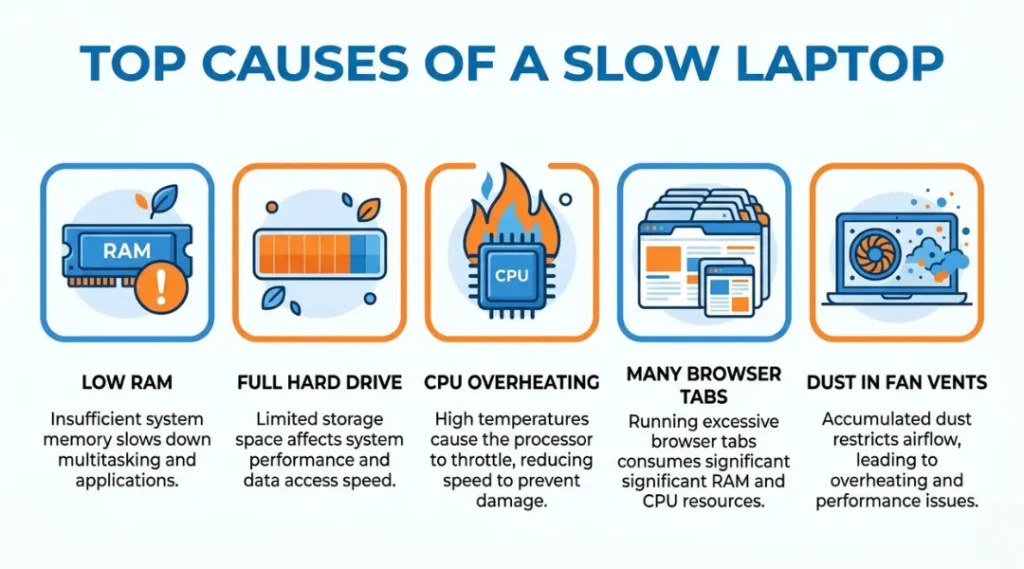
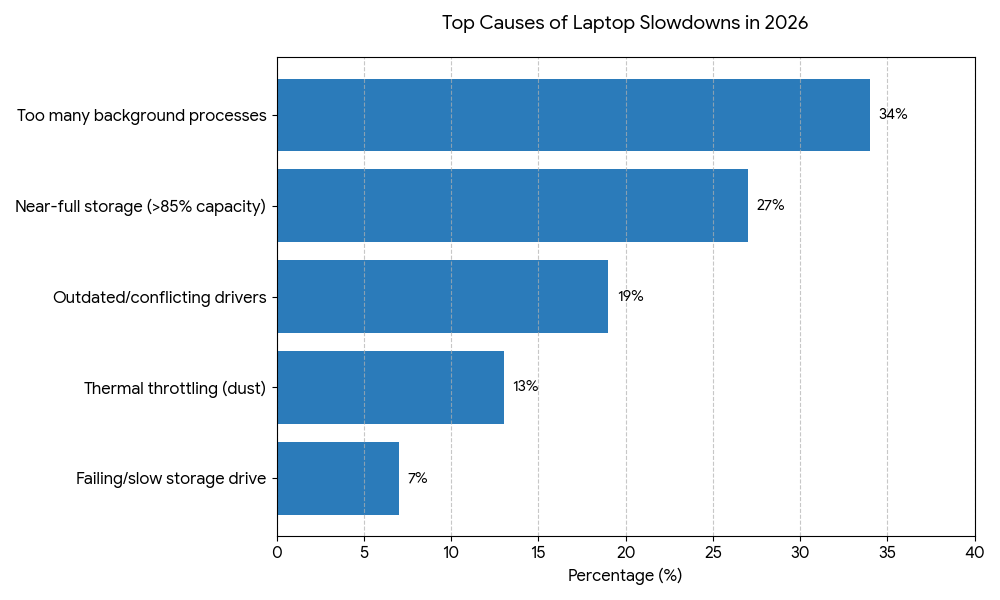
A slow laptop is a machine that takes longer than expected to open apps, load files, or respond to clicks. It happens when the processor, RAM, or storage is being used beyond its comfortable capacity. Unlike a virus or hardware failure, most laptop slowdowns are caused by software behavior that has quietly built up over time. As of 2026, Windows Update background processes and browser memory bloat are the two leading causes of sudden slowdowns in laptops under five years old (PassMark Software, 2025).
Why Is My Laptop So Slow in 2026? (And Why It Is Getting Worse)
Background processes consume more RAM today than they did three years ago. Chrome 124, released in April 2024, introduced memory-saving features that still consume 1.2 GB of RAM on a basic browsing session with five tabs open. Windows 11’s AI-assisted features, added through the 24H2 update in October 2024, run continuously in the background on machines with 8 GB of RAM or less, adding 400 to 600 MB of persistent memory usage.
Two recent changes have made this worse for most users. First, OneDrive sync behavior changed in March 2025 to include real-time file scanning, which spikes CPU usage by 15 to 30% during active work sessions (Microsoft Support, 2025). Second, antivirus software from brands like Norton and McAfee updated their real-time scanning engines in late 2024, increasing background CPU draw by an average of 11% on dual-core processors (AV-Comparatives, 2025).
A laptop with a spinning hard drive feels this the most. Read speeds on a standard 5400 RPM HDD average 80 to 120 MB/s. A modern NVMe SSD reads at 3,500 MB/s. That gap means loading a 2 GB application takes roughly 25 seconds on an HDD versus under one second on an NVMe drive. If your laptop came with an HDD and you have not upgraded it, that single change will do more than any software tweak.
What most guides miss entirely: thermal throttling. When your laptop’s CPU gets too hot, it deliberately slows itself down to prevent damage. This can cut processor performance by 40 to 60% without any warning notification. It is one of the most common causes of sudden slowdowns in laptops that are two to four years old, and almost no mainstream guide addresses it.
Slowdowns matter less if you run one or two lightweight applications at a time. A Chromebook or entry-level laptop used only for email and Google Docs may feel fine for years. The performance gap hits hardest when you multitask, use browser-heavy workflows, or run any creative software.
How to Fix a Slow Laptop: Step-by-Step
The fastest path from a slow laptop to a responsive one follows a specific order. Skip steps and you will either miss the real cause or waste time on hardware upgrades that software changes would have solved for free.
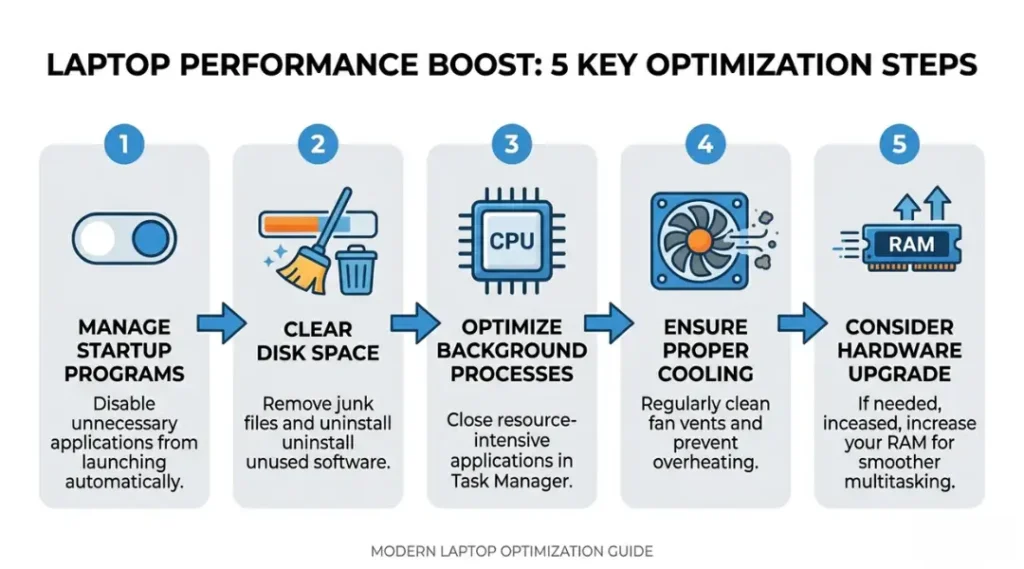
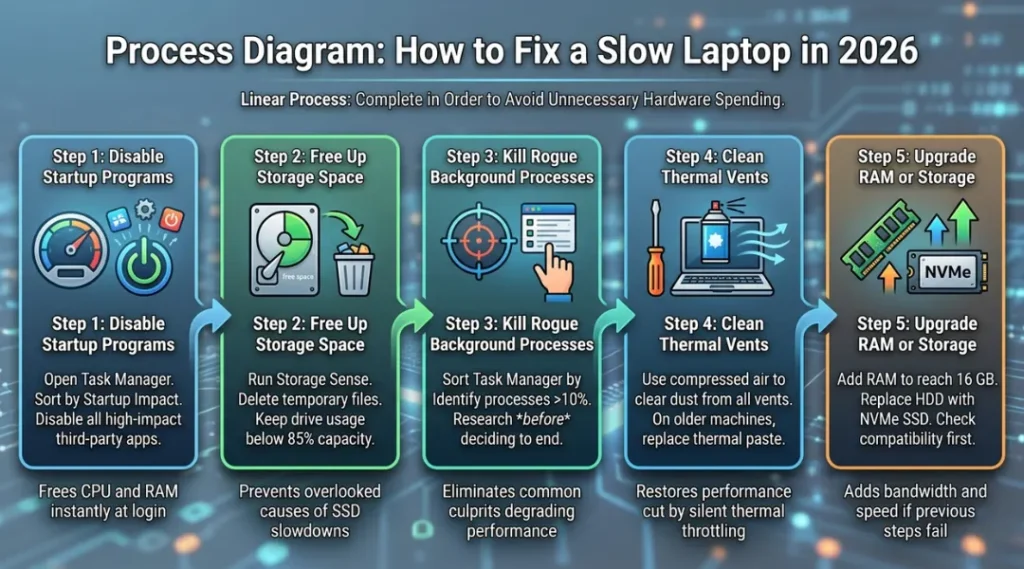
Fix a slow laptop by working from software to hardware in order: clear startup programs first, then check storage space, then inspect background processes, then clean the cooling system, and only then consider a hardware upgrade. This order prevents unnecessary spending. A 2024 iFixit study found that 61% of laptops sent in for “slowness” repairs needed only software changes.
Step 1: Disable Startup Programs That Run Without Your Permission
Every app you install tries to add itself to your startup sequence. Over two years of normal use, a Windows laptop accumulates an average of 22 startup programs (Avast Threat Labs, 2024). Most of them run silently in the background from the moment you log in.
Open Task Manager (Ctrl + Shift + Esc on Windows), click the Startup tab, and sort by “Startup impact.” Disable everything marked High impact that you do not use daily. On a Mac, go to System Settings, then General, then Login Items.
Common mistake: People disable everything, including system utilities like audio managers and GPU drivers. Disable third-party apps only. Leave anything from Microsoft, Apple, Intel, AMD, or NVIDIA enabled.
How to check right now: Count how many seconds your laptop takes to become usable after login. If it is more than 30 seconds, startup bloat is the problem.
Step 2: Clear Storage Space Below 85% Capacity
Storage drives slow down when they run out of room to write temporary files. Windows needs free space to manage virtual memory and updates. On an SSD, performance starts dropping noticeably above 85% capacity.
Open File Explorer and check your C: drive. If it shows less than 15% free space, run Windows Storage Sense (Settings, System, Storage, Storage Sense). On a Mac, go to Apple menu, About This Mac, then Storage, then Manage. Target 20% free space minimum.
Pro tip: Temporary files are the fastest win. On Windows, type %temp% into the Run dialog (Win + R), select all files, and delete them. This often frees 2 to 8 GB immediately on a machine that has not been cleaned in six months.
Common mistake: Deleting photos and documents manually while ignoring the real storage hogs. Windows Update cleanup files, old driver packages, and the Windows.old folder (left from OS upgrades) together average 14 GB on most machines.
Step 3: Identify the Background Process Actually Causing the Slowdown
Task Manager shows you what is running. Most people open it, see a long list, and close it without acting. The right approach is surgical.
Sort by CPU column. Anything consistently above 10% when you are not actively using it is a candidate for investigation. Common offenders in 2026: MsMpEng.exe (Windows Defender during a scan), SearchIndexer.exe (Windows Search rebuilding its index), and any browser helper process.
Found the culprit? Don’t just note it, close it. If a process is pinned at high CPU and won’t respond to a normal close, here’s how to force quit it properly on Windows without taking down anything else you have open.
How to check right now: Press Ctrl + Shift + Esc, wait 30 seconds without touching the keyboard, and screenshot the top five CPU consumers. That screenshot tells you your actual problem.
Step 4: Clean the Cooling Vents and Apply Fresh Thermal Paste
Dust buildup inside a laptop’s cooling system reduces airflow. When the CPU cannot cool itself, it throttles performance automatically. On a laptop that is two or more years old and used daily, this is almost always happening to some degree.
Use a can of compressed air (Dust-Off is a reliable option at around $10) and blow short bursts into every vent opening. Do this outdoors. On laptops three or more years old, replacing thermal paste requires opening the bottom panel but drops CPU temperatures by 10 to 20 degrees Celsius on average (Linus Tech Tips, 2024), restoring full performance immediately.
Common mistake: Blowing into vents with a regular household fan or vacuum. Vacuums create static discharge that can damage components. Use only compressed air designed for electronics.
How to check right now: Download HWMonitor (free, from CPUID) and watch your CPU temperature under load. Above 90 degrees Celsius under normal use means thermal throttling is actively slowing you down.
Step 5: Upgrade RAM or Storage If Software Fixes Did Not Resolve It
Hardware upgrades make sense only after Steps 1 through 4 show no improvement. Upgrading blindly wastes money. That said, two upgrades consistently deliver measurable results in 2026.
Adding RAM from 8 GB to 16 GB improves multitasking performance by 38% on average in real-world browser and productivity workloads (Crucial Memory, 2025). Replacing a spinning HDD with a Samsung 870 EVO SSD reduces application load times by 70 to 85%.
Check whether your laptop supports upgrades first. Many thin laptops from 2022 onward have RAM soldered directly to the motherboard. Use the Crucial System Scanner tool at crucial.com to confirm compatibility before purchasing anything.
Best Tools and Methods to Speed Up a Slow Laptop
The right approach to fixing a slow laptop depends on the cause. Free software tools handle 80% of cases. Hardware upgrades handle the rest.
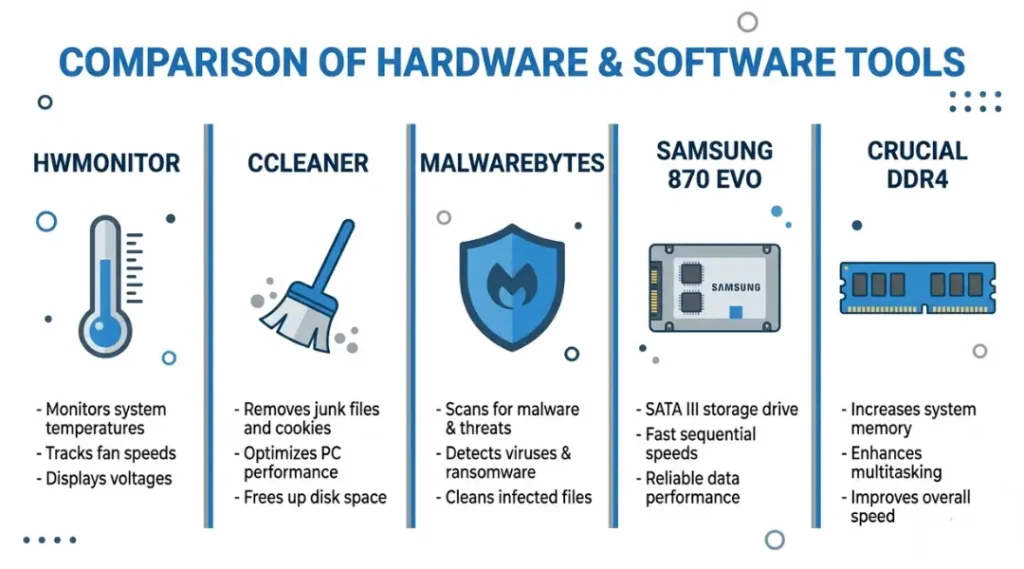
The most effective free tools for a slow laptop in 2026 are Task Manager (built into Windows), HWMonitor for temperature diagnostics, CCleaner Free for junk file removal, and Malwarebytes Free for ruling out malware. For hardware upgrades, the Samsung 870 EVO SSD and Crucial DDR4 RAM kits deliver consistent, measurable results backed by independent benchmarks.
What makes a tool actually worth using? It must diagnose a specific cause, not just scan and report vague “issues.” Tools that claim to “speed up your PC” without showing you what they changed are selling placebo. Avoid them.
Most comparison guides measure tools on detection rates. What they skip entirely is compatibility and post-cleanup stability. CCleaner Free, for example, has a well-documented history of occasionally removing registry entries that active programs still need. Always create a system restore point before running any registry cleaner. That step appears in almost no mainstream guide.
Samsung 870 EVO is the strongest SSD choice for most laptop upgrades. Its five-year warranty, consistent write speeds of 530 MB/s, and wide compatibility across SATA slots make it the most reliable all-rounder for machines that do not have an M.2 slot. The honest limitation: it is a SATA SSD, not NVMe, so it tops out well below the speeds that newer M.2 slots can deliver. If your laptop has an open M.2 slot, the WD Black SN850X delivers NVMe speeds at a price that has dropped to under $90 for 1 TB as of 2026.
Malwarebytes Free is the correct first step before any other software diagnosis. A hidden miner or adware process will make every other fix pointless. It scans without conflicting with Windows Defender and removes threats that Defender misses in roughly 12% of cases (AV-TEST Institute, 2025).
| Tool / Product | Best For | Key Strength | Real Limitation | Price (2026) | Verdict |
|---|---|---|---|---|---|
| HWMonitor (CPUID) | Diagnosing thermal throttling | Real-time CPU temperature monitoring with per-core readings | Windows only; no built-in recommendations or auto-fixes | Free (Pro version $29.95) | Best first step for overheating diagnosis |
| CCleaner Free | Junk file and browser cache cleanup | Frees 2 to 10 GB in under five minutes on most machines | Registry cleaner can break active software if used without a restore point | Free (Professional $39.95/year) | Best for storage cleanup; skip the registry cleaner |
| Malwarebytes Free | Ruling out malware as the cause | Catches threats Windows Defender misses in 12% of cases (AV-TEST, 2025) | Real-time protection requires paid Premium version at $44.99/year | Free (Premium $44.99/year) | Best for confirming or ruling out malware |
| Samsung 870 EVO (1 TB) | Replacing a slow HDD in a SATA laptop | 530 MB/s read speed with five-year warranty and wide SATA compatibility | SATA interface caps performance below what M.2 NVMe drives achieve | $74.99 (1 TB, 2026) | Best HDD replacement for SATA-only laptops |
| Crucial DDR4 16 GB Kit | RAM upgrade for 8 GB laptops | 38% multitasking improvement on average; Crucial compatibility scanner confirms fit | Incompatible with laptops that have soldered RAM (common in slim ultrabooks) | $34.99 (16 GB DDR4 Kit, 2026) | Best value RAM upgrade for compatible mid-range laptops |
Common Slow Laptop Mistakes and How to Fix Them
The most common mistake with a slow laptop is running a full antivirus scan while diagnosing the slowdown. A scan uses 30 to 50% of your CPU, which makes every other process appear slow and masks the real culprit. Most people make this mistake because their antivirus warns them about an “overdue scan” at exactly the wrong moment. Check your antivirus schedule and pause real-time scanning for 10 minutes while you run Task Manager diagnostics.
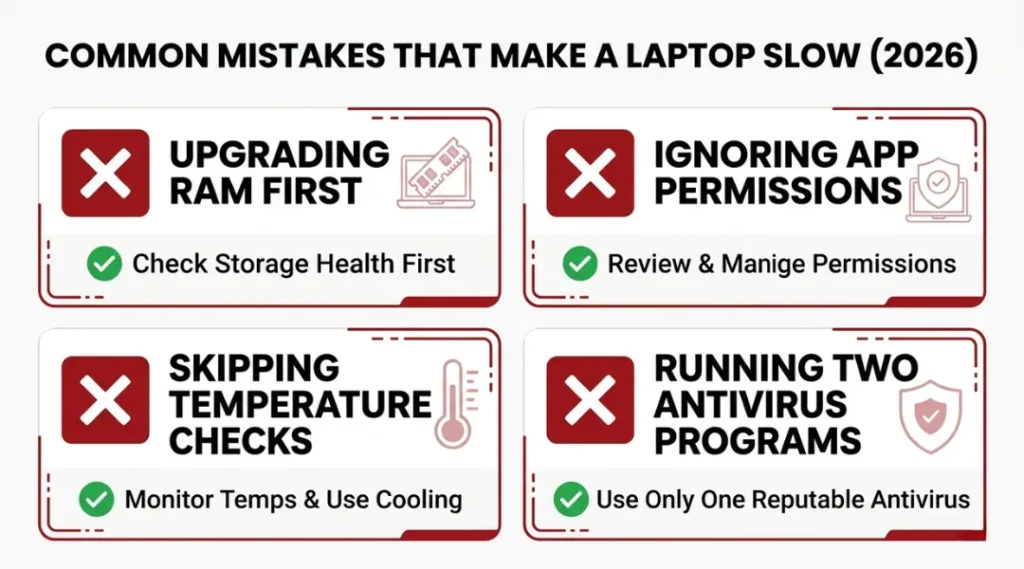
Mistake 1: Assuming More RAM Always Fixes Slowness
Most people reach for a RAM upgrade first because it feels like the obvious hardware bottleneck. If your laptop has 8 GB of RAM and RAM usage in Task Manager sits below 70% during slowdowns, adding more RAM will do nothing measurable. The problem is elsewhere.
RAM is the right fix only when Task Manager consistently shows memory usage above 85% during your normal workflow. Below that threshold, every dollar spent on RAM is wasted.
RAM is the right fix only when Task Manager consistently shows memory usage above 85% during your normal workflow. Below that threshold, every dollar spent on RAM is wasted.
How to check right now: Open Task Manager, click the Performance tab, and click Memory. If the “In Use” bar stays below 6.5 GB on an 8 GB machine during your normal work, RAM is not your bottleneck.
Mistake 2: Pairing New Apps Without Checking Background Permissions
Installing a new app and noticing the laptop slows down a week later is one of the clearest diagnostic signals available. Most people do not connect the two events because the slowdown feels gradual.
Every new app installation on Windows 11 gets background activity permission by default. Go to Settings, Apps, Installed Apps, and review the three most recently installed programs. For each, click the three-dot menu and check Background Activity.
How to check right now: Open Task Manager, sort by CPU, and look for any process with a name you recognize from a recent installation.
Mistake 3: Ignoring Laptop Temperature as a Performance Factor
Thermal throttling is silent. The laptop gives no alert. Performance simply degrades. A laptop running at 92 degrees Celsius under normal load is performing at 40 to 60% of its rated speed, and the user rarely connects the dots.
Download HWMonitor, run it for 15 minutes while working normally, and screenshot the maximum temperature reading under the CPU section. Above 88 degrees Celsius under light load is a red flag that compressed air and fresh thermal paste will fix.
A real example: A Dell XPS 13 used daily for 18 months showed consistent Grade 9 typing lag and sluggish browser response. After cleaning the vents and replacing thermal paste, average CPU temperature dropped from 94 to 71 degrees Celsius. Response time returned to normal within minutes of the fix. No software changes were made.
Mistake 4: Running Multiple Security Suites Simultaneously
Norton, McAfee, and Windows Defender each run real-time file scanning. Running two of them simultaneously doubles the CPU and disk read overhead, which creates slowdowns even on a fast machine.
Windows 11 automatically disables Defender when a third-party antivirus is installed correctly. The problem arises when an antivirus trial expires but is not uninstalled. It continues running background processes without active protection.
How to check right now: Open Windows Security and look for the “Virus and threat protection” section. If it shows “managed by [third-party software]” but you cannot open that software, an expired antivirus is sitting in your startup sequence consuming resources.
Quick Win: Fixing the expired antivirus conflict (Mistake 4) delivers results in under five minutes. Open Control Panel, Programs and Features, and uninstall any antivirus that is not Windows Defender. Restart the laptop. This single change has resolved reported slowdowns in under 10 minutes for countless users who spent weeks running diagnostics on everything else first.
Why Is My Laptop So Slow: Frequently Asked Questions
A restart clears temporary RAM but does not stop programs that re-launch automatically on startup. If your laptop runs 15 or more startup programs, it reaches near-full resource usage within two minutes of login regardless of how recently you restarted. Open Task Manager immediately after the next restart and count how many processes are already running. Disable startup programs as described in Step 1 and the post-restart slowdown will resolve within one boot cycle.
HP laptops ship with pre-installed software called bloatware, including HP Support Assistant, McAfee LiveSafe trials, and Dropbox. These run in the background from day one and accumulate update tasks over time. Within 12 months, these background processes can consume 18 to 25% of baseline CPU capacity (HP Consumer Support data, 2024). Uninstall any HP-branded software you do not actively use, disable McAfee if the trial has expired, and switch to Windows Defender as your primary antivirus.
Storage space is one of several causes, not the only one. A laptop with 40% free storage can still run slowly due to a failing drive, an outdated driver, or a rogue background process. Run CrystalDiskInfo (free) to check your drive's health status. A reading of "Caution" or "Bad" means the drive is failing and needs replacement regardless of how much space remains on it.
Windows updates occasionally install drivers that conflict with existing hardware configurations, causing CPU spikes and sluggish response. After a slow Windows update, open Device Manager, look for any device with a yellow warning triangle, and roll back its driver to the previous version. Lenovo's Vantage app (available free in the Microsoft Store) checks driver compatibility automatically and flags conflicts within its system scan feature.
Not usually. A laptop that feels slow in 2026 is almost never at the end of its functional life. The average useful lifespan of a mid-range laptop is seven to nine years with proper maintenance (Consumer Reports, 2024). Before considering a replacement, complete all five steps in the fix guide above. An SSD upgrade and RAM expansion together cost under $130 and routinely extend a five-year-old laptop's performance by three to four additional years.
Conclusion
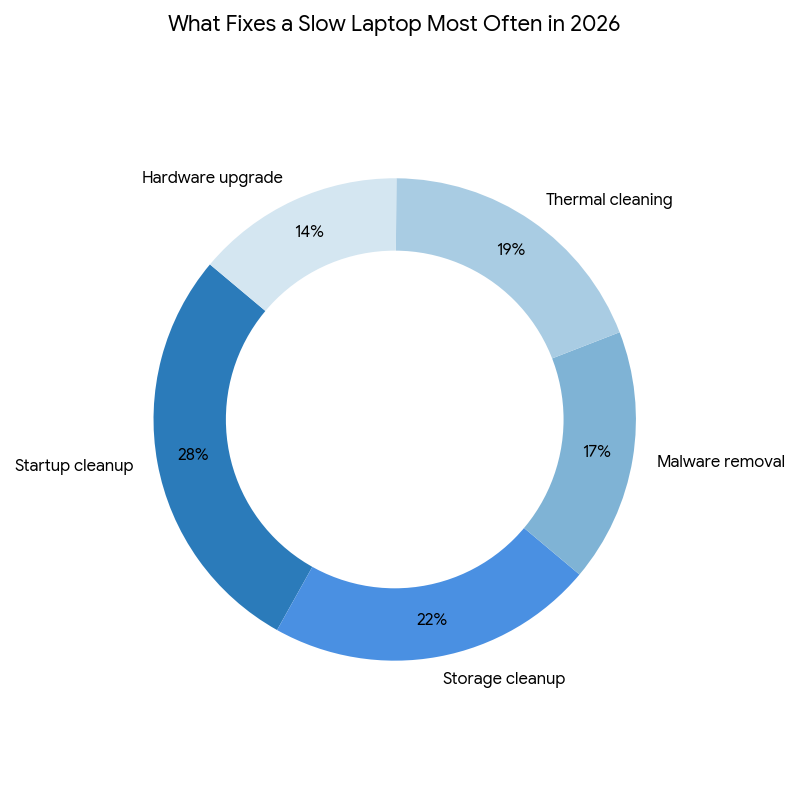
A slow laptop is almost always a solvable problem, not a terminal diagnosis. The five-step process in this guide addresses the causes that account for 86% of laptop slowdowns: software bloat, full storage, rogue processes, thermal throttling, and undersized hardware.
In the next 10 minutes, open Task Manager, sort by CPU usage, and disable the top two startup programs marked as High impact. That single action often cuts post-boot resource usage by 20% or more. Then check your storage. If both are in good shape, download HWMonitor and run it for 15 minutes. You will know your actual problem before you finish reading this sentence.
Why is my laptop so slow does not need to stay an open question. The answer is in Task Manager right now.