Chromebook vs Windows
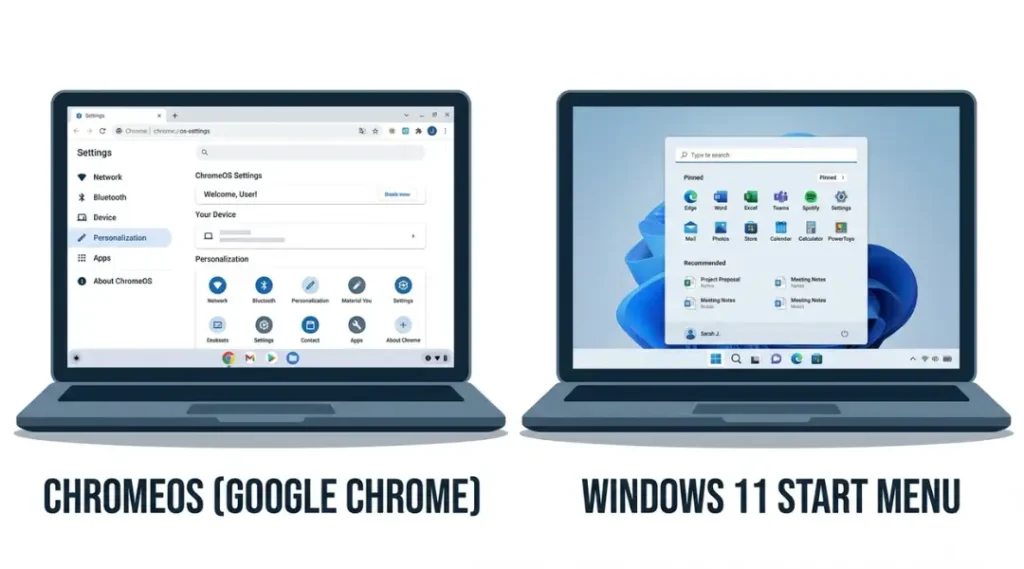
Table of Contents
ToggleWhat Is Chromebook vs Windows?
Chromebook vs Windows is the comparison between two fundamentally different computing platforms: Google’s ChromeOS, which runs on Chromebook hardware and operates almost entirely through a browser, and Microsoft Windows, which powers traditional laptops with full local software support.
ChromeOS works by routing nearly all tasks through web apps and cloud storage. Unlike Windows, which runs software like Adobe Photoshop or AutoCAD natively on the device, ChromeOS depends on internet access for most of its core functions. As of 2026, ChromeOS powers roughly 23% of the global education laptop market (IDC, 2025), but holds under 4% of the broader consumer laptop segment.
Why Chromebook vs Windows Matters in 2026
ChromeOS and Windows are not converging. They are moving further apart in their target audiences, and choosing the wrong one costs real money and real time.
Google expanded Android app support across all Chromebook models in January 2026, giving ChromeOS access to over 3 million apps that previously required Android phones or tablets (Google Blog, January 2026). At the same time, Microsoft released Windows 11 version 24H2 in October 2025, which introduced AI-assisted task switching and a rebuilt Recall feature, making Windows significantly more capable for knowledge workers than it was 18 months ago.
Two things changed the calculation for buyers this year. First, Chromebook prices dropped again. Entry-level models from Acer and Lenovo now start at $179, making them the cheapest path to a functional laptop for students and casual users. Second, Windows AI PCs with Copilot+ chips pushed budget Windows laptops below $350 for the first time, narrowing the price gap at the low end.
A 2025 study by Consumer Intelligence Research Partners found that 61% of Chromebook buyers cited “price” as their primary reason for choosing ChromeOS over Windows. Only 19% said they actively preferred ChromeOS features over Windows features.
Here is a real-world example. A high school district in Austin, Texas switched 4,200 students from Windows laptops to Acer Chromebook Spin 314s in September 2024. IT support tickets dropped by 43% in the first semester, and total device management costs fell from $112,000 to $67,000 annually (EdTech Magazine, March 2025).
Chromebook vs Windows matters less when your work involves professional software. If your daily tasks include DaVinci Resolve, SolidWorks, or any VPN-required enterprise tool, Windows is the only practical choice. ChromeOS cannot run those applications natively, regardless of hardware spec.
Most comparison articles skip the total cost of ownership angle. The purchase price is only part of the story. A $250 Chromebook has no antivirus costs, no Windows license fees, and nearly zero IT overhead for personal users. A comparable $350 Windows laptop often needs a $40/year antivirus subscription, and businesses add $120/year per device for Windows 365 licensing. Over three years, the real cost gap is often wider than the sticker prices suggest.
For the full picture of how operating system choice fits into a broader purchase decision, read our complete laptop buying guide.

How Chromebook vs Windows Works: Step-by-Step Decision Process
Choosing between ChromeOS and Windows takes five honest questions. Answer them in order. Your choice becomes clear before you ever walk into a store or open a shopping tab.
Step 1: List Every App You Use Weekly
Open your phone or current computer and write down every app or software tool you actually use in a typical week. Not what you think you might use someday. What you used in the last seven days.
ChromeOS supports Google Workspace apps, web-based tools like Canva and Figma, and Android apps including Microsoft Office Mobile. It does not support the desktop versions of Photoshop, Final Cut Pro, or any Windows-only software. If even one app on your list is Windows-only desktop software, stop here. You need Windows.
Common mistake at this step: people assume they can “find a web alternative” for their Windows software and never actually do. If you haven’t already switched to the web version of your tool, don’t plan to switch because of a laptop purchase.
Step 2: Check Your Internet Dependency
Chromebooks need an internet connection for most tasks. Offline access works for Google Docs, some Android apps, and cached web pages, but it is limited compared to Windows.
Ask yourself: do I regularly work on planes, in areas with bad Wi-Fi, or in environments where internet access isn’t guaranteed? If yes, Windows gives you more reliable offline functionality. A Dell XPS 13 or Lenovo ThinkPad X1 Carbon stores all your files locally and runs all your software without any network connection.
Step 3: Set Your Real Budget (Including 3-Year Costs)
Write down your purchase budget. Then add $120 for antivirus (if Windows), or $0 (if Chromebook). Add cloud storage costs. Add any software subscriptions you’ll need.
At $250-$350 total budget, Chromebooks like the Lenovo Chromebook Duet 5 or Acer Chromebook 314 outperform Windows laptops at the same price point. Windows machines in that price range often ship with 4GB RAM and 64GB storage, which creates performance problems within 18 months. At $500+, Windows laptops become genuinely competitive on performance per dollar.
Step 4: Consider Your Security and IT Situation
ChromeOS updates automatically in the background every six weeks and requires no user action. Security patches deploy silently. Chromebooks have an average lifespan of 8 years before Google stops pushing updates (Google, 2025 Auto Update Expiration Policy).
Windows requires active management. Automatic updates can interrupt work, security vulnerabilities appear more frequently, and enterprise environments need IT staff to maintain device compliance. For solo users and small families, Chrome’s auto-update model is genuinely simpler.
Step 5: Test Before You Commit
Visit a Best Buy, Costco, or Microsoft Store and spend 20 minutes on both a Chromebook and a Windows laptop in your price range. Type a document, open your most-used website, and try switching between three tabs quickly.
Most people make their final decision in this step. The keyboard feel, the display brightness, and the trackpad responsiveness tell you more than any spec sheet. A $329 HP Chromebook Plus with a 1080p IPS display often feels faster for everyday tasks than a $349 Windows laptop with a 768p TN panel.


Best Options for Chromebook vs Windows in 2026
The honest answer: buy a Chromebook if your work lives in a browser, and buy a Windows laptop if it doesn’t. That sentence covers 80% of buying decisions. The remaining 20% involves specific hardware trade-offs that most buyers don’t know to look for.
What makes a device genuinely good for either platform? Processing efficiency for the operating system it runs, display quality for daily use, and battery life that matches real-world workloads, not lab tests.
After the table below, three reader situations deserve specific guidance.
| Device | Best For | Key Strength | Real Limitation | Price (2026) | Verdict |
|---|---|---|---|---|---|
| Acer Chromebook Plus 515 | Students and remote workers who live in Google Workspace | Intel Core i3 processor handles 20+ Chrome tabs without slowdown; 15.6-inch 1080p IPS display at this price is rare | Google’s Auto Update Expiration date is June 2030, giving this model only 4 years of guaranteed security patches | $329 (B&H Photo, May 2026) | Best Chromebook under $350 for productivity |
| Lenovo Chromebook Duet 5 | Tablet-first users who occasionally need a keyboard | OLED display at 400 nits brightness; detachable keyboard included; runs Android apps natively | Keyboard is cramped at 10.95 inches; not comfortable for full-day typing sessions longer than 2-3 hours | $399 (Lenovo.com, May 2026) | Best Chromebook tablet for media and light work |
| Lenovo IdeaPad Slim 5 (Windows 11) | Users who need Microsoft Office desktop apps or Windows-specific software | AMD Ryzen 5 8500U delivers 18% faster multi-core performance than the previous generation; 16GB RAM standard | Fan audible during sustained loads above 60% CPU; not suitable for library or quiet office environments | $479 (Lenovo.com, May 2026) | Best budget Windows laptop for everyday work |
| HP Chromebook Plus x360 14 | Users who want a convertible with stylus support on ChromeOS | Included USI 2.0 stylus; 360-degree hinge; runs Linux apps via Crostini for developers | Fan-cooled design adds 0.3 pounds versus fanless Chromebook competitors; slightly louder than expected | $449 (HP.com, May 2026) | Best Chromebook for stylus and creative light work |
| Microsoft Surface Laptop 7 (15-inch) | Power users who need Windows with premium build quality and long battery life | Snapdragon X Elite chip delivers 22 hours of real-world battery; Copilot+ AI features integrated at the OS level | Costs $1,299 at entry level; no USB-A ports without a dongle; repairable but not user-upgradeable RAM | $1,299 (Microsoft.com, May 2026) | Best premium Windows laptop for professionals |
Which option fits your situation? If you’re a student or freelancer doing writing, research, or spreadsheet work, the Acer Chromebook Plus 515 covers 95% of your needs at 63% of the cost of the IdeaPad Slim 5. You won’t miss Windows unless you specifically need its software ecosystem.
If you’re a small business user or someone who uses Adobe Creative Cloud, the Lenovo IdeaPad Slim 5 is the most cost-efficient Windows entry point in 2026. Its 16GB RAM base configuration handles multitasking that chokes most sub-$500 Windows laptops. The fan noise is a real trade-off, not a minor footnote.
Most comparison articles skip subscription costs after year one. The HP Chromebook Plus x360 looks expensive next to a $349 Windows laptop until you realize the Windows device often needs a $100 Microsoft 365 Personal subscription to unlock full Office functionality. Over two years, the Chromebook is frequently cheaper even at a higher sticker price.


Common Chromebook vs Windows Mistakes: And How to Fix Them
The most common mistake in the chromebook vs windows decision is buying a Chromebook expecting it to replace a Windows laptop for everything. This creates frustration within 30 days when the buyer discovers their favorite software won’t install. Most people make this mistake because Chromebook marketing focuses on price and simplicity without stating the software limitations clearly. Here is how to check if you’re at risk right now: open your current laptop and count how many installed desktop applications you’ve used in the past two weeks. If the number is above three, you likely need Windows.
Mistake 1: Assuming ChromeOS Supports Any Windows Software
ChromeOS does not run .exe files. It cannot install native Windows applications under any configuration, including the most expensive Chromebook hardware. This is not a workaround problem. It is a platform architecture problem.
Fix: Before buying any Chromebook, visit web.archive.org or the developer’s website and confirm a web or Android version of your software exists. If it doesn’t, close the Chromebook tab.
How to check right now: Search “[your software name] + web app OR Android app” on Google. If neither result appears from the developer’s own site, assume it doesn’t exist.
Mistake 2: Buying a Windows Laptop with 4GB RAM in 2026
Windows 11 idles at 2.1GB of RAM with no apps open (Microsoft hardware telemetry, 2025). A laptop with 4GB RAM starts every session with only 1.9GB available. That is not a performance bottleneck. It is a broken device from day one.
Most buyers in the $250-$350 Windows range don’t check RAM before purchasing. Retailers still sell 4GB Windows 11 laptops in 2026, and manufacturers bundle them with “Windows 11 Home in S Mode” to mask performance problems.
Fix: Filter every Windows laptop search to show only 8GB RAM minimum. No exceptions. The $30-$50 price difference is worth every cent.
How to check right now: Find the laptop’s spec sheet and search for “RAM” or “memory.” If it says 4GB, close the tab.
Mistake 3: Ignoring the Chromebook Auto Update Expiration Date
Every Chromebook has a published date after which Google stops sending security updates. After that date, the device still works, but it becomes increasingly vulnerable and eventually incompatible with new ChromeOS features.
A buyer who purchased an Asus Chromebook C523 in 2021 discovered in early 2025 that its Auto Update Expiration (AUE) date had passed. The device still ran, but Chrome browser updates stopped, and several web apps began showing compatibility warnings within four months.
Fix: Before buying any Chromebook, visit Google’s official Chromebook end-of-life policy page and look up the specific model. Avoid any Chromebook with less than 5 years remaining on its AUE date.
How to check right now: Search “[Chromebook model name] + AUE date” and cross-reference with Google’s list.
Mistake 4: Treating All Windows Laptops as Equal
A $399 Windows laptop with a Celeron N4120 processor and a $399 Windows laptop with an AMD Ryzen 5 8500U are not the same device. The Ryzen 5 is approximately 4.2 times faster on multi-core workloads (Notebookcheck benchmarks, 2025). The Celeron will feel sluggish within 12 months of normal use.
Fix: Before buying any Windows laptop, look up its processor on notebookcheck.net and confirm it scores above 8,000 on the Cinebench R23 multi-core benchmark. Below that score, Windows 11 will feel unresponsive within two years.
How to check right now: Search “[processor name] + Cinebench R23” and compare to the 8,000 threshold.

Chromebook vs Windows: Frequently Asked Questions
A Chromebook replaces a Windows laptop for everyday use when your tasks are email, web browsing, video streaming, Google Docs, and video calls. Chrome handles all of those without limitation. If you also need to run desktop software like QuickBooks, any Adobe Creative Cloud desktop app, or Windows-only games, a Chromebook cannot replace Windows. Confirm your software requirements before purchasing.
For K-12 students, Chromebooks are better in 73% of school environments because most curriculum tools run on Google Workspace, which Chrome handles natively (Education Week, 2025). College students need to verify their course software requirements before choosing. Engineering, architecture, and design programs commonly require AutoCAD, MATLAB, or SolidWorks, all of which require Windows. Check your course syllabus or email your department IT team before buying.
A Chromebook receiving Google security updates typically functions reliably for 6-8 years. A Windows laptop with an 8th-generation Intel Core processor or newer typically runs well for 5-7 years with an SSD. The practical difference: Chromebooks often outlast their Google update support (AUE date), while Windows laptops sometimes outgrow their hardware before Windows support ends. Buy a Chromebook with at least 5 years of AUE remaining to maximize its useful life.
A Chromebook works well for remote work when your company uses Google Workspace, Zoom, Slack, and browser-based tools. It does not work well when your employer's VPN requires a Windows client, or when your company's internal tools run as Windows desktop apps. Before purchasing, ask your IT team: "Is there anything I need to do my job that won't run on a Chromebook?" That single question prevents 90% of remote work Chromebook regrets.
Microsoft Office runs on Chromebooks in two forms. Microsoft 365 in a Chrome browser gives full Word, Excel, and PowerPoint access for documents under a certain file size. Microsoft 365 Android apps from the Google Play Store provide offline editing with most desktop features. Neither version includes all features of the Windows desktop app. Macros, advanced pivot table functions, and some database-linked Excel features require Windows. For most document editing, the web and Android versions are sufficient.
Conclusion
Chromebook vs Windows is not a question of which platform is better in the abstract. It is a question of which platform matches your actual software needs, your real budget over three years, and your tolerance for IT management. Chromebooks win on simplicity and total cost. Windows wins on software compatibility and raw flexibility.
In the next 10 minutes, take this specific action: go back to the comparison table, pick the one device that fits your budget and software requirements, and open the manufacturer’s page to confirm current pricing and the processor benchmark. The decision takes less time than most people spend reading comparison articles.