
How to Organize Apps on Android
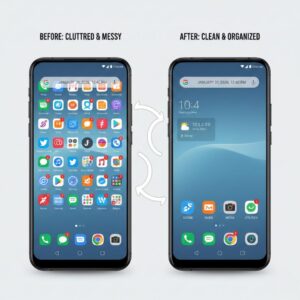
I still remember the moment I realized my Android phone had become a digital disaster zone. I was frantically searching for my banking app while standing in line at the grocery store, swiping through seven home screens packed with 147 apps I’d downloaded over two years. Sound familiar?
If you’ve ever missed an important notification because it was buried under a mountain of app icons, or wasted precious minutes hunting for that one app you know is here somewhere, you’re not alone. The average smartphone user has between 60-90 apps installed, but regularly uses only about 9 of them daily, according to research from app analytics firm App Annie. That’s a lot of digital clutter.
And if you’re thinking about switching phones or platforms, getting organized now makes the transition much smoother—whether you’re transferring contacts from Android to iPhone or upgrading to a new Android device.
The good news? Organizing your Android apps doesn’t require a degree in computer science. With the right approach, you can transform your chaotic home screen into an efficient, personalized command center that actually works for your life. Let me show you exactly how I did it—and how you can too.
Why App Organization Actually Matters
Before we dive into the how-to, let’s talk about why this matters beyond just aesthetics.
Productivity isn’t just about doing more—it’s about reducing friction. Every second you spend searching for an app is a micro-frustration that adds up. Research from Gloria Mark at UC Irvine shows that it takes an average of 23 minutes to refocus after a distraction. When you can’t quickly find the app you need, that’s not just annoying; it’s derailing your entire workflow.
I’ve also noticed something interesting: a cluttered phone often reflects (and reinforces) a cluttered mind. When I finally organized my apps last year, I didn’t just save time—I felt more in control of my digital life. That psychological benefit alone made it worthwhile.
Step 1: The Great App Audit (Start Here)
You can’t organize what you don’t understand. The first step is figuring out what you actually have and use.
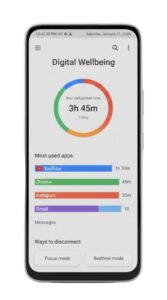
Find your app usage statistics:
- Open your Settings app
- Navigate to “Digital Wellbeing & parental controls” (or “Digital Wellbeing”)
- Tap “Dashboard” to see which apps you actually use
This feature, available on Android 9 and newer and part of Google’s Digital Wellbeing initiative, shows you exactly how much time you spend on each app. When I first checked mine, I discovered I had 23 apps I literally hadn’t opened in six months. Why were they still taking up space on my home screen?
Delete ruthlessly, but strategically. Here’s my rule: if you haven’t used an app in 60 days and it’s not seasonal (like tax software or holiday shopping apps), it goes. You can always reinstall it from the Google Play Store if you genuinely need it later.
To uninstall apps quickly:
- Long-press the app icon
- Drag it to “Uninstall” at the top of the screen
- Or tap the “i” icon and select “Uninstall”
I went from 147 apps down to 62 in about 20 minutes. The sense of relief was immediate.
Step 2: Choose Your Organization Philosophy
There’s no one-size-fits-all approach to app organization. What works for a college student won’t necessarily work for a busy parent or a field service technician. Here are the most effective methods I’ve tested:
The Category Method (Most Popular)
Group apps by function or purpose. This is how most people instinctively organize, and for good reason—it matches how our brains categorize information.
Common categories include:
- Social Media & Communication (WhatsApp, Instagram, Facebook, Gmail)
- Productivity & Work (Google Drive, Slack, Microsoft Office)
- Finance (banking apps, budgeting tools, investment platforms)
- Entertainment (Netflix, Spotify, YouTube, games)
- Health & Fitness (fitness trackers, meditation apps, health records)
- Shopping (Amazon, eBay, retail apps)
- Utilities (calculator, flashlight, file manager)
- Travel & Navigation (Google Maps, Uber, airline apps)
The beauty of this method is its intuitive nature. When you need to check your bank balance, you know exactly which folder to open.
The Frequency Method (For Minimalists)
This approach prioritizes based on how often you use apps:
- Home screen: Only your most-used 8-12 apps (the ones you access multiple times daily)
- Second screen: Apps you use several times per week
- App drawer: Everything else, alphabetically organized
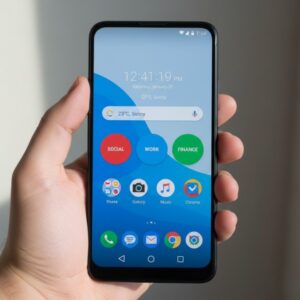
I personally use a hybrid approach. My home screen has only 9 apps I use constantly, my second screen has folders organized by category, and everything else lives in the app drawer where I can search for it.
The Context Method (For Advanced Users)
Organize apps based on when and where you use them:
- Morning folder: Alarm, weather, news, email
- Work folder: Professional apps you need during business hours
- Evening folder: Entertainment, social media, relaxation apps
- Travel folder: Maps, translation apps, airline apps, Uber
This method requires more upfront thinking but can be incredibly powerful if your day follows predictable patterns.
Step 3: Master Android’s Folder System
Folders are your best friend for keeping things tidy. Here’s how to create and optimize them:
Creating a folder:
- Long-press an app icon until it becomes draggable
- Drag it on top of another related app
- Release—Android automatically creates a folder
- Tap the folder to open it
- Tap “Unnamed Folder” to give it a meaningful name
Pro tips for folder organization:
- Limit folders to 9-16 apps maximum. Beyond that, they become as unwieldy as an unorganized home screen. If a category has too many apps, create subcategories.
- Use specific, memorable names. “Social” is okay, but “Chat & Social” is clearer. I renamed my “Tools” folder to “Quick Tools” because I also had productivity tools elsewhere—specificity prevents confusion.
- Color-code with icons. While Android doesn’t natively support colored folders, some launcher apps do. Alternatively, you can choose a representative app icon to appear on the folder cover that visually distinguishes each category.
- Keep your most-used app from each folder on the home screen. For example, if you have a “Social Media” folder but check Instagram 10 times daily, keep Instagram on the home screen and put the rest in the folder.
- For device-specific folder features and additional tips, check out Android’s official guidance on organizing your home screen.
Step 4: Optimize Your Home Screen Layout
Your home screen is prime real estate. Every app that lives there should earn its place.
The thumb zone principle: Modern smartphones are big. There’s actually an ergonomic “golden zone” where your thumb can comfortably reach while holding your phone one-handed. For most right-handed users on a typical Android phone, this is roughly the bottom-middle portion of the screen.
Place your absolute most-used apps here:
- Phone (if you actually make calls)
- Messages
- Your most-checked app (for me, it’s email)
- Camera (time-sensitive apps deserve quick access)
The “one-swipe rule”: I follow a personal rule that any app I need quickly should be accessible within one swipe. That means my home screen plus one screen to the right. Everything else goes in folders or the app drawer.
Minimize widgets carefully. Widgets are fantastic—I use a weather widget, calendar widget, and Google search bar—but they consume valuable screen space. Every widget should provide at-a-glance information that saves you from opening an app. If you have to tap the widget to see useful information, just use the app icon instead.
Step 5: Leverage the App Drawer Effectively
Many Android users underutilize the app drawer. Think of it as your organized basement—not everything needs to be displayed in your living room, but you should still know where things are.
Accessing the app drawer:
- Swipe up from the bottom of your home screen
- Or tap the app drawer icon (usually a circle with dots)
Organizing the app drawer:
Most Android versions let you customize drawer organization:
- Open the app drawer
- Tap the three-dot menu icon (usually top-right)
- Select “Sort” or “Sort apps”
- Choose alphabetical, most used, or custom
I keep mine alphabetically sorted because the search function works brilliantly with this setup. When I need an app that’s not on my home screen, I swipe up and type the first two letters. Takes about three seconds.
Search is your secret weapon. The app drawer search bar is incredibly powerful. Instead of scrolling through dozens of apps, just type what you’re looking for. It even works with partial names and synonyms. Type “bank” and it’ll find your banking app even if it’s called “Chase Mobile.”
Step 6: Use Android’s Built-In Organization Features
Modern Android versions (10+) include some underappreciated organizational tools:
App Suggestions
Android learns which apps you use at specific times or locations and can suggest them proactively. This feature appears at the top of your app drawer.
To enable:
- Settings → Apps → See all apps
- Three-dot menu → Default apps
- Digital assistant app → Toggle suggestions on
I was skeptical at first, but after two weeks, Android accurately predicted that I open Spotify during my morning commute and my meditation app before bed. It’s surprisingly helpful.
App Hiding
Got apps you need but don’t want cluttering your view? Many Android phones let you hide apps from the app drawer while keeping them installed.
The process varies by manufacturer:
- Samsung: Settings → Home screen → Hide apps
- Google Pixel: Long-press home screen → Home settings → Hide apps
- OnePlus: App drawer → Settings → Hide apps
I hide pre-installed apps I can’t uninstall but never use, like the built-in video player (when I exclusively use VLC).
Multiple Home Screens Strategy
Some people swear by a single minimalist home screen. Others use five or six. There’s no wrong answer, but I’ve found three screens to be the sweet spot:
- Screen 1 (main): Essential daily apps
- Screen 2 (right): Folders organized by category
- Screen 3 (left): Widgets for information at a glance
You can easily add or remove home screens by pinching the home screen with two fingers and tapping the “+” button or removing empty screens.
Step 7: Consider a Custom Launcher (Advanced)
If you want maximum control over your app organization, a custom launcher might be the answer. These are third-party home screen replacements that offer features stock Android doesn’t.
Popular launchers include:
Nova Launcher (my personal choice): Offers incredible customization—gesture controls, icon packs, custom grid sizes, and powerful folder options. The free version is robust; the paid version unlocks advanced features.
Microsoft Launcher: Integrates beautifully with Microsoft services, offers a customizable feed of news and calendar events, and includes excellent gesture support.
Niagara Launcher: A minimalist approach that displays apps in a simple vertical list. Radical departure from traditional launchers, but beloved by minimalists.
Action Launcher: Known for “Quickdrawer” (swipe right from edge to access app drawer) and “Covers” (folders disguised as single apps).
I switched to Nova Launcher about a year ago and haven’t looked back. The ability to resize icons, create custom gestures (swipe up on Chrome opens Gmail, for example), and use icon packs transformed my phone’s usability.
A word of caution: Launchers do consume some battery and RAM. On older or budget Android phones, stick with the stock launcher to maintain performance.
Step 8: Implement Smart Naming Conventions
This sounds minor, but it makes a surprising difference. When you create folders or even use apps with ambiguous names, clear labeling prevents confusion.
Folder naming best practices:
- Be specific: “Work Communication” instead of just “Work”
- Front-load keywords: “Finance & Banking” instead of “Apps for Finance”
- Use action words when relevant: “Book Reading” instead of “Reading”
- Avoid abbreviations unless universally understood: “Photos & Camera” not “P&C”
Some apps come with unclear names from developers. You can’t rename apps directly on Android, but you can rename the folder they’re in to reflect their purpose.
Step 9: Create a Maintenance Routine
Organization isn’t a one-time event—it’s an ongoing process. Without maintenance, app chaos creeps back in.
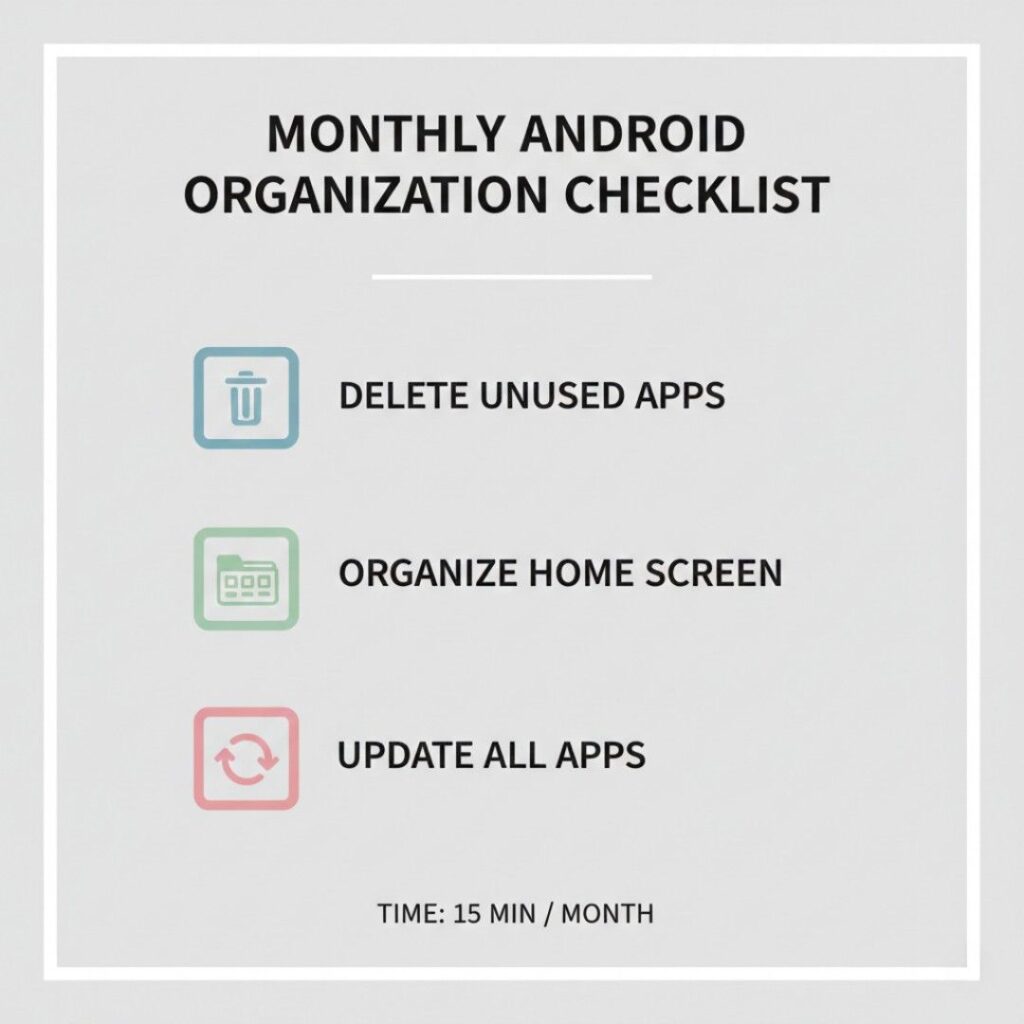
My monthly app audit routine (takes about 10 minutes):
- First Sunday of each month: Check Digital Wellbeing stats
- Uninstall unused apps: Anything not opened in 60+ days
- Update folder contents: New apps might need categorizing
- Review home screen: Is everything there still earning its spot?
- Clear app cache if needed: Settings → Storage → Free up space
I set a calendar reminder because otherwise, I’d forget. It’s like digital housekeeping—little and often beats major overhauls.
The “immediate organization” rule: When you download a new app, organize it immediately. Don’t let it sit on your home screen. Decide: Does this go in a folder? Which category? Is this replacing another app I can delete?
This single habit prevents 90% of future clutter.
Real-World Organization Examples
Let me show you three actual home screen setups that work for different people:
Example 1: The Busy Professional
Home Screen:
- Phone, Messages, Email, Calendar, Slack
- Weather widget
- Google search bar
Second Screen (folders):
- Work Tools (Drive, Docs, Sheets, Zoom)
- Finance (banking, investing, expense tracking)
- Quick Access (camera, maps, Uber, notes)
App Drawer: Everything else, alphabetically sorted
Why it works: Prioritizes communication and work. Everything needed for professional life is one tap away.
Example 2: The Minimalist
Home Screen:
- Only 6 apps: Phone, Messages, Browser, Camera, Maps, Spotify
- Large clock widget
- No folders visible
Everything Else: App drawer with alphabetical sort and heavy reliance on search
Why it works: Eliminates decision fatigue. Forces intentional app usage rather than mindless scrolling.
Example 3: The Power User (This is me)
Home Screen:
- 9 most-used apps arranged ergonomically
- Weather and calendar widgets
Second Screen:
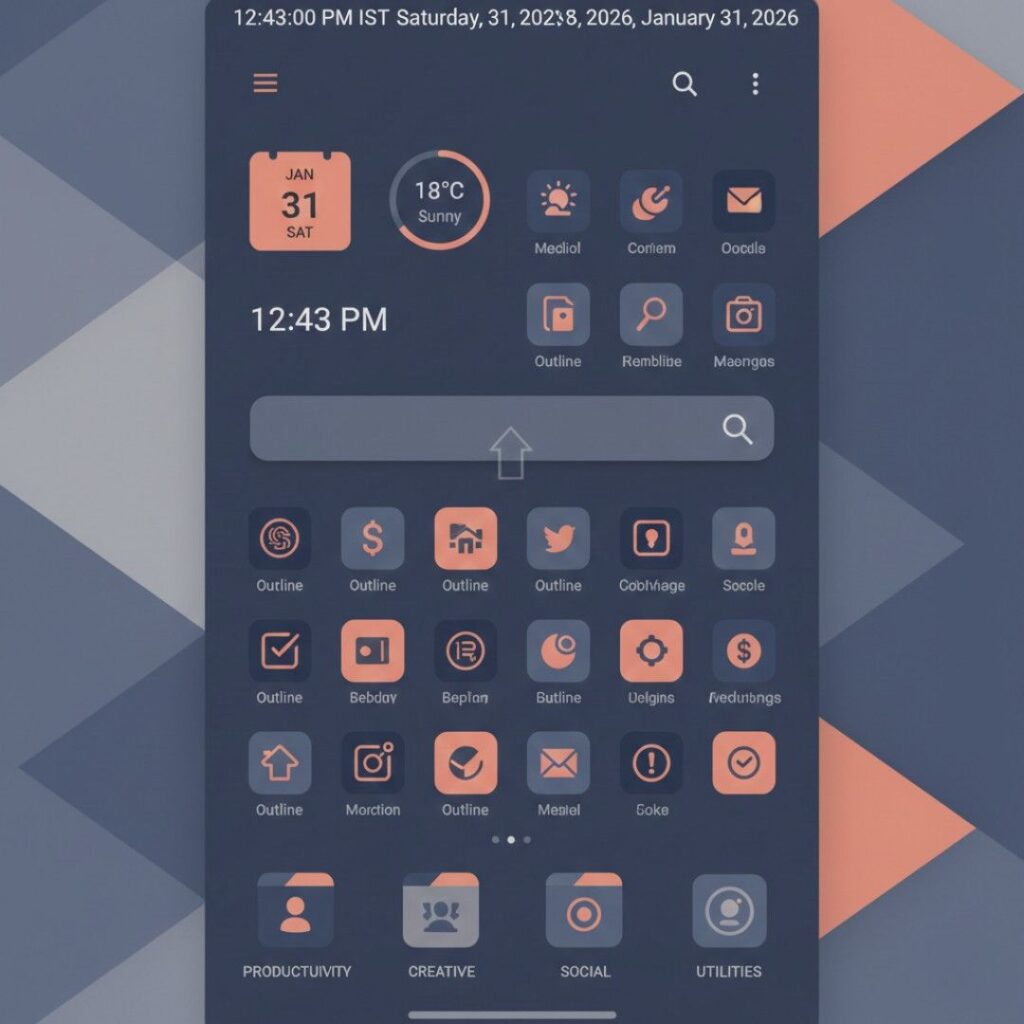
- 6 categorized folders: Social, Productivity, Finance, Media, Health, Shopping
- Each folder contains 6-12 apps maximum
Third Screen:
- News widget
- Task list widget
- Notes widget
App Drawer: Alphabetical, with hidden apps feature for pre-installed bloatware
Why it works: Balances quick access with organization. Widgets provide information without opening apps. Folders prevent clutter while keeping related apps together.
Troubleshooting Common Organization Problems
“I have too many apps in one category”
Split it up. Instead of one massive “Entertainment” folder with 30 apps, create:
- Music & Podcasts
- Video & Streaming
- Games
- Social Media
“I can’t decide what counts as ‘most used'”
Check your Digital Wellbeing dashboard. Data doesn’t lie. Your top 10 apps by screen time are your most-used apps, regardless of what you think you use most.
“My phone came with apps I can’t delete”
Use the hide apps feature or disable them: Settings → Apps → Select app → Disable. This prevents them from running and removes them from view without root access.
“I need different setups for work and personal”
Some Android phones (particularly Samsung) support multiple user profiles or secure folders. You can literally maintain separate home screen configurations for work and personal use. Alternatively, use a launcher like Microsoft Launcher that offers a work feed and personal feed.
Advanced Tips for Power Users
Once you’ve mastered the basics, these advanced techniques can take your organization to the next level:
Gesture controls: Many launchers let you assign apps to gestures. I have:
- Swipe up on home screen: Open app drawer
- Swipe down: Open notifications
- Double-tap: Open camera
- Pinch in: Show all home screens
Icon packs: Consistent visual design makes your home screen easier to scan. Icon packs (available through launchers like Nova) give all your apps a unified aesthetic. I use a minimalist pack called “Whicons” that makes every icon a simple white symbol on a colored background.
Automatic app sorting: Apps like Smart Launcher and Microsoft Launcher automatically categorize new apps for you based on their Play Store category. Not perfect, but saves time.
Tasker integration: For the truly advanced, Tasker can automatically organize apps based on context. You can have different home screens appear based on time of day, location, or connected Bluetooth devices.
The Bigger Picture: Digital Minimalism
App organization is really about something bigger than just a tidy phone. It’s about being intentional with technology.
Every app on your phone is competing for your attention. They’re designed by teams of brilliant people whose job is to make them as engaging (read: addictive) as possible. When you organize your apps thoughtfully, you’re taking back control.
I’ve noticed that since organizing my phone:
- I spend 30% less time mindlessly scrolling (according to Digital Wellbeing)
- I’m more likely to use my phone purposefully and then put it away
- I feel less anxious about my digital life
- I actually use helpful apps I’d previously forgotten about
Your phone should serve you, not the other way around.
For a broader overview of device care, read our Smartphone Tips & Troubleshooting guide.
Final Thoughts and Next Steps
Organizing your Android apps isn’t rocket science, but it does require intention and a small time investment upfront. The payoff—a more efficient, less stressful digital experience—is absolutely worth it.
Here’s what to do right now:
- Set aside 30 minutes this weekend to do your initial organization
- Check your Digital Wellbeing stats to see what you actually use
- Delete ruthlessly (you can always reinstall later)
- Choose an organization method that matches your lifestyle
- Create folders for categories that make sense to you
- Set a monthly reminder to maintain your organization
Remember: perfection is the enemy of progress. Your organization system doesn’t need to be Instagram-worthy or match someone else’s setup. It just needs to work for you.
Start small. Even organizing just your home screen and creating 2-3 folders will make a noticeable difference. You can always refine your system later.
If you found this guide helpful, I’d encourage you to explore Android’s Digital Wellbeing features more deeply—they’re powerful tools for understanding and improving your relationship with technology. The Android Help Center also offers device-specific guidance if you run into manufacturer-specific quirks.
Now go forth and conquer that app chaos. Your organized, efficient Android home screen awaits.
What organization method are you going to try first? I’d love to hear what works for you.
FAQs for "How to Organize Apps on Android"
The most effective way is to: 1) Audit your apps using Digital Wellbeing to see what you actually use, 2) Delete apps you haven't used in 60+ days, 3) Create folders by category (Social, Work, Finance, etc.), 4) Keep only your 8-12 most-used apps on your home screen, and 5) Use the app drawer for everything else. Long-press any app icon to start organizing—you can drag apps into folders or move them between screens.
Place your most frequently used apps in the "thumb zone"—the bottom-middle portion of your screen where your thumb naturally rests. Limit your home screen to essential daily apps only, organize related apps into clearly labeled folders, and use 2-3 home screens maximum. Position time-sensitive apps like Camera and Phone where you can access them quickly.
While Android doesn't have a fully automatic organization feature, you can: 1) Use app suggestions in your app drawer (enabled in Settings → Apps → Default apps), which learns your usage patterns, 2) Sort your app drawer alphabetically (swipe up → three-dot menu → Sort), or 3) Use third-party launchers like Smart Launcher or Microsoft Launcher that automatically categorize apps based on their Play Store category.
No, stock Android doesn't support nested folders (folders within folders). However, you can create multiple related folders instead—for example, separate "Music Apps" and "Video Apps" folders rather than trying to nest them inside an "Entertainment" folder. Some third-party launchers like Nova Launcher offer limited sub-folder functionality.
Ideally, keep 8-16 apps maximum on your home screen—only the ones you use multiple times daily. Research shows the average person regularly uses only 9 apps daily despite having 60-90 installed. Your home screen should be reserved for true essentials; everything else belongs in folders or the app drawer.
Open your app drawer (swipe up from the bottom), tap the three-dot menu icon, and select "Sort apps." Choose alphabetical order for easiest searching. You can also hide unused pre-installed apps: Settings → Apps → Select app → Disable. Use the search bar at the top of the app drawer to quickly find apps by typing their name.
Delete apps you haven't opened in 60+ days (check Digital Wellbeing stats), duplicate apps that serve the same function, pre-installed bloatware you don't use (or disable if you can't delete), old games you no longer play, and promotional apps from stores or restaurants you rarely visit. Keep seasonal apps (tax software, holiday shopping) even if unused currently.
The method varies by manufacturer: On Samsung, go to Settings → Home screen → Hide apps. On Google Pixel, long-press the home screen → Home settings → Hide apps. On other devices, try long-pressing the home screen and looking for "Home settings" or "Hide apps." Alternatively, you can disable apps through Settings → Apps → Select app → Disable, which removes them from view but keeps them installed.
Custom launchers like Nova Launcher, Microsoft Launcher, or Niagara Launcher offer significantly more organization options—custom gestures, icon packs, advanced folder features, and better customization. They're worth trying if you want maximum control, but stick with the stock launcher if you have an older phone or prioritize battery life, as launchers consume some resources.
Perform a quick monthly maintenance check (10 minutes) to delete unused apps and adjust folder contents. Organize new apps immediately when you download them rather than letting them pile up. Do a deeper reorganization every 3-6 months or when you notice your system isn't working anymore. Set a calendar reminder for the first Sunday of each month.