How to Transfer Contacts From Android to iPhone
Switching from an Android phone to an iPhone is exciting, but moving your saved phone numbers can feel confusing. You may have hundreds of contacts stored in Google Contacts, your phone’s internal storage, or a SIM card. Fortunately, you do not need to save every number manually.
If you are wondering how to transfer contacts from Android to iPhone, there are several reliable options. You can use Apple’s Move to iOS app when setting up a new iPhone, sync your Google account, import contacts from a SIM card, or export them as a VCF file.
The best method depends on where your contacts are stored and whether your iPhone is already set up. This guide explains each option step by step, along with practical troubleshooting tips to help you avoid missing or duplicated contacts.
Quick answer: Use Move to iOS during initial iPhone setup. If your iPhone is already configured, syncing your Google account is usually the easiest option.
Table of Contents
ToggleHow to Transfer Contacts from Android to iPhone Using Move to iOS
Move to iOS is Apple’s official app for transferring compatible data from an Android device to a new iPhone. It is a convenient choice if you are setting up your iPhone for the first time.
What you need
Your Android phone and new iPhone.
The Move to iOS app installed on Android.
Both devices connected to power.
Wi-Fi access and enough storage on the iPhone.
Access to the initial iPhone setup screen.
Steps to transfer your contacts
On your Android phone, open the Google Play Store and install Apple’s Move to iOS app.
Turn on your new iPhone and follow the setup instructions.
When you reach the data transfer screen, select the option to transfer data from Android.
Open Move to iOS on your Android phone and follow the on-screen instructions.
Enter the code displayed on your iPhone when prompted.
Select Contacts from the available transfer options.
Start the transfer and keep both devices nearby and connected to power.
Wait until the transfer finishes before continuing with iPhone setup.
Open the Contacts app on your iPhone and check whether your saved names and numbers are present.
The exact screens may vary depending on your software version. Follow the instructions displayed on both devices.
Important: Move to iOS is primarily intended for the initial setup process. If you have already completed iPhone setup, you may need to erase the iPhone and start again to use this method. Do not erase your device without first backing up important data. For an already configured iPhone, Google Contacts or a VCF file is usually more convenient.
For Apple’s official instructions, see Move from Android to iPhone.
How to Transfer Contacts from Android to iPhone Using Google Contacts
Google Contacts is an excellent option when your Android contacts are already synced with your Google account. It is especially useful if your iPhone is already set up because you do not need to reset the device.
This method can also keep your contacts synchronized across devices when you continue using the same Google account.
Step 1: Check contact synchronization on Android
Open Settings on your Android phone.
Find the Google account or account synchronization settings. The menu name varies by manufacturer.
Select your Google account and locate the Contacts synchronization option.
Make sure contact synchronization is enabled.
Open Google Contacts and confirm that your expected names and numbers appear.
Some contacts may be saved only to your phone or SIM card. If they are missing from Google Contacts, export or move them to your Google account before proceeding.
Step 2: Add your Google account to the iPhone
Open Settings on your iPhone.
Depending on your iOS version, open Apps, then Contacts, or open Contacts directly.
Select Contacts Accounts or Add Account.
Choose Google.
Sign in with the same Google account used on your Android phone.
Enable the Contacts synchronization option.
Save your settings if prompted.
Step 3: Verify your contacts
Open the Contacts app on your iPhone. Allow some time for synchronization if you have a large address book or a slow connection.
Check several names, phone numbers, email addresses, and important work contacts to confirm that the information is correct.
Google Contacts synchronization is generally the simplest answer to how to transfer contacts from Android to iPhone without resetting the device.
For additional help, read Google’s instructions for syncing Google Contacts with an iPhone.
Import Contacts from a SIM Card
A SIM card may contain contacts saved directly to it. If your important numbers are stored there, Apple’s SIM import feature can help you move them to the iPhone.
However, this method does not copy every contact stored in your Android phone or Google account.
Follow these steps
Open the Contacts app on Android and check whether your contacts are stored on the SIM card.
If necessary, use your Android phone’s contact management options to copy contacts to the SIM card. The available options depend on your device.
Insert the compatible SIM card into your iPhone.
Open Settings on the iPhone.
Depending on your iOS version, open Apps, then Contacts, or open Contacts directly.
Tap Import SIM Contacts if the option is available.
Choose the destination account if prompted, then wait for the import to finish.
Open Contacts and verify the imported numbers.
SIM cards have limited storage and may not preserve all contact details, such as photographs, additional phone numbers, and email addresses.
Best for: People with a small contact list stored on a physical SIM card.
If your new iPhone uses a different SIM format or an eSIM, do not assume that your contacts will transfer automatically with your phone number. Use Google synchronization or a VCF file instead.
Transfer Android Contacts to iPhone Using a VCF File
A VCF file, also known as a vCard file, stores contact information in a format that can be imported into many contact applications. This is useful if you want a portable copy of your contacts or do not want to synchronize your entire Google account.
Export contacts from Android
Open Google Contacts or your phone’s Contacts app.
Find the contact management, export, or fix and manage menu.
Select Export to file or Export as a VCF file.
Choose the contacts you want to export, if your app provides that option.
Save the file with a
.vcfextension.
The precise menu names differ between Android manufacturers and contact applications.
Move the VCF file to your iPhone
Send the VCF file to an email account you can access on your iPhone, or upload it to a trusted cloud storage service.
Open the email or cloud storage app on your iPhone.
Download or open the VCF attachment.
Tap the file and follow the available contact import instructions.
If prompted, select the option to add all contacts or import the contact cards.
Open the Contacts app and confirm that the contacts were imported correctly.
For very large contact lists, check the number of contacts before and after importing. If the file does not open correctly, try exporting a fresh VCF file and transferring it again.
Which Contact Transfer Method Should You Choose?
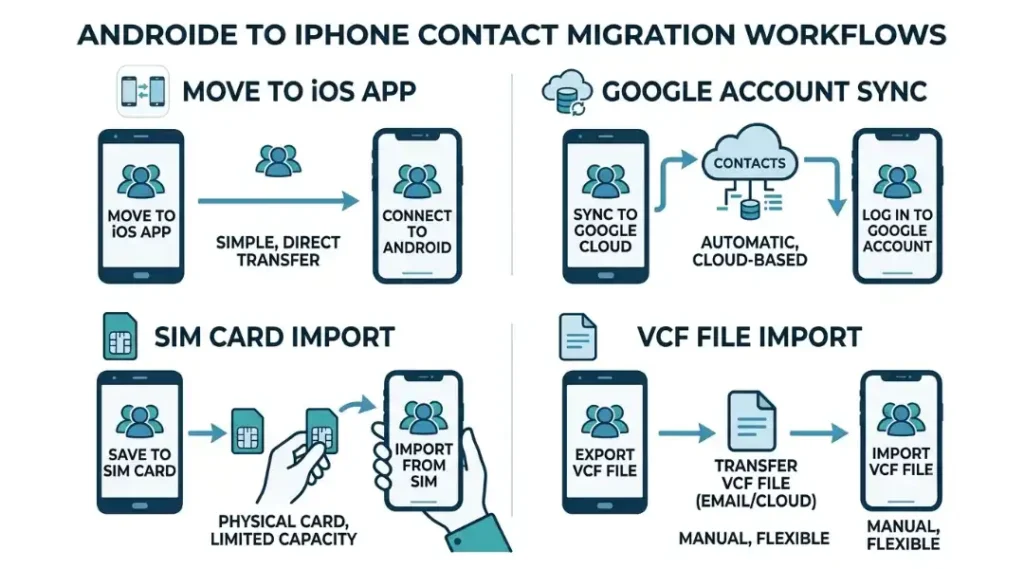
The right approach depends on your current situation. Use this comparison to decide how to transfer contacts from Android to iPhone without unnecessary steps.
| Method | Best for | Main limitation |
|---|---|---|
| Move to iOS | A new iPhone during setup | Usually requires initial setup |
| Google Contacts | An iPhone that is already set up | Contacts must be available in the Google account |
| SIM import | Contacts saved on a physical SIM | Limited contact details and storage |
| VCF file | Manual transfer and portable backups | Requires exporting and importing a file |
For most people with an already configured iPhone, Google Contacts is the easiest choice. If you prefer a manual transfer, a VCF file is a useful alternative.
Common Problems When Transferring Contacts
Even when you use the correct method, a few issues can prevent contacts from appearing immediately. Here is how to address the most common problems.
Contacts are missing on the iPhone
First, check where the missing contacts are stored on Android. Contacts saved locally or on a SIM card may not be included in your Google account.
If you use Google Contacts, open your iPhone’s account settings and make sure Contacts synchronization is enabled. Confirm that you signed in with the correct Google account.
Contacts are not syncing
Check your internet connection and make sure synchronization is enabled on both devices. Open Google Contacts and allow the account to finish syncing.
If the problem continues, restart your iPhone and review the account settings again. You can also consult Google’s official troubleshooting instructions.
Duplicate contacts appear
Duplicates can occur when the same contacts are imported through multiple methods. For example, you may have already synced Google Contacts and then imported the same people from a VCF file.
Review your contact lists before importing another copy. Use the duplicate detection or merge options available in your contact application, and check the result before deleting anything.
Contact names appear without all their details
Different transfer methods may handle additional phone numbers, labels, photographs, and other information differently. Check the original contact on Android to determine whether the missing details were saved locally, on the SIM card, or in a particular account.
If the details are missing from the exported file, create a new export after verifying the source contacts.
Move to iOS will not connect
Keep both devices close together and connected to power. Follow the on-screen instructions, make sure the Android device can use the required connection, and avoid switching between apps during the transfer.
If the transfer repeatedly fails, restart both devices and try again. You can also use Google Contacts or a VCF file instead.
Tips to Keep Your Contacts Safe
Before you transfer your address book, follow these precautions:
Back up your important contacts before changing devices.
Confirm that your Google account password and recovery options are available.
Check whether contacts are stored in Google, local phone storage, or a SIM card.
Avoid importing the same list repeatedly without checking for duplicates.
Verify important business, family, and emergency contacts after transferring.
Keep the original Android phone unchanged until you have confirmed that your contacts are available on the iPhone.
Remember that transferring contacts and transferring your mobile number are separate tasks. Moving your contacts does not automatically activate your SIM or eSIM on the new device.
Frequently Asked Questions
Move to iOS is convenient during initial iPhone setup. If the iPhone is already set up, adding your Google account and enabling Contacts synchronization is usually easier.
Yes. You can sync Google Contacts, import contacts from a SIM card, or open a VCF file on your iPhone. These options generally do not require a factory reset.
SIM import may work without internet access if the contacts are stored on the SIM card and the card is compatible. A VCF file can also be transferred offline if you have a suitable local transfer method. Google synchronization requires internet access.
Normally, importing or syncing contacts to an iPhone does not automatically delete the original contacts from Android. However, avoid deleting accounts or erasing either phone until you have verified your data and backups.
Bluetooth is not the standard direct method for transferring an entire Android address book to an iPhone. Use Move to iOS, Google Contacts, a SIM card, or a VCF file instead.
The missing contacts may be stored locally, on a SIM card, or in a different Google account. Check each source and transfer or synchronize the missing contacts separately.
Move to iOS can transfer supported WhatsApp content during the migration process, but contact names and numbers depend on the contacts available on the device or in your synchronized accounts. Verify your contacts and WhatsApp conversations separately after migration.
Conclusion
Moving your address book does not have to be difficult. Choose Move to iOS when setting up a new iPhone, use Google Contacts when your iPhone is already configured, or select SIM import or a VCF file for a manual transfer.
The most important step is to verify your contacts before deleting data or resetting your old device. With the right method and a quick final check, you can move to your iPhone while keeping your important phone numbers and contact details accessible.
Before switching devices, review these smartphone troubleshooting tips to prepare your phone for a smooth transition.