
Android Hidden Features
20 Powerful Features You Should Use in 2026
Android hidden features are built-in tools that improve usability, performance, and customization but are not visible by default. Many users overlook these features, but once you discover them, your phone experience will feel entirely different. From productivity hacks to performance boosts, these hidden tools are designed to help you get more out of your device without installing extra apps.
In this guide, we’ll explore 20 of the best hidden features in Android 2026, including tips for Samsung and Pixel devices, how to enable developer options, secret gestures, and productivity hacks that most people don’t even know exist.
What Are Android Hidden Features
Android hidden features are functionalities built into your phone’s operating system that are not immediately visible in the standard menus. They include secret tools, gestures, developer options, and customization settings.
Where to find them: Many are tucked under advanced settings, hidden menus, or developer options. Some are accessible only through specific gestures or app shortcuts.
Why they matter: These features allow users to:
Improve device performance
Enhance privacy and security
Customize the user interface
Increase productivity
Access developer-level controls
Example: Most users swipe through their notifications without knowing that Android gestures allow instant access to the camera, screen recorder, or split-screen mode, saving valuable time daily.
By understanding these hidden features, you can unlock your Android’s full potential and make it work smarter for you.
Why Android Features Are Hidden
Android hides certain features for a few reasons:
Prevent Accidental Changes – Some settings, like developer options, can affect system stability. Hiding them reduces the risk of mistakes.
Simplify User Experience – Android aims to make basic navigation easy for casual users, hiding advanced controls to prevent overwhelm.
Encourage Exploration – Hidden features are often rewards for power users who take time to explore their devices.
OEM Customization – Samsung, Pixel, and other brands often include device-specific hidden features that improve brand-specific user experience.
Understanding why features are hidden helps you approach your phone more strategically, knowing when and how to safely enable them.
Best Android Hidden Features
Here are 20 essential Android hidden features you should start using in 2026. Each feature includes a clear explanation, where to find it, how to enable it, and a practical use case.

1. Developer Options
What it is: A hidden menu for advanced settings like USB debugging, animation control, and background process limits.
Where to find it: Settings → About phone → Tap “Build number” 7 times → Enter PIN.
Why it matters: Gives you control over system behaviors that can improve speed and performance.
Use case: Limiting background processes can extend battery life when traveling.
2. System UI Tuner
What it is: Allows you to customize your status bar, quick settings, and notifications.
Where to find it: Pull down Quick Settings → Long press gear icon → System UI Tuner menu appears.
Why it matters: Lets you remove unnecessary icons and streamline notifications.
Use case: Hide icons for battery percentage or Bluetooth when not needed for a cleaner interface.
3. Screen Pinning
What it is: Keeps a specific app on the screen until you unpin it.
Where to find it: Settings → Security → Screen pinning → Enable.
Why it matters: Enhances privacy by preventing others from accessing other apps.
Use case: Hand your phone to a child or colleague without worrying about app switching.
4. Split-Screen Mode
What it is: Run two apps simultaneously on a single screen.
Where to find it: Recent apps → Tap app icon → Select “Split screen.”
Why it matters: Boosts productivity by letting you reference content while working in another app.
Use case: Watch a tutorial while taking notes in a separate app.
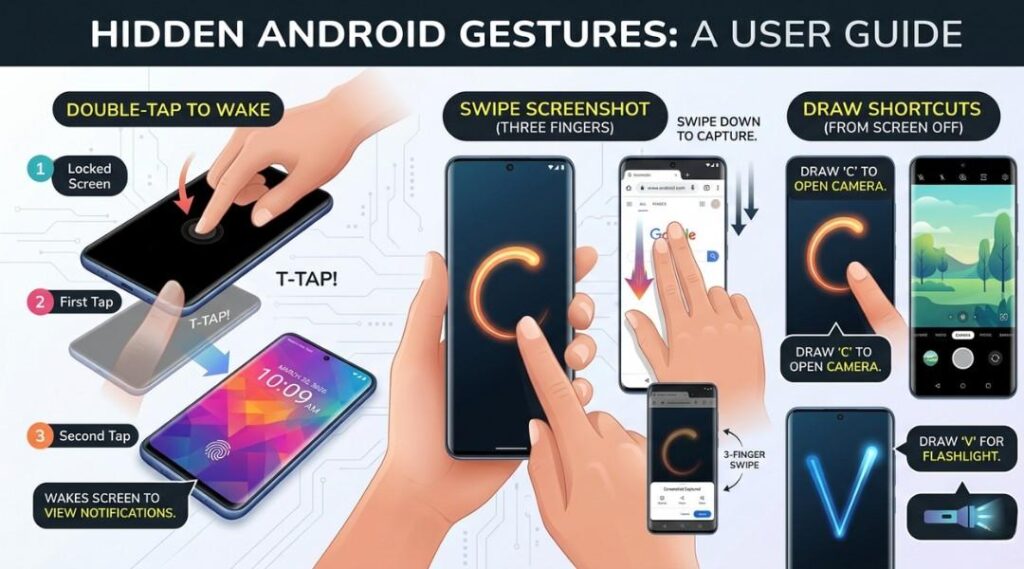
5. Hidden Gestures
What it is: Custom gestures to perform tasks faster.
Where to find it: Settings → Gestures or Advanced features → Gesture settings.
Why it matters: Makes navigation faster without touching multiple buttons.
Use case: Double-tap to wake, swipe for screenshots, or draw a letter to open an app instantly.
6. One-Handed Mode
What it is: Shrinks screen interface for easier one-hand use.
Where to find it: Settings → Advanced features → One-handed mode → Enable.
Why it matters: Makes large devices manageable for small hands.
Use case: Use your phone while holding a coffee or shopping bag in the other hand.
7. Hidden File Manager
What it is: Access advanced file controls, including hidden directories.
Where to find it: Files by Google app → Menu → Show hidden files.
Why it matters: Lets you manage storage and delete unused system files.
Use case: Free up storage space by removing residual app caches hidden from the main interface.
8. Notification History
What it is: Access notifications you accidentally dismissed.
Where to find it: Settings → Notifications → Notification history → Enable.
Why it matters: Ensures you never miss an important alert.
Use case: Retrieve a deleted message link or system alert you didn’t notice.
9. Hidden Android Shortcuts
What it is: Quick actions on app icons.
Where to find it: Long-press app icon → Shortcut menu appears.
Why it matters: Access frequent app functions without opening the full app.
Use case: Compose a WhatsApp message directly from the icon menu.
10. Dark Mode Scheduling
What it is: Automatically switches your interface to dark mode at night.
Where to find it: Settings → Display → Dark Mode → Schedule.
Why it matters: Reduces eye strain and saves battery life.
Use case: Have dark mode start at sunset and end at sunrise for automatic adjustment.
11. Adaptive Battery
What it is: Limits battery use for apps you rarely use.
Where to find it: Settings → Battery → Adaptive Battery → Enable.
Why it matters: Improves battery life without manual adjustments.
Use case: Apps you haven’t opened in weeks will not drain power in the background.
12. Hidden Accessibility Features
What it is: Tools like magnification, color inversion, and hearing enhancements.
Where to find it: Settings → Accessibility → Explore all features.
Why it matters: Makes devices usable for everyone and can enhance usability for casual users too.
Use case: Use magnification to read small text in apps or color inversion for eye comfort.
13. Screen Recorder
What it is: Record screen activity without third-party apps.
Where to find it: Quick settings → Screen recorder icon → Tap to start.
Why it matters: Great for tutorials, presentations, or saving gameplay.
Use case: Record a bug in an app to share with support teams.
14. Smart Lock
What it is: Keep your device unlocked in trusted locations or devices.
Where to find it: Settings → Security → Smart Lock → Set trusted devices or locations.
Why it matters: Reduces the need for constant PIN entry while maintaining security.
Use case: Automatically unlock your phone at home while still keeping it secure elsewhere.
15. Hidden Developer Animations
What it is: Adjust transition and animation speeds for faster navigation.
Where to find it: Developer options → Window animation scale, Transition animation scale, Animator duration scale.
Why it matters: Makes your device feel faster by reducing delays in UI transitions.
Use case: Change all animations to 0.5x speed for a snappier interface.
16. Advanced Screenshot Options
What it is: Capture long screenshots or partial sections of a screen.
Where to find it: Screenshot → Tap “Scroll capture” or crop option.
Why it matters: Makes it easier to save conversations, receipts, or articles.
Use case: Capture an entire webpage or chat conversation in one image.
17. Hidden App Permissions
What it is: Control access to microphone, camera, location, and storage per app.
Where to find it: Settings → Apps → Permissions → Adjust individually.
Why it matters: Enhances privacy and reduces unnecessary app tracking.
Use case: Block a game from accessing your location while still allowing camera use.
18. Data Saver Mode
What it is: Limits background data usage for apps.
Where to find it: Settings → Network & Internet → Data Saver → Enable.
Why it matters: Saves mobile data and improves battery life.
Use case: Prevent apps from syncing when using cellular data.
19. Hidden Developer USB Features
What it is: Allows USB debugging, file transfers, and tethering options.
Where to find it: Developer options → USB debugging or USB configuration.
Why it matters: Essential for developers and advanced users.
Use case: Transfer files faster to a PC or test apps during development.
For detailed guidance on developer tools and USB debugging, refer to the official Android Developer Documentation.
20. System Alerts and Background Restrictions
What it is: Control which apps can send alerts or run in the background.
Where to find it: Settings → Apps → Special access → Optimize battery or restrict background activity.
Why it matters: Reduces distractions and improves battery life.
Use case: Restrict social media apps from running in the background to focus on work.
Hidden Features for Performance
Android secret features can dramatically improve daily efficiency.
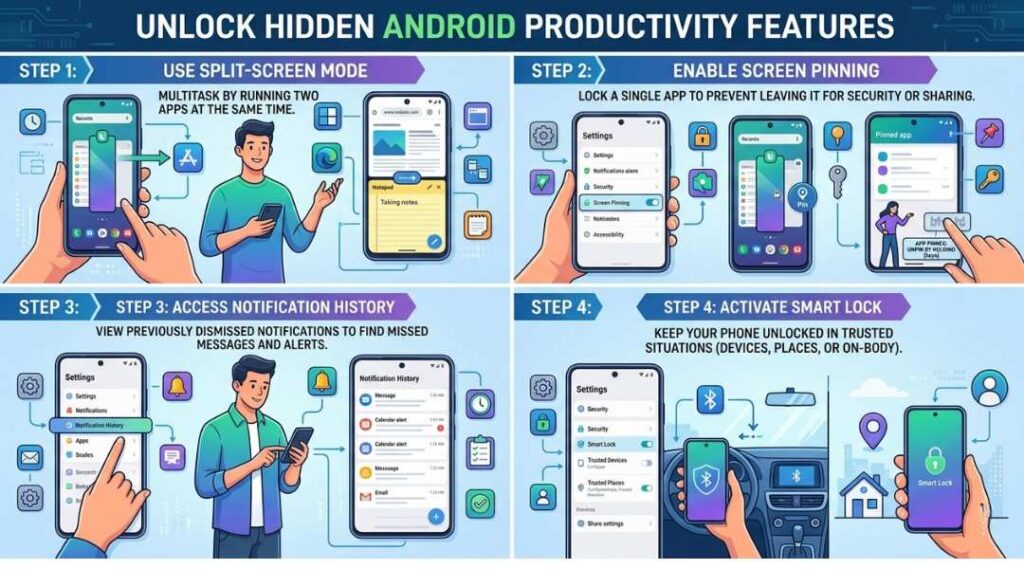
Split-Screen Mode – Multi-task without switching apps.
Screen Pinning – Secure apps while lending your phone.
Notification History – Never lose important alerts.
Hidden Gestures – Quick shortcuts for common tasks.
Smart Lock – Reduce repetitive unlocks while staying secure.
Pro tip: Use gestures like double-tap to wake and draw shortcuts to launch apps instantly for true productivity gains.
You can also explore Google’s official Android tips and tricks page for step-by-step instructions and device-specific guidance.
Samsung vs Pixel Hidden Features
Samsung Exclusive
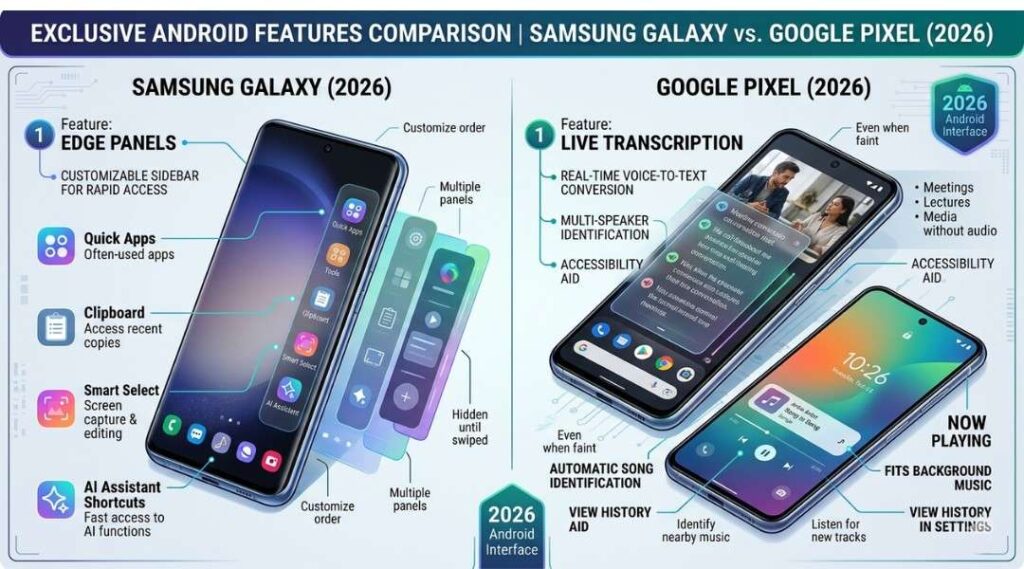
Edge Panels – Quick access to apps, contacts, and tools from the screen edge.
High-Performance Mode – Boosts processing power temporarily.
One-Handed Mode – Easier navigation on large screens.
For Samsung users, the official support page provides tutorials on accessing Edge Panels, one-handed mode, and other device-specific features.
Pixel Exclusive
Recorder with Live Transcription – Automatically transcribes recordings.
Adaptive Sound – Optimizes audio based on ambient noise.
Now Playing – Identifies music playing around you without opening apps.
Insight: Both devices share core Android hidden features, but OEM additions enhance usability and productivity for their respective users.
Common Mistakes
Leaving Developer Options Always On – Can cause instability if settings are misused.
Overusing Background App Restrictions – May block important notifications.
Ignoring Updates – Hidden features often improve with OS updates.
Disabling System Animations Blindly – Can make navigation feel abrupt.
Not Using Adaptive Battery – Many users waste battery on unused apps.
Tip: For complete optimization, read our smartphone tips and troubleshooting guide to avoid these pitfalls.
Conclusion
Android hidden features are not just gimmicks—they are practical tools for anyone who wants a smarter, faster, and more personalized device. From productivity hacks to performance optimizations, gestures, and developer settings, these android tips and tricks make your phone work harder for you.
Once you explore features like screen pinning, adaptive battery, hidden gestures, and developer options, you’ll notice improved efficiency, longer battery life, and a smoother experience.
For everyday users and power users alike, discovering these android secret features ensures that your device is truly optimized for 2026.
Learn how to organize apps on Android for better usability, and if your phone is slow, check our speed up Android phone guide to pair hidden features with practical performance tweaks.
FAQ
Tap Build number in Settings → About phone 7 times → Enter PIN.
Yes, most are built-in tools. Avoid changing critical developer options without understanding them.
Absolutely. Adaptive Battery, background restrictions, and data saver modes can significantly extend battery life.
Core Android features are shared, but OEMs include device-specific enhancements.
Developer options, hidden gestures, adaptive battery, split-screen mode, and screen pinning are top picks.
Explore Settings → Advanced → Developer Options → Accessibility. Use gestures and shortcuts to simplify tasks.
Yes. Features like System UI Tuner, hidden gestures, and edge panels allow extensive customization without rooting.
No. Some are brand-specific, like Samsung Edge Panels or Pixel Live Transcription.