Smartphone Tips: Improve Battery Life, Security, Performance, and Everyday Use
Your smartphone is much more than a device for making calls. It stores personal photos, manages appointments, supports online payments, connects you with family, and helps you complete everyday work. However, battery drain, slow performance, limited storage, weak connectivity, and privacy concerns can make even a good phone frustrating to use.
The good news is that you do not always need a new device to solve these problems. A few sensible changes to your settings, apps, charging habits, and security practices can make a noticeable difference.
This guide brings together practical smartphone tips for Android and iPhone users. You will learn how to improve battery efficiency, organize storage, protect personal information, take clearer photos, work more efficiently, and troubleshoot common problems without immediately visiting a repair shop.
Menu names and available features can vary by phone manufacturer and operating system version. Use the instructions that match your device, and consult the manufacturer’s support documentation when a setting is unavailable.
Table of Contents
ToggleWhy Smartphone Tips Matter for Everyday Users
Modern smartphones combine powerful processors, advanced cameras, wireless connectivity, biometric security, and thousands of possible app functions. Yet many users continue to rely on default settings, even when small adjustments could improve their experience.
For example, an app that constantly accesses your location may consume unnecessary resources. A nearly full storage drive can interfere with downloads and updates. An outdated operating system may leave known security vulnerabilities unpatched. Meanwhile, excessive screen brightness can shorten battery life throughout the day.
Learning practical smartphone tips helps you address these issues before they become major inconveniences.
The aim is not to change every setting or disable useful features. Instead, focus on changes that match your needs. Someone who takes hundreds of photos may benefit most from storage management. Someone who works remotely may prioritize connectivity, notifications, and battery reliability.
Start with the problems you experience most frequently, then gradually improve the rest of your phone’s configuration.
Essential Setup Tips for a New Smartphone
The first few steps after purchasing a phone can influence how securely and comfortably you use it over time.
Install available system updates
Connect your device to a trusted Wi-Fi network, open Settings, and look for Software Update or System Update. Install supported updates after checking that your battery is sufficiently charged and your important data is backed up.
Updates can provide security fixes, bug corrections, and new features. Check the manufacturer’s support policy to understand how long your device is expected to receive updates.
Configure a secure screen lock
Use a strong PIN or password and enable fingerprint or facial authentication when available. Avoid predictable combinations such as repeated digits, simple patterns, or birthdays.
Biometric authentication is convenient, but your backup passcode remains important. Never share it with people you do not trust.
Enable automatic backups
Configure a backup service such as iCloud or Google backup, depending on your device and account. Review which information is included, because photos, app data, messages, and device settings may follow different backup rules.
Check that the backup completed successfully rather than assuming that enabling the feature automatically protects everything.
Review app permissions
Before granting access to contacts, the microphone, camera, or location, consider whether the app needs that permission for its main function.
For example, a navigation app may need location access while you use it, whereas a basic calculator generally does not. Revisit permissions periodically because your needs and installed apps can change.
Transfer your data carefully
When switching devices, use official migration tools wherever possible. If you are moving from Android to an iPhone, follow our guide on how to transfer contacts from Android to iPhone.
Verify your contacts, photos, messages, and important files before wiping or trading in your old phone.
Smartphone Tips for Better Battery Life
Battery performance depends on screen usage, network conditions, background activity, temperature, battery age, and the apps you run. You can often improve daily endurance by identifying the biggest sources of power consumption instead of changing settings at random.
1. Check which apps use the most battery
Open Settings and look for Battery or Battery Usage. Review the apps consuming the most power and check whether their activity matches your normal usage.
An app that uses substantial power while you are actively watching videos may be behaving normally. An app consuming unusually high power in the background deserves closer attention.
Update the app, restrict unnecessary background activity, or uninstall it if you no longer need it.
2. Adjust brightness and screen timeout
Your display can consume considerable power, particularly when brightness remains high for long periods.
Enable automatic brightness if it works well for your environment. Set a shorter screen timeout so the display switches off when you put the phone down.
If your phone uses an OLED display, dark mode may also reduce power consumption in some situations. The actual benefit depends on the display, brightness, interface, and content being shown.
3. Use battery-saving features appropriately
Android phones commonly offer Battery Saver or Adaptive Battery features. iPhones include Low Power Mode and battery optimization settings.
These features can limit background activity, reduce certain visual effects, or change how apps refresh. They are useful when you need to extend battery life, but some functions may become less responsive.
For more detailed instructions, see our guide on how to turn off Low Power Mode.
4. Review background activity
Some apps refresh content when you are not actively using them. Social feeds, email, cloud storage, and messaging apps may need background access, but not every app requires it.
Review the relevant settings and restrict background activity for apps that do not need constant updates.
Learn more in our article about what Background App Refresh does.
5. Avoid excessive heat
Heat can accelerate battery ageing. Avoid leaving your phone in direct sunlight, inside a hot vehicle, or under bedding while charging.
If the device becomes unusually hot, stop demanding activities and disconnect the charger if it is safe to do so. Allow the phone to cool naturally. Do not put it in a refrigerator or freezer.
6. Adopt sensible charging habits
Use a compatible charger and cable from a reputable manufacturer. Avoid damaged accessories and inspect cables for exposed wires or loose connectors.
Modern phones manage charging automatically, and some offer optimized charging or charge limits. Enable these features if available and appropriate for your usage.
You do not need to follow an inflexible charging percentage every day. Preventing excessive heat and using built-in battery management features are practical priorities.
If battery life has deteriorated significantly despite these changes, review the battery health information available on your device. A worn battery may require professional replacement.
For additional help, read our article on iPhone battery draining fast.
Smartphone Tips to Free Up Storage Without Losing Important Files
A storage warning does not automatically mean you need to delete treasured photos or purchase a new phone. First, identify what occupies the available space.
Review your storage breakdown
On an iPhone, open Settings, select General, and tap iPhone Storage. On Android, look for Storage in Settings. Exact menu names vary by manufacturer.
Check how much space is used by apps, downloaded videos, photographs, documents, and temporary files.
Remove downloads you no longer need
Offline music, streaming videos, maps, and documents can occupy significant space. Review downloaded content inside the apps that created it and remove anything you can download again later.
Be careful with files stored in shared folders or work applications. Confirm that you no longer need a file before deleting it.
Clear temporary files carefully
Some Android apps provide a Clear Cache option. This removes temporary files that the app can usually recreate.
Do not confuse clearing cache with clearing app data or storage. Clearing app data can remove local settings, saved sessions, downloads, and other information.
On iPhones, manage storage through the built-in recommendations and individual app settings instead of looking for a universal cache-clearing button.
Manage photos and videos
Back up important media before deleting local copies. Cloud services can help, but confirm that the original files have uploaded successfully and understand how deletion affects synchronized devices.
Review large videos, duplicate photographs, screenshots, and messaging attachments. These often provide useful opportunities to reclaim space.
Offload or uninstall unused apps
If your iPhone supports app offloading, you can remove an app while retaining certain documents and data for later use. Android users can uninstall apps they no longer need and review manufacturer-specific storage tools.
Before removing an app, check whether it contains unsynchronized work, saved files, or account information.
Keep some free space available
Avoid filling internal storage to its maximum capacity. Operating systems need room for temporary files, updates, and normal operations.
There is no single free-space percentage that suits every phone. If your device warns that storage is low, follow its recommendations and remove unnecessary content first.
Smartphone Security Tips to Protect Your Personal Information
Your phone may contain access to email, banking, shopping, cloud storage, and private conversations. Protecting it requires more than setting a screen lock.
Keep your operating system and apps updated
Install supported operating system and security updates. Update apps through official stores, and investigate repeated update failures rather than ignoring them.
Updates can correct security weaknesses as well as improve reliability. Check your manufacturer’s published update policy if you are using an older device.
Enable multifactor authentication
Use multifactor authentication on important accounts, especially email, cloud storage, and financial services.
Where supported, consider a passkey or a phishing-resistant authentication method. An authenticator app can also be preferable to relying exclusively on text-message codes, depending on the account and available options.
Protect your recovery methods as carefully as your main password.
Download apps from trusted sources
Use the official app store for your device whenever possible. Check the developer name, requested permissions, reviews, and privacy information before installing an unfamiliar app.
Be cautious about apps promoted through unexpected messages or websites. Avoid installing software that asks you to disable security protections without a clear, trustworthy reason.
Review privacy permissions
Check which apps can access your camera, microphone, contacts, photos, and location.
Remove permissions that are unnecessary for an app’s function. If your phone offers one-time permission or access only while using the app, consider those options when appropriate.
Recognize suspicious messages
Fraudulent messages may claim that a delivery failed, a bank account needs attention, or a prize is waiting. They may create urgency to persuade you to click a link or share a verification code.
Avoid opening unexpected links. Visit the organization’s official website or app independently to check whether the message is legitimate.
Never share your banking PIN, password, or one-time authentication code with someone who contacts you unexpectedly.
Manage Blocked Messages and Contacts on iPhone
Blocking unwanted contacts can help protect your privacy, but it is important to understand what happens to their messages afterward. On an iPhone, you can review your blocked contacts list in Settings and manage who can contact you. However, text messages sent while a number is blocked generally are not available to read later. Existing conversations from before the block may still remain in Messages, and blocked callers may be able to leave voicemails depending on your carrier and settings.
If you want to check your blocked contacts or understand which messages can still be accessed, follow our guide on how to view blocked messages on iPhone. This can help you distinguish between blocked messages, muted conversations, and calls that go directly to voicemail.
Prepare for loss or theft
Enable your device’s official location and recovery features. Make sure your account recovery information is current and that backups are working.
Hide sensitive message previews on the lock screen if other people may see them. If your phone is lost, use the official recovery service and contact your carrier or financial provider when necessary.
These smartphone tips help reduce everyday risks without requiring advanced technical knowledge.
Mobile Photography Tips for Sharper Photos and Better Videos
You can improve smartphone photography without buying additional equipment. Start with simple adjustments that make the most of your camera.
Clean the camera lens
Fingerprints and dust can create haze, glare, or soft-looking images. Wipe the lens gently with a clean microfiber cloth before taking important photos.
Avoid abrasive materials and harsh cleaning chemicals.
Find better lighting
Natural light near a window can produce attractive indoor photographs. Outdoors, softer morning or evening light may be easier to work with than harsh midday sunlight.
When photographing people, try positioning the light in front of or slightly to the side of the subject. Avoid placing a bright window directly behind the person unless you want a silhouette.
Tap to focus
Tap the subject on your camera screen to set focus. Many phones also let you adjust exposure by moving a slider.
Check that the important subject is sharp before taking the picture. This is especially useful for food, documents, pets, and close-up photographs.
Use grid lines for composition
Enable camera grid lines if available. Place important subjects near the grid intersections or use the lines to keep horizons level.
These are flexible guidelines rather than strict rules. Experiment with different compositions to find what suits the scene.
Stabilize your phone
Hold the device with both hands when possible. Brace your elbows against your body or use a stable surface when shooting in low light.
For video, move slowly and avoid sudden changes in direction. If your phone supports optical image stabilization, it can help reduce certain types of camera shake, although it cannot eliminate every movement.
Avoid unnecessary digital zoom
Digital zoom often crops and enlarges an image, reducing detail. Use an optical telephoto lens when your device has one, or move closer when doing so is safe and practical.
Keep editing subtle
Adjust brightness, contrast, white balance, and cropping to improve a photo. Avoid excessive sharpening or filters that make skin tones and colours look unnatural.
If you record many videos, remember that high-resolution footage can fill storage quickly. Review your camera resolution and available space before a long recording session.
Smartphone Productivity Tips for Work and Everyday Life
Your smartphone can help you manage daily tasks, but constant notifications can also distract you. A few changes can make it easier to focus.
Configure Focus modes
Use Focus on iPhone or Digital Wellbeing and similar tools on Android to reduce unnecessary interruptions.
Create separate settings for work, sleep, family time, or study. Allow calls and alerts from essential contacts so that important communication can still reach you.
Organize your home screen
Place frequently used apps on the first screen and group less important apps into folders. Keep essential tools such as maps, calendars, notes, and communication apps easy to reach.
Our guide on how to organize apps on Android explains useful organization methods.
Use reminders, widgets, and voice input
Calendar widgets can display upcoming appointments without requiring you to open an app. Reminders can help you manage errands, bills, and recurring tasks.
Voice dictation is useful when typing is inconvenient, but review dictated text before sending it because names and technical terms may be transcribed incorrectly.
Learn screen recording
Screen recording can help you explain a technical issue, demonstrate a feature, or create a quick tutorial.
Use the built-in recording feature where possible, and check whether notifications or private information will appear in the recording. See our instructions for how to screen record on iPhone.
Reduce unnecessary notifications
Turn off promotional alerts and notifications that do not require immediate attention. Keep alerts enabled for security, important messages, and essential services.
You can also use scheduled notification summaries when supported. The goal is to receive useful information without checking your phone every few minutes.
Smartphone Performance Tips to Keep Your Device Running Smoothly
A slow phone can be caused by limited storage, demanding apps, poor network conditions, software bugs, or ageing hardware. Diagnose the likely cause before performing major changes.
Restart when necessary
Restarting can resolve temporary glitches, stuck processes, and some connection issues. If an app freezes, close and reopen that app first. If the entire phone stops responding, use the manufacturer’s recommended restart procedure.
You do not need to force-close every app constantly. Modern operating systems generally manage background applications automatically.
Update problematic apps
If one app repeatedly crashes, check for updates. Restart the phone if needed, and review the app’s storage and permissions.
On Android, clearing the app cache may help with some issues. If the problem continues, consider reinstalling the app after confirming that important data is synchronized or backed up.
Identify demanding apps
Review battery and storage usage to identify applications that consume unusually high resources. Uninstall apps you do not recognize or no longer need, after confirming they are not essential system components.
Avoid installing so-called phone booster apps that make exaggerated performance claims or request unnecessary access to your data.
Check available storage
Low storage can interfere with downloads, updates, and normal operations. Remove unwanted files and downloads before assuming the processor or battery is failing.
Treat factory reset as a last resort
A factory reset erases local data and settings. Before considering it, back up important information, verify that the backup works, and make sure you know the account credentials required to set up the device again.
Try simpler troubleshooting first. If the phone remains slow after a reset or shows signs of physical damage, seek qualified support.
Smartphone Connectivity Tips for Wi-Fi, Bluetooth, and Mobile Data
Connection problems may originate from the phone, router, carrier, account, or surrounding network conditions. Use a simple process to narrow down the cause.
Fix Wi-Fi problems
First, check whether other devices can access the same network. If they also fail, the router or internet service may be responsible.
If only your phone has trouble, toggle Wi-Fi off and on, restart the device, or forget the network and reconnect using the correct password.
Follow the relevant Android internet connection troubleshooting instructions or Apple’s Wi-Fi connection guidance.
Troubleshoot mobile data
Confirm that mobile data is enabled and that your plan is active. Check whether the issue occurs in multiple locations.
Airplane Mode can sometimes refresh a connection when switched on briefly and then off. If the problem persists, check your carrier’s service status and contact its support team.
Fix Bluetooth pairing issues
Confirm that both devices have sufficient battery and are in pairing range. Check that the accessory is in pairing mode and not already connected to another device.
If pairing fails, disconnect the accessory, remove the saved pairing if necessary, and try connecting again. Follow the manufacturer’s instructions for headphones, watches, and other accessories.
Choose your network settings carefully
A stronger LTE signal may provide a more reliable connection than weak 5G coverage in some locations. Automatic network selection is convenient, but supported devices may let you choose a preferred network type.
Avoid changing advanced network settings without understanding the effect, especially when the device is managed by a workplace or mobile carrier.
Smartphone Accessibility and Customization Features
Accessibility features can improve convenience for many users, not only people with disabilities.
Make text easier to read
Adjust text size, display scaling, contrast, and brightness to suit your needs. Larger text can improve readability, while increased contrast may make interface elements easier to distinguish.
Explore voice control and dictation
Voice control can make some tasks easier when using your hands is difficult. Dictation can speed up writing, although sensitive messages should be reviewed before sending.
Do not use handheld voice interactions while driving. Follow local road safety laws and use hands-free features only when safe.
Reduce distracting motion
Some devices offer reduced motion settings or animation adjustments. These can make the interface more comfortable for people who are sensitive to visual movement.
Customize shortcuts
Arrange home-screen shortcuts, widgets, and quick settings around your most common tasks. Keep frequently used accessibility options easy to reach.
For additional Android features, see our guide to Android hidden features.
Smartphone Maintenance Tips for a Longer Device Lifespan
Good maintenance combines sensible physical care with software housekeeping.
Use a suitable protective case and screen protector if they meet your needs. Keep the device away from liquids and extreme temperatures, and avoid putting pressure on the screen.
Clean the phone with a method approved by its manufacturer. Do not insert sharp objects into the charging port or use liquids that may damage seals and components.
Inspect charging cables for wear. If a cable, charger, or battery appears swollen, damaged, or unusually hot, stop using it and seek appropriate support.
Keep your operating system and applications updated. Remove unused apps and review your backups periodically.
If your phone has a damaged screen, unreliable charging port, swollen battery, or persistent overheating, do not assume software adjustments will solve the issue. A qualified repair provider can inspect the hardware.
Before purchasing a replacement phone, compare its expected software support, repair costs, battery performance, and features with the cost of repairing your current device. Replacing a degraded battery may be worthwhile when the rest of the phone remains reliable.
How to Troubleshoot Common Smartphone Problems
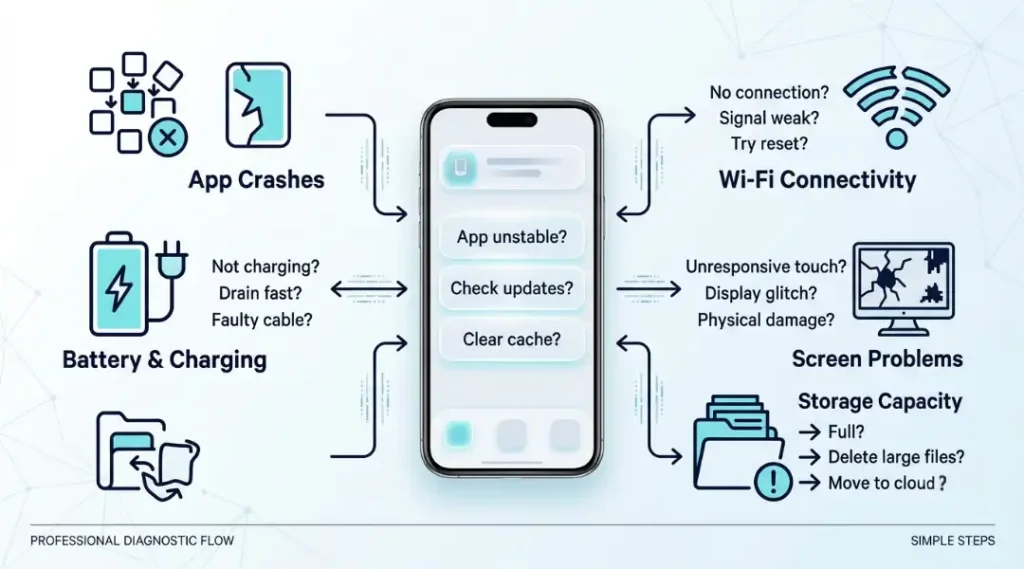
Use the following checklist to address common problems without immediately resetting your device.
Phone will not turn on
Connect the phone to a compatible charger and working power outlet.
Leave it charging for a reasonable period if the battery may be fully discharged.
Inspect the cable and adapter for damage, and try a known-good compatible accessory.
Follow the manufacturer’s force-restart instructions for your model.
If the phone remains unresponsive, becomes unusually hot, or shows signs of physical damage, seek professional support.
Do not insert metal objects into the charging port or attempt to open the battery yourself.
Apps keep crashing
Close and reopen the affected app.
Check for app and operating system updates.
Restart the phone.
On Android, consider clearing the app cache if appropriate.
Reinstall the app only after confirming that important local information is backed up.
If multiple apps crash repeatedly, investigate storage, recent updates, and possible system issues.
Phone overheats
Heavy gaming, navigation, video recording, charging, and direct sunlight can raise device temperature. Pause demanding activities and move the phone to a cooler environment.
If the device displays a temperature warning, follow its instructions. If it repeatedly overheats during light use, has a swollen battery, or becomes dangerously hot, stop using it and seek qualified assistance.
Touchscreen stops responding
Clean and dry the screen, remove any accessory that might interfere with touch input, and restart the phone if possible.
If the same area remains unresponsive after restarting, or the screen has visible damage, the problem may require hardware repair.
Speaker sounds muffled
Check the volume level, mute settings, Bluetooth output, and whether the issue occurs in multiple apps. Inspect the speaker opening for visible debris, but do not push objects into it.
For further instructions, read our article on how to fix phone speaker problems.
Phone charges slowly or not at all
Try a compatible charger, cable, and power outlet. Check the charging port visually for debris and review any charging or temperature warning displayed by the device.
If charging remains unreliable, stop using damaged accessories and arrange a professional inspection. Our guide on how to fix a phone that is not charging provides additional troubleshooting steps.
White spot or bright dot appears on the display
Restart the phone and check whether the mark remains visible across different screens. Persistent bright spots may indicate display damage or a pixel problem.
Read our guide on white dots on mobile screens to understand possible causes and repair considerations.
Wi-Fi connects but the internet does not work
Check whether other devices can browse the internet. Restart the router if appropriate, reconnect the phone to Wi-Fi, and check whether a captive portal or sign-in page is required.
If other devices also fail, contact your internet provider. If only the phone is affected, consult its network troubleshooting documentation.
When to seek professional help
Stop experimenting with settings when the phone has liquid damage, a swollen battery, a burning smell, severe overheating, repeated unexpected shutdowns, or visible hardware damage.
Do not attempt to puncture or compress a damaged battery. Use an authorized or otherwise qualified repair service appropriate for your device.
Choosing Your Next Smartphone
When repair is no longer practical, compare phones based on your actual requirements rather than relying on one impressive specification.
Consider battery endurance, camera quality, storage capacity, display readability, performance, and software support. Check whether replacement parts and repairs are readily available in your area.
Think about your everyday workload. A person who records frequent videos may need more storage, while someone who mainly calls, messages, browses, and uses navigation may prioritize battery life and reliability.
Read independent reviews and check the manufacturer’s support commitments before buying. Compare the total cost of ownership, including accessories, repairs, and potential storage subscriptions.
These smartphone tips can also help you identify which features matter most before spending money on an upgrade.
Smartphone Tips: Frequently Asked Questions
Start by updating your operating system, enabling a secure screen lock, configuring backups, reviewing app permissions, and learning how to manage battery and storage. These steps improve everyday usability and reduce avoidable risks.
Lower excessive screen brightness, review battery usage, restrict unnecessary background activity, and avoid extreme temperatures. Use built-in battery-saving features when appropriate. If battery life remains poor, check battery health and consider professional evaluation.
Common causes include limited free storage, demanding apps, software bugs, poor network conditions, and ageing hardware. Restart the device if necessary, update affected apps, review storage, and investigate any recent changes before considering a factory reset.
Review large downloads, unused apps, duplicate files, and messaging attachments. You can also use a compatible cloud backup service, but verify that your photos have uploaded successfully before removing local copies.
There is no universal restart schedule that every phone needs. Restarting when the device becomes unresponsive, an app behaves abnormally, or a troubleshooting procedure recommends it is usually sensible.
Yes. Supported updates can provide security patches, bug fixes, compatibility improvements, and new features. Back up important data and use a reliable connection before installing major updates.
Persistent charging problems, screen damage, a swollen battery, repeated shutdowns, severe overheating, or unresponsive hardware may require professional repair. Software changes cannot fix every physical fault.
Public Wi-Fi can be convenient, but you should avoid suspicious networks and never ignore certificate or security warnings. Use HTTPS websites, keep your device updated, and consider a reputable VPN when appropriate. A VPN does not make every online activity automatically safe.
No. Routine daily cache clearing is generally unnecessary. Cached files often help apps load faster. Clear an individual app's cache when troubleshooting or when it is consuming excessive storage, and avoid clearing app data unless you understand the consequences.
Most general practices apply to both platforms, including secure screen locks, backups, updates, battery monitoring, and careful app permissions. However, menu names and available features vary. Follow instructions for your specific model and operating system.
Final Thoughts
You do not need to change every setting to get more from your phone. Begin with the improvements that solve your most immediate problems, then build better habits over time.
Review battery usage, keep enough storage available, install supported updates, protect important accounts, and use troubleshooting steps in a sensible order. Back up essential data before major changes, and seek professional help when symptoms suggest hardware damage.
The most effective smartphone tips are the ones that make your device more reliable, secure, and convenient for your everyday needs. With regular care and informed decisions, you can get more value from your current phone and make a better decision when it is finally time to upgrade.