
How to Unhide Apps on iPhone: Fast Fixes
A missing iPhone app is usually not gone. It is often hidden, moved, restricted, or removed from the Home Screen. You will learn how to find the app, restore it, and stop the problem from happening again. Apple’s iOS 18 privacy tools made true hidden apps more common, so this is now a support skill. You may search how to unhide an app on iphone when only one icon is missing, but the fix path is the same.
how to unhide apps on iphone is the process of restoring apps that were hidden in the App Library, removed from the Home Screen, or hidden from your App Store purchase list. It works by checking where Apple stores hidden apps and reversing that setting. Unlike reinstalling from scratch, it often restores access in seconds. As of March 2026, iOS holds 32.27% of the global mobile OS market, which keeps this issue highly relevant.
Why You Should Know How to Unhide Apps on iPhone in 2026
Knowing how to unhide apps on iphone matters more in 2026 because Apple now supports true hidden apps, locked apps, hidden Home Screen pages, and purchase-level hiding. A missing icon can now mean different things. If you pick the wrong fix first, you waste time and may think the app was deleted when it was not.
Apple turned app hiding into a formal privacy feature in iOS 18. Apple announced the feature in June 2024 and released it publicly in September 2024. Then Apple’s March 18, 2025 support article broke the issue into three clear buckets: App Library placement, hidden Home Screen pages, and the Hidden folder. Apple also refreshed its Hidden Purchases support steps on February 2, 2026, which matters when the problem sits in purchase history rather than on the device.
Apple said its installed base passed 2.5 billion active devices in January 2026, and Statcounter reported iOS at 32.27% of worldwide mobile OS share in March 2026. That scale makes this a common support issue for users, parents, and IT teams. For the broader context around device setup and app workflows, see the broader software and apps workflow guide.
How to Unhide Apps on iPhone
The fastest way to handle how to unhide apps on iphone is to check the app in a fixed order: Search, Hidden folder, hidden Home Screen pages, App Store purchase history, then restrictions. If you searched how to unhide app on iphone, this step-by-step order is the cleanest fix path.
Step 1: Use Search to confirm the app is still installed
Swipe down from the middle of the Home Screen, or tap the Search field on supported versions, then type the app name. If the icon appears, the app is still on the phone even if you cannot see it on a page.
Step 2: Check the Hidden folder in App Library
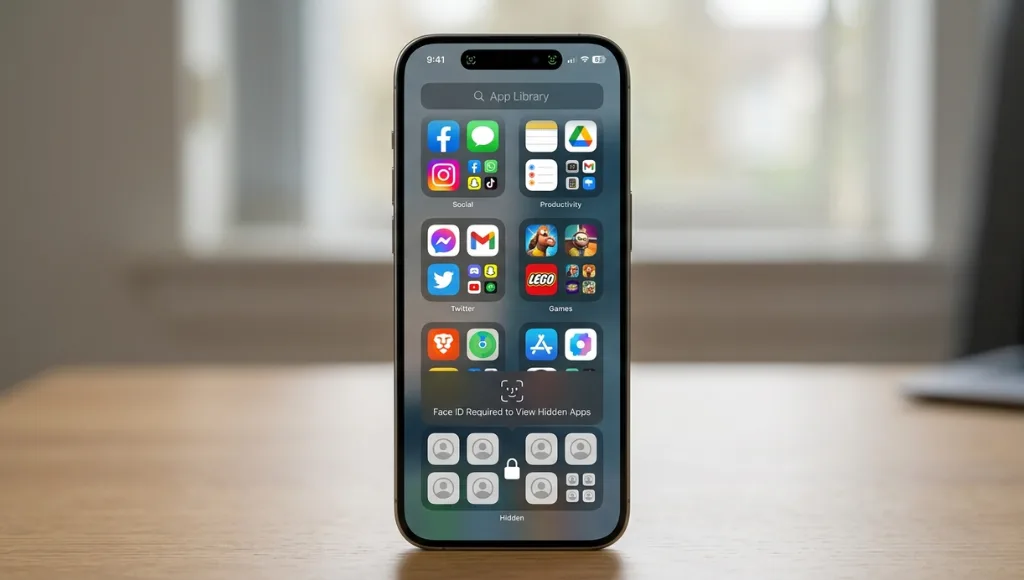
Swipe left past all Home Screen pages to reach App Library, then scroll to the Hidden folder. Open it with Face ID, Touch ID, or your passcode. Touch and hold the app, then tap Don’t Require Face ID. Apple says the app then returns to App Library
Step 3: Unhide a hidden Home Screen page
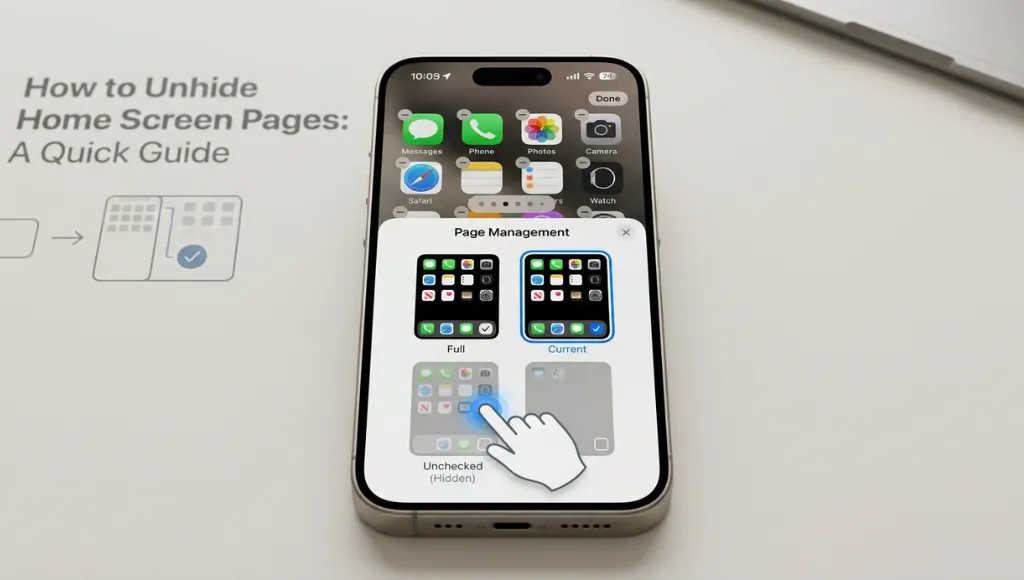
Touch and hold an empty area on the Home Screen, tap Edit, then Edit Pages, or tap the dots near the bottom. Any unchecked circle marks a hidden page. Tap it to restore the page and every app on it.
Apple’s official guide on locking or hiding apps explains that you can open the Hidden folder in App Library and remove the hidden state with Don’t Require Face ID.
Step 4: Restore the app from Hidden Purchases or redownload it
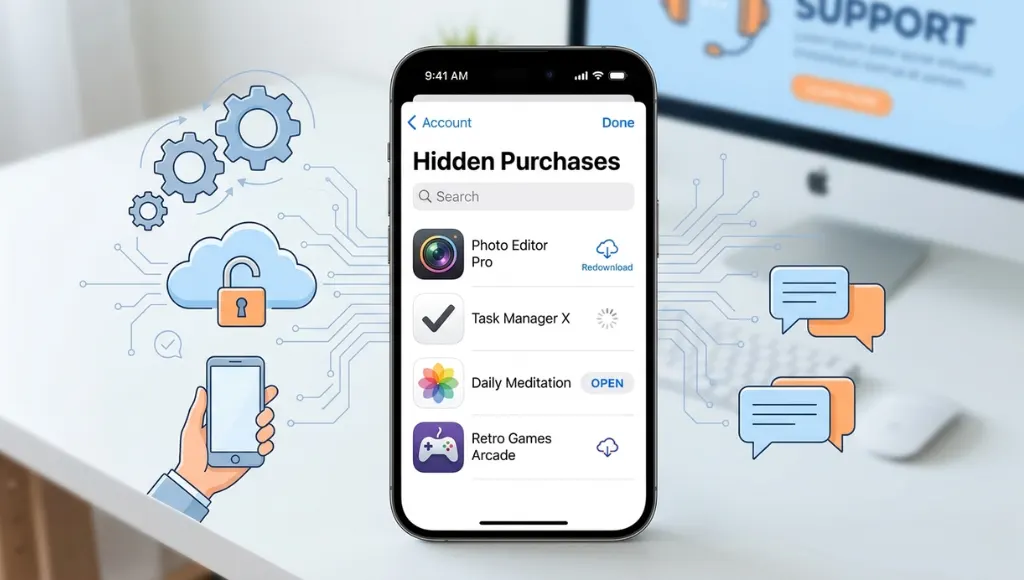
If the app is gone from the device, open the App Store, tap your account photo, open your Apple Account settings, then check Hidden Purchases. Apple says you can tap Unhide and then redownload the app. Apple also notes that unhiding a purchase does not automatically place the app back on the Home Screen if it had been deleted.
Use the same Apple Account that bought the app. Apple says missing redownload items often come down to a different Apple Account or device compatibility. This fix also will not help if the app is no longer available for your device.
Step 5: Fix the setting that caused the problem
Go to Settings > Home Screen & App Library and choose Add to Home Screen if you want new downloads to appear there. Also check Screen Time > Content & Privacy Restrictions. Apple says Screen Time can hide built-in apps and restrict app installation or deletion.
In my experience, this is where repeat cases begin. People restore the icon but leave the trigger active. Do you want the app back once, or do you want the problem gone for good?
Best Ways to Unhide Apps on iPhone
The best method depends on where the app is hidden. Use Search for fast diagnosis, the Hidden folder for privacy-hidden apps, Edit Pages for whole-page issues, the App Store for hidden purchases, and Screen Time for restrictions. Apple built each path for a different kind of hiding, so the right fix is usually the shortest one.
| Method / Tool | Best For | Key Feature | Price Range | Limitation |
|---|---|---|---|---|
| Apple Search | Checking whether the app is installed | Finds installed apps quickly | Free | Does not unhide by itself |
| App Library Hidden folder | Apps hidden with iOS 18 privacy tools | Unlocks hidden apps with authentication | Free | Requires Face ID, Touch ID, or passcode |
| Edit Pages | Several apps missing at once | Restores an entire hidden page | Free | Only works if a page was hidden |
| App Store Hidden Purchases | Apps hidden from purchase history | Unhide and redownload | Free | Needs the correct Apple Account |
| Screen Time settings | Built-in apps or family restrictions | Re-enables apps and relaxes limits | Free | May require a passcode or admin access |
Choose Search when you are not sure the app is still installed. Choose the Hidden folder when the app was hidden for privacy. Choose Edit Pages when multiple icons vanished together. Choose App Store Hidden Purchases when the issue lives in purchase history. Choose Screen Time when the phone is family-managed, school-managed, or work-managed.
Common Mistakes to Avoid When Unhiding Apps on iPhone
The most common mistake is assuming the app was deleted, which causes people to reinstall it before checking where Apple hid it. That wastes time and blurs the real cause. In most cases, the smarter fix is diagnosis first, action second.
Assuming the app was deleted
A missing icon feels final, so people jump to reinstalling. Apple’s support flow shows that an app can still live in App Library, on a hidden page, or in the Hidden folder. Check those first. Only redownload when the device truly does not have the app anymore.
Checking only the Home Screen
Many users stop at the Home Screen because that is where they expect every app to live. Apple separates Home Screen placement from App Library storage, and new downloads can go to App Library only. The fix is to check App Library and then change Home Screen settings if needed.
Ignoring Screen Time or device management
This mistake shows up on shared, family, school, or work phones. Apple says Screen Time can temporarily hide built-in apps, and Apple’s enterprise documentation says MDM can block the ability to hide apps. A school iPhone with a missing Mail or Safari icon is often a restriction problem, not a bug.
When built-in apps like Safari or Mail disappear, the cause is often a Screen Time restriction rather than a deleted app, and Apple documents that these restrictions can temporarily hide apps from the Home Screen.
Using the wrong Apple Account
This usually happens with older purchases or Family Sharing setups. Apple says a missing redownload item may have been bought with a different Apple Account, and some apps may not appear because they are not compatible with the current device. Verify the account before assuming the app is gone.
Frequently Asked Questions
These questions cover the edge cases people still search after the main fix. The query how to unhide hidden apps on iphone usually points to the Face ID-protected Hidden folder. The rest focus on missing icons, Home Screen restoration, and hidden purchases.
Open App Library, scroll to the Hidden folder, unlock it with Face ID, Touch ID, or your passcode, then touch and hold the app and tap Don’t Require Face ID. Apple says the app returns to App Library. Move it to the Home Screen afterward if you want the icon there.
The most likely reasons are that the app was removed from the Home Screen, the page was hidden, or the app was placed in the Hidden folder. Apple’s March 2025 support article lists those scenarios directly. Search is the fastest way to confirm the app is still installed before you change other settings.
Yes. In most cases, unhiding changes visibility, not the app itself. If the app is still installed, restore it through App Library, Hidden Apps, or Home Screen page settings. If Apple tells you to redownload it, the app was removed from the device, which is different from simple hiding.
Go to App Library, find the app, then touch and hold it and drag it left onto the Home Screen. Apple also lets you choose Add to Home Screen for new downloads under Settings > Home Screen & App Library so future apps do not land only in App Library.
Apple says the app may be tied to a different Apple Account, or it may not be compatible with your current device. If you previously hid the purchase, check Hidden Purchases in your Apple Account settings. If the app is installed but invisible, check the Hidden folder instead of the App Store.
Conclusion
The core lesson is simple: most missing iPhone apps are not lost. They are hidden by privacy settings, page settings, purchase settings, or restrictions. Once you know which Apple layer moved the app, the fix becomes quick and repeatable instead of stressful and random.
Three takeaways matter most:
- Check Search and App Library before you reinstall anything.
- Use the Hidden folder for privacy-hidden apps and Edit Pages for whole-page problems.
- Check Screen Time, MDM, and Apple Account settings when the simple fixes fail.