How to Unhide Apps on iPhone
Have an iPhone app that suddenly disappeared from your Home Screen? Before reinstalling it or resetting your phone, check where the app is stored. It may be in the App Library, inside the Hidden folder, on a hidden Home Screen page, or affected by a restriction.
Learning how to unhide apps on iPhone is easier when you identify the type of hiding involved. Apple introduced dedicated app-hiding and app-locking features with iOS 18, adding another possible reason an app might not appear where you expect it. Older iOS versions can also hide icons by removing them from the Home Screen or restricting access through Screen Time.
This guide explains how to restore hidden apps, bring icons back to your Home Screen, recover apps hidden from your App Store purchase list, and troubleshoot apps that remain missing after you try the usual fixes.
If you deliberately hid an app using iOS 18 or later, open the App Library, enter the Hidden folder using Face ID, Touch ID, or your passcode, touch and hold the app, and select Don’t Require Face ID or the equivalent option shown on your device. If the app was only removed from the Home Screen, find it in the App Library and add it back instead.
Table of Contents
ToggleWhy Do Apps Disappear from an iPhone?
Before choosing a fix, understand that an app icon disappearing does not necessarily mean the app has been deleted. iOS separates app installation, Home Screen placement, privacy controls, and App Store purchase history.
Here are the main possibilities:
The app is in the App Library: The app remains installed, but its icon is not on your Home Screen.
The app is in the Hidden folder: On supported iOS versions, you may have deliberately hidden the app behind biometric authentication or a passcode.
A Home Screen page is hidden: Several apps may disappear together because their entire page is turned off.
The purchase is hidden: The app may be absent from your visible App Store purchase list without being hidden on the device.
Screen Time restricts the app: Parental controls or content restrictions can limit the availability of certain apps and features.
The app was deleted or offloaded: You may need to download it again, depending on what happened.
Device management applies a policy: A work or school iPhone may be configured by an administrator to limit certain apps.
The correct solution depends on which situation applies. Start with the checks below, and avoid resetting your device before exhausting the simpler options.
How to Unhide Apps on iPhone Using the Hidden Folder
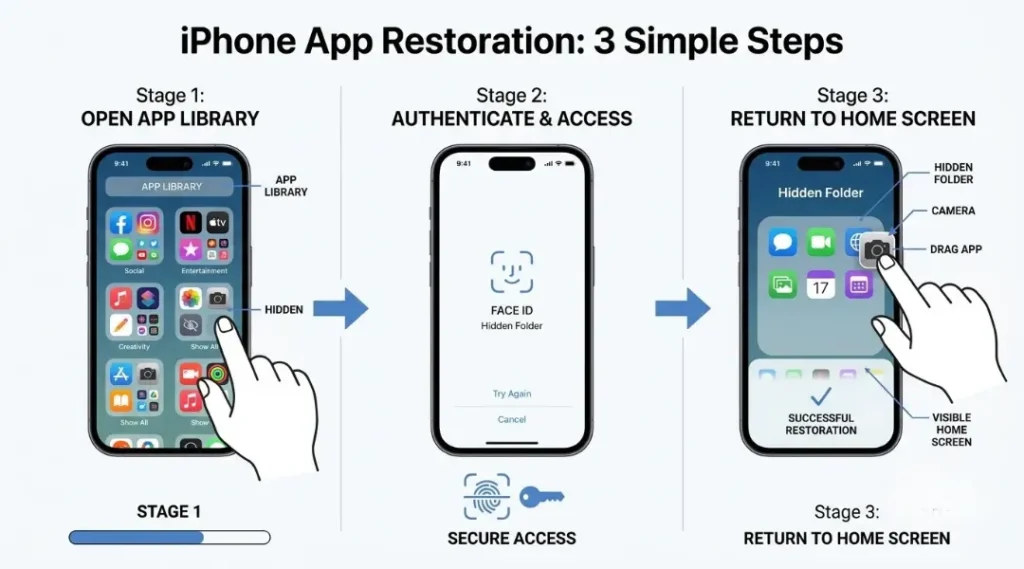
This method is for apps deliberately hidden using Apple’s app privacy feature in iOS 18 or later. It is different from removing an icon from the Home Screen.
Step 1: Open the App Library
Unlock your iPhone and go to the Home Screen.
Swipe left through your Home Screen pages until you reach the App Library.
Scroll down to locate the Hidden folder.
Tap the folder.
If you do not see a Hidden folder, the app may not have been hidden using this feature. Continue to the next troubleshooting methods in this article.
Step 2: Authenticate to access hidden apps
Your iPhone will ask you to authenticate with Face ID, Touch ID, or your device passcode, depending on your model and settings.
Complete the authentication request to view the apps inside the folder.
If authentication fails, check that you are using the correct passcode and that Face ID or Touch ID is functioning. Do not repeatedly change unrelated settings when the authentication prompt is the only problem.
Step 3: Remove the app from the Hidden folder
Find the app you want to restore.
Touch and hold its icon.
Select Don’t Require Face ID, or the corresponding option displayed by your iOS version.
Authenticate again if requested.
The app will leave the Hidden folder and become available in the App Library. Depending on the iOS version and the app’s state, it may appear on the Home Screen automatically or need to be added manually.
Important: Unlocking a hidden app temporarily is not the same as unhiding it. If you simply open an app that requires Face ID, it may lock again when you leave it. Choose the option that removes the hidden status if you want the app to be visible again.
Apple’s official instructions are available in its guide to finding apps that are missing from the Home Screen.
How to Unhide Apps on iPhone from the App Library
Sometimes an app is not hidden behind Face ID at all. It has simply been removed from the Home Screen.
Removing an app from the Home Screen does not necessarily uninstall it. The app can remain available in the App Library and continue to work normally.
Step 1: Find the installed app
Swipe left through all your Home Screen pages.
Continue until you reach the App Library.
Browse the categories or use the App Library search field.
Type the app’s name and check the result.
You can also search from the Home Screen by swiping down and entering the app name. However, a privacy-hidden app may not appear in Search, so check the Hidden folder if you previously used Apple’s hiding feature.
Step 2: Add the app back to your Home Screen
In the App Library, locate the app.
Touch and hold its icon.
Drag the icon toward the left edge of the screen until the Home Screen appears.
Move it to the preferred page and release it.
If dragging is unavailable or your interface offers a different menu, touch and hold the app and look for an option such as Add to Home Screen.
The app should now be accessible from your chosen page. You do not need to download it again when it is already installed.
Step 3: Check whether the app is still installed
If the app does not appear in the App Library, open Settings and look through the installed-app list or use the iPhone Storage screen.
If you cannot find the app anywhere on the device, it may have been deleted, offloaded, or become unavailable. In that case, check the App Store before assuming it is still installed.
How to Restore a Hidden Home Screen Page
If several apps disappear at the same time, the problem may be a hidden Home Screen page rather than individual hidden apps.
iOS allows you to hide entire pages while keeping the apps on the device. Restoring the page can bring multiple icons back at once.
Follow these steps
Return to the iPhone Home Screen.
Touch and hold an empty area until the icons begin to jiggle.
Tap Edit, then choose Edit Pages, if that option appears. On some versions, you can tap the page indicator dots directly.
Review the page thumbnails.
Tap the unchecked circle beneath any page you want to restore.
Tap Done to save the change.
Swipe across the Home Screen to confirm that the page and its apps are visible again.
If only one app is missing, restoring every hidden page may be unnecessary. Check the App Library first. If an entire group of icons is missing, page visibility is a stronger possibility.
How to Unhide Apps from the App Store Purchase List
There is an important distinction between hiding an app from the iPhone itself and hiding a purchase from the App Store purchase list.
When you hide an App Store purchase, you change how that purchase appears in your account’s visible purchase list. This does not automatically hide the installed app from the Home Screen.
If you need to restore a purchase so you can find or download the app again, follow these steps.
Step 1: Open your App Store account
Open the App Store.
Tap your profile picture or account icon.
Open your Apple Account settings by tapping your name if prompted.
Sign in if required.
Step 2: Open Hidden Purchases
Look for Hidden Purchases in your account settings.
The exact menu wording or location may vary slightly by iOS version and region. Follow Apple’s current account interface if the labels on your device differ from these instructions.
Step 3: Unhide the purchase
Locate the app in the Hidden Purchases list.
Tap Unhide.
Return to the App Store and download the app if it is no longer installed.
Unhiding a purchase does not automatically reinstall an app that was deleted. You may need to download it again.
If the app is missing from Hidden Purchases, check whether you are signed in with the Apple Account originally used to obtain it. Also consider whether the app is still available and compatible with your device.
For additional details, consult Apple’s official instructions for hiding and unhiding App Store purchases.
How to Unhide Apps on iPhone by Checking Screen Time
Screen Time can restrict access to apps and features. This is especially relevant on family-managed devices, where a parent may have configured restrictions without realizing that a particular app would become unavailable.
Screen Time settings vary by iOS version, and some restrictions apply to built-in Apple apps rather than every downloaded app.
Step 1: Open Screen Time settings
Open Settings.
Tap Screen Time.
Open Content & Privacy Restrictions.
Review the active restrictions.
If you cannot access the relevant options, the device may require a Screen Time passcode or approval from the person who manages it.
Step 2: Review allowed apps and features
Look for settings related to allowed apps, app access, content restrictions, and installing or deleting apps.
On versions that include an Allowed Apps & Features section, review whether the missing built-in app is disabled. Enable it if appropriate and permitted.
For age-based restrictions, review the relevant app content and age-rating settings. Menu names can change between iOS releases, so use the labels shown on your device.
Step 3: Check family or device management
If the iPhone belongs to a child, ask the family organizer to review the restrictions. If it belongs to a school or employer, the administrator may control app availability.
Do not attempt to bypass an organization’s management policy. Contact the administrator if an app needed for work or school is unavailable.
What to Do If a Hidden App Still Does Not Appear
If the usual steps fail, work through these checks in order rather than resetting your iPhone immediately.
1. Restart your iPhone
A restart can resolve temporary interface problems. Save any open work, restart the device using the appropriate method for your model, unlock it, and check the Home Screen and App Library again.
Restarting does not remove a deliberate app-hiding setting, so repeat the relevant steps afterward if necessary.
2. Check iPhone Storage
Open Settings, tap General, and select iPhone Storage. Wait for the list to load, then look for the app.
If the app appears, review its storage status. If it has been offloaded, you may be able to reinstall it while retaining its documents and data. If it was deleted, you will generally need to download it again.
Be careful not to select Delete App unless you intend to remove the app and understand what may happen to locally stored data.
3. Search the App Store
Search for the app by its exact name.
If the App Store offers a download button, you may be able to install it again. If the app does not appear, verify the spelling, account, device compatibility, and whether the developer still offers it.
An app that is no longer distributed or supported may not be recoverable through the normal download process.
4. Check for iOS updates
Open Settings, select General, and tap Software Update. If an update is available, review the release information and make sure you have a current backup before installing it.
An update is not the first fix for an app deliberately hidden through settings. Use it when you suspect a software issue or when Apple recommends it.
5. Review the correct Apple Account
If the issue involves a previous purchase, confirm that the iPhone uses the account associated with that purchase.
Do not sign out of your Apple Account or reset the device without understanding the impact on iCloud, synced information, and other services.
6. Contact Apple Support or your device administrator
If the app is still missing after these checks, gather useful details before asking for help:
The app’s name.
Your iPhone model.
Your iOS version.
Whether the app appears in iPhone Storage.
Whether it appears in the App Store.
Any restriction or authentication message you see.
This information helps distinguish a missing icon from a deleted app, an account issue, or a managed-device restriction.
Common Mistakes to Avoid When Restoring iPhone Apps
Reinstalling before checking the App Library
A missing Home Screen icon does not prove that the app has been deleted. Check the App Library and hidden pages first. Reinstalling unnecessarily can waste time and may create confusion if the app stores data locally.
Confusing hidden apps with hidden purchases
The Hidden folder protects access to apps using Apple’s privacy controls. Hidden Purchases changes the app’s visibility in the App Store purchase list. These are separate features and require different fixes.
Assuming every app can be hidden or unhidden in the same way
Apple’s system apps and downloaded apps do not always have identical options. Some built-in apps cannot be hidden through the iOS 18 app-hiding feature, while Screen Time may restrict certain built-in apps and features.
Resetting all settings too early
Resetting settings can affect preferences beyond app visibility. It is not a sensible first response to one missing icon. Start with the targeted fix that matches the problem.
Ignoring the possibility of a deleted app
If the app is absent from the App Library and installed-app list, it may not be on the device. Confirm its status before spending time looking for a hidden folder that does not contain it.
How to Prevent Apps from Disappearing Again
Once you restore the app, consider these habits to make future troubleshooting easier.
Choose where new apps appear. Open Settings and look for Home Screen settings. Select the option to add newly downloaded apps to the Home Screen if that suits your workflow. The exact setting name may vary by iOS version.
Understand the difference between hiding and removing. Removing an icon from the Home Screen is not the same as deleting the application. Learn these options before making changes to apps that contain important information.
Removing an icon from the Home Screen does not necessarily uninstall the application. If you determine that the app was actually deleted, follow our guide on how to delete apps on iPhone to understand the difference between removing, offloading, and deleting an app.
Keep track of Screen Time restrictions. If you share your iPhone with family members, make sure everyone understands which restrictions are active and who can change them.
Review apps before reinstalling. Confirm that the app is still available, compatible with your device, and associated with the correct account.
Use official support resources. Apple’s instructions are the best reference when menu names change after an iOS update.
For more practical app-management advice, visit ZProStudio’s Software and Apps guide.
Frequently Asked Questions
Open the App Library by swiping left past your Home Screen pages. Open the Hidden folder, authenticate with Face ID, Touch ID, or your passcode, and touch and hold the app. Select Don't Require Face ID or the equivalent option to remove its hidden status.
Find the app in the App Library, touch and hold its icon, and drag it to a Home Screen page. If your iOS version provides an Add to Home Screen option, you can use that instead.
The app may have been deleted, offloaded, restricted, or hidden using the iOS 18 Hidden folder feature. Check the Hidden folder, Settings, and the App Store to determine whether the app is installed and available.
Yes, if the app is still installed and only its visibility has changed. Restore it through the Hidden folder or Home Screen settings. Reinstallation is necessary only if the app is no longer installed or iOS requires you to download it again.
You may not have any apps hidden using Apple's dedicated hiding feature, or your iPhone may be running an older iOS version. Update your device if appropriate and check the App Library again.
The Hidden folder requires the authentication method supported by your device and settings, which may include Face ID, Touch ID, or your passcode. If authentication fails, troubleshoot the authentication problem rather than attempting to bypass the protection.
Open the App Store, tap your account icon, access your Apple Account settings, and select Hidden Purchases. Find the app and choose Unhide. If it was deleted from the device, download it again afterward.
A hidden Home Screen page or a restriction is more likely when several icons disappear together. Check Edit Pages and Screen Time before investigating each app individually.
Unhiding an installed app normally changes its visibility rather than deleting its data. If the app was deleted or its data was removed separately, unhiding a purchase will not automatically restore that data. Recovery depends on the app and any available backups.
Restart the iPhone, check iPhone Storage and the App Store, review Screen Time, and verify the Apple Account associated with the app. If it remains unavailable, contact Apple Support or the administrator responsible for the device.
Conclusion
A missing app does not always mean something has gone wrong. It may simply be outside the Home Screen, hidden in the App Library, located on a hidden page, or affected by a restriction.
The most reliable approach is to identify the cause before changing settings. Start with the Hidden folder if you deliberately hid the app, use the App Library if the icon was removed, restore hidden pages if several apps disappeared, and check App Store purchases when the problem concerns your download history.
Following these steps helps you restore access without unnecessarily deleting apps, losing locally stored information, or resetting your iPhone. When the standard fixes do not work, Apple’s official support resources can help identify account, compatibility, and device-management issues.