
How to View Blocked Numbers on iPhone
You blocked someone three months ago. Now you can’t remember if it was that spammy telemarketer or your cousin who changed numbers. Sound familiar? Finding and managing your blocked contacts on iPhone is something millions of people struggle with—not because it’s hard, but because Apple hid the feature in a place nobody thinks to look.
Here’s everything you need to know about how to view blocked numbers on iPhone, check blocked messages, and manage your whole blocked contacts list—across every app that matters.
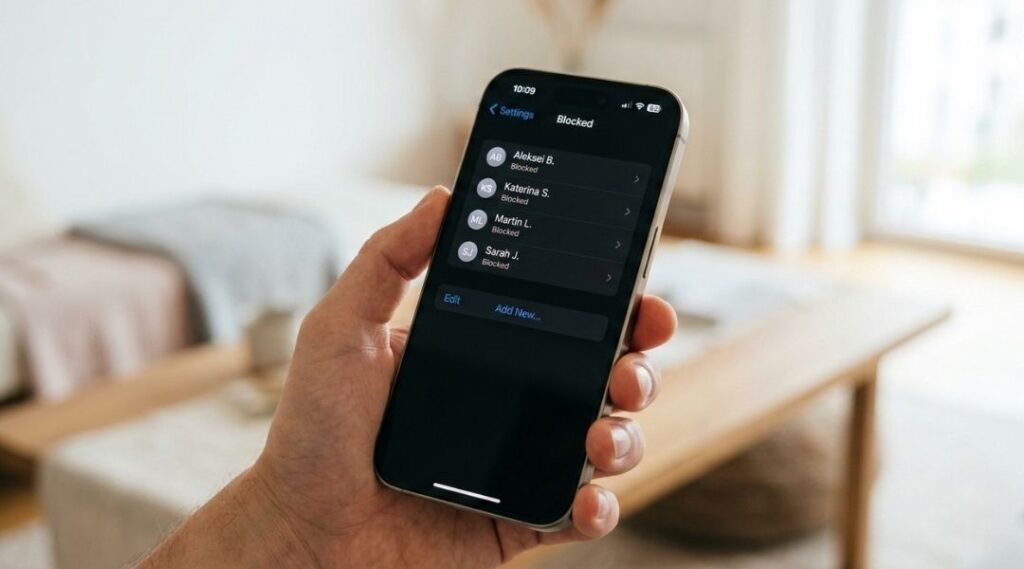
What Does "Blocked" Actually Mean on an iPhone?
Before we dive into the steps, let’s get clear on something most guides skip: blocking on iPhone is app-specific and system-level at the same time.
When you block a number through the Phone app, that block automatically applies to calls, texts, and FaceTime from that contact. According to Apple’s official support documentation, blocked contacts can still leave voicemails—you just won’t get a notification. Their messages are silently discarded and cannot be recovered once deleted.
Here’s the kicker: WhatsApp, Telegram, and other third-party apps maintain completely separate block lists. Blocking someone in iMessage does nothing to stop them from messaging you on WhatsApp, and vice versa.
As of iOS 18 (September 2025 update), Apple reorganized the Settings menu—so if the steps you remember aren’t working, that’s probably why.
How to View Blocked Numbers on iPhone
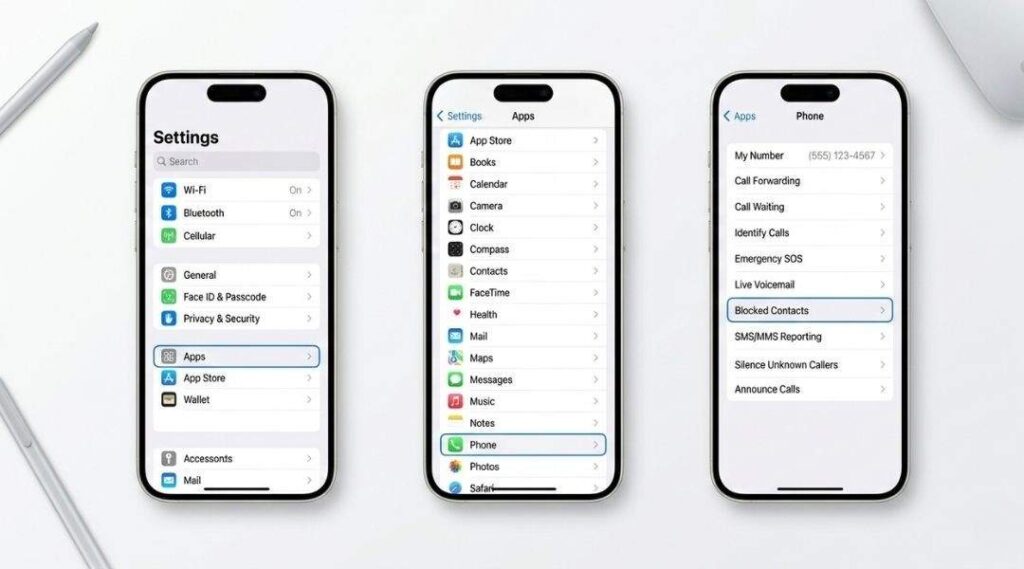
Blocked contacts on your iPhone live in one master list, shared across Phone, Messages, and FaceTime. Here’s the quickest path:
- Open the Settings app
- Scroll down and tap Apps
- Tap Phone
- Tap Blocked Contacts
That’s it. You’ll see every number and contact you’ve ever blocked on your iPhone, whether you blocked them from a call, a text, or FaceTime. They all end up in the same list.
Quick tip: You can also reach the same list through Settings → Apps → Messages → Blocked Contacts or Settings → Apps → FaceTime → Blocked Contacts. It’s the same master list, just three different doors into the same room.
Note for older iOS versions (iOS 15 and earlier): The path is slightly different—go to Settings → Phone → Blocked Contacts directly, without the “Apps” layer.
To view blocked numbers on iPhone, go to Settings → Apps → Phone → Blocked Contacts. This displays the complete list of every phone number, contact, and email address you’ve blocked across calls, texts, and FaceTime. On older iOS versions (iOS 15 and below), navigate directly to Settings → Phone → Blocked Contacts.
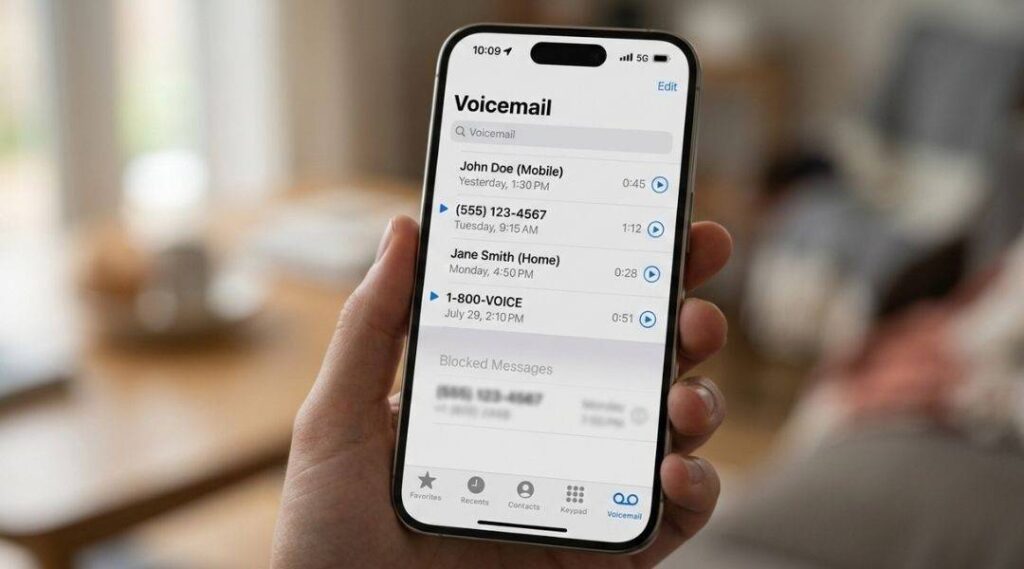
This is where people get genuinely confused—and frustrated. You cannot read blocked messages on iPhone. Full stop.
Once a number is blocked, any new texts they send are silently dropped. Apple doesn’t store them in a hidden folder. They don’t pile up somewhere waiting for you. They’re gone. Zeerawireless’s 2025 breakdown confirms this clearly: “Once blocked, any new messages from that number are discarded silently — they cannot be retrieved later, even after unblocking the number.”
I learned this the hard way when I thought unblocking a contact would magically restore a week’s worth of missed texts. It doesn’t.
What you CAN access:
- Blocked voicemails — Open the Phone app → Voicemail tab → scroll to the bottom. Look for a “Blocked Messages” or “Blocked Voicemails” section. These are stored silently for 30 days before auto-deleting. (Availability varies by carrier.)
- Message history before the block — Any conversation that existed before you blocked someone stays in your Messages app. You can scroll back and read it.
What you CANNOT access:
- Messages sent after the block was applied
- Missed calls from blocked numbers (your iPhone doesn’t log these)
- FaceTime attempts from blocked contacts
If you need those lost messages and have an iCloud or iTunes backup from before the block was applied, restoring from backup is technically possible—but it’s a nuclear option that overwrites everything on your device. Not worth it for a few texts.
How to See Blocked Contacts on iPhone Across Every App
Different apps, different lists. Here’s the complete rundown:
Phone App (Calls + SMS)
Settings → Apps → Phone → Blocked Contacts This is your primary list. Everything you block via the Phone app, from a Recent call, or through a contact card ends up here.
Messages App
Settings → Apps → Messages → Blocked Contacts Same list as Phone. But checking here is useful if you blocked someone specifically from a text thread and want to confirm it worked.
FaceTime App
Settings → Apps → FaceTime → Blocked Contacts Again, same master list. Three paths, one destination.
Mail App
Settings → Apps → Mail → Blocked This one is different. Email blocks are managed separately. When you block an email address in Mail, those emails get routed to your Trash—not deleted, just moved. This is actually more useful than call/text blocking, since you can still recover them if needed.
Open WhatsApp → Settings → Privacy → Blocked. WhatsApp’s block list is entirely separate from Apple’s system. Blocking someone in iMessage has zero effect on WhatsApp, and vice versa. According to The Mac Observer’s 2025 guide, the same principle applies to other third-party messaging apps—check each app’s built-in settings individually.
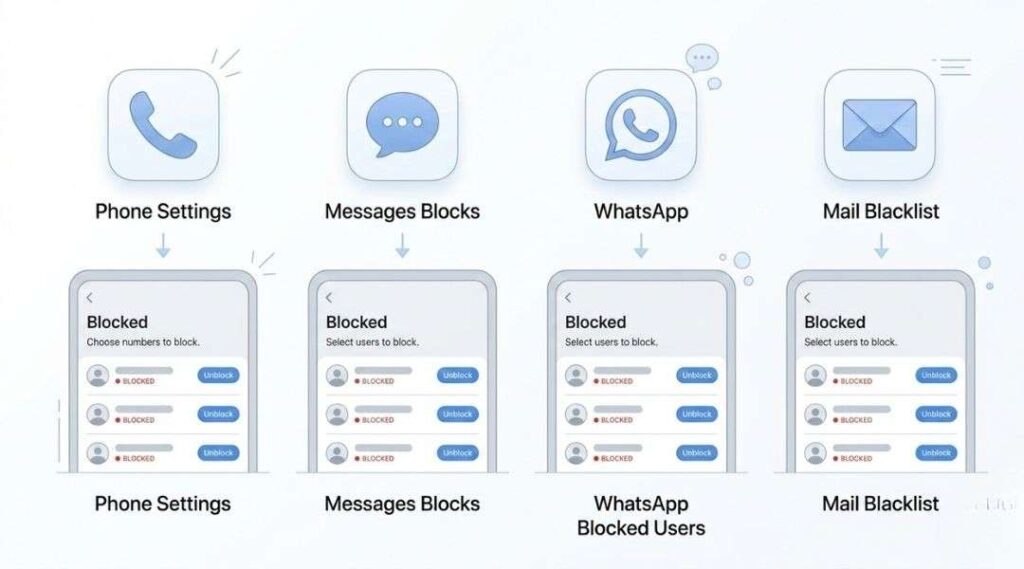
Managing Your Blocked List: Unblock, Edit, and Add Numbers
Once you’re in the Blocked Contacts list, here’s what you can do:
To unblock someone:
- Swipe left on their name → tap Unblock
- Or tap Edit (top right) → tap the red minus icon → tap Unblock
To add a number to your block list manually:
- In Blocked Contacts, tap Add New… at the top
- Search for an existing contact or type in a phone number directly
- Tap Block Contact
Unknown numbers: If you blocked a number that isn’t saved in your contacts, it’ll appear under an “Unknown” section in the blocked list. You can tap it to save it as a contact or just leave it there.
One thing worth noting: blocking someone removes them from your blocked list if you delete that contact from your phone. If you want to keep a number blocked even after removing the contact, make a note of it first.
Why Can't I See My Blocked Contacts?
If the Blocked Contacts option is missing or the list appears empty when it shouldn’t be, try these fixes:
Missing “Blocked Contacts” option:
- Make sure your iPhone has a SIM card or eSIM installed. The Phone settings menu requires cellular capability to appear fully.
- Check for an iOS update: Settings → General → Software Update. The iOS 18 redesign moved several menus under the new “Apps” section—this trips up a lot of people.
Blocked numbers still getting through:
- Double-check the blocked list (sometimes numbers save with or without a country code, which can cause mismatches)
- Contact your carrier about network-level blocking—your iPhone blocks contacts at the device level, but some calls can slip through via carrier routing
List looks different than expected:
- If you recently switched iPhones or restored from a backup, your blocked contacts list should transfer automatically via iCloud. If it didn’t, you may need to re-add entries manually.
FAQs: What People Actually Want to Know
No. Your iPhone doesn't log calls from blocked numbers at all—they're silently rejected with no trace in your Recents. You'll never know how many times a blocked number tried to call unless they leave a voicemail.
No. Apple gives blocked callers no indication that they've been blocked. Their calls go straight to voicemail (without your phone ringing), and their texts appear to send normally on their end. There's no "message not delivered" notification.
Yes—but only iMessage and SMS. Blocking a number through the Phone app blocks calls, SMS texts, and iMessage simultaneously. It does not affect any third-party apps like WhatsApp, Instagram DMs, or email.
Yes, blocked callers can still leave voicemails. These go into a separate "Blocked Messages" section at the bottom of your Voicemail tab in the Phone app, and they auto-delete after 30 days if you don't manually delete them first.
Apple hasn't published an official limit, and most users never hit it. Anecdotally, lists of 1,000+ entries work fine. If you're dealing with mass spam, consider using the Silence Unknown Callers feature (Settings → Apps → Phone → Silence Unknown Callers) instead of individually blocking numbers.
Yes—your blocked contacts list syncs through iCloud. When you set up a new iPhone with the same Apple ID, the blocked list restores automatically as part of your iCloud backup.
They can immediately call, text, and FaceTime you again. But here's what most people don't realize: you won't receive any messages they sent while they were blocked. Those were discarded in real time. Unblocking doesn't unlock a hidden inbox.
No official way exists. If your calls go straight to voicemail, your texts show "Delivered" but never get a response, and your FaceTime calls fail immediately—those can be signs, but none are definitive proof.
Here’s what actually matters after reading all of this:
- Your blocked contacts list is at Settings → Apps → Phone → Blocked Contacts. That’s your one source of truth for calls, texts, and FaceTime.
- Blocked messages are gone for good—you can’t read what someone texted after you blocked them, even if you unblock them later.
- Third-party apps have their own separate block lists. WhatsApp, Telegram, Instagram—check each app individually.
Whether you’re cleaning up an old block list, trying to figure out why an important contact stopped reaching you, or just curious what’s on your iPhone’s “naughty list”—knowing how to view blocked numbers on iPhone takes about 10 seconds once you know where to look.
If this helped, share it with someone who’s been digging through their Settings app for the past 20 minutes.