How to View Blocked Messages on iPhone
Blocked someone on your iPhone and now wondering what happened to the messages they sent? The answer is simpler than many guides make it seem.
If you are looking for how to view blocked messages on iPhone, there is one important fact to know first: iPhone does not provide a normal inbox where you can open text messages that were sent while a contact was blocked. Apple says that when you block a phone number or contact, messages from that person are not delivered.
However, that does not mean every message associated with a blocked contact has disappeared. An older conversation from before the block may still be in Messages. A message you deleted yourself may be available in Recently Deleted. A message from an unknown sender may be sitting in the Unknown Senders filter instead.
This guide explains how to view blocked messages on iPhone, what happens to iMessage, SMS and RCS messages, how to check your blocked contacts, and what you can do if you need an important message again.
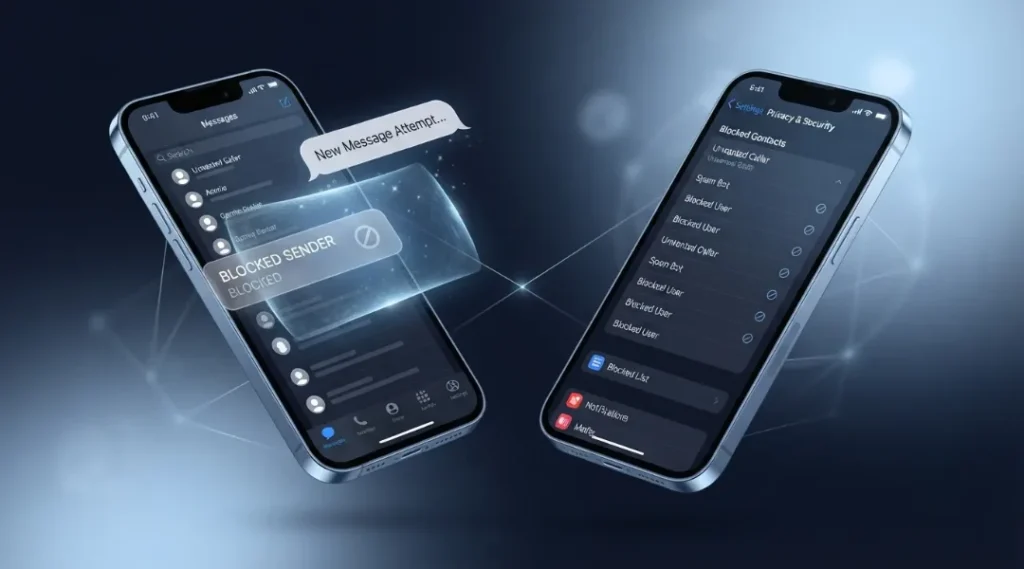
Table of Contents
ToggleCan You View Blocked Messages on iPhone?
If you mean new text messages sent while a person was blocked, you cannot open them from a hidden blocked-message inbox.
Apple’s current support documentation says that when you block a phone number or contact, messages sent or received are not delivered. The sender also does not receive a notification telling them that they have been blocked.
That means there is no standard Messages folder where blocked iMessages or text messages wait for you.
This is different from deleting a message yourself. Apple provides a Recently Deleted area for messages that you intentionally deleted, with recovery available for a limited period.
So, if you are searching for how to view blocked messages on iPhone, first determine what actually happened:
- Was the sender blocked?
- Was the conversation deleted?
- Was the sender simply filtered as unknown?
- Was the conversation created before the person was blocked?
- Are you actually looking for a blocked caller’s voicemail?
These situations have different answers.
How to View Blocked Messages on iPhone: What You Can Actually Check
Although iPhone does not provide a blocked-text archive, you can check several places to understand what happened.
1. Check Your Blocked Contacts List
On current iOS 26, Apple places blocked contacts under Privacy & Security.
Follow these steps:
- Open Settings.
- Tap Privacy & Security.
- Tap Blocked Contacts.
- Review the contacts, numbers and email addresses listed there.
Apple’s current instructions use this location for managing blocked contacts in iOS 26.
If the person is listed there, their messages are being blocked. Checking this list is therefore an important first step when investigating how to view blocked messages on iPhone.
Older iOS versions can have a different Settings path, so do not be surprised if an older iPhone shows the blocked list somewhere else.
If you also want to check which phone numbers and contacts are currently blocked, see our guide on how to view blocked numbers on iPhone.
2. Unblock the Contact for Future Messages
If you want to receive messages from the person again, you can remove them from your blocked list.
- Open Settings.
- Tap Privacy & Security.
- Tap Blocked Contacts.
- Find the contact.
- Tap the option to unblock them.
After you unblock the person, future messages can be delivered normally.
There is one important limitation: unblocking does not create a backlog of messages that were sent while the person was blocked. If an important message was sent during that period, ask the sender to send it again.
3. Check the Existing Conversation in Messages
An existing conversation can be easy to overlook.
If you had already exchanged messages with the person before blocking them, open the Messages app and search for their name or phone number.
Messages that were received before the block may still be part of the existing conversation, assuming you did not delete the conversation.
This distinction matters because many people searching for how to view blocked messages on iPhone are actually trying to find older messages that existed before they blocked the contact.
4. Check Recently Deleted
If you deleted the conversation yourself, check the Recently Deleted area.
In current versions of the Messages app:
- Open Messages.
- Tap the Filters button.
- Tap Recently Deleted.
- Select the conversation or messages you want to restore.
- Tap Recover.
Apple says deleted messages can be recovered for up to 30 days in its current iPhone guide.
This does not mean blocked messages are stored there. Recently Deleted is for messages that were actually deleted from your Messages data.
If you use Messages in iCloud, recovered conversations can also sync to your other Apple devices where Messages in iCloud is enabled.
If you deleted a conversation yourself, Apple’s Recently Deleted feature explains when and how those messages can be recovered.
What Happens to Blocked iMessage, SMS and RCS Messages?
Blocking and filtering are not the same thing.
When you block a specific contact or phone number, Apple says messages from that person are not delivered.
That is why how to view blocked messages on iPhone is sometimes a misleading search query. There is no native blocked-text mailbox that you can open later.
The better approach is to determine whether the message was blocked, deleted, filtered or received before the block.
Blocked vs Deleted vs Filtered Messages
| Situation | Where to check | Can you read it? |
|---|---|---|
| Message sent while contact was blocked | No native blocked-text inbox | No |
| Message you deleted | Recently Deleted | Potentially, within the recovery period |
| Message received before blocking | Existing Messages conversation | Yes, if still present |
| Unknown sender | Unknown Senders filter | Yes |
| Muted conversation | Messages | Yes |
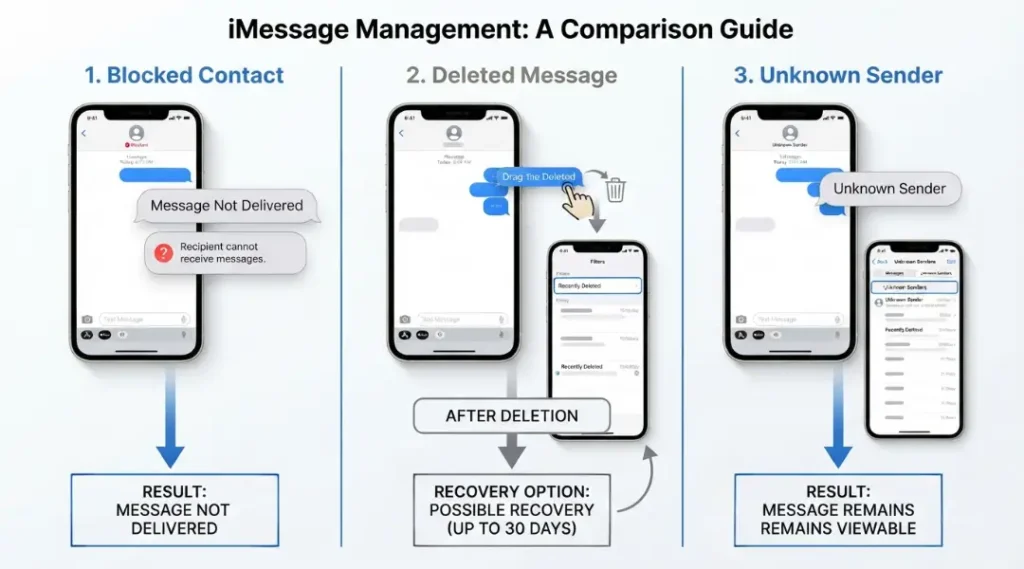
The Unknown Senders feature is especially important on iOS 26. Apple allows messages from unknown senders to appear in a separate filter, where they can still be reviewed.
So, if you are searching for how to view blocked messages on iPhone but the sender was never actually blocked, check Unknown Senders before assuming the message is gone.
How to Check Unknown Senders Instead of Blocked Messages
If the sender is unfamiliar and you have Screen Unknown Senders enabled, their message may be in a separate section.
Try this:
- Open Messages.
- Tap Filters.
- Tap Unknown Senders.
- Review the available conversations.
- If you recognise the sender, open the conversation and use the available option to mark the sender as known.
Apple explains that iOS 26 can organise messages from unknown senders into this separate filter.
This is very different from blocking. A filtered message can remain available for you to read, while a message from a blocked contact is not delivered.
Apple also provides a separate Unknown Senders filter, which is different from blocking a contact.
Can Unblocking Recover Old Messages?
No.
Suppose you blocked a contact on Monday. The person sent several messages on Tuesday. You unblocked them on Wednesday.
Those Tuesday messages will not suddenly appear in Messages.
Unblocking restores future communication. It does not turn previously blocked messages into a new conversation.
This is one of the most important things to understand about how to view blocked messages on iPhone.
If the information was important, the practical solution is to ask the sender to resend it after you unblock them.
There is one exception worth remembering. If you are looking for messages that were received before the block, the existing conversation may still contain them. Search the conversation before assuming everything has disappeared.
Can iCloud Backup Recover Blocked Messages?
You should not depend on an iCloud backup to recover a message that was never delivered because the sender was blocked.
Apple explains that Messages can be stored and synchronised through Messages in iCloud, depending on your configuration. Apple also provides Recently Deleted for messages that you removed yourself.
Those features are useful for normal message management, but they do not create a hidden archive for blocked messages.
If you are searching how to view blocked messages on iPhone because an important conversation disappeared, first establish whether it was blocked, deleted, filtered or part of an older conversation.
What About Blocked Voicemails?
Blocked text messages and blocked phone calls do not behave exactly the same way.
Apple states that a blocked caller can still leave a voicemail, although you will not receive a notification about it.
This means you should not assume that blocking a phone number completely removes every possible form of communication.
The exact voicemail interface can vary based on your iPhone software and carrier features. Therefore, blocked voicemail should be treated separately from blocked iMessage and SMS messages.
If your goal is to find a voicemail rather than a text message, open the Phone app and check the available voicemail options.
What If You Need the Message for Legal or Personal Reasons?
If you believe a conversation may become important later, preserve the information before blocking the sender whenever it is safe and appropriate.
Useful options include:
- Taking screenshots of important conversations.
- Saving relevant photos or attachments.
- Keeping important information in a secure location.
- Asking the sender to resend information after unblocking.
- Preserving records before deleting a conversation.
If the problem involves spam or suspicious texts, avoid clicking links or providing personal information. The FTC recommends avoiding links in unexpected text messages and provides reporting options for unwanted texts.
For unwanted texts in the United States, the FTC also notes that forwarding spam to 7726, reporting through the messaging service and reporting fraud are available options.
Common Mistakes When Trying to View Blocked Messages on iPhone
Mistake 1: Looking for a Blocked Folder in Messages
There is no standard Apple Messages folder that stores blocked text messages for later reading.
Mistake 2: Assuming Unblocking Restores Everything
It does not. Unblocking allows future messages to arrive. Previously blocked messages do not automatically appear.
Mistake 3: Confusing Filtering With Blocking
Unknown Sender filtering can move messages into a separate area while keeping them accessible. Blocking prevents the messages from being delivered.
Mistake 4: Using Recently Deleted as a Blocked Message Folder
Recently Deleted is designed for messages you deleted. It should not be treated as a recovery folder for messages that were never delivered.
Mistake 5: Trusting Every Recovery Tool
Be careful with apps or software that promise to recover every blocked iPhone message. If a message was never delivered to the Messages app, you should not assume a third-party recovery tool can reveal a hidden Apple archive.
How to Prevent Losing Important Messages in the Future
If you still want communication from someone but only want fewer interruptions, blocking may not be the only option.
For unknown senders, iOS 26 provides filtering controls that can organise messages separately while still allowing you to review them.
Before blocking someone, consider whether you may need their messages later.
If the answer is yes, preserve important information first. If you simply do not want notifications, consider whether a less restrictive messaging or notification setting better matches your situation.
This can prevent the common problem that leads people to search how to view blocked messages on iPhone after an important conversation has already been blocked.
Frequently Asked Questions
No, not if you mean text messages that were sent while the sender was blocked. Apple says messages from a blocked contact are not delivered, so iPhone does not provide a native inbox for reading those messages later.
No. Unblocking allows future messages to arrive. Messages sent while the contact was blocked do not automatically appear.
You cannot open previously blocked iMessage or text messages from a native blocked-message folder. You can instead check the existing conversation, Recently Deleted or Unknown Senders if one of those situations applies.
On current iOS 26, go to Settings > Privacy & Security > Blocked Contacts. Apple uses this section to manage blocked contacts and numbers.
You should not assume that a message blocked before delivery can be recovered from iCloud. Messages in iCloud synchronises Messages data across devices, but Apple states that messages from blocked contacts are not delivered.
Yes. Apple says blocked callers can still leave a voicemail, although you will not receive a notification about it.
Blocked messages are not delivered. Unknown Sender filtering can place messages from unfamiliar senders into a separate filter where you can review them.
No. Recently Deleted is for messages you deleted. It is not a storage location for messages that were blocked before delivery. Apple's recovery feature applies to deleted Messages content.
Final Thoughts
If you are searching for how to view blocked messages on iPhone, the key is to separate blocked messages from deleted, filtered and older messages.
A blocked contact’s new text messages are not delivered, so there is no standard Apple folder where you can open them later. You can check Settings > Privacy & Security > Blocked Contacts, search the existing Messages conversation, review Recently Deleted for messages you deleted, and check Unknown Senders if the person was not actually blocked.
If you need future messages from the contact, unblock them and ask them to resend anything important.
The most important takeaway is simple: blocking is not the same as hiding. A hidden or filtered message may still be available, while a message sent from a blocked contact is not delivered.
Understanding that difference can save you a lot of time searching through Settings for a blocked-message folder that iPhone does not provide.
For a broader overview of device care, read our Smartphone Tips & Troubleshooting guide.