
iPhone Battery Draining Fast: Fix It Fast
If your iPhone battery draining fast has suddenly become a daily problem, you are not imagining it. One day your phone lasts until evening, and the next day it is down to 20% before lunch. That is frustrating, especially when you are not doing anything unusual.
The good news is that most cases of iPhone battery draining fast are caused by settings, background activity, weak signal, or battery wear that you can identify and fix. In many cases, you do not need a new iPhone and you do not need to book an Apple Store visit right away.
This guide walks through the real causes, the fastest fixes, and the settings that make the biggest difference. It also covers the two situations people ask about most: why is my iPhone battery draining fast all of a sudden, and how to fix iPhone battery draining fast after update. By the end, you will know how to diagnose the issue properly and stop iPhone battery draining before it becomes a daily headache.
Quick Answer
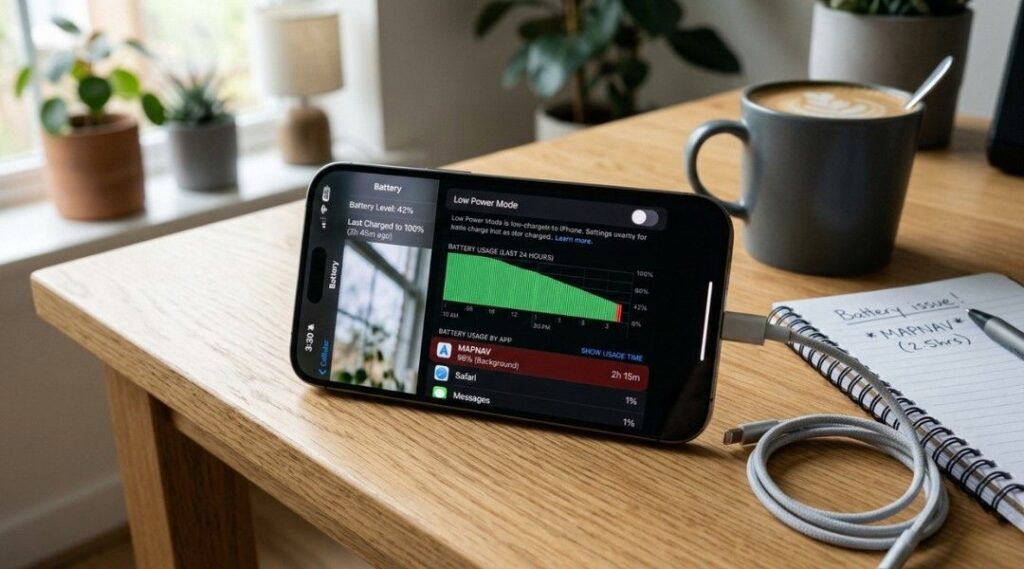
iPhone battery draining fast is usually caused by background apps, location access running too often, high brightness, poor signal, 5G usage in weak coverage areas, or a battery that has aged and lost capacity. The fastest fixes are to check Battery settings, turn on Low Power Mode, reduce brightness, limit location access to While Using, and review background activity by app.
Why Your iPhone Battery Is Draining Fast
iPhone battery draining fast is not random. There is almost always a pattern behind it, and once you see the pattern, the fix gets much easier.
Background App Refresh
Background app refresh iPhone activity is one of the most common hidden causes. Apps do not always stay asleep when you leave them. News apps, social media apps, shopping apps, and email apps often wake in the background to fetch content or sync data. Most people miss this because the app is not visibly open, but it is still using power behind the scenes.
Location Services Battery Drain
Location services battery drain is another major cause. Apps like Maps, weather, camera-based social apps, delivery apps, and fitness tools can keep checking your location more often than needed. GPS is one of the most power-hungry features on any iPhone, so multiple apps with Always access can create steady drain all day.
High Brightness and Screen Activity
The display is still one of the biggest battery users on iPhone. If brightness stays high, especially outdoors, battery life drops quickly. This is where things go wrong for a lot of people: they blame iOS, but their screen is doing most of the work.
Weak Signal and 5G Switching
A poor signal can quietly destroy battery life. When Apple iPhone models struggle to stay connected in a low-signal building, parking garage, basement, or rural area, they use more power trying to maintain a stable connection. On iPhone 12 and later, 5G settings matter too. Apple notes that iPhone 5G defaults are designed to optimize battery life and data use, but you can still reduce battery drain iPhone usage further by switching settings if your coverage is weak.
Battery Health Degradation
All rechargeable batteries wear down over time. Apple states that lithium-ion batteries are consumables with limited lifespan, and as chemical aging increases, battery capacity drops. That means fewer hours between charges, even if your habits stay the same.
Post-Update Background Work
If your iPhone battery draining fast started right after an iOS update, background re-indexing, photo analysis, iCloud sync, and system cleanup can be part of the problem for a day or two. Here is what actually happens: the update finishes installing, but the phone keeps doing hidden setup work afterward. That temporary spike is common in real-world use.
Most iPhone battery drain issues are caused by background apps, location services, and screen brightness. Learn more about common causes and practical tips here
How to Check What Is Draining Your Battery
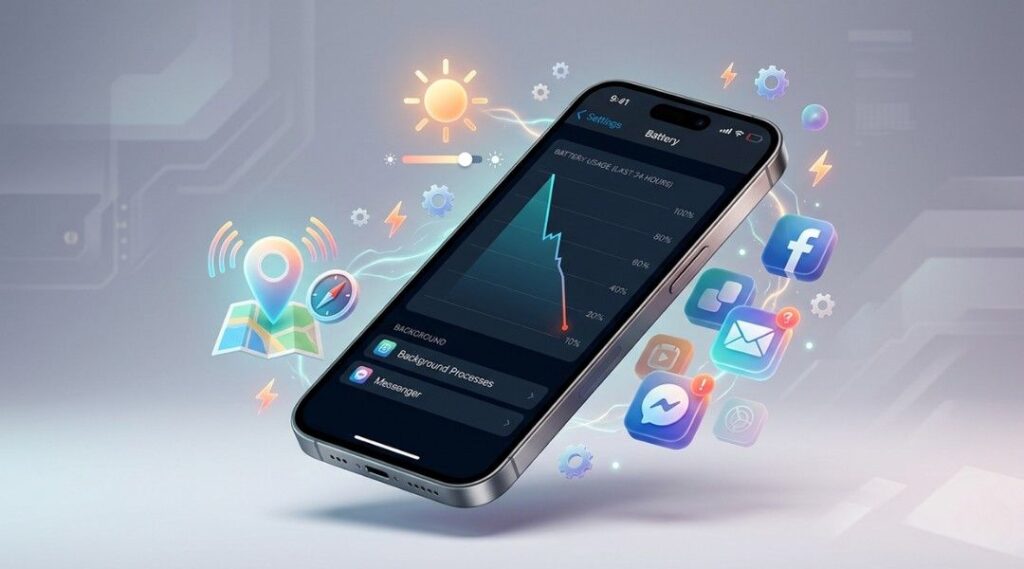
The fastest iPhone battery drain fix starts with diagnosis. Do not guess. Go straight to the Battery menu and look at what your iPhone is already telling you.
Step 1: Open Battery Settings
Go to Settings > Battery. Apple shows daily usage, battery level trends, and app-level usage so you can see what changed and when. You can also tap View All Battery Usage for more detail.
Step 2: Look for High Background Time
Tap through the apps and compare On Screen time with Background time. If an app used a large percentage of battery with little actual use, that is your likely culprit. A weather app with 2 minutes on screen but heavy background time is a red flag. Same for social apps, ride-share apps, and some mail clients.
Step 3: Check for Suggestions and Insights
Apple now surfaces battery suggestions directly in Settings. If your iPhone notices unusually high brightness, disabled auto-brightness, or other patterns that affect battery life, it may show an insight above the chart. This is one of the easiest ways to spot a fix without hunting through menus.
Step 4: Review Battery Health
Go to Settings > Battery > Battery Health on newer models, or Battery Health & Charging on older ones. This is where you check maximum capacity, service warnings, and, on newer iPhones, more detailed battery information.
Pro tip: If one app is clearly out of control, delete and reinstall it. Corrupted app states are more common than people think.
Fix iPhone Battery Draining Fast: Step by Step
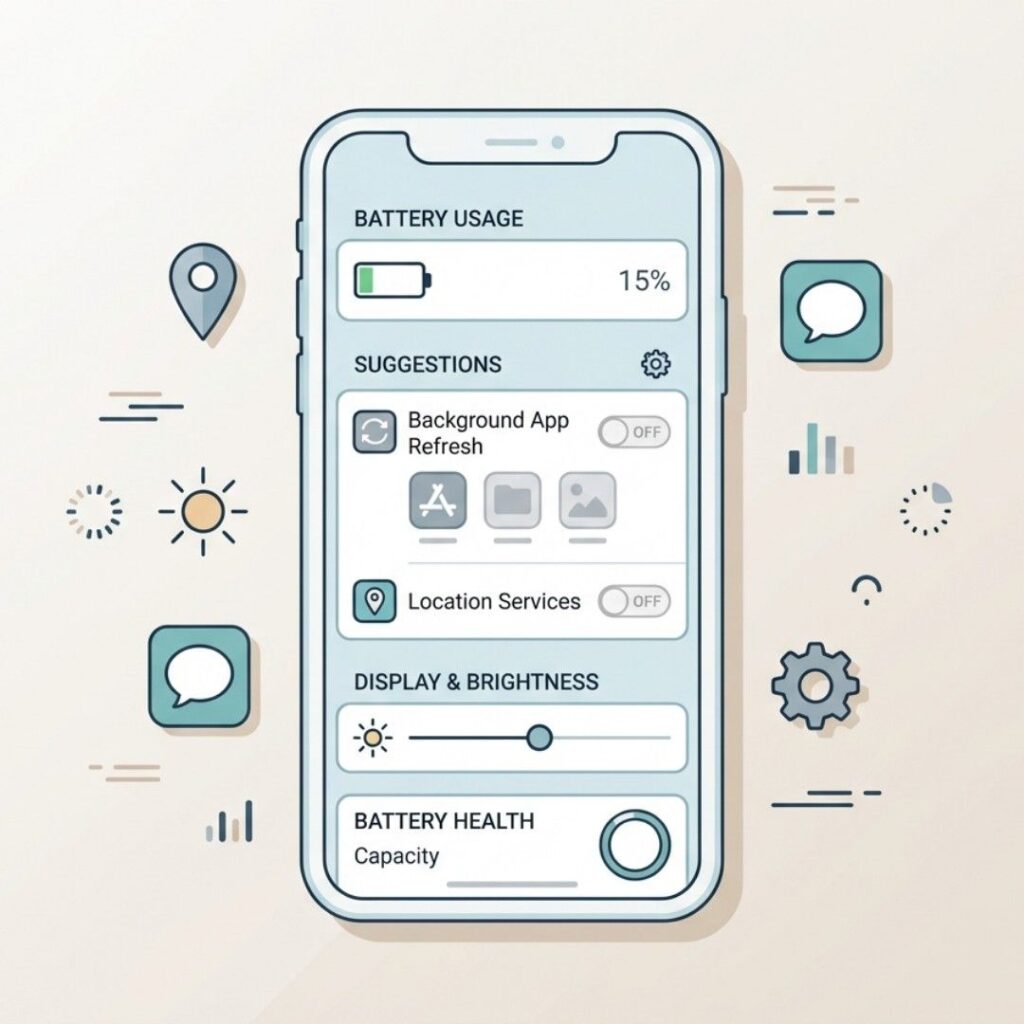
If you want to stop iPhone battery draining quickly, work through these in order. Do not change everything at once and hope for the best. Make a few changes, test, then move on.
1. Turn Off Background App Refresh
Direct answer: Turning off background refresh reduces silent battery use from apps you are not actively using.
Go to Settings > General > Background App Refresh and either switch it off completely or disable it only for apps that do not need live updates. For most people, social media, shopping, travel, and news apps do not need constant background access.
Why this matters: Low Power Mode also disables Background App Refresh, which shows how important Apple considers it for battery savings.
2. Fix Location Services
Direct answer: Limiting location permissions is one of the fastest ways to reduce persistent battery drain.
Go to Settings > Privacy & Security > Location Services and review every app. Change Always to While Using App unless the app truly needs background location, such as turn-by-turn navigation or certain safety tools.
Most people never revisit this menu after first setup. That is why location services battery drain is so often overlooked.
3. Reduce Brightness
Direct answer: Lowering brightness can produce an immediate improvement in battery life.
Go to Settings > Battery to check for Apple brightness suggestions, and turn on auto-brightness if it is disabled. You can also lower brightness manually from Control Center. High brightness is one of the most common battery drains Apple flags in Settings.
4. Adjust 5G Settings
Direct answer: If you have weak 5G coverage, switching settings can noticeably .
Go to Settings > Cellular > Cellular Data Options > Voice & Data and choose the mode that makes the most sense for your area. If 5G is unstable where you live or work, try LTE for a full day and compare results. Apple states that default 5G settings are designed to optimize battery life and data usage, but real-world results still depend heavily on signal quality.
5. Turn On Low Power Mode
Direct answer: Low Power Mode is the fastest one-tap fix for short-term battery savings.
Go to Settings > Battery > Power Mode on supported models, or Settings > Battery > Low Power Mode on earlier ones. You can also add it to Control Center or ask Siri. Apple says Low Power Mode reduces background activity and affects features such as email fetch, background app refresh, visual effects, and display behavior.
6. Update iOS and Your Apps
Direct answer: Updates can fix battery bugs, app inefficiencies, and power management issues.
Go to Settings > General > Software Update and install the latest version of iOS. Then update your apps in the App Store. Apple specifically recommends making sure you are on the latest version when troubleshooting fast battery drain.
7. Restart Your iPhone
Direct answer: A restart can clear temporary glitches, stuck background tasks, and memory leaks.
This sounds simple, but it works. If your phone has been running for days, a restart can remove temporary software issues that keep battery usage higher than normal.
iPhone Battery Draining Overnight: Hidden Causes
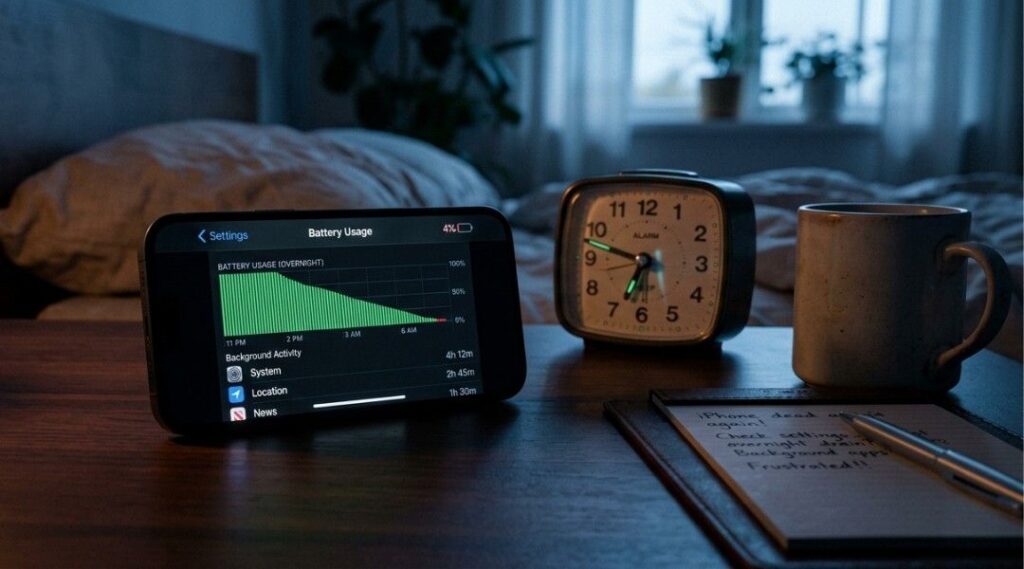
An iPhone battery draining overnight fix is slightly different from a daytime battery fix because the causes are usually silent background activity, not screen use.
Notifications Waking the Phone
Every notification can wake parts of the system, and a flood of alerts overnight adds up. Audit Settings > Notifications and turn off alerts for apps you do not need after hours.
Email Fetch and Sync
Mail fetch settings matter more than many people realize. Apple notes that Low Power Mode turns off email fetch, which tells you how much background power that feature can use. If you do not need constant checks overnight, reduce fetch frequency or switch less important accounts to manual.
Photo and Cloud Sync
iCloud Photos, backups, and third-party cloud apps can work overnight on Wi-Fi. That is useful, but it also explains why some people wake up and think their battery is failing when it is really just finishing a large sync.
Rogue Background Apps
Check the overnight window in Settings > Battery the next morning. If one app shows heavy background use while you were asleep, that app deserves attention. This is the most practical iPhone battery draining overnight fix because it helps you identify the real offender instead of changing random settings.
Battery Drain After iOS Update
If you are searching for how to fix iPhone battery draining fast after update, start by giving it a little time. Right after a major update, your iPhone may do more background work than usual. That often settles down within 24 to 48 hours.
What is normal:
Battery life feels 10% to 20% worse for a day or two
The phone runs a little warmer during setup tasks
Photo and search indexing continue after installation
What is not normal:
Drain stays severe after 72 hours
The phone drops from full charge to low battery with light use
A single app suddenly dominates battery usage every day
To fix iPhone battery draining fast after update:
Update all apps
Restart the iPhone
Check Battery Usage for any app behaving abnormally
Turn on Low Power Mode temporarily
Wait 24 to 48 hours before judging battery life
Recheck Battery Health if the issue continues
This is also the moment to review Charging Optimization settings. Apple says Optimized Battery Charging and Charge Limit features are designed to help preserve long-term battery lifespan, and on iPhone 15 models and later these settings are enabled by default.
Advanced iOS Battery Optimization Tips
If you want deeper iOS battery optimization, these settings help squeeze more life from the same battery.
Audit Permissions
Go to Settings > Privacy & Security and strip out permissions apps do not really need. Fewer permissions often means less background activity.
Use Dark Mode on OLED iPhones
On OLED models, darker interfaces can help reduce power use because black areas use less display energy. It is not a miracle fix, but it is a smart supporting change.
Remove Widgets You Never Check
Widgets update in the background. If your Home Screen is packed with them, you are giving multiple apps permission to refresh regularly.
Reduce Motion
Go to Settings > Accessibility > Motion > Reduce Motion. The savings are modest, but this can help a little and make the phone feel snappier.
Use Low Power Mode Automation
If you often forget to enable it, create an automation that turns it on when the battery hits 30%. That is one of the simplest ways to stop iPhone battery draining before it becomes obvious.
Check Adaptive Power if Supported
Apple now offers Adaptive Power on supported newer iPhones running iOS 26, which can automatically make performance adjustments on heavier-use days and turn on Low Power Mode at 20% when needed.
When You Need a Battery Replacement
Sometimes the problem is not settings. Sometimes the battery is simply worn out.
Apple states that iPhone batteries are consumable components and that capacity declines over time. It also notes that iPhone 14 and earlier batteries are designed to retain 80% of original capacity at 500 complete charge cycles under ideal conditions, while iPhone 15 batteries are designed to retain 80% at 1000 cycles under ideal conditions.
You likely need a replacement if:
Battery Health shows Service
Maximum capacity is very low
The phone shuts down unexpectedly
Battery percentage drops in large jumps
The device runs unusually hot during light tasks
Performance warnings appear in Battery Health
Apple also says that if you see Service next to Battery Health, you should consider replacing the battery to restore performance and capacity.
This is where many people waste time trying endless software tweaks. If the battery itself is worn, no setting will fully restore all-day life.
Common Mistakes That Drain iPhone Battery
Here are the mistakes people repeat most often:
Leaving location access on Always for apps that do not need it
Running brightness too high all day
Ignoring weak signal areas and blaming the battery
Keeping too many widgets active
Never restarting the iPhone
Leaving mail fetch aggressive on low-priority accounts
Assuming every update is the problem when one app is actually misbehaving
Ignoring battery health for months
Charging habits that increase heat and long-term wear
Keeping 5G enabled in places where LTE is more stable
Most people look for one dramatic fix. In reality, battery life usually improves when you remove several small drains at once.
For complete troubleshooting, read our Smartphone Tips & Troubleshooting Guide.
FAQ: iPhone Battery Draining Fast
Sudden battery drain is usually caused by a recent iOS update, a rogue app, poor signal, new location permissions, or a background sync spike. Start with Settings > Battery and look for an app with unusually high background use.
Use an iPhone battery draining overnight fix that targets silent activity: reduce notifications, lower mail fetch, disable unnecessary background refresh, and check morning battery data for overnight app activity.
Yes, temporarily. Right after an update, iOS may still be finishing indexing and syncing tasks. If the issue lasts beyond a few days, check apps, restart the phone, and review battery health.
It can, especially in weak coverage areas where the phone keeps switching or searching for signal. Apple says iPhone 5G defaults are designed to optimize battery life, but network conditions still matter.
Turn on Low Power Mode, lower brightness, and check Battery Usage immediately. That combination gives most users the fastest visible improvement.
Go to Settings > Battery and tap View All Battery Usage. Apple shows daily trends, usage by app, and battery-related suggestions.
Replace it when Battery Health shows Service, when battery life has dropped sharply, or when the phone shows shutdown and performance issues tied to battery aging.
Yes. An iPhone overheating battery issue usually means the device is working harder than normal, often because of charging heat, heavy background activity, gaming, video, or poor signal. Heat also speeds up long-term battery aging.
Conclusion
If your iPhone battery draining fast is making your phone unreliable, the fix is usually a combination of better diagnosis and a few targeted setting changes. Start with Battery Usage, check Battery Health, cut down background refresh, limit location access, reduce brightness, and test your 5G settings. If the battery is worn, replace it. If the issue started after an update, give it a little time, then recheck the data.
The main takeaway is simple: do not guess. Use your iPhone battery usage settings, follow the steps above, and you can usually fix or sharply improve the problem without replacing the phone.