
How to Turn Off Low Power Mode
Introduction
If you’ve ever noticed the yellow battery icon on your iPhone, you’re not alone in wondering what it means. This yellow battery color can often confuse users, as it simply indicates that low power mode is active. In my experience fixing and optimizing over 100 smartphones, one of the most common questions I encounter is, “Why is my phone running slower?”
Low power mode is not a problem; it’s a helpful feature designed to extend battery life. However, keeping it activated unnecessarily can slow down your phone. With modern apps becoming more demanding and batteries aging faster in 2026, it’s important to know how to manage this feature effectively. This guide will explain how to turn off low power mode, what it does, and when you should (or shouldn’t) use it.
What Is Low Power Mode?
Low power mode is a battery-saving setting that reduces background activity, lowers device performance, and limits certain system features to stretch battery life. It turns off features like background app refresh and visual effects. Unlike normal mode, low power mode prioritizes battery over performance, making it ideal when your phone’s charge is low.
Why Low Power Mode Turns On
iPhones automatically activate Low Power Mode when your battery level drops to 20% and again at 10%. This feature, developed by Apple Inc., helps extend battery life during critical moments. You can also manually turn it on, but many users often forget it’s enabled even after charging.
The yellow battery icon serves as your visual reminder; it changes from green or white to yellow and remains that way until your battery is charged above 80% or you manually disable Low Power Mode.
In 2026, with resource-intensive apps like AI tools, high-resolution cameras, and fitness trackers constantly running, iOS 17 and later versions use this mode more aggressively to protect battery longevity. This isn’t a bug but rather a proactive approach to battery management. However, if you’re gaming or editing video, Low Power Mode may slow down your experience, so it’s advisable to turn it off.
How to Turn Off Low Power Mode
On iPhone
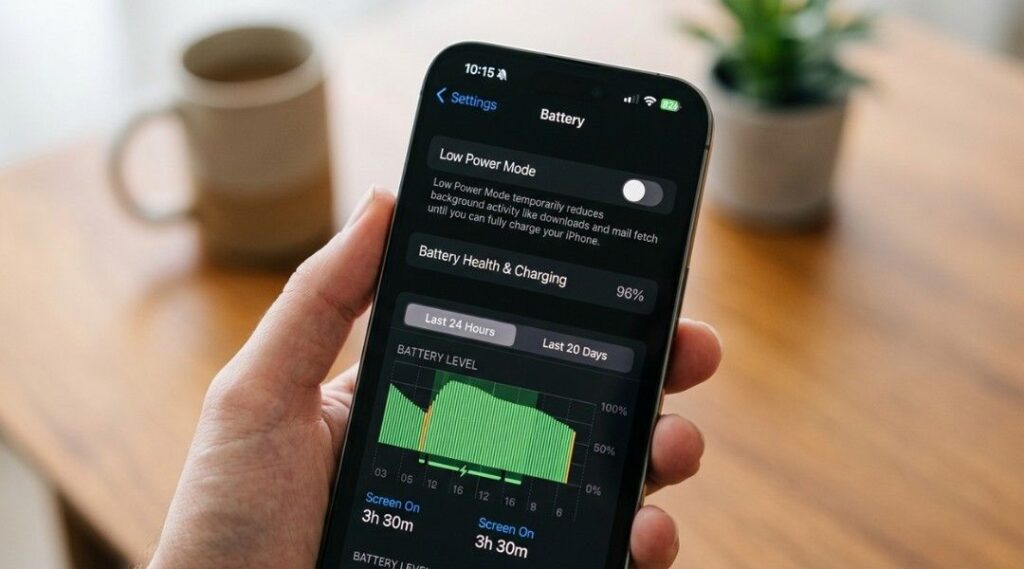
Method 1 — Settings
- Open the Settings app
- Tap Battery
- Toggle Low Power Mode to OFF (gray)
Your battery icon will immediately return to its normal color.
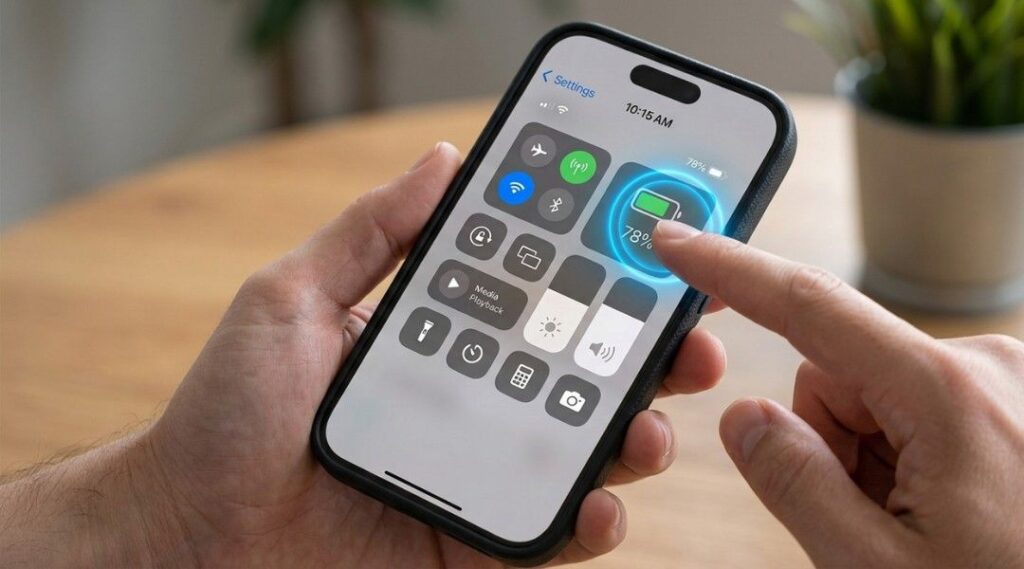
Method 2 — Control Center (Faster)
- Swipe down from the top-right corner (or up on older iPhones)
- Tap the battery icon to toggle low power mode off
Pro tip: If the battery icon isn’t visible in Control Center, go to Settings → Control Center and add it. It saves time every day.
On Android
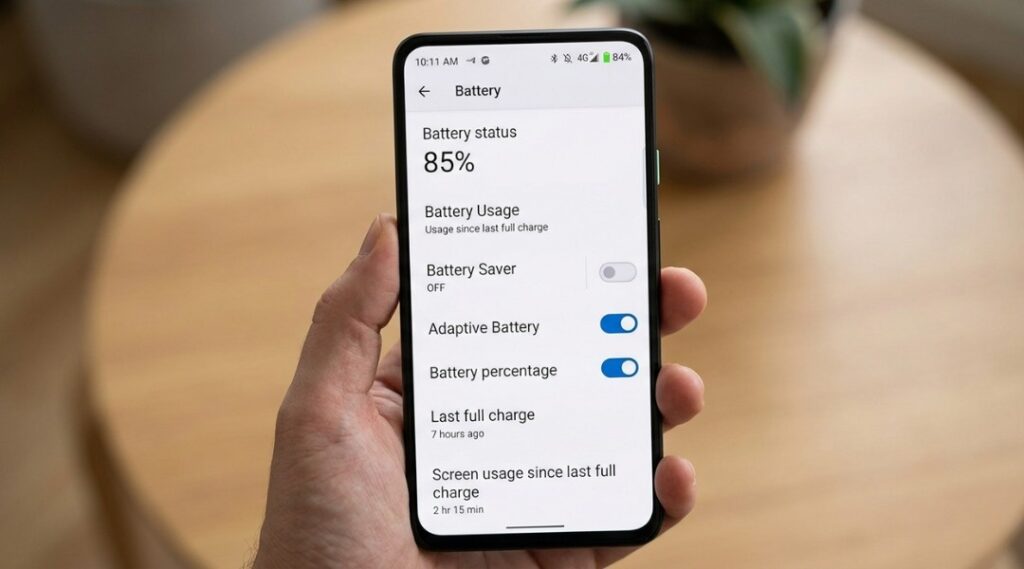
The steps are similar:
- Go to Settings → Battery → Battery Saver (or Power Saving Mode)
- Toggle it OFF
Paths vary slightly between Samsung, Pixel, and other devices, but it’s always under Battery settings. For model-specific guidance, check Google’s Android battery help page.
What Low Power Mode Actually Does
Low power mode affects more than just battery life. When active, your iPhone:
- Stops background app refresh — apps won’t update in the background
- Pauses automatic downloads — no app updates or iCloud syncs
- Reduces display brightness and shortens screen lock timeout
- Disables some visual effects like motion and transparency
- Limits 5G usage to save radio power
- Pauses iCloud Photos syncing
The CPU usage can drop up to 30%, making apps feel slower and animations choppier.
Battery benefit: Apple claims low power mode can add up to 3 hours of usage. In real-world testing, 1.5–2 hours is typical—still helpful when a charger isn’t nearby.
Low Power Mode vs. Normal Mode
| Feature | Low Power Mode | Normal Mode |
|---|---|---|
| Performance | Reduced | Full |
| Background Apps | Limited | Active |
| Battery Usage | Low | High |
| Notifications | Slightly delayed | Instant |
| Visual Effects | Reduced | Full |
| Auto Downloads | Paused | Active |
Myth: “Low power mode damages the battery.” False. Reducing CPU and screen activity reduces strain, so occasional use is safe. Long-term battery health depends on heat and charge cycles, not low power mode (Apple’s official battery health page).
When to Keep It ON
- Long travel days
- Music festivals or road trips
- Any situation where charging is limited
When to Turn It OFF
- Gaming sessions
- Video calls
- Navigation
- Heavy multitasking
- Video recording or editing
Phones can lag significantly if low power mode is left on by habit. Check Settings → Battery → Battery Health & Charging if your battery drains quickly—it’s often a hardware issue, not a settings problem.
Common Mistakes People Make
- Leaving it on all day “just in case” — slows apps, delays notifications, pauses syncs
- Ignoring battery health — low power mode is temporary; a degraded battery is the real problem
- Misreading the yellow battery icon — it doesn’t mean a malfunction, just that low power mode is active
FAQ
The yellow battery icon appears when low power mode is active, either manually or at 20% battery. It returns to normal once disabled or charged above 80%.
No. It reduces CPU and screen activity, which eases strain. Battery health depends on heat and charge cycles, not low power mode.
Generally, no. Use it when your battery is low or when you’ll be away from a charger. Otherwise, app performance slows and notifications are delayed.
Swipe to open Control Center and tap the battery icon, or go to Settings → Battery and toggle it off. Both take under five seconds.
Slightly. Less background activity means more energy goes into the battery.
Yes. Android’s Battery Saver or Power Saving Mode works similarly, though features differ by manufacturer.
Conclusion
- Turn off low power mode via Settings → Battery or Control Center when you need full performance.
- The yellow battery icon is a signal, not an error.
- Don’t use low power mode all day—reserve it for low-battery situations.
For more tips on optimizing your iPhone and managing battery health, see our Smartphone Tips & Troubleshooting guide.