
Samsung Phone Layout Ideas: Transform Your Home Screen in 2026
Let’s be honest—staring at the same cluttered home screen every day gets old fast. You unlock your Samsung Galaxy, squint at a sea of app icons, and waste precious seconds hunting for that one app you need right now. Sound familiar?
I’ve been there too. After years of using Samsung devices and helping friends optimize their phones, I’ve learned that a well-designed home screen isn’t just about aesthetics. It’s about creating a digital space that actually works for your life—whether you’re a busy professional juggling work apps, a creative who needs quick access to editing tools, or someone who simply wants their phone to feel more “you.”
The beauty of Samsung phones lies in their flexibility. Unlike more restrictive operating systems, One UI gives you incredible freedom to customize nearly every aspect of your home screen. But with great power comes great confusion—where do you even start?
In this comprehensive guide, I’ll walk you through practical Samsung phone layout ideas that combine functionality with style. These aren’t just pretty screenshots; they’re real-world setups that I’ve tested and refined over months of daily use.
Understanding Samsung's Customization Ecosystem
Before diving into specific layouts, let’s talk about what makes Samsung phones uniquely customizable in 2026.
Samsung’s One UI 7 (the latest version as of early 2026) builds on years of refinement. The interface works seamlessly with Good Lock—Samsung’s powerful customization suite that’s essentially hidden superpowers for your device. When I first discovered Good Lock modules like Home Up and Theme Park, it completely changed how I approached phone organization.
Here’s what you’re working with:
Native One UI features include home screen grid adjustments (up to 5×6 layouts), multiple home screen pages, app folders with custom names and colors, and Samsung’s proprietary widgets that actually look good.
Good Lock modules extend these capabilities exponentially. Task Changer lets you modify the recent apps interface, MultiStar enhances multitasking, and Theme Park allows you to create custom themes from any image.
Third-party launchers like Nova Launcher or Microsoft Launcher offer even more control if you want to venture beyond Samsung’s ecosystem. However, I’ve found that One UI’s built-in options satisfy 90% of users without sacrificing stability or battery life.
The key is knowing which tools to use for your specific needs.
Minimalist Layout: The Clean Slate Approach
Minimalism isn’t just a design trend—it’s a philosophy that reduces cognitive load. When testing different layouts, I noticed my productivity increased significantly when my home screen showed only essential information.
The Single-Page Setup
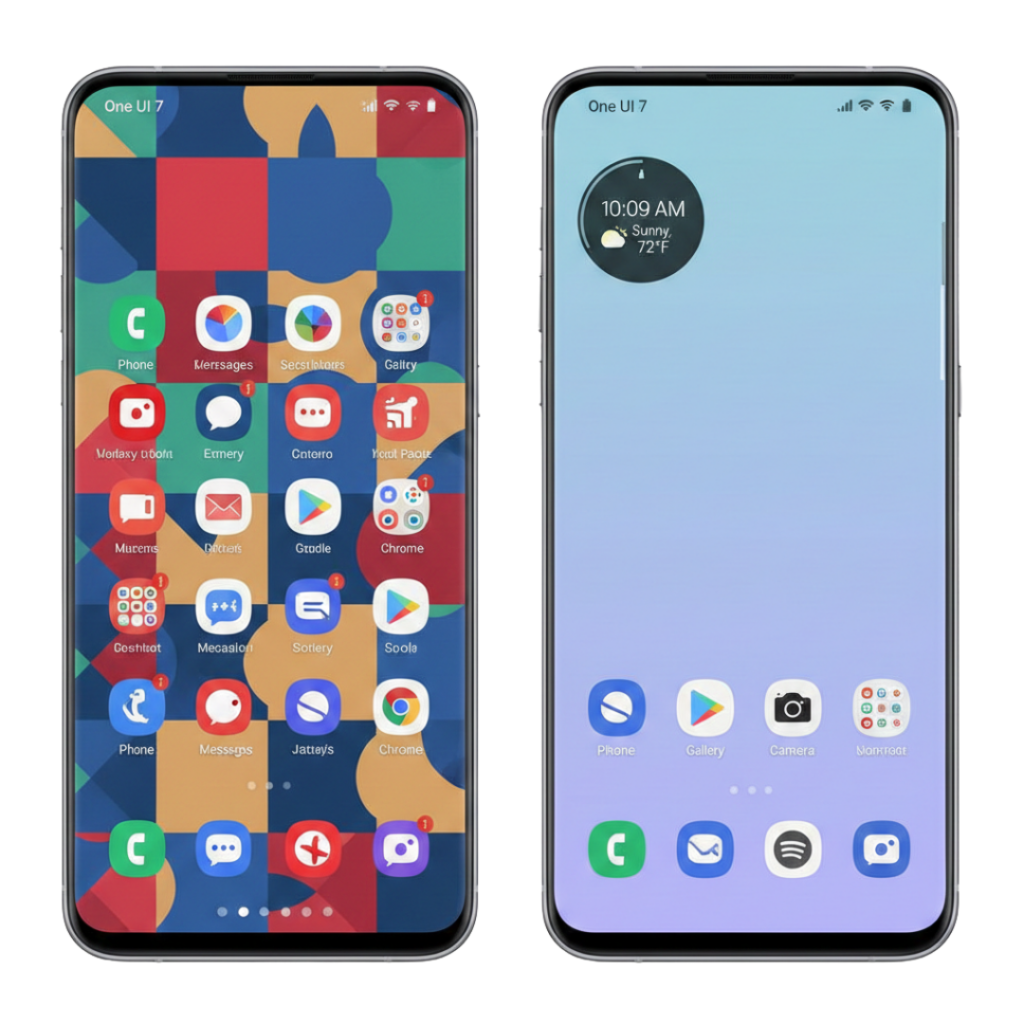
Start with one home screen page. Yes, just one. This forces intentional app selection and eliminates endless swiping.
Place your 4-6 most-used apps in the bottom dock for thumb-friendly access. For most people, this includes messaging, browser, camera, and gallery. Mine contains Samsung Internet, Messages, Camera, and Spotify—apps I genuinely use dozens of times daily.
The middle section should house 2-3 carefully chosen widgets. I recommend:
A clock widget that doubles as weather display (Samsung’s built-in option works beautifully). A calendar widget showing your next 2-3 appointments. One productivity widget—maybe a to-do list or note-taking app.
Keep the top third relatively empty. This “breathing room” isn’t wasted space; it gives your eyes a place to rest and makes the screen feel less overwhelming.
Color Coordination
Here’s where many minimalist setups fall apart—mismatched icon colors create visual chaos even with few apps.
Use Samsung’s Theme Store to find cohesive icon packs. Look for terms like “monochrome,” “pastel,” or “minimal.” My current favorite is the “Outline” style that converts all icons to simple line drawings in a single color.
Alternatively, create a custom theme using Theme Park. Take a photo with your desired color palette, and Theme Park extracts colors to apply across your icons, menus, and accents. The results are remarkably cohesive.
Pro tip: Match your wallpaper to your icon color scheme. Solid colors or subtle gradients work best. Unsplash offers thousands of high-quality minimalist wallpapers that won’t cost you a penny.
Productivity-Focused Layouts: Work Smarter
If your phone is your portable office, your layout should reflect that reality.
The Dashboard Design
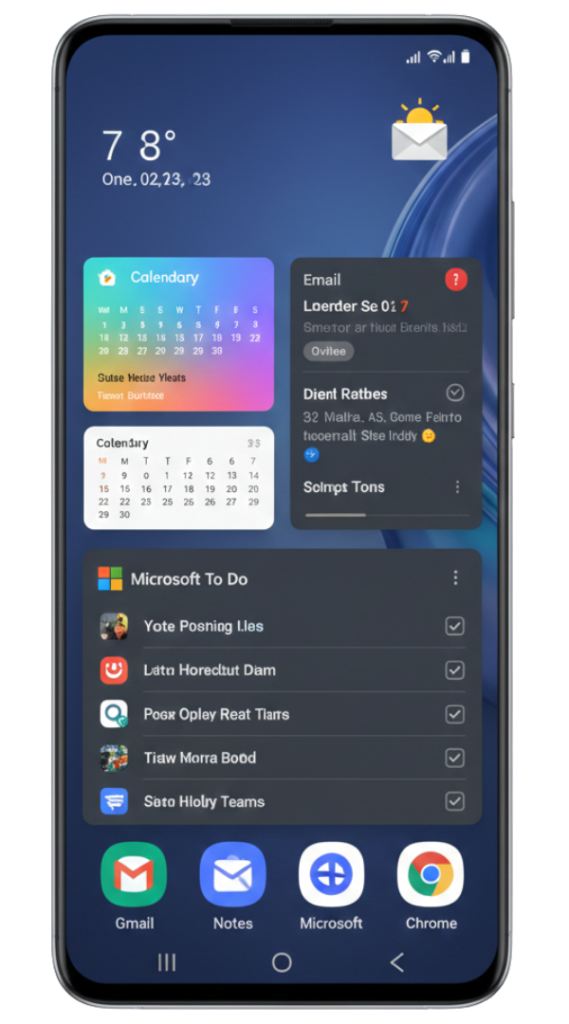
Transform your home screen into an information hub. This layout prioritizes widgets over app icons because widgets provide at-a-glance information without opening apps.
Top section: Weather and date widget—knowing conditions helps with daily planning.
Middle left: Calendar widget displaying your schedule. Samsung’s Calendar widget is excellent here because it shows color-coded events clearly.
Middle right: Email widget showing unread messages. This lets you triage emails without getting sucked into your inbox.
Bottom section: Task management widget. I use Microsoft To Do’s widget, which integrates beautifully with Samsung phones and syncs across devices.
The bottom dock contains only productivity apps: email, note-taking app, file manager, and your primary work communication tool (Teams, Slack, etc.).
Create a second page for reference apps—calculator, maps, voice recorder—things you need occasionally but not constantly.
Edge Panel Optimization
Samsung’s Edge Panel is criminally underused. Swipe from the screen edge to access customizable panels.
Configure multiple panels:
Apps panel with your top 10 apps for quick launching. Tools panel with calculator, flashlight, compass, and screen recorder. Clipboard panel for text snippets you paste frequently. Tasks panel showing upcoming to-dos.
I’ve found that properly configured Edge Panels reduce my need for home screen icons by about 30%, keeping the main screen cleaner while maintaining accessibility.
Creative and Aesthetic Layouts
For those who view their phone as a creative expression, here’s where Samsung customization truly shines.
The Widget Stack Story
One UI 7 introduced improved widget stacking capabilities. Think of your home screen as a visual narrative that changes throughout your day.
Create themed widget stacks:
Morning stack: Weather, news headlines, breakfast recipes. Work stack: Calendar, email, productivity tracker. Evening stack: Fitness summary, relaxation app, tomorrow’s schedule.
Use Samsung Routines to automatically rotate which stack appears based on time of day. This feature is a game-changer—your phone adapts to your rhythm rather than you adapting to your phone.
Photo-Centric Designs
If photography is your passion, dedicate your home screen to showcasing your work.
Set your lock screen and home screen wallpapers to rotate through your best photos automatically. Samsung’s Wallpaper Services can pull from specific Gallery albums, refreshing daily or hourly.
Use a large photo widget that displays recent shots or a specific album. This turns your phone into a portable portfolio.
Keep photo editing apps (Lightroom, Snapseed, Samsung Gallery editor) in the dock for immediate access. Add a camera app shortcut prominently.
Theme your icons around photography—muted tones that won’t compete with your images. Brown, gray, or desaturated color schemes work exceptionally well.
KWGT Custom Widgets
For ultimate creative control, download KWGT (Kustom Widget Maker) from the Play Store. This app lets you design widgets from scratch or customize thousands of pre-made templates.
I created a custom widget showing moon phases, sunrise/sunset times, and inspirational quotes that rotate daily. It took about 20 minutes to set up but adds a personal touch that commercial widgets can’t match.
KWGT has a learning curve, but the KWGT subreddit offers excellent tutorials and pre-made designs you can import immediately.
App Organization Strategies
Icons scattered randomly across pages is the enemy of efficiency. Let’s fix that.
Folder Categorization That Actually Works
Most people create folders like “Social,” “Games,” and “Utilities”—then never open them because it’s an extra tap. Here’s a better approach:
Create frequency-based folders instead of category-based ones:
“Daily” folder: Apps you use every single day. “Weekly” folder: Apps used several times weekly. “Occasional” folder: Apps needed monthly or for specific situations. “Junk” folder: Apps you can’t delete but rarely need.
This organizational system mirrors actual usage patterns rather than arbitrary categories.
For folders you do use frequently, customize their appearance. Long-press any folder, select “Edit,” and choose a custom name and color. Visual differentiation helps with quick recognition.
The Alphabetical Grid Method
Controversial opinion: Sometimes alphabetical organization is superior to grouped organization.
If you have excellent app name recall but struggle remembering which category you filed something under, an A-Z layout might be perfect. It’s particularly effective for people with large app collections who download frequently.
Set up your home screen in alphabetical pages:
Page 1: A-F apps. Page 2: G-M apps. Page 3: N-S apps. Page 4: T-Z apps.
The consistency creates a mental map. You’ll quickly internalize “Spotify is on page 3, upper left” without conscious thought.
Using Samsung's Good Lock for Advanced Customization
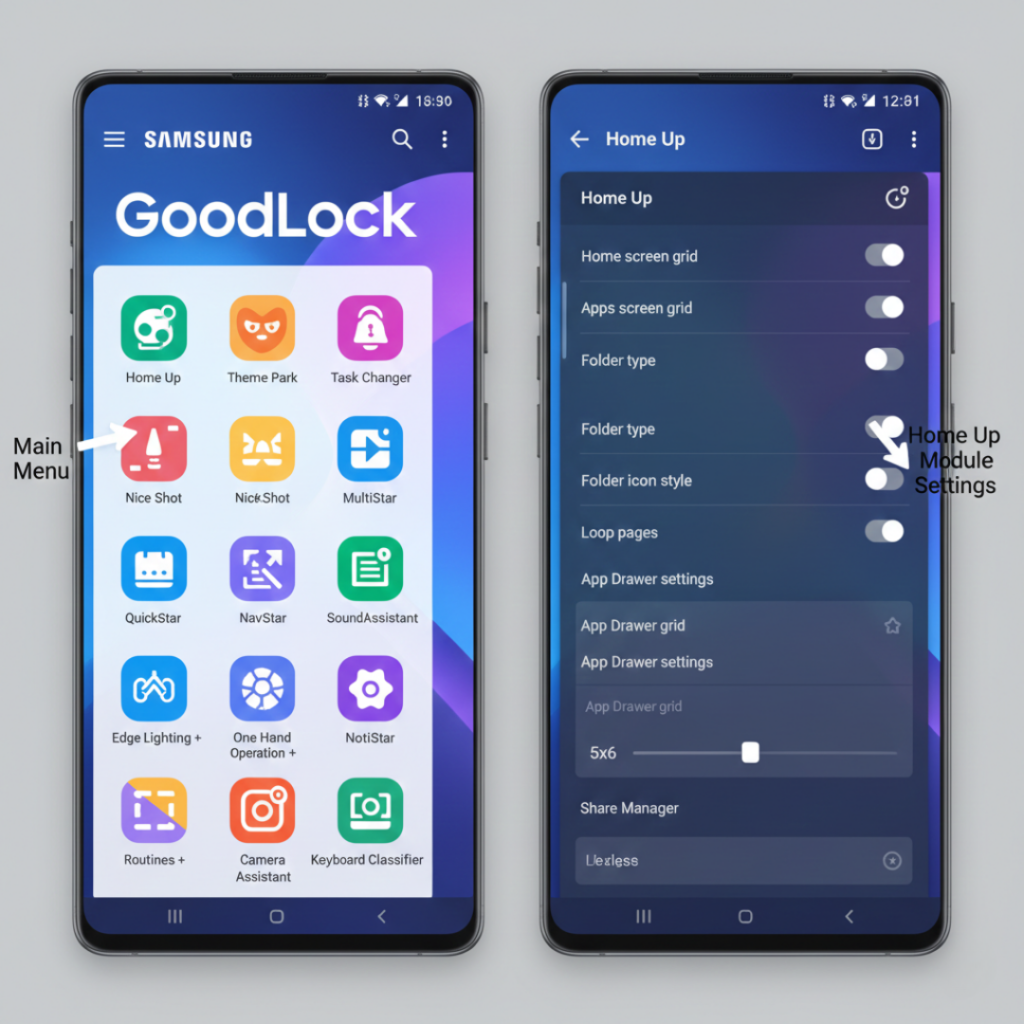
Good Lock is Samsung’s not-so-secret weapon. Available in the Galaxy Store, it unlocks customization options that feel like developer settings but with user-friendly interfaces.
Home Up Module
Home Up lets you modify home screen behaviors extensively:
Adjust the app grid beyond standard options—try a 6×7 layout if you want maximum density. Enable folder gestures so swiping up on a folder opens a specific app instead of the folder itself. Customize the app drawer appearance, including background transparency and icon size. Add padding around screen elements for a less cramped appearance.
I use Home Up to create a denser grid (5×6) that fits more without feeling cluttered. The padding adjustments make everything feel more premium.
Theme Park Module
This module deserves special attention. Theme Park generates complete themes from any image, including:
Icon shapes and colors. Quick settings panel design. Notification shade appearance. System-wide accent colors.
Take a photo of anything—your desk, your pet, a sunset—and Theme Park creates a cohesive visual theme in seconds. The color extraction algorithm is remarkably sophisticated, often identifying harmonious color combinations you wouldn’t think to try.
Other Essential Modules
MultiStar for split-screen customization and pop-up window behaviors. Task Changer for modifying how recent apps appear. Nice Lock (required in some regions) to access Good Lock features where Good Lock itself isn’t available.
Installing Good Lock takes five minutes but opens up hours of customization possibilities.
Widget Selection and Placement Strategy
Widgets are your home screen’s functional backbone, but poorly chosen widgets drain battery and clutter your view.
High-Value Widgets Worth Using
Samsung Clock widget: Shows time, date, and weather without additional apps.
Calendar widget: At-a-glance schedule awareness prevents forgotten appointments.
Music control widget: Quickly play, pause, or skip without opening apps. Essential if you listen to audio frequently.
Battery widget: Monitor charge levels and enable power-saving modes directly from home screen.
Note-taking quick capture: Jot thoughts immediately before they vanish. Samsung Notes widget is excellent here.
Widgets to Avoid
Social media widgets that show feeds—these are battery drains and distraction magnets. Instead, just open the app when you consciously decide to check it.
Weather widgets from third-party apps when Samsung’s built-in option works perfectly fine. Multiple weather widgets are redundant and consume resources unnecessarily.
Overly large widgets that serve minimal function. If a widget occupies half your screen just to show a single piece of information, it’s poorly designed.
Placement Psychology
Top third: Information-only widgets. Things you glance at but don’t interact with—weather, date, next calendar event.
Middle third: Interactive widgets. Widgets you tap frequently—music controls, task lists, notes.
Bottom dock: Your four most critical apps. These should be actions, not information—things you actively launch many times daily.
This arrangement matches natural eye movement patterns and thumb reach on typical screen sizes.
Samsung Routines for Adaptive Layouts
Samsung Routines transforms your phone into a context-aware device. The layout can literally change based on what you’re doing.
Time-Based Routine Examples
Morning routine (6 AM – 9 AM): Show news widgets and weather prominently. Open calendar automatically. Boost screen brightness. Display workout apps if you exercise mornings.
Work routine (9 AM – 5 PM): Hide entertainment apps. Feature productivity widgets. Enable Do Not Disturb for non-work notifications. Launch work-related apps automatically.
Evening routine (6 PM – 10 PM): Show entertainment and social widgets. Dim screen brightness. Enable blue light filter. Hide work apps to maintain work-life boundaries.
Location-Based Routines
At home: Show smart home control widgets. Connect to home WiFi automatically. Display streaming apps prominently.
At work: Switch to professional wallpaper. Hide personal apps. Enable WiFi and Bluetooth for office devices. Open work apps automatically.
In car: Launch navigation and music automatically. Enable maximum brightness. Switch to larger icon grid for easier tapping while driving (only when parked, obviously).
Setting up routines takes about 10 minutes per routine, but the convenience compounds daily. After two weeks, you won’t remember life before adaptive layouts.
Icon Pack Recommendations for 2026
Icon packs dramatically affect your phone’s visual coherence. Here are my tested favorites available in 2026.
Top Paid Options
Linebit Icon Pack: Minimalist line-art style in monochrome or subtle colors. Supports over 8,000 apps with frequent updates. ($2.99)
Adapticons: Automatically adapts icon colors to your wallpaper. Uses AI to recolor icons while maintaining recognizability. ($3.49)
Whicons: White icon pack perfect for dark wallpapers. Clean, modern aesthetic that never feels dated. ($1.99)
Best Free Alternatives
Moxy Icons: Colorful, hand-drawn style. Surprisingly comprehensive for a free pack.
Delta Icon Pack: Geometric shapes with pleasant gradients. Regular updates add new icons.
Viral Icon Pack: Modern, flat design with good app coverage.
Installing icon packs requires a launcher like Nova or Microsoft Launcher in most cases, though Samsung’s Theme Store offers compatible options that work directly with One UI.
Troubleshooting Common Layout Problems
Even with careful setup, you’ll encounter occasional hiccups. Here are solutions to frequent issues I’ve personally encountered.
Widget Won’t Update
This happens frustratingly often. Solutions:
Remove and re-add the widget. Clear the app’s cache in Settings > Apps. Ensure battery optimization isn’t restricting the app’s background activity. Update the app to its latest version—widget issues often stem from compatibility problems.
Icons Reverting to Default
Usually occurs after system updates. Workaround:
If using a custom launcher, back up your layout regularly. Most launchers include backup/restore functions in settings. Reapply your icon pack after updates. Keep a screenshot of your layout to speed up reconstruction if necessary.
Home Screen Lagging
Too many widgets or live wallpapers can cause performance issues.
Reduce the number of widgets—aim for maximum 4-5 per page. Switch from live wallpapers to static images. Close background apps consuming excessive resources. Consider a factory reset if lag persists after optimization (backup first).
Good Lock Features Not Working
Regional availability varies. Solutions:
Install Nice Lock as an alternative in unsupported regions. Use a VPN to access Galaxy Store if Good Lock isn’t showing up. Check Samsung’s official forums for region-specific workarounds.
Balancing Aesthetics with Functionality
Here’s the uncomfortable truth: The most beautiful home screen setups are often the least practical. I’ve created Instagram-worthy layouts that became annoying to use within days.
The sweet spot exists at the intersection of form and function.
The Three-Second Test
Can you find and launch your five most-used apps within three seconds of unlocking your phone? If not, your layout prioritizes looks over usability.
Beautiful minimalism that hides essential apps behind extra taps isn’t actually minimal—it’s minimal visually but maximal in friction. That friction compounds into wasted minutes daily.
The One-Week Rule
Live with any layout for at least seven full days before judging its effectiveness. Initial novelty can mask usability problems.
Track how often you:
Have to search for apps because you forgot where you placed them. Feel frustrated accessing common functions. Find yourself avoiding your custom setup and using alternative methods.
If these issues persist after a week, redesign regardless of how attractive the layout appears.
Progressive Enhancement Approach
Start with a purely functional layout. Get that working smoothly for several days. Then gradually add aesthetic elements—custom icons, widgets, wallpapers—one at a time. This approach prevents overcomplicating things and helps you identify which changes genuinely improve your experience.
Real User Layout Examples
Let me share actual layouts from people I’ve helped optimize their Samsung phones, including what worked and what didn’t.
Sarah’s Social Media Hub
Sarah manages social media for small businesses. Her layout centers on quick content creation and posting.
Top section: Instagram widget showing recent posts and engagement metrics. Middle: TikTok, Instagram, Facebook, and Twitter icons in a 2×2 grid. Bottom section: Photo editor shortcuts (Lightroom, Canva, Inshot).
Edge Panel: Hashtag clipboard with frequently used hashtag sets for different clients.
What worked: Having all social apps grouped centrally saved her countless seconds throughout the day.
What didn’t: She initially tried adding too many analytics widgets, which cluttered the screen without providing actionable information.
Michael’s Fitness Tracker
Michael trains for marathons and needed quick access to workout apps and stats.
Large fitness summary widget from Samsung Health occupying most of the home screen. Shows steps, heart rate, workout minutes, and calories. Dock contains: Strava, Spotify, Water reminder app, and Samsung Health.
Second page: Nutrition tracking apps and meal planning tools.
Routine automation: His phone automatically launches Strava and starts a playlist when he connects his running headphones.
What worked: The widget-heavy approach meant he rarely needed to open apps for quick information checks.
What didn’t: Initially placed too many apps on the home screen, which was unnecessary since Edge Panels provided faster access.
My Personal Setup
Since I write about technology, my layout needs to balance productivity with testing various apps.
Primary page: Single weather/clock widget at top. Six primary app icons: Samsung Internet, Gmail, Messages, Camera, Samsung Notes, Spotify. Bottom dock: Phone, Gallery, Calculator, File Manager.
Second page: Work-in-progress testing zone for new apps I’m reviewing.
Third page: Alphabetically organized comprehensive app drawer.
Edge Panels: Five panels including apps, clipboard, tasks, screen capture tools, and Smart Select.
This setup keeps my daily drivers immediately accessible while providing space to test new apps without disrupting my core workflow.
Future-Proofing Your Layout
Samsung’s One UI evolves annually. Building flexibility into your layout prevents complete redesigns with every update.
Modular Design Principles
Create self-contained sections that can be rearranged independently. If widgets or features change, you’re only adjusting one section rather than rebuilding everything.
Avoid layouts that depend on specific app features or widgets that might be deprecated. For example, don’t build your entire system around a third-party weather widget when Samsung’s built-in option will definitely receive ongoing support.
Regular Maintenance Schedule
Monthly: Review which apps you actually used and adjust placement accordingly. Quarterly: Audit installed apps and remove unused ones—clutter accumulates invisibly. Annually: Complete layout refresh considering new One UI features and your evolved needs.
Your life changes. Your phone layout should evolve with it. The setup that worked perfectly when you were a college student might feel completely wrong when you’re managing a career and family.
Accessibility Considerations
Beautiful layouts mean nothing if they’re difficult to use for people with accessibility needs.
Samsung includes excellent accessibility features that can enhance any layout:
High Contrast Modes
High contrast themes make icons and text more distinguishable for low vision users. These aren’t just for accessibility—many people find high contrast easier on their eyes in bright sunlight too.
Larger Touch Targets
One UI allows increasing touch target sizes, making icons easier to tap accurately. This benefits everyone, not just those with motor control challenges.
Voice Access
Configure Voice Access for hands-free phone control. Particularly useful when driving, cooking, or multitasking.
Color Blind Mode
Adjust color filters so colored elements remain distinguishable regardless of color vision deficiency type.
Accessible design is good design. Features that help people with disabilities often improve usability for everyone.
Conclusion: Your Phone, Your Way
Here’s what I’ve learned after years of customizing Samsung phones and helping others do the same: There’s no single perfect layout. The “best” layout is the one that makes your daily phone use smoother, faster, and more enjoyable.
Start simple. Pick one layout idea from this guide that resonates with your needs—maybe the minimalist approach if you feel overwhelmed, the productivity dashboard if work dominates your phone use, or the creative aesthetic setup if personal expression matters most.
Implement it. Live with it for a week. Adjust what doesn’t work. Keep what does.
The beauty of Samsung’s ecosystem is that nothing is permanent. Every choice is reversible. Every layout is one home screen press-and-hold away from transformation.
Your phone is the device you interact with most frequently every single day—probably more than any other object you own. It deserves intentional design that serves your actual life, not just generic “best practices” that work for hypothetical average users.
Take 30 minutes today. Experiment with one new widget, folder, or organization strategy. Notice how it feels. Adjust accordingly.
That’s how great layouts emerge—not from copying someone else’s screenshot, but from iterative refinement based on your unique patterns and preferences.
Your Next Steps:
- Download Good Lock from the Galaxy Store if you haven’t already
- Choose one layout strategy from this guide to test this week
- Take a screenshot of your current layout (you can always revert if needed)
- Make incremental changes rather than complete overhauls
- Join the r/GalaxyS community to share your setup and get feedback
What will your home screen look like in 2026? That’s entirely up to you—and that’s exactly how it should be.
For a broader overview of device care, read our Smartphone Tips & Troubleshooting guide.
Frequently Asked Questions
Yes, absolutely. Samsung's built-in One UI 7 provides extensive customization options including home screen grid adjustments, widget placement, folders, themes from the Theme Store, and Edge Panels. Good Lock is technically a Samsung app (available in the Galaxy Store), so it's still a first-party solution. Most users can achieve their desired layout using only Samsung's native tools without ever installing third-party launchers or customization apps.
It depends on what you're adding. Static wallpapers, icon packs, and most standard widgets have negligible battery impact. However, live wallpapers, constantly updating widgets (especially weather, news, or social media feeds refreshing every few minutes), and third-party launchers can increase battery consumption. The key is selecting high-quality, optimized widgets and avoiding excessive animation. In my testing, a well-designed custom layout uses less than 2-3% additional battery compared to a default setup.
Samsung's built-in backup doesn't always preserve custom layouts perfectly, but you can protect your setup by: Taking screenshots of each home screen page for visual reference, using Good Lock's "Home Up" module backup feature if you've customized settings there, backing up your launcher settings if using Nova or another third-party option (most have built-in backup functions), and using Samsung Cloud backup which captures some layout elements. For comprehensive protection, Smart Switch can backup most customization when switching to a new Samsung device.
Samsung's Theme Store offers icon packs, wallpapers, and complete themes that integrate seamlessly with One UI without requiring a launcher. They're optimized for battery life and system stability, and many support Samsung's dynamic theming features. Third-party icon packs (from Play Store) typically require launchers like Nova or Microsoft Launcher to apply, but often offer more variety, frequent updates for new apps, and sometimes more creative designs. Theme Store options are generally more convenient, while third-party packs provide greater selection and customization depth.
This frustrating issue usually stems from battery optimization settings restricting widget apps. Fix it by: Going to Settings > Apps > [Widget App] > Battery > select "Unrestricted" for battery usage, ensuring the app isn't being put to sleep in Device Care's battery optimization, checking that the app has all necessary permissions enabled, updating the widget app to the latest version, and if problems persist, removing and re-adding the widget. For persistent issues across multiple widgets, check if you're using an SD card to store apps (widgets from SD-card-installed apps often disappear after restarts).