
What Is Background App Refresh?
Is your phone battery draining faster than it should? Are apps consuming data even when you’re not using them? You’re not alone. Most smartphones run apps in the background, quietly updating content and syncing data without your knowledge. This feature is called background app refresh, and understanding it can help you save battery, reduce data usage, and get a smoother phone experience.
In this guide, we’ll explain exactly what background app refresh is, how it works, when to turn it on or off, and practical steps to control it.
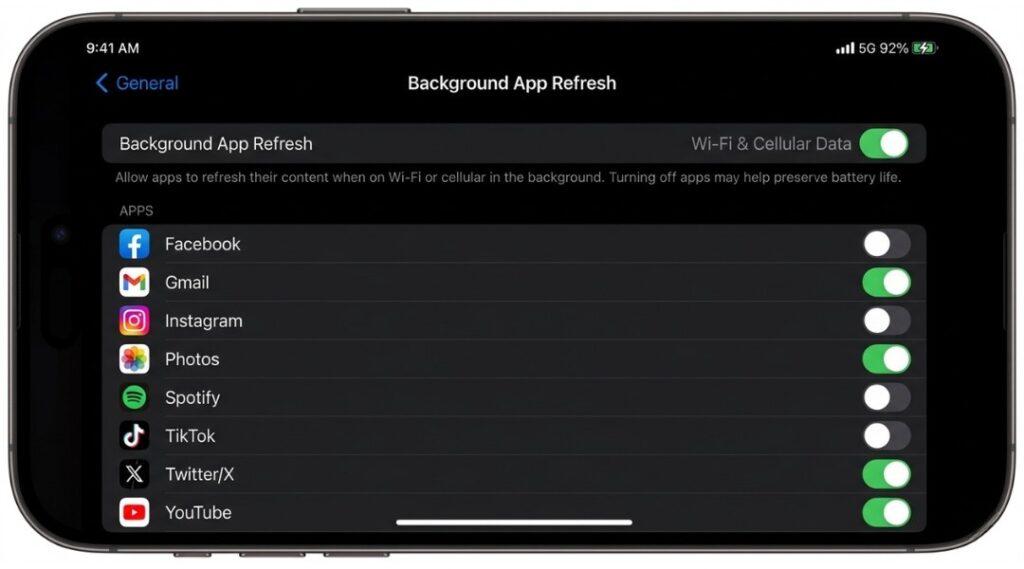
What Is Background App Refresh?
Background app refresh is a feature on both Android and iPhone that allows apps to update their content, fetch new information, and sync data even when you’re not actively using them.
For example:
- Gmail can check for new emails.
- Instagram can load new posts before you open the app.
- WhatsApp can deliver messages instantly.
All of this happens without you opening the apps. It keeps your apps “up to date” automatically.
What Does Background App Refresh Mean?
Many people think apps only work when they’re open. That’s not true.
Background app refresh means apps quietly wake up in the background, connect to the internet, and update their content — even when your phone is idle or in your pocket.
For instance: you receive a WhatsApp message without opening the app. Or Gmail notifies you of a new email immediately. That’s background app refresh in action.
It makes your phone feel seamless, but the trade-off is that it uses battery and data — sometimes more than you expect.
How Background App Refresh Works
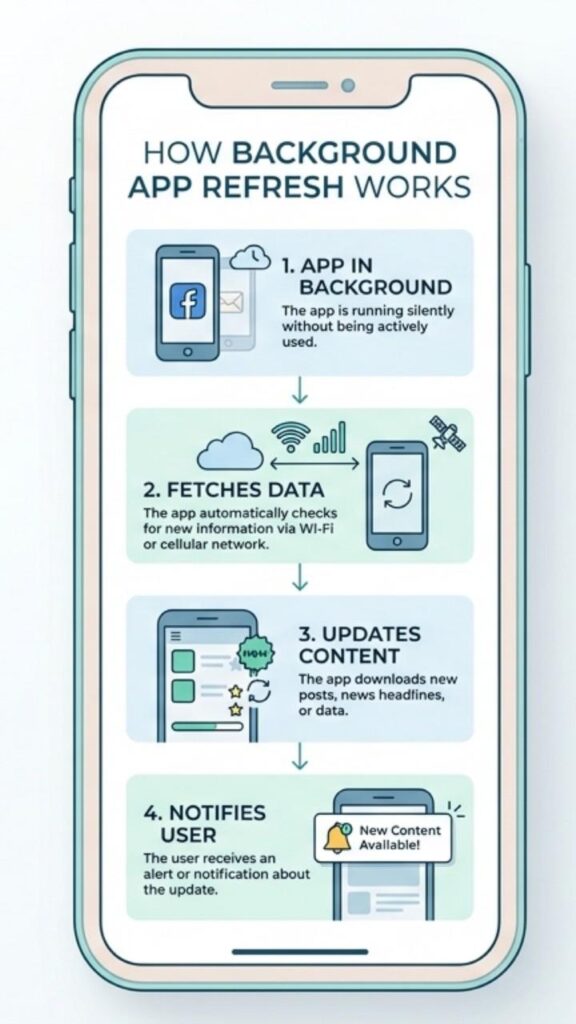
The process is simpler than it sounds. Here’s what happens:
- The app runs in the background
Closing an app doesn’t always fully shut it down. Many apps stay “sleeping” in the background. - It uses your internet connection
Apps connect to Wi-Fi or mobile data to fetch updates. This is called background data usage. - It updates content
Apps download new posts, emails, messages, or other updates. Instagram refreshes your feed. YouTube preloads videos. Email apps sync new messages. - You get notified
Once updated, you may see a notification or badge — all without opening the app.
While convenient, this constant activity can affect battery life and data usage.
Background App Refresh vs Background Data
These terms are related but not the same. Here’s a clear comparison:
| Feature | Background App Refresh | Background Data |
|---|---|---|
| What it is | Lets apps update content in the background | Mobile/Wi-Fi data used by apps running in background |
| Controlled by | App-level settings (per app) | Data/network settings |
| Found in settings | iPhone: Settings > General > Background App Refresh | Android: Settings > Data Usage > Restrict Background Data |
| What happens when off | Apps won’t update until opened | Apps can’t use mobile data in background |
| Battery impact | High (frequent app wake-ups) | Medium (depends on data activity) |
Summary: Background app refresh is the feature; background data is the fuel it uses. You can control both separately.
Should You Turn Off Background App Refresh?
It depends on the apps and how you use your phone.
Turn it OFF if:
- Your battery drains quickly without explanation
- Your phone is older or low-end
- You have many apps that don’t need real-time updates
- You want to save mobile data
Keep it ON if:
- You rely on messaging apps like WhatsApp or Telegram for instant notifications
- You use email apps like Gmail for work
- You use navigation or health tracking apps
- You want live sports scores, news, or alerts
Pro tip: Don’t disable everything blindly. Go through your apps and turn it off only for apps you rarely use.
How to Stop Apps Running in the Background
Here’s how to manage background app refresh on iPhone and Android:
On iPhone (iOS):
- Open Settings
- Tap General → Background App Refresh
- Choose one of the options:
- Off — completely disables it
- Wi-Fi — only updates over Wi-Fi
- Wi-Fi & Mobile Data — always updates
Scroll down to toggle refresh off for individual apps you don’t need updating.
On Android:
(Exact steps may vary by manufacturer: Samsung, Pixel, OnePlus)
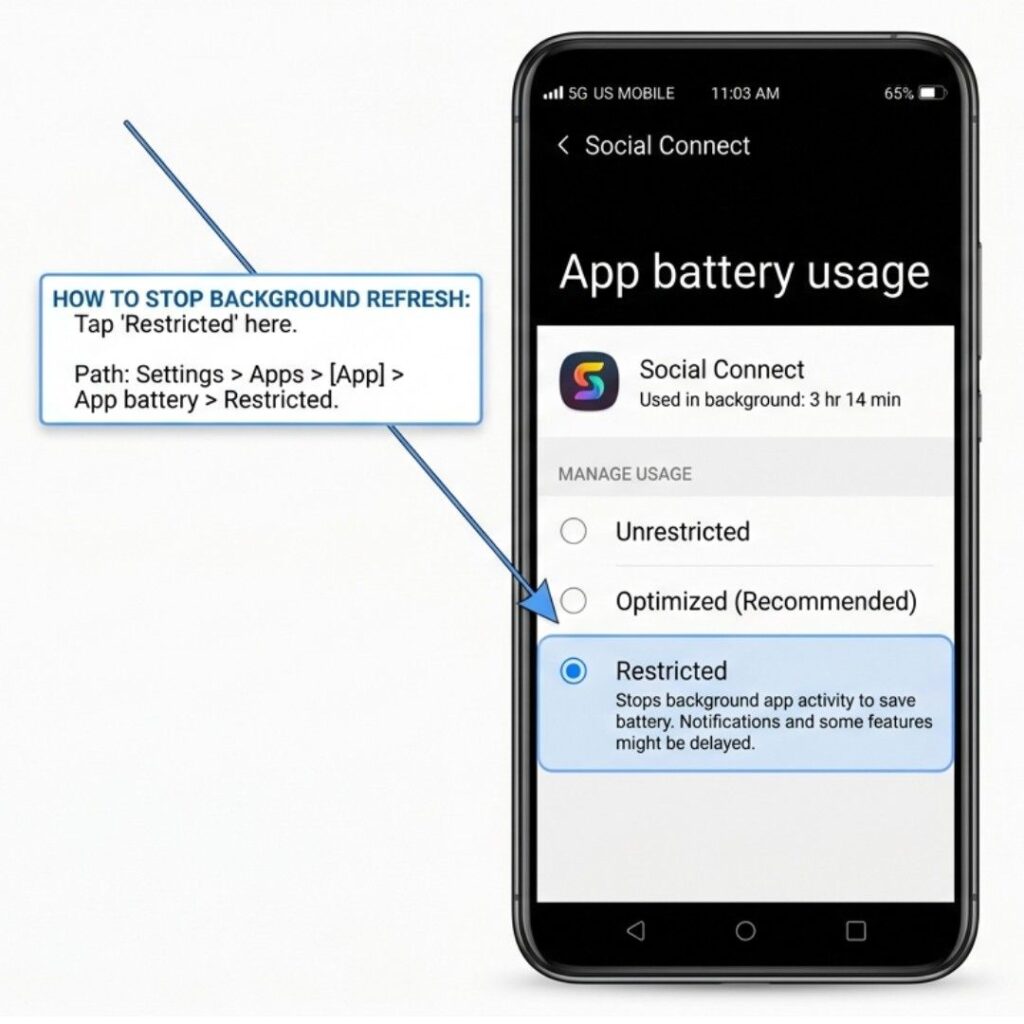
- Go to Settings → Apps (or App Management)
- Select the app you want to restrict
- Tap Battery → choose Restricted or Optimized
On Samsung devices, you can also go to Device Care → Battery → Background Usage Limits to manage all apps at once.
Does Background App Refresh Drain Battery?
Yes, it does — but the impact varies.
A single app refreshing in the background uses a small amount of battery. But with 20–30 apps doing this throughout the day, it adds up quickly — like leaving multiple small lights on in your house.
Background app refresh also contributes to data usage. If your data seems to disappear fast, background apps are often the culprit.
To check which apps use the most power:
- iPhone: Settings → Battery → Battery Usage
- Android: Settings → Battery → Battery Usage
This shows which apps are the biggest battery drains.
Common Mistakes People Make
- Turning off everything blindly
Disabling apps like Google Maps, WhatsApp, or email can break notifications and cause frustration. - Not checking battery usage first
Don’t guess which apps drain power. Let your phone’s battery stats guide you. - Forgetting important apps
Some apps need to run in the background, like health trackers, alarms, or location reminders. Turning them off can cause problems. - Assuming background refresh is always the problem
Battery drain can also come from a worn-out battery, rogue apps, or screen brightness settings.
Conclusion
Here’s the takeaway:
- Background app refresh is useful but silently drains battery and data.
- Don’t turn it off for everything. Keep it enabled for apps that need real-time updates.
- Check battery usage stats first, then make targeted changes — avoid turning everything off blindly.
For more tips on speeding up your phone, reducing battery drain, and fixing common problems, check our full smartphone troubleshooting guide.
Frequently Asked Questions (FAQ)
It’s a feature that lets apps automatically check for updates, messages, or content even when you’re not using them.
For apps you rarely use, yes. Keep it on for messaging, email, navigation, or apps where real-time updates matter.
Yes. It can noticeably improve battery life and reduce background data usage, especially on older phones.
On iPhone: Settings → General → Background App Refresh. On Android: Settings → Apps → Select app → Battery → Restricted.
Not exactly. Background app refresh is the feature, while background data is the internet it uses. Both can be controlled separately.
It can. Apps like messaging or email rely on background refresh for instant alerts. Keep it on for apps that need real-time notifications.
For more ways to fix battery drain, speed up your phone, and solve common issues, visit our smartphone tips and troubleshooting guide.