How to Fix Slow DNS Lookup
Have you ever clicked a website and waited several seconds before it even started loading? Many people blame their internet provider, but the real problem is often slow DNS lookup.
Every time you visit a website, your device first asks a Domain Name System (DNS) server to translate a domain name like example.com into an IP address. If this lookup takes too long, every webpage feels slow even when your internet speed is excellent.
According to Verisign, the DNS infrastructure handles billions of DNS queries every day, making it one of the most important services on the internet. Even a delay of 100 to 300 milliseconds can noticeably affect browsing performance.
If you’re searching for how to fix slow DNS lookup, this guide explains why DNS becomes slow, how to diagnose the issue, and the best solutions for Windows, macOS, Linux, Android, and iPhone.

Table of Contents
ToggleWhat Is a Slow DNS Lookup?
A slow DNS lookup occurs when your computer takes too long to convert a domain name into an IP address before connecting to a website.
If you’re unfamiliar with modern DNS technologies, our guide on What Is DNS Over HTTPS explains how encrypted DNS requests improve privacy, prevent DNS spoofing, and can even enhance DNS reliability on supported networks.
Normal DNS resolution usually takes:
- 20 to 100 ms on a fast DNS server
- 100 to 250 ms on average networks
- More than 300 ms may indicate a problem
DNS lookup delays can happen because of:
- Slow DNS servers
- Network congestion
- Incorrect router settings
DNS resolution delays are often mistaken for a slow internet connection, but if switching DNS providers doesn’t fully solve the issue, your WiFi channel could be causing similar slowdowns, especially if your router is broadcasting on a congested frequency.
- ISP DNS issues
- Malware
- VPN or proxy configurations
- IPv6 misconfiguration
- Firewall restrictions
If you’re new to DNS, read the Domain Name System overview to understand how domain names are translated into IP addresses.
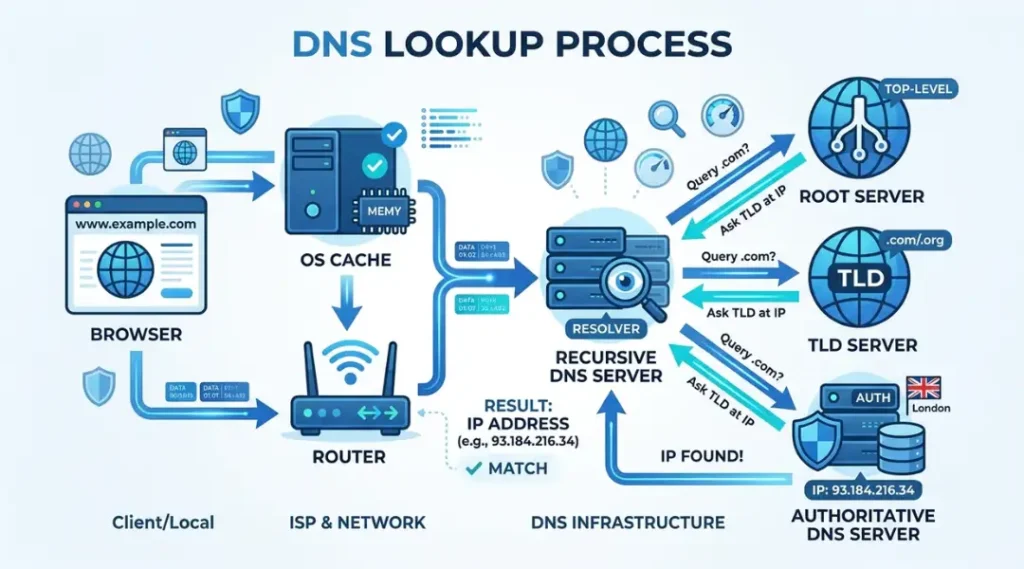
How DNS Resolution Works
When you type a website address:
- Your browser checks its DNS cache.
- Your operating system checks the local DNS cache.
- Your router checks its cache.
- A recursive DNS server searches for the correct IP address.
- The browser connects to the website.
If any step becomes slow, website loading slows down.
Common Signs of Slow DNS Resolution
You may have DNS issues if you notice:
- Websites pause before loading
- “Resolving host” stays on screen
- Speed tests are fast but browsing feels slow
- Apps connect slowly
- DNS lookup commands take several hundred milliseconds
- Some websites load instantly while others do not
What Causes Slow DNS Lookup?
1. Overloaded DNS Server
Public DNS servers can become overloaded during peak traffic.
2. ISP DNS Problems
Many ISPs use DNS servers that are slower than modern alternatives.
3. DNS Cache Corruption
Old cache entries may delay new DNS requests.
4. High Network Latency
Poor Wi-Fi signals increase DNS response time.
5. VPN Services
Some VPNs route DNS requests through distant servers.
6. Malware
Malicious software can redirect DNS traffic through slow servers.
7. Router Firmware Bugs
Outdated firmware may slow DNS forwarding.
8. IPv6 Configuration Issues
Incorrect IPv6 settings sometimes delay DNS queries.
How to Diagnose Slow DNS Lookup
Before fixing the issue, identify where the delay occurs.
Windows
nslookup google.com or Resolve-DnsName google.com
macOS/Linux
dig google.com or host google.com
Measure the Query Time.
If the response exceeds 200 ms consistently, investigate further.
15 Proven Ways to Fix Slow DNS Lookup

1. Restart Your Router
Restarting clears temporary DNS cache and resets active sessions.
Wait at least 60 seconds before turning it back on.
2. Flush Your DNS Cache
Windows
ipconfig /flushdns
macOS
sudo dscacheutil -flushcache
Linux
Restart your DNS service:
sudo systemctl restart systemd-resolved
3. Change Your DNS Server
One of the most effective fixes is switching to a faster DNS provider.
Popular options include:
| DNS Provider | Primary | Secondary |
|---|---|---|
| Google DNS | 8.8.8.8 | 8.8.4.4 |
| Cloudflare DNS | 1.1.1.1 | 1.0.0.1 |
| Quad9 | 9.9.9.9 | 149.112.112.112 |
You can also review the official Google Public DNS documentation for advanced configuration options.
4. Clear Browser Cache
Browsers occasionally store outdated DNS information.
Clear:
- DNS cache
- Browser cache
- Cookies
Restart the browser afterward.
5. Disable Unnecessary VPNs
Disconnect your VPN temporarily.
If DNS performance improves significantly, the VPN’s DNS routing is the cause.
6. Restart DNS Client Service
Windows users can restart the DNS Client.
services.msc
Locate:
DNS Client
Restart it.
7. Update Router Firmware
Manufacturers regularly release updates improving:
- DNS forwarding
- Security
- Performance
8. Check for Malware
Run a full antivirus scan.
Certain malware modifies DNS settings and redirects traffic.
For additional network security guidance, follow the CISA cybersecurity best practices recommendations.
9. Use Wired Ethernet
Wi-Fi interference often increases DNS latency.
Testing with Ethernet helps determine if wireless interference is the problem.
10. Disable IPv6 Temporarily
Some ISPs have incomplete IPv6 implementations.
Temporarily disable IPv6 to compare lookup speeds.
11. Reset Network Settings
Windows
netsh winsock reset

netsh int ip reset
Restart your PC afterward.
12. Test Multiple DNS Servers
Use benchmarking software to compare DNS providers.
Sometimes the fastest DNS depends on your location.
You can compare DNS providers using the DNS Benchmark utility to identify the fastest option for your location.
13. Check Local Firewall Rules
Some security software filters DNS requests.
Temporarily disable firewall filtering for testing.
14. Restart Your Modem
A fresh internet connection may reduce latency.
15. Contact Your ISP
If every DNS provider performs poorly, the problem may exist within your ISP’s network.
Ask whether:
- DNS servers are experiencing issues
- Routing problems exist
- Local outages affect DNS resolution
How to Test DNS Speed
Useful tools include:
- NameBench
- DNS Benchmark
- PowerShell
- dig
- nslookup
Test:
- Query time
- Cache performance
- Reliability
- Response consistency
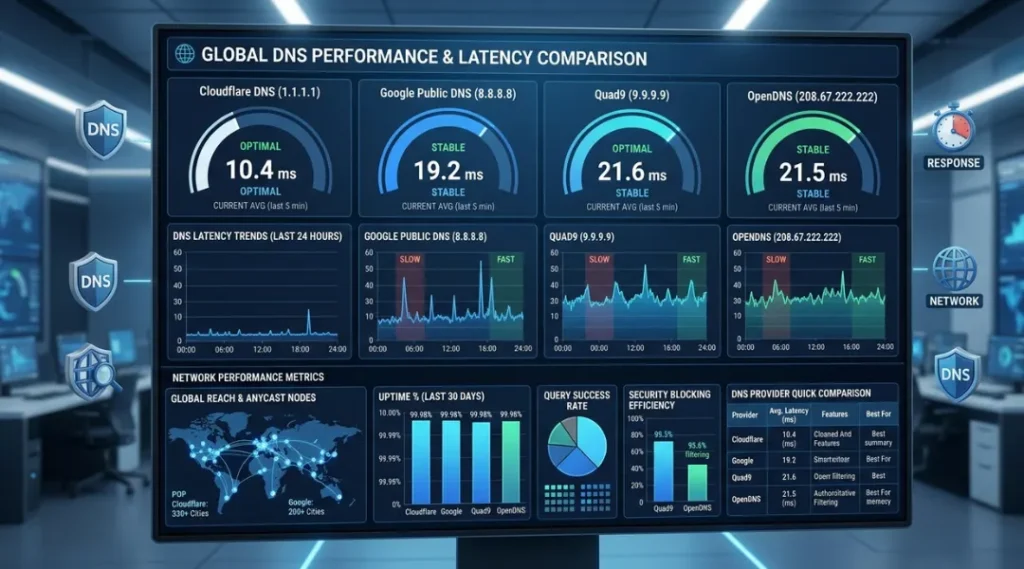
Best Public DNS Servers
| DNS Provider | Security | Speed | Privacy |
|---|---|---|---|
| Cloudflare | Excellent | Excellent | Excellent |
| Google Public DNS | Excellent | Very Good | Good |
| Quad9 | Excellent | Good | Excellent |
| OpenDNS | Very Good | Good | Good |
DNS Troubleshooting Checklist
- Restart router
- Flush DNS cache
- Change DNS server
- Restart DNS client
- Scan for malware
- Disable VPN
- Test Ethernet
- Reset network
- Update router firmware
- Contact ISP
Windows DNS Troubleshooting Commands
ipconfig /flushdns
ipconfig /displaydns
ipconfig /release
ipconfig /renew
netsh winsock reset
macOS DNS Commands
sudo dscacheutil -flushcache
sudo killall -HUP mDNSResponder
Linux DNS Commands
dig google.com
host google.com
systemd-resolve –statistics
Prevent Future Slow DNS Problems
To keep DNS resolution fast:
- Keep router firmware updated.
- Use reliable public DNS providers.
- Restart networking equipment occasionally.
- Remove unused VPN software.
- Scan for malware regularly.
- Keep operating systems updated.
- Monitor DNS response times if you manage business networks.
How to Fix Slow DNS Lookup: Frequently Asked Questions
Slow DNS lookups are commonly caused by overloaded DNS servers, ISP DNS issues, router problems, VPNs, malware, or high network latency.
Changing DNS does not increase download speed, but it often reduces website loading delays by improving DNS response time.
Cloudflare DNS (1.1.1.1) often provides lower latency than Google DNS in many regions, although performance depends on your location and ISP.
Yes. Some malware changes DNS settings, redirects DNS traffic, or overloads network requests, causing slower lookups.
Most healthy DNS queries finish within 20 to 100 milliseconds. Consistently higher response times may indicate network or DNS server issues.
Final Thoughts
Knowing how to fix slow DNS lookup can dramatically improve your web browsing experience. In many cases, the solution is as simple as switching to a faster DNS provider, flushing your DNS cache, or updating your router. By systematically testing your DNS response times and eliminating common bottlenecks, you can restore fast and reliable website access across all your devices.
Whether you are a home user, IT professional, or business owner, maintaining a healthy DNS configuration is an essential part of network performance and security.