
How to Transfer Contacts From Android to iPhone
Switching from Android to iPhone can feel exciting—until you worry about losing your contacts. If you’re moving to iOS for the first time, it’s normal to feel anxious about whether all your phone numbers, saved emails, and WhatsApp-linked contacts will transfer smoothly. I’ve helped many users migrate their data during mobile device upgrades, and I’ve seen people panic unnecessarily because they didn’t know the simplest and safest method.
The good news? Transferring contacts from Android to iPhone is easier today than ever before. Apple and Google both offer reliable tools, and even if you’re a non-tech user, you can complete the process in minutes.
This guide walks you through step-by-step methods, practical tips, and expert-backed advice so nothing gets lost during the move.
Why Transferring Contacts Feels Stressful (And Why You Don’t Need to Worry)
Many users fear switching phones because:
They’ve never used iPhone before
They worry that syncing won’t happen correctly
They have hundreds or thousands of contacts
They’ve stored contacts in multiple places (SIM, phone storage, Gmail)
But based on real-world experience helping people migrate over the years, I can confidently say:
If you follow the right method, your contacts will transfer 100% safely.

1. Use “Move to iOS” – The Official & Easiest Method
Apple developed a dedicated tool just for Android-to-iPhone migration, and it’s the most seamless option.
What You Need
Your Android phone (Android 5.0 or later)
Your new or factory-reset iPhone
A stable Wi-Fi connection
The free Move to iOS app from Google Play
Step-by-Step Guide
On your Android, open Google Play Store and download Move to iOS.
👉 https://play.google.com/store/apps/details?id=com.apple.movetoiosTurn on your new iPhone.
During setup, select Move Data from Android.On Android, open the app → tap Continue.
On iPhone, you’ll see a 6-digit code.
Enter the code on your Android device.Select what you want to transfer:
Contacts
Message history
Photos/videos
Google account
Calendars
Tap Continue and wait for the transfer to complete.
✔ Why Experts Recommend This
No manual exporting/importing
Fast and secure (direct connection)
Ideal for brand-new iPhone setup
If you’re setting up your iPhone for the first time, this is the #1 recommended method by Apple.
🔗 For official Apple guidance:
https://support.apple.com/en-in/HT211815
2. Transfer Contacts Using Google Account (Best for Ongoing Sync)
If your Android already syncs contacts to your Google account, this method is super quick.
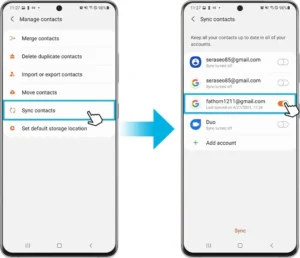
Follow These Steps
On Android
Open Settings
Go to Accounts → Google
Enable Sync Contacts
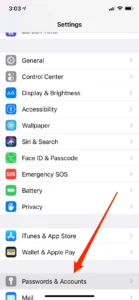
On iPhone
Open Settings → Mail → Accounts
Tap Add Account → Google
Sign in with your Gmail ID
Enable Contacts toggle
Your contacts will automatically appear on the iPhone within seconds.
✔ Why This Method Works Well
Perfect if you use Gmail daily
Syncs across devices automatically
No need to reset your iPhone
This method is preferred by many IT technicians because it’s quick, accurate, and works even after switching devices.
3. Transfer Contacts Using a SIM Card (Offline Method)
If you saved contacts on your SIM card, you can manually move them.
Steps
On Android
Open Contacts App
Go to Settings → Export → Export to SIM
On iPhone
Insert the SIM into your iPhone
Go to Settings → Contacts → Import SIM Contacts
✔ Pros
Works without internet
Ideal for small contact lists
❌ Cons
SIM cards have limited storage
Does not transfer photos or email-linked contacts
4. Export Contacts as a VCF File (Manual but Effective)
A .vcf (vCard) file can transfer all your contacts at once.
On Android
Open Contacts
Go to Manage Contacts → Export
Select “Export as .vcf file”
Send the file to your iPhone via:
Email
WhatsApp
Bluetooth
Cloud storage
On iPhone
Open the .vcf file
Tap Add All Contacts
✔ When to Use This
You want complete control over the transfer
You have multiple backup copies
You don’t want to use any apps
5. Use Third-Party Apps (If Other Methods Don’t Work)
Apps like AnyTrans, MobileTrans, or Dr.Fone Phone Transfer are alternatives.
✔ Pros
Transfer contacts, photos, apps, call logs
Useful when phones have issues
❌ Cons
Some features may be paid
Requires PC/Laptop sometimes
Stick to this only if official methods fail.
Expert Tips to Ensure a Smooth Transfer
Backup your Android before starting – use Google Backup.
Keep both phones charging to avoid interruptions.
Turn off mobile data when using Move to iOS (Wi-Fi works better).
Check where your contacts are stored (Gmail, SIM, or phone).
Clean up duplicates after transfer using iPhone’s built-in tools.
For a broader overview of device care, read our Smartphone Tips & Troubleshooting guide.
Common Problems & Real Solutions
1. Move to iOS not connecting
Turn off smart network switching or mobile data
Keep both phones close
Restart both devices
2. Contacts missing after transfer
Check:
Settings → Contacts → Accounts
Enable Gmail/iCloud syncing.
3. Duplicate contacts
Use Apple’s built-in merge tool:
Contacts App → Card → Look for Duplicates
Conclusion: Your Contacts Are Safe—Enjoy Your New iPhone
Switching from Android to iPhone doesn’t have to be stressful. With the tools available today—especially Move to iOS and Google Contacts Sync—your entire contact list can move in minutes. Whether you’re a first-time iPhone user or upgrading to the latest model, following these steps ensures no numbers are lost, your WhatsApp contacts stay usable, and your transition to iOS is smooth.
If you’re planning to explore more iPhone tips and digital setup guides, feel free to check related articles or ask for personalized help.
Clear visuals and thoughtful interface design play an important role in explaining technical steps, which is why references to UX-focused design resources such as Zpro Studio can add value to instructional content.
If you need assistance or want to learn more, contact ZProStudio at email admin@zprostudio.com