
How to View Blocked Messages on iPhone
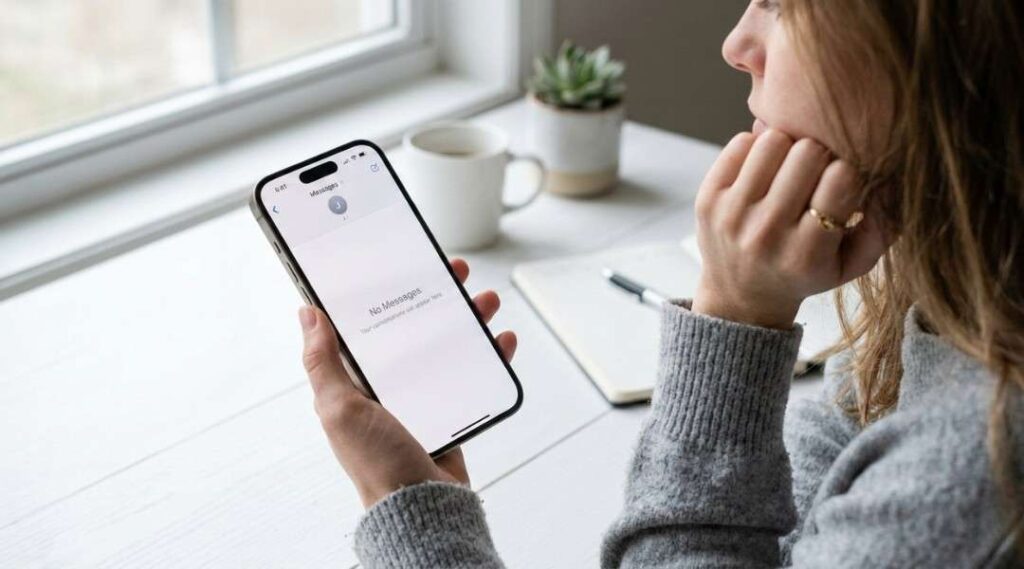
You blocked someone weeks ago. Now you’re second-guessing it—wondering if you missed something important. So you start digging through your iPhone trying to find those blocked messages. And you find… nothing.
Here’s the truth nobody puts in their headline: you cannot view blocked messages on iPhone the way most people expect. Apple doesn’t hold them in a hidden inbox. There’s no secret folder. They’re gone. But—and this matters—there are some things you can still access, and knowing the difference saves you a lot of wasted time and frustration.
I’ve helped dozens of people work through this exact confusion. Let me walk you through what’s actually possible, what’s permanently lost, and how to manage your blocked contacts list before you lose something you didn’t mean to.
The Hard Truth About Blocked Messages on iPhone
Blocked iMessages and SMS texts are permanently discarded the moment they’re sent to your device. Apple’s blocking system doesn’t route them to a hidden folder—it drops them entirely, in real time, with no recovery path.
This surprises people. A lot. Most assume Apple works like email spam folders, quietly storing blocked content somewhere retrievable. It doesn’t. According to Apple’s official iOS support documentation, when you block a contact, their messages are silenced at the system level—not archived.
Think about what that means: every text, every iMessage, every image sent by a blocked contact after the block was applied—gone. Permanently. Even unblocking them later won’t surface those messages. The data was never stored.
The one exception? Voicemails.
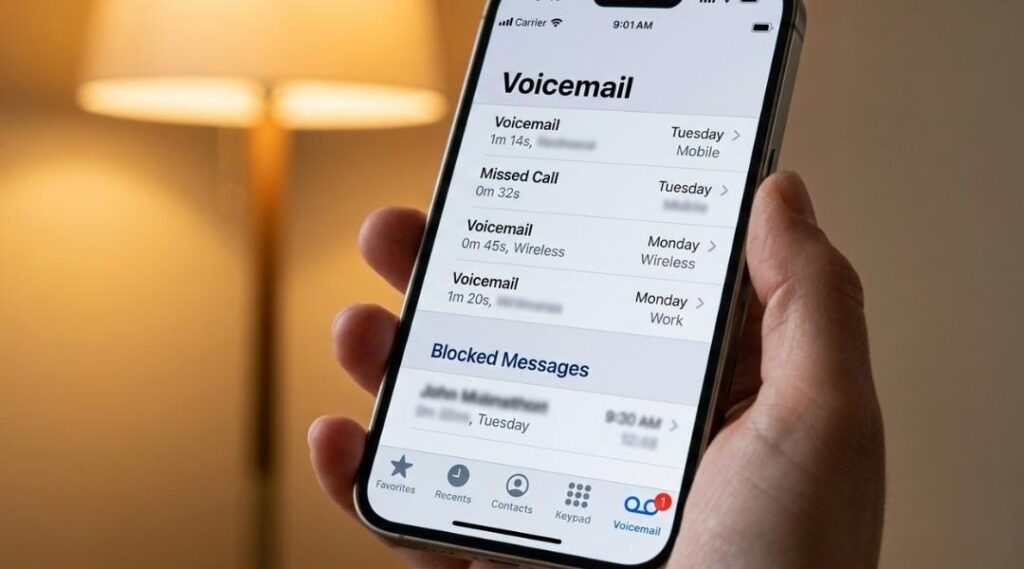
Blocked callers can still leave voicemails on your iPhone. These don’t trigger a notification, but they are stored—temporarily. Open your Phone app → Voicemail tab → scroll to the very bottom. You’ll find a “Blocked Messages” section there. Those voicemails auto-delete after 30 days if you don’t act on them. That’s your only real window into blocked communication.
But here’s where it gets interesting: what about messages sent before you blocked someone?
What You Can Actually Access
Messages Sent Before the Block
Every conversation thread that existed before you blocked someone stays exactly where it was in your Messages app. The block only affects new incoming messages going forward. Scroll back through any existing thread and you’ll find everything from before the block—fully intact.
This is the part most guides miss. You haven’t lost your history. You’ve only cut off future incoming messages.
Blocked Voicemails
- Open the Phone app
- Tap Voicemail at the bottom
- Scroll all the way down past your regular voicemails
- Look for Blocked Messages section
Not all carriers support this feature identically. If you don’t see a “Blocked Messages” section, your carrier may not surface them this way—call your carrier to confirm.
Third-Party App Messages
Here’s something that trips everyone up. Blocking someone on iPhone only affects Apple’s native apps—Phone, Messages, and FaceTime. It does nothing to WhatsApp, Telegram, Instagram DMs, Snapchat, or any other third-party platform.
If you’re wondering why someone you “blocked” is still reaching you on WhatsApp—that’s why. Each app manages its own block list, completely independently of iOS. To check blocked messages on WhatsApp, go to WhatsApp → Settings → Privacy → Blocked. The Mac Observer’s 2025 iPhone blocking guide confirms this separation clearly.
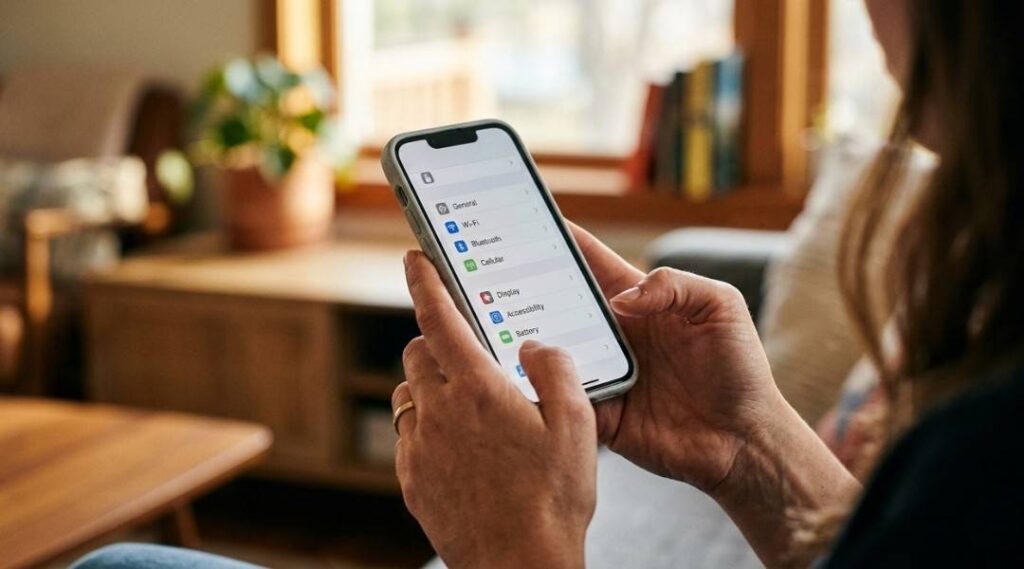
Since you can’t recover blocked messages, the next best thing is auditing your blocked contacts list—making sure you haven’t accidentally blocked someone important.
On iOS 18 (the current path as of late 2025):
- Open Settings
- Tap Apps
- Tap Phone
- Tap Blocked Contacts
That’s your master list. Every number, contact, and email address you’ve blocked across calls, texts, and FaceTime lives here. Three alternative paths lead to the same list: Settings → Apps → Messages → Blocked Contacts and Settings → Apps → FaceTime → Blocked Contacts are identical doors into the same room.
On iOS 15 and earlier: Go directly to Settings → Phone → Blocked Contacts—the “Apps” layer didn’t exist in older versions.
How to Unblock Someone
While you’re in Blocked Contacts:
- Swipe left on any entry → tap Unblock
- Or tap Edit (top right) → tap the red minus icon → tap Unblock
They can reach you immediately after unblocking. But remember: messages they sent while blocked are still gone. Unblocking is not a recovery tool—it’s just opening the door again.
Blocked Messages vs. Filtered Messages: A Confusion Nobody Clears Up
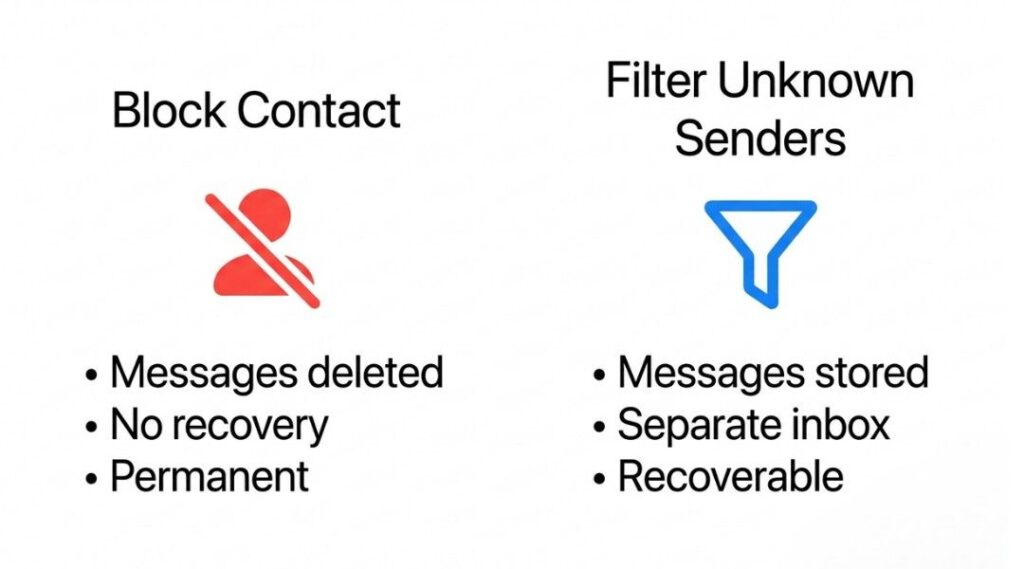
This is genuinely one of the most misunderstood distinctions in iOS, and I don’t see it covered clearly anywhere.
Blocking and message filtering are completely different features—but they look similar from the outside.
| Feature | What It Does | Messages Stored? |
|---|---|---|
| Blocking a contact | Permanently discards all messages | ❌ No |
| Unknown Sender filter | Routes unknown numbers to a separate inbox | ✅ Yes |
| Focus mode filtering | Delays notifications, doesn’t block content | ✅ Yes |
If you’re on iOS 16 or later, go to Settings → Apps → Messages → Unknown & Spam. Turn on Filter Unknown Senders and messages from people not in your contacts get sorted into a separate “Unknown Senders” tab inside Messages—not deleted, just quietly filed away. You can read them any time.
This is actually a better option than full blocking for situations where you’re unsure. You stop getting notifications, but you don’t lose the messages.
Honest opinion: Apple should make this distinction clearer during the blocking flow. The fact that millions of people Google “how to view blocked messages on iPhone” every month suggests they don’t realize blocking is permanent—not just silencing. A simple confirmation dialog saying “These messages cannot be recovered” would prevent a lot of regret.
Can You Recover Blocked Messages From a Backup?
Technically, yes—but it’s not pretty.
If you have an iCloud backup or iTunes/Finder backup from before you blocked the contact, the message history from that period would be in there. But restoring from backup means wiping your current iPhone and rolling it back to that earlier state. You’d lose everything that happened since.
For most people, that trade-off isn’t worth it for a few texts.
Third-party data recovery tools like Dr.Fone or iMobie PhoneRescue claim to extract messages from backups without a full restore. Reviews are mixed—they work better for recovering deleted messages than blocked ones, and they require desktop software and a paid license. Use them as a last resort, not a first step.
FAQs: What People Actually Search For
No. Blocked iMessages and SMS texts are permanently discarded by iOS the moment they arrive—they're never stored anywhere on your device. The only exception is voicemails, which appear in a hidden "Blocked Messages" section at the bottom of the Voicemail tab and auto-delete after 30 days.
Go to Settings → Apps → Phone → Blocked Contacts. This shows every number, contact, and email you've blocked across calls, texts, and FaceTime. On iOS 15 and earlier, the path is Settings → Phone → Blocked Contacts directly.
New messages from blocked contacts are silently dropped—Apple never stores them. Any conversation history from before you applied the block stays visible in your Messages app. The block only affects content sent after the block date.
Yes—going forward. But messages sent while they were blocked are permanently gone and won't suddenly appear after unblocking. You're opening the door for future contact, not retrieving the past.
No. Their iMessages appear to send normally on their end. There's no delivery failure, no "message blocked" notification, nothing. From their perspective, the message sent fine.
Yes. iPhone blocking only covers Apple's native Phone, Messages, and FaceTime apps. WhatsApp, Instagram, Telegram, Snapchat, and every other third-party app has its own separate block system. You need to block them individually in each app.
Yes—use the Filter Unknown Senders feature instead of blocking. Go to Settings → Apps → Messages → Unknown & Spam → turn on Filter Unknown Senders. Their messages go to a separate inbox tab without notifications, but nothing gets deleted.
Only if you restore your entire iPhone from a backup that predates the block—which overwrites everything current. Third-party tools can sometimes extract data from backups without a full restore, but results are inconsistent and there's no guarantee blocked messages are recoverable.
After working through this with a lot of confused iPhone users, here’s what actually matters:
First: Blocked messages on iPhone are gone for good—Apple doesn’t store them anywhere. If you blocked someone and need those texts back, the only realistic path is a full device restore from an older backup.
Second: You can check blocked voicemails—they live quietly at the bottom of your Voicemail tab for 30 days before auto-deleting.
Third: If you’re not sure about blocking someone, use Filter Unknown Senders instead. Same silence, but messages are preserved.
Knowing how to view blocked messages on iPhone really comes down to understanding one thing: blocking on Apple’s platform is permanent and immediate, not a holding room. Once you accept that, the rest of the decisions get much easier.
Got a specific situation—like blocking a number by accident or wondering if an important message got lost? Drop it in the comments. Happy to help you think it through.
For a broader overview of device care, read our Smartphone Tips & Troubleshooting guide.