Google Gmail Data Breach Warning
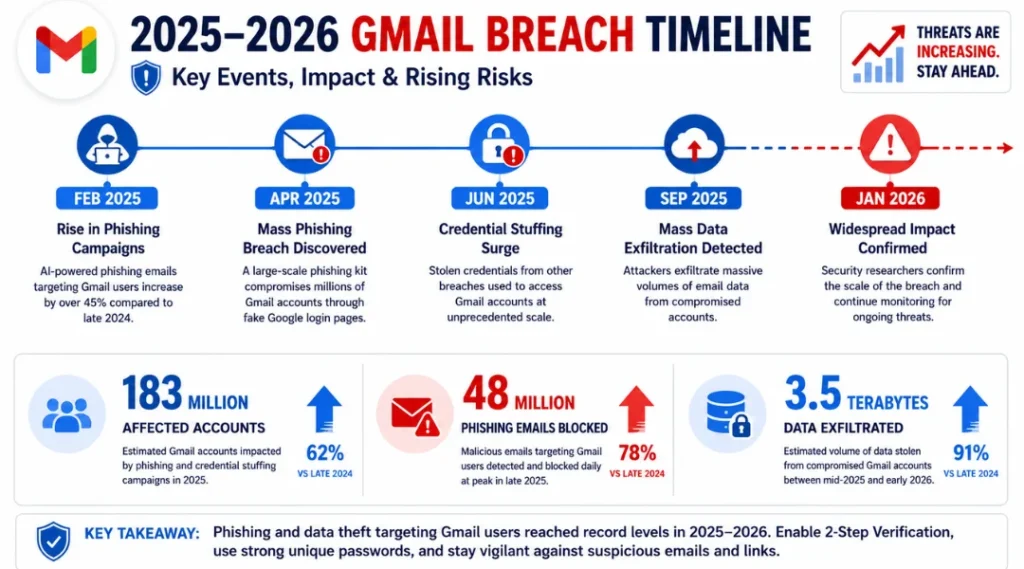
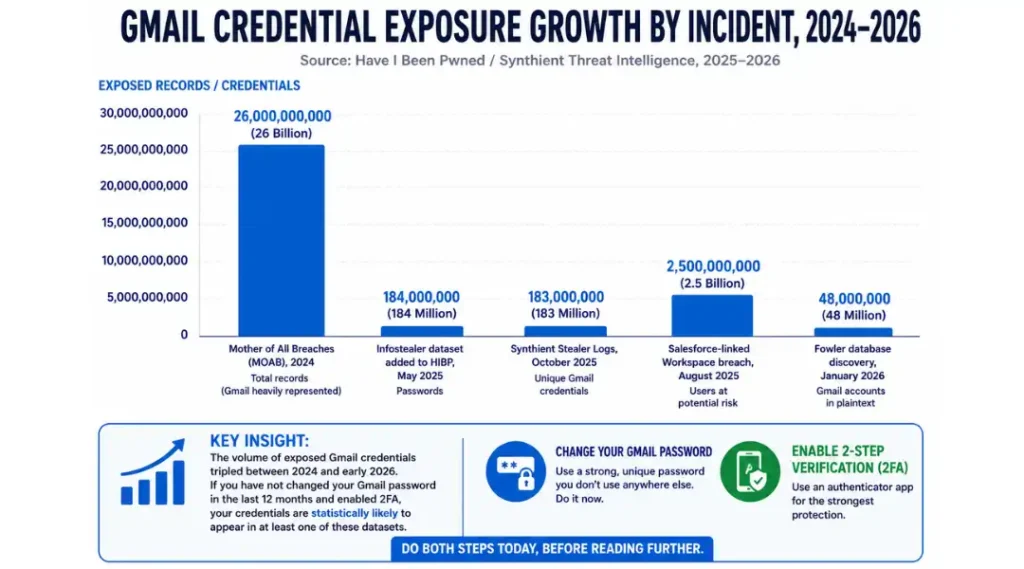
183 million Gmail credentials landed on the dark web in October 2025. One dataset. 3.5 terabytes of stolen logins, passwords, and email addresses, all circulating freely among hackers and automated attack tools. If you received a Google Gmail data breach warning in Chrome, in your inbox, or as a security alert that warning is real, and ignoring it is the one move guaranteed to cost you.
This article explains exactly what the warning means, why it appeared, and what you need to do in the next 20 minutes to lock your account before credential stuffing tools use your password against you. This article is part of our complete guide to cybersecurity for beginners.
The story behind this warning is more complicated than headlines suggest and understanding it is what separates users who actually stay safe from users who change one password and think they’re done.
Table of Contents
ToggleWhat Is a Google Gmail Data Breach Warning?
A Google Gmail data breach warning is a security alert from Google or Chrome telling you that a password tied to your Gmail address appeared in a known credential leak. It triggers when stolen login data from third-party sites matches your saved credentials. As of 2026, most of these warnings trace back to infostealer malware campaigns and credential stuffing databases, not a direct hack of Google’s servers (Troy Hunt, Have I Been Pwned, October 2025).
Why the Google Gmail Data Breach Warning Is Dominating Headlines in 2026
The Google Gmail data breach warning became unavoidable in 2025, and the threat level has not dropped since. Two specific events drove a surge in these alerts that cybersecurity professionals are still tracking.
In October 2025, cybersecurity researcher Troy Hunt added a 3.5-terabyte dataset to Have I Been Pwned, the world’s most trusted breach notification service. The dataset contained 183 million unique email-and-password pairs harvested through infostealer malware, including RedLine and Vidar. Gmail addresses made up a significant share of those credentials.
Then in early 2026, security researcher Jeremiah Fowler discovered a 96-gigabyte unprotected database containing 149 million login credentials. Roughly 48 million of those were active Gmail accounts, stored in plaintext alongside passwords and login URLs.
Google’s infrastructure was not directly compromised in either incident. That distinction matters less than most people assume.
What the headlines missed: your Gmail address is the key to your entire digital life. Banking apps, cloud storage, social media, work tools, and healthcare portals all use Gmail as a login or a password reset destination. Attackers know this. Compromising your Gmail login through credential stuffing does not require breaking into Google. It just requires finding one password you reused.
Does this warning mean your Gmail account has actually been hacked? Not necessarily. A warning means your credentials appeared in a breach dataset. Your account may still be safe if you act fast. The risk is that automated tools are likely already testing those credentials against your accounts.
This matters less for users who have unique passwords and two-factor authentication already active. If you use the same password across multiple sites and have not enabled 2FA, the Google Gmail data breach warning is a five-alarm signal, not a routine notification.
One natural internal link: for a broader understanding of online threats, our cybersecurity for beginners guide covers the full picture.
Most competing articles explain what the warning is and then pivot to generic password advice. They skip the part that actually creates ongoing risk: phishing campaigns that impersonate this exact warning to steal your credentials in real time. In 2025, a wave of fake “Gmail security breach” emails circulated with convincing Google branding, external links, and fake phone numbers. The real Chrome warning never asks you to click an external link, call a number, or download anything.
How a Google Gmail Data Breach Warning Works: Step-by-Step
When Chrome detects that a saved password matches a known breach dataset, it flags it immediately in the browser and can send an alert to your linked Google account. The process uses a privacy-preserving protocol that never exposes your actual password to Google’s servers in readable form. The warning routes you to your Password Manager Checkup, where you can see every compromised, weak, and reused credential tied to your Google account.
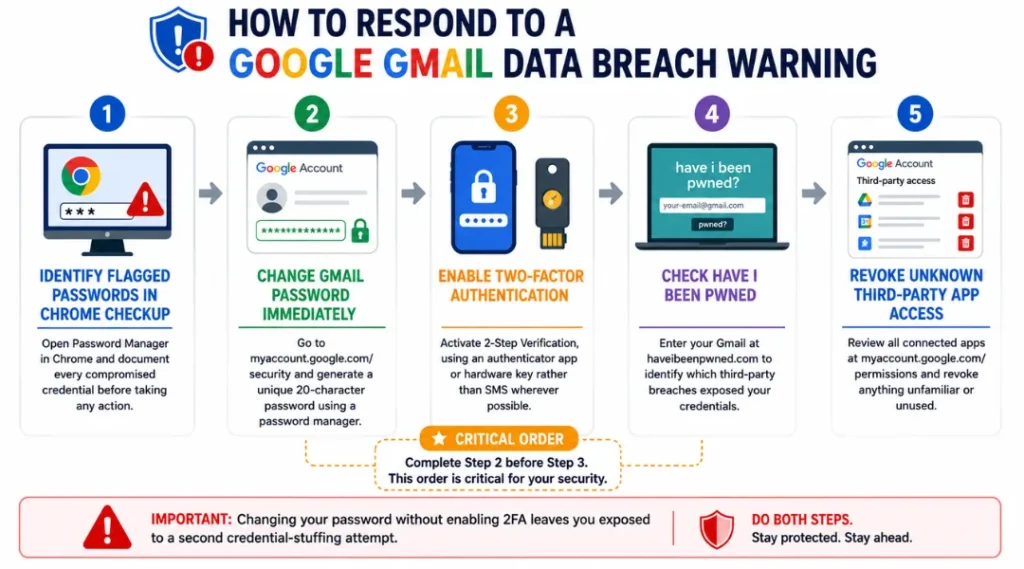
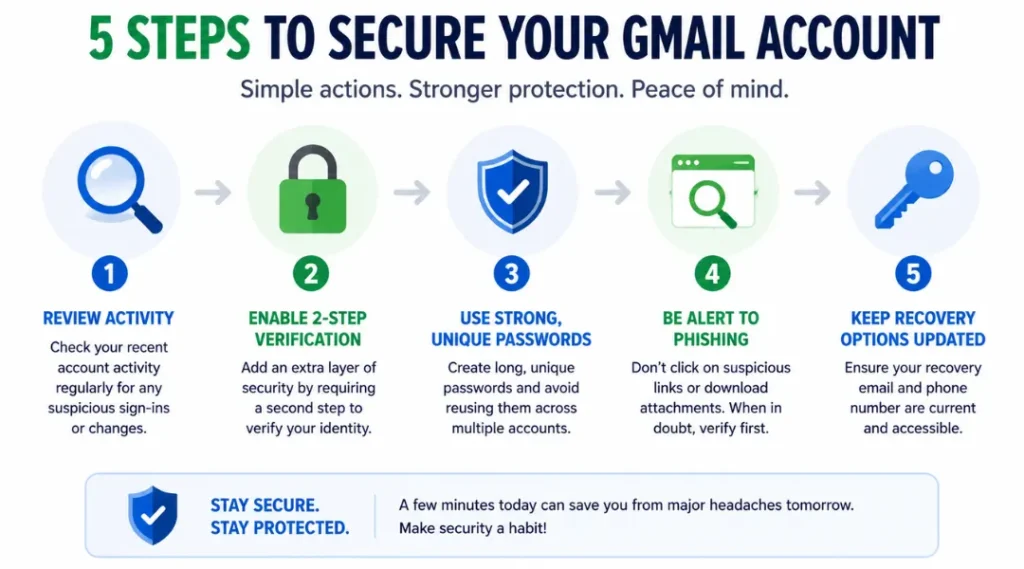
Step 1: Identify Which Passwords Triggered the Warning
Open Chrome, click the three-dot menu, and go to Passwords and Autofill, then Google Password Manager. Select the Checkup tab. Every compromised password will be listed here, along with the site it is associated with. Write down every flagged account before closing the tab.
Common mistake: people check only the Chrome warning and miss credentials stored in other browsers. Safari, Firefox, and Edge all have separate password managers. Check each one.
Step 2: Change Your Gmail Password First
Go directly to myaccount.google.com/security and change your Google Account password before anything else. Gmail is your password reset hub. If an attacker gets in there first, they can lock you out of every account that uses Gmail for recovery.
Use a password manager to generate a 20-character random password. Bitwarden, 1Password, and Google Password Manager all support this natively. Do not use your current password with a number added at the end. Attackers’ credential stuffing tools test those variations automatically.
Pro tip: after changing your Gmail password, scroll down on the same security page and click “Manage all devices.” Sign out every unfamiliar device before moving to the next step.
Step 3: Enable Two-Factor Authentication with a Strong Second Factor
Navigate to myaccount.google.com/security and turn on 2-Step Verification. Google supports SMS codes, Google Prompts, authenticator apps like Google Authenticator and Authy, and hardware keys like YubiKey.
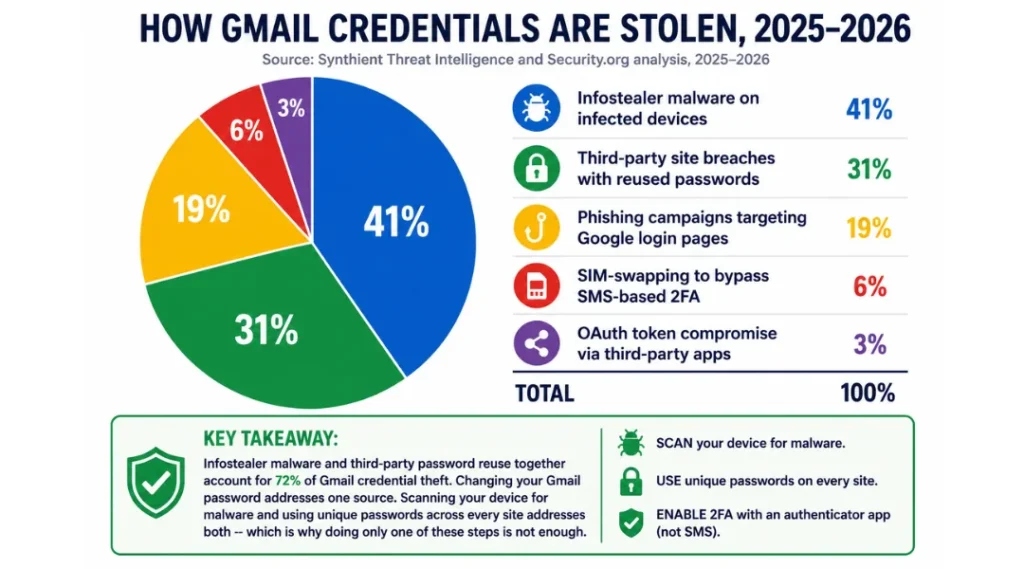
SMS is better than nothing. But SMS can be intercepted through SIM-swapping attacks, which became increasingly common in 2025. Whenever possible, use an authenticator app or a hardware key instead.
Step 4: Check Your Exposure on Have I Been Pwned
Go to haveibeenpwned.com and enter your Gmail address. The site checks your email against billions of known breach records, including the October 2025 Synthient dataset. If your email appears, note which sites were breached and change your password on every one immediately.
Most people assume that if Google did not directly contact them, they are safe. That assumption is wrong. Google did not send mass notifications to all 183 million affected users from the 2025 Synthient breach.
Step 5: Audit and Revoke Third-Party App Access
Go to myaccount.google.com/permissions. This page shows every third-party app connected to your Google account. Revoke access for any app you do not recognize, any app you have not used in six months, and any app whose name looks like a variation of a real service.
This step matters because the August 2025 Salesforce incident involved compromised OAuth tokens for third-party integrations. Attackers who gain access through a connected app can extract emails, contacts, and Drive documents without triggering a standard login alert.
Best Tools for Responding to a Google Gmail Data Breach Warning
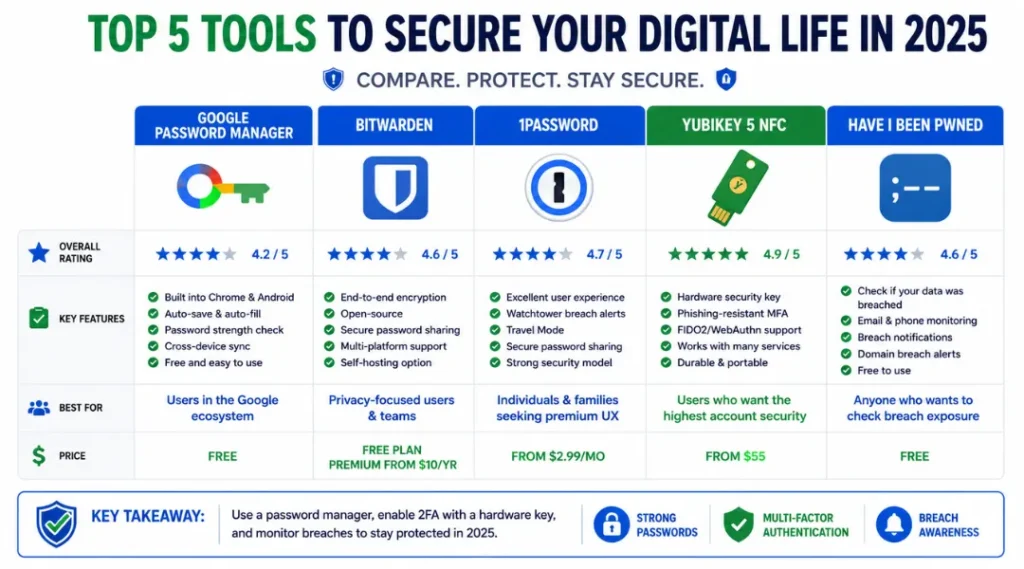
Changing your password alone does not solve the Google Gmail data breach warning. You need ongoing monitoring, a password manager, and a second factor that cannot be phished. The three tools below are selected specifically for people who want real protection without paying for an enterprise-grade security stack.
What makes a tool good for this use case? It needs to integrate directly with Gmail or Google accounts, offer proactive breach alerts rather than reactive reports, and work without requiring technical knowledge to set up.
| Tool / Product | Best For | Key Strength | Real Limitation | Price (2026) | Verdict |
|---|---|---|---|---|---|
| Google Password Manager (built into Chrome) | Users already in the Google ecosystem who want zero-setup protection | Native Chrome integration with real-time breach alerts on saved passwords; Password Checkup tool covers compromised, weak, and reused credentials simultaneously | Only monitors passwords saved in Chrome; credentials stored in other browsers or apps are invisible to it | Free with Google Account | Best starting point for beginners already using Chrome |
| Bitwarden | Users who want cross-browser, cross-device password management with breach monitoring | Open-source, independently audited, integrates breach alerts from Have I Been Pwned directly into the vault interface | Requires manual setup across all devices and browsers; the free tier limits advanced reports to once per month | Free tier available; Premium at $10/year (2026) | Best free option for users who want more than Chrome offers |
| 1Password | Families or individuals who want the most polished password manager experience | Watchtower feature monitors breach databases continuously and flags exposed, weak, and reused passwords with specific recommended actions | No permanent free tier; costs $2.99/month per person after trial ends, which adds up for families | $2.99/month individual; $4.99/month for families (2026) | Best for users who want a premium experience and will actually use it daily |
| YubiKey 5 NFC | Users who want phishing-resistant hardware 2FA for their Google Account | Physical security key that cannot be remotely phished; works with Gmail, Google Workspace, and hundreds of other services via FIDO2 | Costs $50-$55 upfront; if lost, account recovery requires a backup key or lengthy verification process | $50-$55 per key (2026) | Best for anyone whose Gmail account holds sensitive work or financial data |
| Have I Been Pwned (HIBP) | Anyone who wants to check their Gmail address and all associated accounts against known breaches | Free, trusted by security researchers worldwide, added the 183-million-record Synthient dataset in October 2025; supports domain-wide monitoring for business owners | Reactive rather than real-time; it shows breaches after they have been publicly reported, not during active credential stuffing campaigns | Free for individual checks; domain monitoring from $3.50/month (2026) | Best free breach check tool for every Gmail user |
The comparison dimension every other article skips: what happens when the tool is not installed yet and your account is actively being targeted? Google Password Manager wins here because it is already active for any Chrome user with a Google Account. You do not need to install anything. If you have not run a Password Checkup in the last 30 days, open Chrome right now before continuing.
Common Google Gmail Data Breach Warning Mistakes and How to Fix Them
The most common mistake with a Google Gmail data breach warning is changing only the Gmail password and calling it done, which leaves every other account using that same password fully exposed. Most people make this mistake because the warning appears to be about Gmail specifically, so Gmail feels like the thing to fix. Here is how to check if you are making it right now: open your current password manager and search for any other account using the same password as your Gmail. If you find any matches, fix them before closing this article.
Mistake 1: Treating the Warning as a Gmail-Specific Problem
The warning shows up in Gmail or Chrome, so the instinct is to fix Gmail. The actual problem is credential reuse across dozens or hundreds of sites. Security analyst Michael Tigges at Huntress confirmed that the 2025 Synthient dataset was not a Gmail hack. It was an aggregated collection of credentials stolen from countless other platforms. Fix it: change your Gmail password AND run a full Password Checkup to identify every reused credential in your account. Check if your password appears in the breach database by searching directly at haveibeenpwned.com/passwords.
Mistake 2: Ignoring Chrome’s Phishing Warning About the Warning Itself
In late 2025, a coordinated phishing campaign sent fake “Gmail security breach” emails that mimicked Google’s actual warning format perfectly. They included convincing Google branding, a fake case number, and a link to a spoofed myaccount.google.com page. Real Chrome data breach warnings appear inside the browser. They never ask you to click an external link, call a phone number, or enter your password on a page you reached via email. Check right now: if the warning you received arrived via email with an external link, do not click it.
Mistake 3: Using SMS as Your Only Two-Factor Authentication Method
Most guides tell you to enable 2FA and stop there. SIM-swapping attacks, where an attacker convinces your carrier to transfer your phone number to their SIM card, can defeat SMS-based 2FA completely. In a real-world example from 2024, a cryptocurrency business owner lost access to both his Gmail account and $40,000 in assets after a carrier store employee transferred his number to a stranger who walked in claiming to be him. Switch SMS to an authenticator app like Authy or Google Authenticator as your primary 2FA method, or use a YubiKey 5 NFC as a hardware key.
Mistake 4: Pairing Devices Before Updating Recovery Information
Most people secure their Gmail login but leave outdated recovery phone numbers and backup email addresses in place. Attackers who cannot break your new password will try to trigger an account recovery using old recovery info instead. Go to myaccount.google.com/security and verify that your recovery phone number, backup email address, and account recovery contacts are current and belong to you.
Quick Win: Mistake 1 is the fastest fix with the clearest result. Running the Chrome Password Checkup takes three minutes, identifies every compromised password at once, and shows you exactly which accounts to prioritize. Do this before any other step. It is faster than a manual review of your passwords and more accurate than guessing which accounts share credentials.
Google Gmail Data Breach Warning: Frequently Asked Questions
Not necessarily. The warning means a password associated with your Gmail address appeared in a known breach dataset, often from a third-party site rather than Google itself. Google confirmed in October 2025 that its infrastructure was not directly compromised in the Synthient incident. Your account may still be secure, but credential stuffing tools are likely testing your credentials right now. Change your Gmail password immediately and enable two-factor authentication before checking anything else.
A Chrome data breach password warning appears inside the Chrome browser or Password Manager when a saved password matches a known breach database. A legitimate Google security alert email notifies you of activity on your Google account, such as a new sign-in from an unknown device. If you receive an email about a data breach that includes an external link, a phone number, or a request to enter your password anywhere, treat it as a phishing attempt and do not interact with it.
Not always. Google notified some affected users after the August 2025 Salesforce breach, locking accounts and requiring password resets. For the October 2025 Synthient dataset involving 183 million accounts, Google did not send mass notifications because the breach originated outside its own infrastructure. Check haveibeenpwned.com yourself and run a Chrome Password Checkup monthly rather than waiting for Google to contact you.
Infostealers like RedLine and Vidar arrive through pirated software, malicious browser extensions, or phishing links. Once installed on your device, they scan your browser's saved passwords, session cookies, and autofill data. They export everything they find to a remote server controlled by the attacker, often within minutes of infection. By the time the credential dump surfaces in a breach database, your password has already been collected. Run a full malware scan using Malwarebytes or Windows Defender before changing any passwords, or the new password may be stolen just as quickly.
No. Deleting your Gmail account does not remove your credentials from breach databases already in circulation. The stolen data persists in underground networks regardless of what you do with your actual account. Instead, secure the account using the steps above, enable passkeys as your primary authentication method, and set up ongoing monitoring through Have I Been Pwned's breach notification service. If you consistently use Gmail as a login hub for other services, moving away from it would require updating dozens or hundreds of accounts simultaneously, which creates more risk than it removes.
Conclusion
A Google Gmail data breach warning is not a false alarm and it is not a reason to panic. It is a specific signal that your credentials appeared somewhere they should not have, and you have a short window to act before automated tools use them against you. The five steps in this article take under 20 minutes total. Run the Chrome Password Checkup first. Enable an authenticator app as your second factor today. Check Have I Been Pwned with your email address before closing this page.
Pick the one tool from the comparison table that fits your current setup, install it in the next 10 minutes, and complete Steps 2 and 3 from the how-to section. The full process takes under 20 minutes and closes the most common attack routes used in every major Gmail credential incident from 2025 onward.