iPhone Android VPN Usage Warning
A VPN can help protect your internet traffic, especially when you connect to public Wi-Fi. However, installing a VPN app does not automatically guarantee complete privacy. The service you choose, its security settings, and how it handles your data all matter.
The iPhone Android VPN usage warning is an important topic for smartphone users who want to understand VPN security risks, identify suspicious apps, and check whether their internet traffic is adequately protected. Before uninstalling your current VPN or switching to another service, it helps to understand the actual risks.
In this guide, you will learn how mobile VPNs work, what warning signs to look for, how to check VPN settings on iPhone and Android, and how to choose a more trustworthy service.
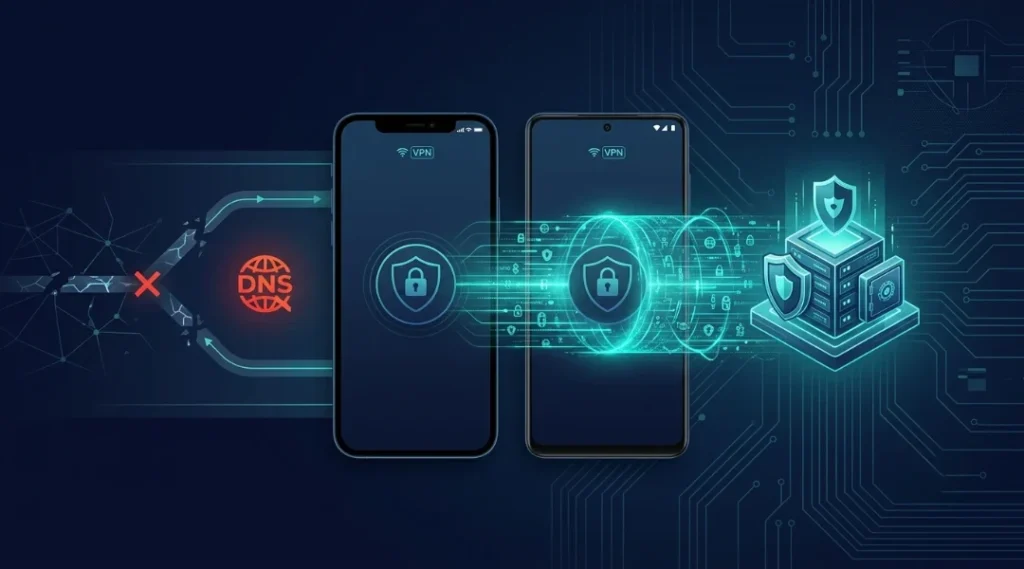
Table of Contents
ToggleWhat Is the iPhone Android VPN Usage Warning?
The iPhone Android VPN usage warning refers to concerns about VPN privacy, connection security, and potentially unsafe mobile VPN applications. It should not be interpreted as a blanket instruction to stop using every VPN.
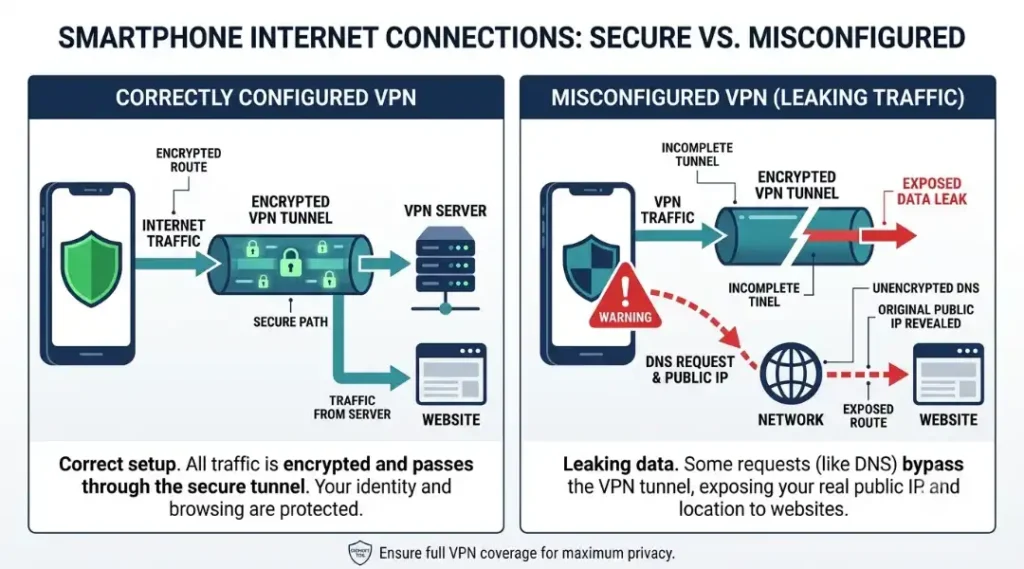
A VPN, or virtual private network, creates an encrypted connection between your device and a VPN server. Depending on the service and configuration, it can help prevent people on the same local network from reading your protected traffic and can hide your public IP address from websites you visit.
However, a VPN does not make you completely anonymous. The VPN provider may be able to see certain connection information, and websites can still identify you through account logins, cookies, browser fingerprinting, or other tracking methods.
The main concern is whether a VPN service actually provides the protection it promises. Some applications may collect unnecessary information, use unclear privacy policies, display excessive advertisements, or fail to protect traffic as expected.
For users researching the iPhone Android VPN usage warning, the most useful first step is to evaluate the specific app and configuration rather than assume every VPN is unsafe.
Why the iPhone Android VPN Usage Warning Matters
A VPN becomes part of your internet connection, which means the provider’s security practices matter. Choosing an unreliable service can create privacy risks instead of reducing them.
Here are the main concerns smartphone users should understand.
1. Unclear Data Collection Policies
Some VPN providers collect connection timestamps, diagnostic information, device identifiers, or other usage data. The amount and type of information collected vary by provider.
Read the privacy policy before installing an application. Look for clear explanations of what information is collected, why it is needed, how long it is retained, and whether it is shared with third parties.
A claim such as “no logs” should not be accepted without examining what the provider means by logs and whether independent audits or other credible evidence support the claim.
2. DNS and IP Address Leaks
A DNS leak can occur when domain name requests travel outside the VPN connection instead of through the intended protected route. An IP leak can expose your public IP address when traffic does not follow the expected path.
These issues can occur because of connection failures, configuration problems, or the behavior of particular apps and networks.
A VPN icon alone does not prove that every connection is being routed as intended. Checking for leaks after setup can help you identify possible problems.
3. Unnecessary App Permissions
A VPN application may request permissions that are not obviously related to its core function. Depending on its features, some permissions may have a legitimate explanation, but requests for contacts, call logs, microphone access, or location should be examined carefully.
Do not grant permissions automatically. Review the reason for each request and deny access that is unnecessary for the features you use.
4. Unreliable Free VPN Applications
A free VPN is not automatically dangerous, and a paid VPN is not automatically trustworthy. The business model and security practices are more important than the price alone.
Some free services may rely on advertising, limited premium plans, or other revenue sources. Investigate how a provider funds its service and whether its privacy practices are transparent.
For more context, read our guide to choosing a free VPN.
How to Check the iPhone Android VPN Usage Warning on Your Device
You do not need advanced networking knowledge to perform some useful initial checks. The following steps help you review your current setup and identify issues that deserve further investigation.
Step 1: Identify Your VPN Application
Open the VPN app on your iPhone or Android phone and check the provider’s name, connection status, available protocols, and privacy information.
Confirm that you installed the app from the official Apple App Store or Google Play Store. Check the developer’s identity and make sure the privacy policy belongs to the same provider.
If you do not recognize the app, do not enter sensitive information until you have verified its origin.
Step 2: Review the Privacy Policy
Look for details about activity logs, connection logs, advertising identifiers, analytics, data retention, and third-party sharing.
A privacy policy should explain these practices in understandable language. If the provider makes broad privacy promises but does not explain how it handles information, consider choosing a more transparent alternative.
Step 3: Check Your VPN Connection
Connect to your VPN and verify that the app reports an active connection. You can then use a reputable IP address or DNS leak testing service to check whether your public IP address and DNS requests behave as expected.
Compare the results with your normal connection. Remember that a DNS test showing a third-party DNS provider does not automatically prove a leak. Some legitimate VPN services use external DNS infrastructure.
If your real public IP address appears unexpectedly, disconnect sensitive sessions and investigate the VPN configuration or contact the provider.
Step 4: Review App Permissions
On an iPhone, open Settings and review the installed VPN configuration under General, VPN and Device Management, or the VPN section, depending on your iOS version.
On Android, open Settings, select Apps, choose your VPN app, and review its permissions. Menu names can vary by manufacturer and Android version.
Remove permissions that are not needed. If an unfamiliar configuration profile or VPN appears, verify its origin before removing it, particularly if your employer or school manages the device.
Step 5: Update or Replace the VPN if Necessary
Install operating system updates and update your VPN app through its official store. If the provider has unresolved security problems, unclear data practices, or repeated connection failures, consider switching to a better-documented service.
Before uninstalling a work or school VPN, check with your administrator. Removing a managed configuration could prevent you from accessing required services.
iPhone VPN Security: What Should You Check?
iPhones allow VPN connections through compatible applications and supported configurations. The exact settings available depend on your iOS version, the VPN provider, and whether your device is managed by an organization.
To review your connection:
- Open Settings and locate the VPN settings.
- Confirm that you recognize the active VPN configuration.
- Open the provider’s official app and check its connection status.
- Review any configuration profiles you do not recognize.
- Check whether the app has permissions that are unnecessary for its stated features.
Be especially careful when installing configuration profiles from websites or unknown sources. A profile may contain settings beyond those needed for a basic personal VPN.
Do not delete a profile simply because you have never seen it before. First establish whether it was installed by your employer, school, mobile provider, or another legitimate service.
Apple provides additional technical information in its VPN and proxy configuration documentation.
Android VPN Security: What Should You Check?
Android supports third-party VPN applications and manually configured VPN connections. Some devices also offer additional VPN features, depending on the model, operating system, and country.
To review your Android setup:
- Open Settings and select Network & internet, then VPN. On some phones, search Settings for “VPN.”
- Identify the active VPN and confirm that you recognize the service.
- Open the VPN app and check its connection status and settings.
- Review the application’s permissions under Settings, then Apps.
- Investigate persistent connection warnings or unexpected disconnections.
Android may offer an Always-on VPN option for compatible configurations. Some devices also support blocking connections that do not use the VPN. Availability and behavior vary by device and setup.
Do not change Private DNS settings blindly to fix a suspected leak. Private DNS and VPN routing are related to different parts of network communication, and the correct configuration depends on the VPN service.
For official instructions, see Google’s Android VPN support guide.
How to Choose a Safer VPN for iPhone and Android
The iPhone Android VPN usage warning is a useful reminder to evaluate a VPN before trusting it with your internet traffic.
Use these criteria when comparing providers.
Transparent privacy policy: The provider should explain what information it collects and how it uses that information.
Independent security assessments: Look for published audits with identifiable auditors, clear scope, and dates. An audit is useful evidence, but it is not a guarantee that every part of a service is secure.
Modern security protocols: Prefer established, properly implemented protocols such as WireGuard or OpenVPN when supported by your provider and device. A protocol name alone does not establish that the whole application is secure.
Reliable updates: A reputable provider should maintain its apps, address security issues, and communicate important changes.
Reasonable permissions: The requested permissions should make sense for the app’s features.
Clear ownership and contact details: You should be able to identify the company behind the service and find its privacy policy and support channels.
Independent reputation: Look beyond app store ratings. Examine credible security reviews, documented audits, and the provider’s history of responding to reported issues.
No single criterion proves that a VPN is safe. Evaluate the service as a whole, and avoid treating any provider as a guarantee of complete anonymity.
Common VPN Mistakes to Avoid
Even a reputable VPN can be used incorrectly. Avoid these common mistakes when protecting your smartphone.
Assuming a VPN blocks every threat: VPNs do not automatically stop phishing, malware, account theft, or every form of online tracking. Use security updates, strong passwords, and multifactor authentication as well.
Trusting a VPN because it is free: Price alone does not determine security. Investigate the provider’s privacy practices and business model.
Ignoring connection failures: If the VPN repeatedly disconnects, check the app settings and contact the provider. Sensitive activity may be exposed if traffic continues outside the tunnel.
Installing unknown profiles: Configuration profiles can change network or device settings. Install them only when you understand who supplied them and why they are needed.
Using a work VPN for personal privacy: An employer-managed VPN may route traffic through organizational systems. Follow your employer’s policy and do not assume that work traffic is private from your organization.
Expecting complete anonymity: A VPN changes how your traffic is routed, but websites may still recognize your account, browser, or device.
For broader protection, read our cybersecurity for beginners guide.
What Should You Do If Your VPN Shows a Warning?
First, read the exact message. A warning about an unavailable connection, a missing configuration, an expired certificate, or an untrusted profile can mean very different things.
If you suspect that your VPN is not working correctly:
- Avoid entering sensitive information until you understand the issue.
- Disconnect from the questionable VPN if it is clearly malfunctioning or untrusted.
- Check your device for unfamiliar apps and configurations.
- Update the operating system and VPN application.
- Review the provider’s official support documentation.
- Change important account passwords from a trusted connection if you have credible reason to believe your credentials were exposed.
If the VPN is supplied by your employer or school, contact the administrator before changing its settings.
The goal is not to remove every VPN from your phone. It is to make sure the service you use is appropriate for your needs and configured correctly.
Conclusion
The iPhone Android VPN usage warning should encourage smartphone users to make informed decisions about mobile privacy rather than panic or uninstall every VPN application.
Review the provider’s privacy policy, examine app permissions, keep your software updated, and check for unexpected IP or DNS behavior. Understand the difference between a personal VPN and an organization-managed connection, and remember that a VPN cannot protect against every online threat.
A trustworthy provider, sensible configuration, and good security habits work together. Taking a few minutes to review your current setup is a practical way to improve your mobile security.
Frequently Asked Questions
The phrase describes concerns about VPN privacy and security on iPhones and Android phones. It is not, by itself, proof that all VPN services are unsafe or that a universal ban has been issued.
Not necessarily. Check the app's developer, privacy policy, permissions, connection behavior, and security history first. If you have evidence that the app is untrustworthy, stop using it and choose a better-supported alternative.
Check the connection status in the VPN app and use a reputable IP address or DNS leak testing service. Interpret the results in the context of your provider's network configuration.
Some free VPNs provide useful protection, while others may have weak privacy practices. Evaluate the provider's business model, logging policy, independent assessments, permissions, and update history before trusting it.
A VPN can help protect traffic between your device and the VPN server, depending on its configuration. It does not automatically protect you from phishing, malicious downloads, compromised accounts, or malware.
Not every user needs a VPN continuously. The decision depends on your privacy requirements, network environment, and the services you use. A VPN is one layer of security, not a substitute for other protections.
It can. Encrypting traffic and maintaining a tunnel may increase battery use, latency, or data consumption. The actual effect depends on your device, connection, VPN protocol, and provider.
Update the app, check your internet connection, review the provider's settings, and consult official support. Avoid relying on the VPN for sensitive activity until you understand why the connection is unstable.