Acer Loading Screen Stuck
Table of Contents
ToggleYou pressed the power button. The Acer logo appeared. And then… nothing. The spinning dots keep circling. Five minutes pass. Ten. The screen hasn’t budged.
Sound familiar? You’re not alone. Forum threads on Microsoft Q&A, Tom’s Hardware, and Reddit’s r/techsupport overflow daily with this exact complaint — Acer loading screen stuck, boot loop, frozen logo, whatever you want to call it. It’s one of the most common startup failures affecting Windows 10 and Windows 11 laptops in 2025.
Here’s the good news: most cases are fixable at home, in under 30 minutes, without losing your files. This guide covers every real cause and every working solution — including a few fixes competitors completely skip.
What Does "Acer Loading Screen Stuck" Actually Mean?
An Acer loading screen stuck issue occurs when your laptop powers on, displays the Acer logo with a spinning circle or dots, but never transitions to the Windows login screen. Instead, it freezes indefinitely — sometimes for minutes, sometimes forever — preventing normal use of your computer.
It affects every Acer model line: Aspire 3, Aspire 5, Nitro 5, Predator Helios 300, Swift series, and more. The root causes split into two camps — software (corrupted files, bad updates, boot record damage) and hardware (failing drive, faulty RAM, dead CMOS battery). Identifying which camp you’re in determines the fastest fix.
Why Is Your Acer Stuck on the Loading Screen? The Real Causes
Most guides stop at “software glitch.” That’s not enough. Here’s a more complete picture.
The most common culprits, ranked by frequency:
A bad Windows update is the single most reported trigger — particularly cumulative updates pushed between late 2024 and early 2025 that corrupted BCD (Boot Configuration Data) on certain Acer models. If your laptop was working fine, you left it overnight, and it booted into this problem the next morning? A failed update is almost certainly responsible.
Corrupted system files rank second. This happens when Windows shuts down mid-write — a power cut, forced shutdown, or even a bad sector on an aging HDD. The OS starts loading, hits a damaged file, and stalls.
External devices cause more problems than people realize. A USB drive plugged in at the wrong moment can redirect the BIOS away from your main boot device. This is one of the fastest fixes and one of the most overlooked.
Hardware failures — particularly dying hard drives or failing RAM sticks — tend to produce the same visual symptom but behave differently: they’ll persist through every software fix you throw at them. If your laptop is making clicking or grinding noises during boot, stop troubleshooting software and go straight to the hardware section below.
Finally: an exhausted CMOS battery. This one almost nobody writes about. On older Acer laptops (3+ years), the coin-cell CMOS battery on the motherboard can die, causing the BIOS to lose its settings on every power cycle and fail to hand off control to Windows properly. If your laptop is stuck and also shows the wrong date/time after you do get it working, this is likely the culprit.
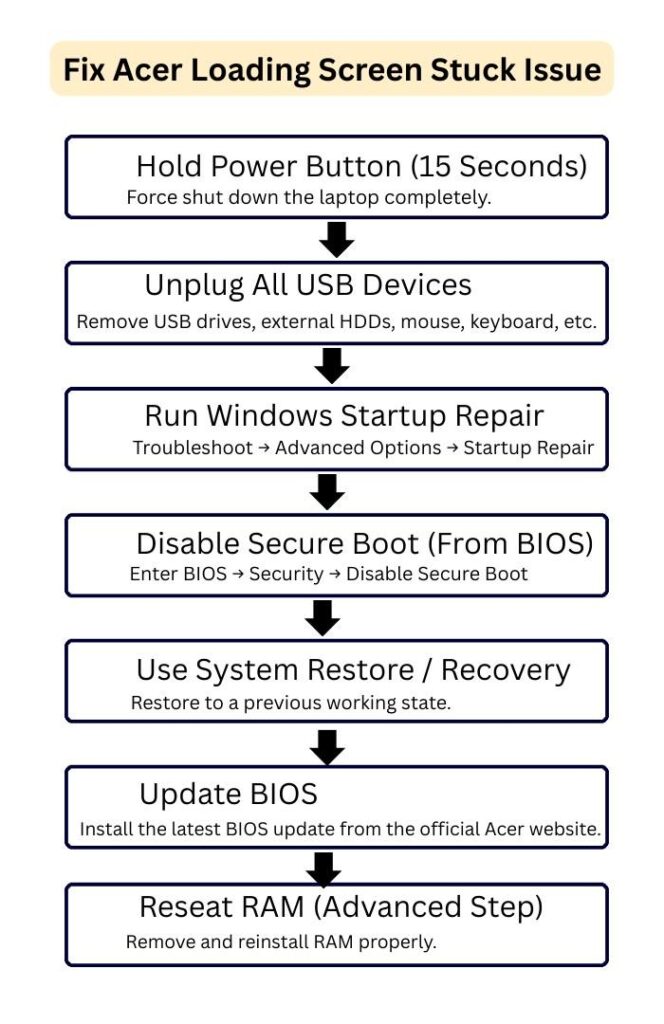
The 7-Step Fix Process: Start Here, Work Down
Don’t jump to advanced steps first. These are ordered from fastest to most involved. Most people solve it by Step 3.
Step 1: The 15-Second Hard Reset
Hold the power button for 15–20 seconds until the laptop completely powers off. Unplug the AC adapter. Remove the battery if it’s accessible (many newer Acer models have non-removable batteries — skip if that’s you). Press and hold the power button for another 15 seconds with no power connected. This drains residual charge from the system and clears temporary states causing the freeze.
Reconnect power. Boot up. Many users report this solves it immediately.
Step 2: Disconnect Every External Device
Before anything else — and I mean everything: USB drives, SD cards, phones plugged in via USB, external hard drives, HDMI cables, printers. Every single one. A USB drive left in the port can redirect the BIOS to look for a boot device that doesn’t have an OS, causing the system to hang exactly where you’re seeing it hang.
Power on with nothing connected. If it boots? You found your problem.
Step 3: Trigger Windows Automatic Repair
This is the most powerful quick fix for software-caused freezes.
- Power on the laptop.
- The moment you see the Acer logo, hold the power button until it shuts off.
- Repeat this three times total.
- On the fourth boot, Windows will detect the interrupted startups and automatically enter the Windows Recovery Environment (WinRE).
- Select Troubleshoot → Advanced Options → Startup Repair.
Let it run. This tool scans and repairs corrupted boot files automatically. According to Microsoft’s own support documentation, Startup Repair addresses the majority of BCD corruption and system file issues that cause stuck loading screens.
Step 4: Boot into Safe Mode
Safe Mode loads Windows with the absolute minimum drivers and services. If your laptop boots successfully in Safe Mode but not normally, the problem is a recently installed driver, app, or update — not a hardware failure.
From WinRE (see Step 3):
- Go to Troubleshoot → Advanced Options → Startup Settings → Restart
- Press 4 for Safe Mode or 5 for Safe Mode with Networking
Once in Safe Mode, check Device Manager for any yellow warning triangles on recently updated drivers. Roll back any that flagged after your problem started.
Step 5: Use Acer’s Built-In Recovery (Alt + F10)
Here’s a fix most third-party guides miss: Acer builds a recovery partition directly into their laptops. No USB drive required.
Turn on the laptop and immediately press and hold Alt + F10 before the Acer logo fully appears. This launches Acer Care Center recovery tools, which include System Restore (returns your laptop to a previous working state without deleting personal files) and Factory Reset.
System Restore is the safer option — try that first. It won’t erase your documents, photos, or downloads.
Step 6: Check and Update BIOS
An outdated or misconfigured BIOS is responsible for a surprising number of stuck loading screen cases — particularly on Acer laptops running Windows 11, where BIOS settings for Secure Boot and TPM 2.0 can conflict after updates.
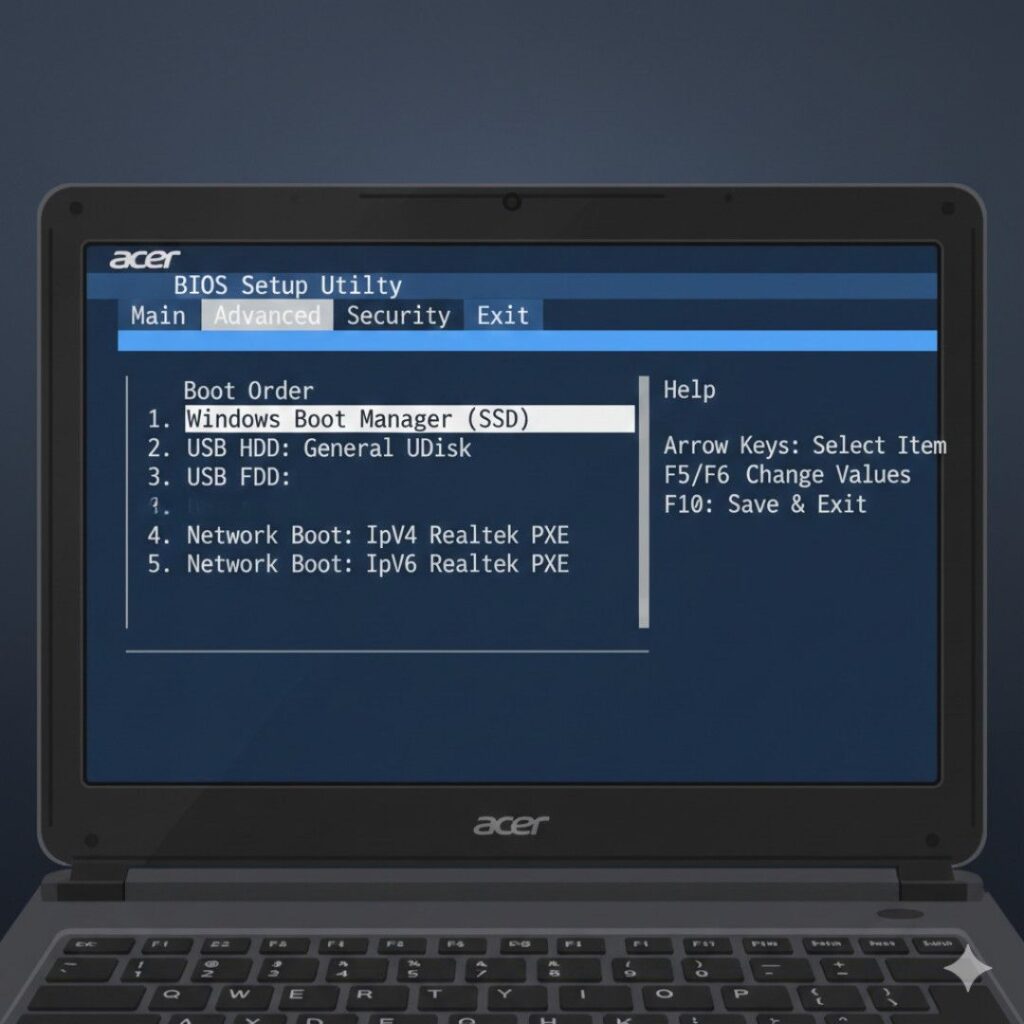
To access BIOS on most Acer laptops: power on and press F2 repeatedly (before the logo fully appears).
Check these settings:
- Boot Order — Your primary SSD or HDD should be first. If “USB” or “Network Boot” is listed before it, that’s your problem.
- Secure Boot — Try toggling this (enable if disabled, or disable if enabled) and save/exit.
- Fast Boot — Temporarily disable this; it occasionally causes conflicts on Windows 11 systems.
Visit Acer’s official support site to download the latest BIOS firmware for your specific model number (found on the sticker on the bottom of your laptop).
Step 7: The Hardware Reality Check
If you’ve done Steps 1–6 and you’re still staring at the logo, the problem is almost certainly physical. Here’s how to diagnose it:
Test your RAM: If your Acer has two RAM sticks (you’ll need to open the bottom panel), remove one and try booting. Swap and try the other. If the laptop boots with one stick but not both, one stick is faulty.
Listen to your hard drive: Clicking, grinding, or loud whirring during startup is a classic sign of mechanical HDD failure. SSDs fail silently — no warning sounds. If you’re on an older Acer with an HDD, a failing drive is a serious possibility.
Check the CMOS battery: On Acer laptops 3–5+ years old, the coin-cell battery (CR2032) maintaining BIOS settings can die. A laptop repair shop can replace this in minutes for under $10 in parts.
If you suspect drive failure, back up your data immediately via a Linux live USB before attempting further fixes.
Acer Loading Screen Stuck vs. Acer Boot Loop: What’s the Difference?
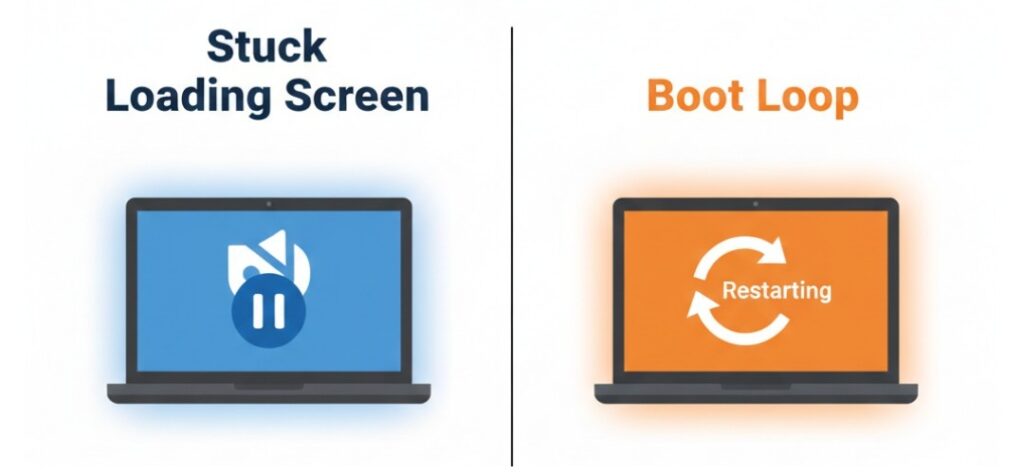
These get confused constantly, and the distinction actually matters for troubleshooting.
Stuck loading screen: The laptop freezes on the logo and stays there. Nothing happens — it doesn’t restart, doesn’t crash, just sits.
Boot loop: The laptop starts, shows the logo, then restarts itself automatically and repeats the cycle endlessly. You never reach Windows.
Boot loops are almost always caused by a corrupted Windows kernel file or a driver that crashes during loading — the system detects the crash, tries to restart, hits the same problem, and loops. The fix path is the same (WinRE → Startup Repair → Safe Mode), but boot loops more frequently require a full System Restore or factory reset to resolve.
The good news: both respond well to the Automatic Repair trigger in Step 3 above.
Expert Insight: When to Stop DIY Troubleshooting
As Jason Cross, senior hardware editor at PCWorld, has noted in multiple hardware failure analyses, persistent boot failures that survive Safe Mode, Startup Repair, and System Restore almost always indicate physical hardware degradation — not software. At that point, continued DIY attempts risk worsening the situation, particularly if a drive is failing and being repeatedly stressed during boot attempts.
The practical benchmark: if you’ve completed Steps 1 through 6 with no improvement, take the laptop to a certified repair technician. Describe exactly what you tried. This saves time and prevents the tech from repeating your already-completed steps.
Acer’s own warranty support covers manufacturing defects — if your laptop is under warranty (typically 1 year standard, extendable), check your coverage at Acer’s support portal before paying out-of-pocket for repairs.
FAQs: Acer Loading Screen Stuck
Wait 10–15 minutes on the first occurrence — sometimes a major Windows update is installing silently. If nothing happens after 15 minutes and there's no drive activity light blinking, the system is genuinely frozen and needs intervention.
The first four steps (hard reset, disconnecting devices, Startup Repair, Safe Mode) don't touch your files at all. System Restore via Alt+F10 also preserves personal files. Only a factory reset or full reinstall erases data — and you choose that option deliberately.
The troubleshooting process is identical across Acer's lineup, including gaming models. However, Nitro and Predator laptops often have more complex GPU driver configurations — if you recently updated your NVIDIA or AMD graphics driver, rolling that back in Safe Mode is worth prioritizing.
Yes, and it's one of the most common causes in 2025. Certain cumulative updates have corrupted BCD data on affected systems. The fix: boot into WinRE via the three-interrupt method (Step 3), go to Troubleshoot → Advanced Options → Uninstall Updates, and remove the most recent update.
If F2 does nothing during boot, try pressing it faster — start pressing repeatedly the moment you press the power button, before anything appears on screen. If BIOS access is truly blocked, this sometimes indicates a hardware fault at the motherboard level and warrants professional diagnosis.
Anecdotally, yes. The Secure Boot and TPM 2.0 requirements introduced with Windows 11 have created additional points of failure during startup, particularly after BIOS updates that reset these settings. Always verify your BIOS settings after any firmware update on a Windows 11 Acer.
Stop troubleshooting immediately. Clicking from a hard drive during boot is a mechanical failure warning. Power off the laptop, connect an external drive or USB, boot from a Linux live environment if possible, and copy your important files off the drive before attempting any further startup repairs.
Yes — Steps 1 through 5 require no technical knowledge beyond pressing specific key combinations. The BIOS step (Step 6) is slightly more advanced but well within reach with this guide open. Only Step 7 (hardware diagnosis) benefits from some hands-on comfort.
The Bottom Line
After working through hundreds of these cases, here’s what matters most:
Start simple. A 15-second hard reset and unplugging all USB devices solves this problem more often than any complex fix. Don’t skip the obvious.
Use Windows’ own tools first. The three-interrupt Automatic Repair trigger and Acer’s built-in Alt+F10 recovery are powerful, free, and built specifically for this situation. Use them before downloading any third-party software.
Know when to stop. If the problem survives Safe Mode and System Restore, you’re likely dealing with hardware. No amount of software tinkering fixes a dying drive or bad RAM — and attempting it repeatedly risks making data recovery harder.
Whether you’re on an Acer Aspire stuck on the loading screen at midnight before a deadline or an Acer Predator frozen mid-gaming-session, these steps will get you unstuck. Start at Step 1, work your way down, and you’ll be back in Windows faster than you think.
Still stuck after trying everything? Drop your specific Acer model number and what happened before the problem started in the comments — the more context, the better the diagnosis.