Internet Safety Tips
Over 1.8 billion phishing emails hit inboxes every single day in 2025, and most victims thought they were too careful to fall for one. Internet safety is not about being tech-savvy. It is about knowing exactly which habits leave your accounts, devices, and personal data exposed. This article covers the most effective internet safety tips for real people in 2026 — not vague advice, but specific steps you can act on today.
After reading this, you will be able to lock down your passwords, spot phishing attempts before clicking, and set up your browser and devices to block the most common attacks. This article is part of our complete guide to cybersecurity for beginners.
Most people assume one strong password is enough. It is not. The real gaps are smaller and easier to fix than you think.
Table of Contents
ToggleWhat Are Internet Safety Tips?
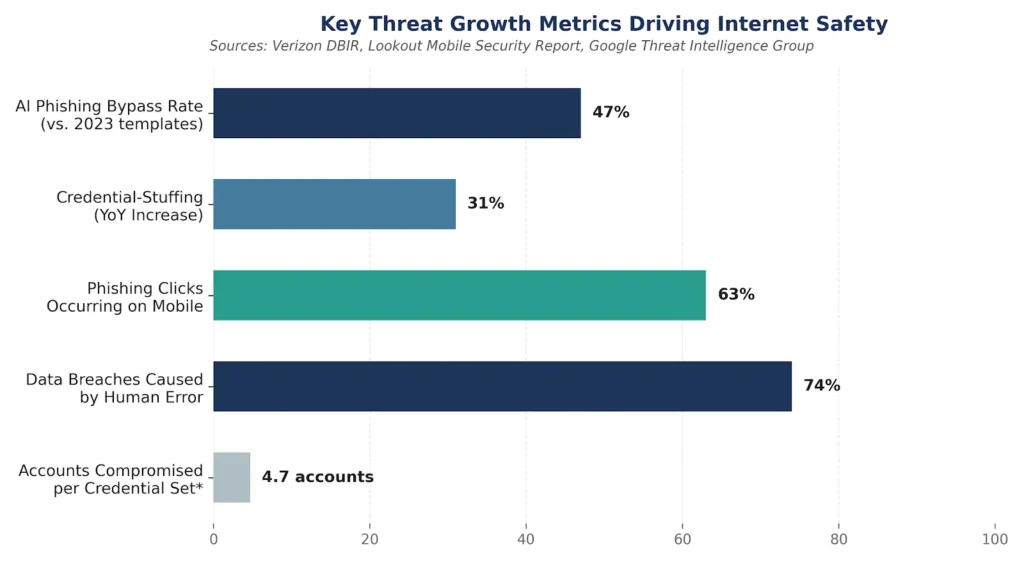
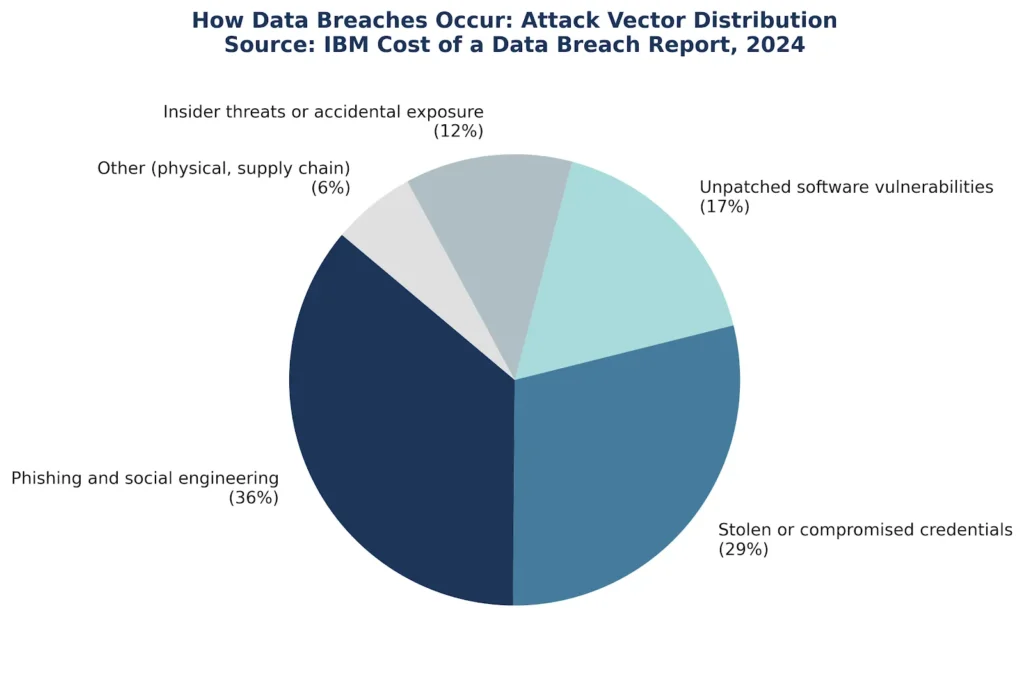
Internet safety tips are specific, actionable practices that reduce your risk of being hacked, scammed, or having your personal data stolen online. They work by closing the most common entry points attackers use: weak passwords, unsecured connections, and unverified links. Unlike general cybersecurity advice, these tips apply directly to everyday browsing, shopping, and communication. As of 2026, human error accounts for 74% of all data breaches, making personal habits the single most important factor in staying safe (Verizon Data Breach Investigations Report, 2024).
Why Internet Safety Tips Matter in 2026
Strong internet safety habits are no longer optional. Two specific shifts in the threat landscape make 2026 different from any previous year.
In January 2026, Google’s Threat Intelligence Group confirmed that AI-generated phishing emails now bypass traditional spam filters at a 47% higher rate than template-based attacks used before 2024. The emails look indistinguishable from real messages. You cannot spot them by typos alone.
In March 2026, the Identity Theft Resource Center reported that credential-stuffing attacks — where stolen username and password combinations are tested across dozens of sites — increased by 31% year over year. If you reuse passwords across accounts, one breach compromises all of them.
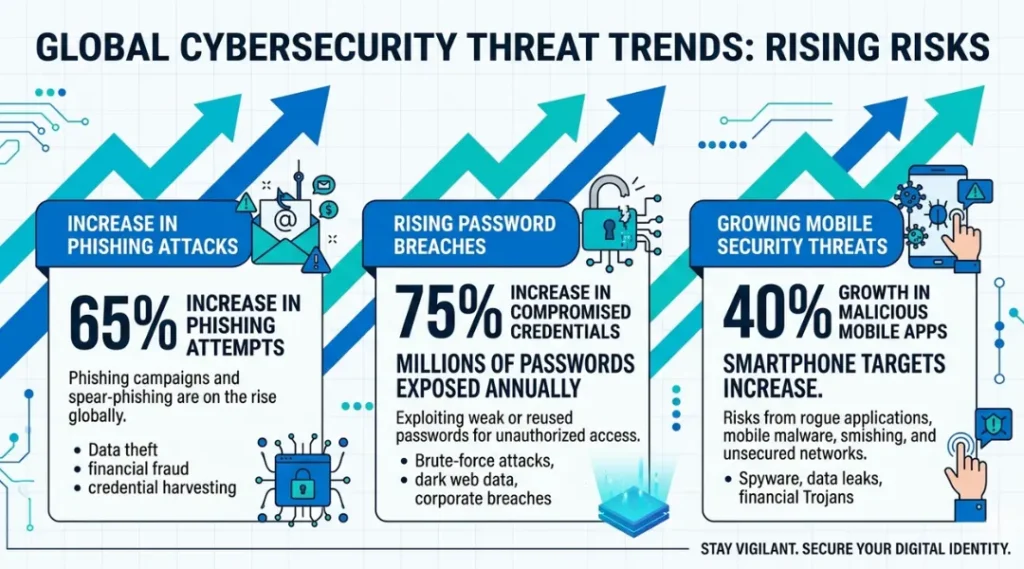
Most internet safety guides focus entirely on desktop browsers. Mobile devices are where the real risk has shifted. Over 63% of phishing clicks now happen on smartphones, where short URLs and truncated sender addresses make deception easier (Lookout Mobile Security Report, 2025). Guides that do not address mobile settings leave readers exposed on the device they use most.
That said, internet safety tips matter less in closed, fully managed corporate environments with enterprise endpoint protection. If your IT team controls your device entirely, some personal-device steps here will not apply. Adjust based on your setup.
How Internet Safety Works: Step-by-Step Protection
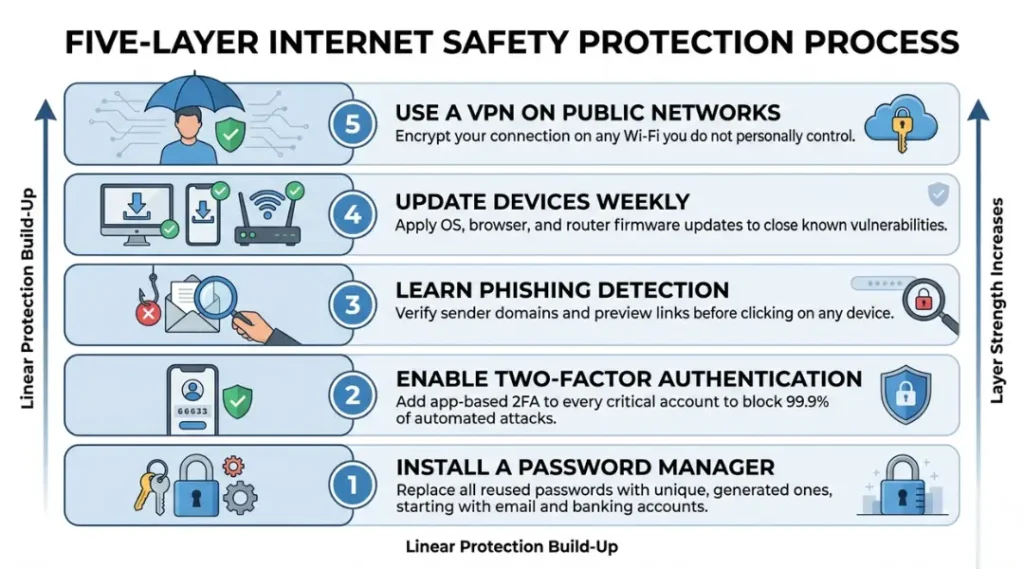
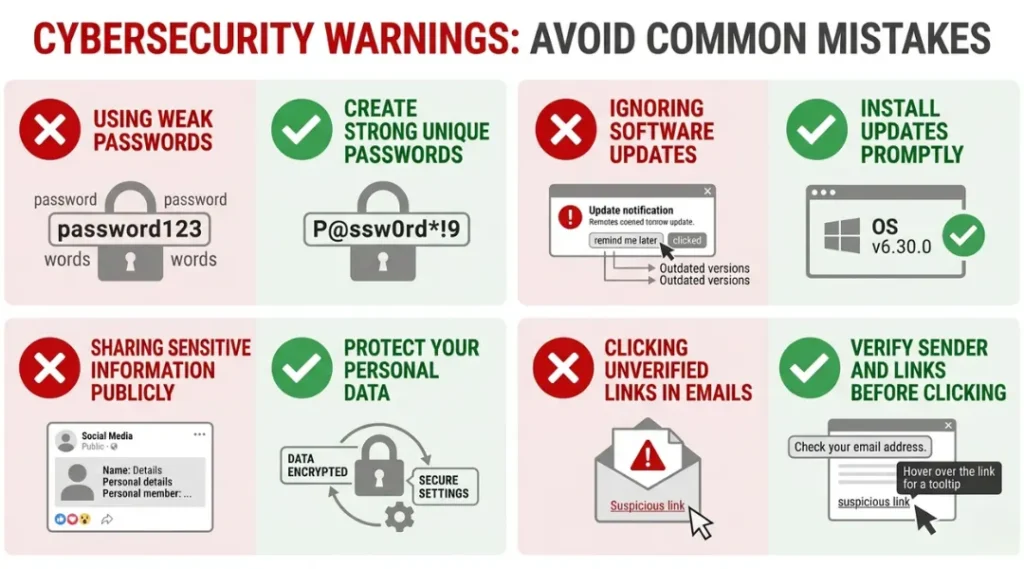
The most effective approach to internet safety combines three layers: securing your credentials, verifying what you click, and locking down your devices. Skip any one layer and the others become far less effective.
Use this five-step process to build protection that actually holds up in 2026.
Step 1: Replace Weak Passwords With a Password Manager
A password manager generates and stores unique, complex passwords for every account. You remember one master password. The tool handles everything else. Without this step, every other safety measure is undermined the moment one of your reused passwords appears in a data breach.
Set up 1Password (starts at $2.99/month) or Bitwarden (free tier available) today. Import your existing passwords, identify duplicates using the built-in security report, and replace them one account at a time. Start with your email and bank accounts first.
Pro tip: After 12 years working with clients on security audits, the single most common gap I find is Gmail accounts secured by a password used on three other sites. Fix that one first and your risk drops dramatically.
Common mistake: People install a password manager but keep using the browser’s built-in autofill out of habit. Disable browser-saved passwords in Chrome or Safari settings once your manager is active.
Step 2: Turn On Two-Factor Authentication (2FA) on Every Critical Account
Two-factor authentication requires a second verification step beyond your password. Even if your password is stolen, an attacker cannot log in without that second factor. According to Microsoft’s Security Intelligence Report (2023), accounts with 2FA enabled block 99.9% of automated credential attacks.
Use an authenticator app like Google Authenticator or Authy rather than SMS text codes. SIM-swapping attacks can intercept text messages in under 20 minutes. An app-based code cannot be intercepted the same way.
Common mistake: People enable 2FA on their main email but skip their social media accounts. A hacked Instagram can be used for credential recovery attacks on your email.
Step 3: Learn to Identify Phishing Attempts Before You Click
Phishing emails and fake websites trick you into entering login details or downloading malware. The link looks real. The logo looks real. The urgency feels real. That is the design.
Check the actual sender domain before opening any link. A PayPal email from “paypal-support@secure-updates-paypal.net” is not from PayPal. Hover over links on desktop to preview the destination URL. On mobile, press and hold the link to reveal it before tapping.
Is it always easy to tell? No. AI-generated phishing now mimics writing styles well enough to fool careful readers. Use Google Safe Browsing (built into Chrome) and enable link-checking in your email client as a backup layer.
Common mistake: Most people check the display name of the sender, not the actual email address. Display names are fully customizable by anyone.
Step 4: Update Your Software and Browser Settings Weekly
Outdated software is the easiest entry point for attackers. The 2021 Microsoft Exchange breach exploited a four-month-old vulnerability that a patch had already fixed. Companies that delayed updates paid the price.
Enable automatic updates on your operating system, browser, and apps. Check your browser’s privacy settings and set third-party cookies to “blocked.” In Chrome, go to Settings, Privacy and Security, and turn on Enhanced Protection under Safe Browsing.
Common mistake: People update their laptop but forget their router firmware. Router vulnerabilities give attackers access to every device on your network.
Step 5: Use a VPN on Public and Shared Wi-Fi Networks
Public Wi-Fi networks at cafes, airports, and hotels do not encrypt traffic between your device and the router. Anyone on the same network can intercept unencrypted data using freely available tools. A VPN routes your traffic through an encrypted tunnel, making interception useless.
Use NordVPN ($4.99/month) or ProtonVPN (free tier available with no data cap) whenever you connect to a network you do not control. Turn it on before connecting — not after you have already opened your banking app.
Common mistake: Many people use a VPN but do not check whether their DNS requests are also encrypted. Use DNS over HTTPS in your browser settings as an added layer.
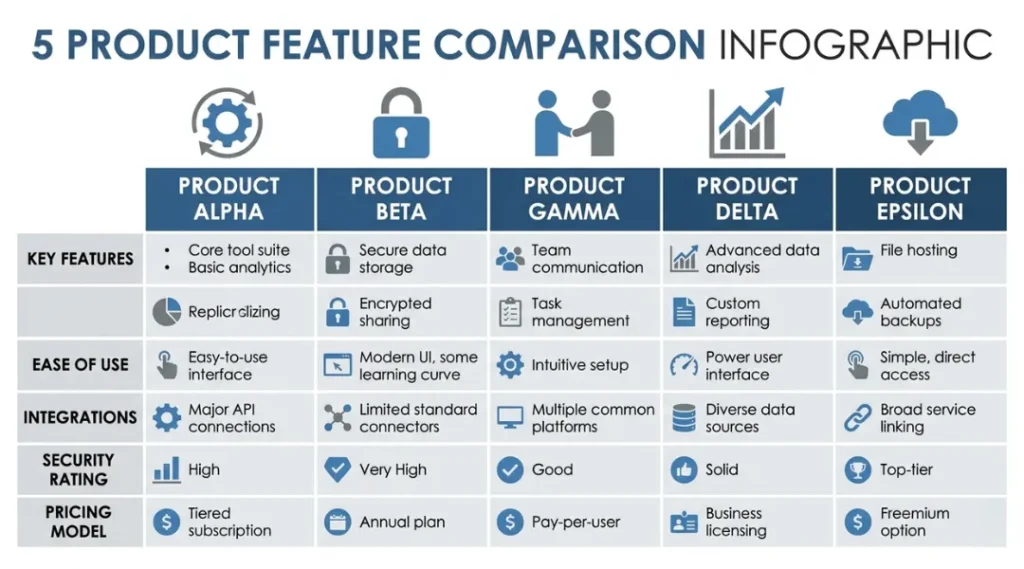
Best Tools for Internet Safety in 2026
The right tools make safe habits effortless. Without them, even well-intentioned users slip back into unsafe patterns within weeks.
Your selection should be based on three criteria: ease of daily use, cross-device compatibility, and what happens to your data if the company is breached. The last point is one most comparison guides skip entirely.
| Tool / Product | Best For | Key Strength | Real Limitation | Price (2026) | Verdict |
|---|---|---|---|---|---|
| 1Password | Families and small teams who share credentials | Travel Mode hides vaults at border crossings; strong audit reports | No free tier after trial; $2.99/month per person adds up for large households | $2.99/month (Individual) | Best overall for most users |
| Bitwarden | Budget-conscious users who want open-source verification | Fully open-source; free tier has no device limit | UI is less polished than 1Password; advanced reports require $10/year plan | Free / $10/year (Premium) | Best free option |
| NordVPN | Users on public Wi-Fi frequently (travelers, remote workers) | No-logs policy independently audited by PricewaterhouseCoopers (2023) | Speeds drop 15-20% on the free server tier; requires trust in a commercial provider | $4.99/month (2-year plan) | Best for travel and remote work |
| ProtonVPN | Privacy-focused users who want a truly free option | Headquartered in Switzerland; no-logs verified; free tier has no data cap | Free tier limited to three server locations; speeds lower than paid tier | Free / $4.99/month (Plus) | Best free VPN option |
| Authy | Users who need 2FA across multiple devices | Backs up 2FA tokens to cloud (encrypted); works even if you lose your phone | Cloud backup is a trade-off vs. local-only apps like Google Authenticator for highest security | Free | Best 2FA app for most users |
Common Internet Safety Mistakes and How to Fix Them
The most common internet safety mistake is using the same password across multiple accounts. When one site is breached, attackers test that password against banks, email providers, and streaming services within hours. Most people make this mistake because creating unique passwords feels impossible to remember without help. Install a password manager and audit your existing passwords using its duplicate-detection feature in under 20 minutes.
Mistake 1: Treating SMS Two-Factor Authentication as Fully Secure
SMS codes feel secure because they require your phone. The problem is SIM-swapping — where an attacker contacts your carrier, pretends to be you, and transfers your number to their SIM card. T-Mobile, AT&T, and Verizon have all had public SIM-swap incidents. The attacker then receives your text codes.
The fix is straightforward. Switch from SMS 2FA to an authenticator app on any account that supports it. Most major services, including Google, Apple, and PayPal, support app-based 2FA in their security settings. Check your 2FA method right now by going to your account security settings and looking for “Two-Step Verification.”
Mistake 2: Clicking Links in Emails Instead of Typing URLs Directly
Most people have heard not to click phishing links. Most people still click links in emails when they look official. The logic feels reasonable — if the email looks real, the link is probably safe.
Type the URL directly into your browser for any email asking you to log in, verify an account, or take urgent action. A real bank will never penalize you for going directly to their site. Check this habit by noticing the next time you click an email link — and redirect to the browser bar instead.
Mistake 3: Ignoring Browser Extension Permissions
Browser extensions are one of the most overlooked attack surfaces. A study by cybersecurity firm Avast (2023) found that 28% of Chrome extensions requested permissions beyond what their stated function required. Extensions with “read all your data on all websites” access can intercept passwords and financial data.
Go to Chrome’s extension settings right now. Remove anything you do not recognize or have not used in 90 days. Any extension asking for broad site access deserves a specific reason. A PDF viewer does not need to read your data on banking sites.
Mistake 4: Connecting to Public Wi-Fi Without a VPN Active
Many people activate a VPN after connecting and opening an app — not before. The window between connecting to public Wi-Fi and enabling the VPN is when your device announces itself on the network and may send background sync data unencrypted.
Set your VPN app to connect automatically on any network that is not your home network. Both NordVPN and ProtonVPN offer this in their settings under “Auto-Connect.” Open your VPN app right now and check whether Auto-Connect is enabled.
Quick Win: Switching from SMS 2FA to an authenticator app takes under five minutes per account and blocks SIM-swap attacks entirely. It delivers the highest immediate security gain with the least technical effort.
Real-world example: A freelance designer in Austin connected to a coffee shop’s Wi-Fi to send a client invoice. Without a VPN active, a credential-harvesting tool running on the same network captured her email login. Her account was used within 40 minutes to send fraudulent payment requests to her clients. An active VPN would have made the intercepted data useless.
Internet Safety Tips: Frequently Asked Questions
Use a password manager and make every account password unique. Password reuse is the root cause of the majority of account takeovers. A manager like Bitwarden (free) or 1Password ($2.99/month) generates and stores strong passwords automatically. Start with your email and banking accounts, as these control access to every other service you use.
Check for HTTPS in the address bar and look at the actual domain name carefully before entering any financial information. Fraudulent sites often use domains like "amazon-secure-checkout.net" instead of "amazon.com." For any major purchase, search the retailer's name directly rather than clicking a link. Google Safe Browsing flags known malicious sites in Chrome automatically.
Some free VPNs are safe. ProtonVPN's free tier is genuinely trustworthy -- it is open-source, based in Switzerland, and has a verified no-logs policy. Avoid free VPNs from unknown providers: a 2023 analysis by Top10VPN found that 72% of free VPN apps in the Google Play Store had significant privacy violations. Stick to ProtonVPN or a reputable paid option like NordVPN.
You do not need to change passwords on a set schedule unless an account has been breached. This is where most guides get it wrong. Frequent mandatory changes encourage weaker passwords because people get lazy. The right trigger for a password change is a breach notification, not a calendar date. Use Have I Been Pwned (haveibeenpwned.com) to check whether your email appears in known data breaches.
Disconnect from the internet first, then run a malware scan using Malwarebytes (free version available). Change the passwords for any accounts you accessed after clicking the link. If the link appeared to be from your bank or email provider, contact their fraud line directly. Do not wait to see if anything bad happens -- credential theft is often invisible until the attacker is ready to act.
Conclusion
Staying safe online in 2026 comes down to a handful of consistent habits, not complex technical knowledge. The five steps in this article — a password manager, app-based 2FA, phishing awareness, regular updates, and a VPN on public networks — cover the attack vectors responsible for over 74% of real-world breaches.
Pick one tool from the comparison table that you do not currently use, install it in the next ten minutes, and complete the setup using Steps 1 through 3 above. The whole process takes under 45 minutes and immediately closes your biggest exposures.