
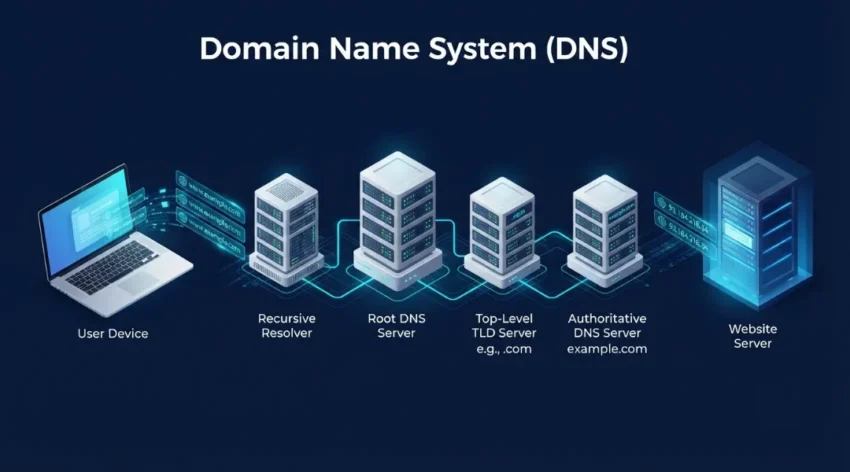
Have you ever wondered how your browser opens a website when you enter an address such as google.com? You do not need to remember a complicated numerical IP address to visit your favourite website. Your browser uses a technology called DNS to find the server associated with that domain name.
DNS stands for Domain Name System. It is one of the most important technologies that makes the internet easy to use. It translates human-readable domain names into IP addresses that computers use to communicate with each other.
For example, when you enter a website address into your browser, DNS helps identify the IP address associated with that domain. Your device can then use that address to connect to the website’s server.
Without DNS, internet users would have to remember numerical IP addresses instead of convenient website names.
In this guide, you will learn what DNS means, how DNS works step by step, the different types of DNS servers, common DNS records, DNS caching, security, and how to troubleshoot common DNS problems.
Table of Contents
ToggleWhat Is DNS?
DNS (Domain Name System) is a hierarchical and distributed naming system that translates domain names into IP addresses and provides other information about internet services.
In simple words, DNS works like the contact list on your smartphone.
You usually search for someone’s name instead of remembering their phone number. Similarly, you enter a website name instead of remembering its IP address.
For example:
Domain name: example.com
IPv4 address: 192.0.2.10
The example IP address above belongs to a documentation range and is used here only for illustration.
When you request a website, DNS helps your device find the appropriate IP address. Your browser can then communicate with the destination server.
DNS is not just a directory of website addresses. It also stores different types of information, including mail server details, name server information, and verification records.
DNS is an essential part of computer networking because it allows people and applications to use memorable names when accessing internet resources.
For a deeper technical explanation, Google Cloud’s DNS documentation describes DNS as a hierarchical, distributed database that stores IP addresses and other information associated with domain names.
Why Is DNS Important?
DNS makes internet communication more convenient and manageable. Without it, users and applications would need to rely on IP addresses whenever they accessed online services.
Here are some important reasons DNS is necessary.
1. Makes Website Addresses Easy to Remember
Remembering website names is easier than remembering numerical IP addresses.
For example, users can enter example.com instead of trying to remember an IP address.
2. Helps Devices Locate Servers
DNS provides the address information that devices need to locate websites and other network services.
When a user opens a website, DNS helps identify the server associated with the requested domain name.
3. Supports Email Communication
DNS contains MX records that identify the mail servers responsible for receiving email for a domain.
Without correctly configured mail-related DNS records, email delivery can experience problems.
4. Supports Distributed Internet Infrastructure
DNS uses a hierarchical and distributed structure. Its information is maintained across different zones and name servers rather than being stored in one central database.
This structure helps the DNS system support a huge number of domain names and internet services.
5. Improves Lookup Performance Through Caching
DNS resolvers can temporarily store previously retrieved information.
When another user requests the same domain, the resolver may provide the cached result without repeating the entire lookup process.
This reduces unnecessary queries and can improve response times.
How Does DNS Work?
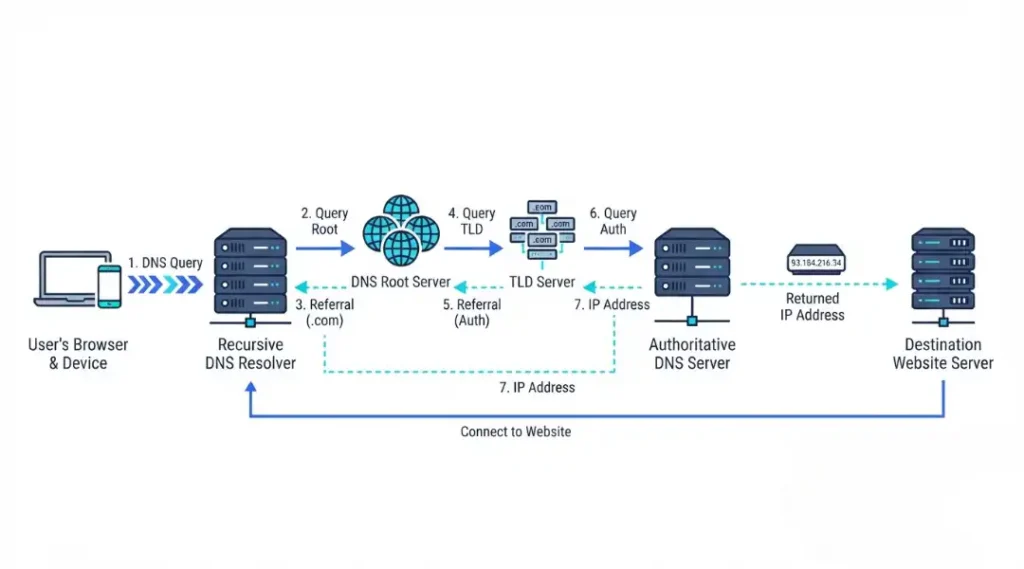
DNS works by using a series of queries between your device, DNS resolvers, and authoritative name servers.
When you enter a domain name into your browser, your device needs to find the corresponding IP address before it can connect to the destination server.
Let’s understand the process with a simple example.
Imagine you want to visit example.com.
Step 1: You Enter a Website Address
You open your browser and type example.com into the address bar.
Your operating system or browser checks whether it already has usable DNS information available.
If the required information is not available locally, your device sends a DNS query to its configured recursive resolver.
Step 2: The Recursive DNS Resolver Checks Its Cache
A recursive DNS resolver receives DNS queries from devices and works to obtain the requested answer.
It first checks whether the requested information is already available in its cache.
If a valid cached answer exists, it can return that answer immediately.
If not, it continues the lookup process.
Step 3: The Resolver Contacts a Root DNS Server
If the resolver needs to perform a fresh lookup, it can query a DNS root server.
The root server does not normally provide the final IP address of the requested website.
Instead, it directs the resolver towards the appropriate top-level domain name servers.
For example, when resolving example.com, the resolver needs information about the .com domain.
Step 4: The Resolver Contacts a TLD DNS Server
A Top-Level Domain (TLD) name server manages information about a particular top-level domain, such as .com, .org, or .net.
The TLD server provides a referral to the authoritative name servers responsible for the requested domain.
Step 5: The Resolver Contacts the Authoritative DNS Server
The authoritative DNS server contains the actual DNS records for the domain or has access to the authoritative information for its zone.
It responds with the requested record, such as an A record containing an IPv4 address or an AAAA record containing an IPv6 address.
Step 6: The Resolver Returns the IP Address
The recursive resolver sends the result back to your device.
It may also cache the response according to the record’s Time to Live (TTL).
Step 7: Your Browser Connects to the Website
Your browser uses the returned IP address to establish communication with the destination server.
Depending on the website configuration, the browser may establish a secure HTTPS connection and request the webpage.
The server processes the request and sends the required content back to your browser.
This entire process often happens very quickly, and cached DNS information can make subsequent lookups even faster.
What Are the Different Types of DNS Servers?
DNS uses different types of servers to manage and resolve domain name queries.
Understanding their responsibilities makes the DNS lookup process easier to follow.
1. DNS Recursive Resolver
A recursive resolver receives DNS queries from client devices and works to find the requested information.
It checks its cache and, when necessary, contacts other DNS servers to obtain an answer.
Internet service providers commonly operate recursive resolvers. Public alternatives include Google Public DNS and other DNS resolution services.
2. Root DNS Server
A root DNS server helps direct DNS resolvers towards the correct top-level domain servers.
It operates at the highest level of the DNS hierarchy.
There are 13 named root server authorities, but they are supported by hundreds of physical and globally distributed server instances.
3. TLD DNS Server
A TLD name server provides information about domains under a particular top-level domain.
Examples include .com, .org, .net, and country-code domains such as .in.
It helps the resolver identify the authoritative name servers responsible for the requested domain.
4. Authoritative DNS Server
An authoritative DNS server provides official DNS information for the domain or zone it manages.
It stores or serves records such as A, AAAA, MX, CNAME, and TXT.
For example, when someone manages a website’s DNS through a hosting provider, the provider may operate the authoritative name servers for that domain.
What Are the Common Types of DNS Records?
DNS records contain information about a domain and the services associated with it.
Each record type serves a different purpose.
Here are some important DNS record types.
1. A Record
An A record connects a domain name to an IPv4 address.
Example:
example.com → 192.0.2.10
It is commonly used to direct website visitors to an IPv4-enabled server.
2. AAAA Record
An AAAA record connects a domain name to an IPv6 address.
It serves a similar purpose to an A record but supports IPv6 addressing.
3. CNAME Record
A Canonical Name (CNAME) record creates an alias that points one domain name to another domain name.
For example:
www.example.com → example.com
The destination name is then resolved to obtain the required address information.
A CNAME cannot generally coexist with other ordinary record types at the same owner name, subject to specific DNS provider features and standards.
4. MX Record
A Mail Exchange (MX) record identifies the mail servers responsible for receiving email for a domain.
For example, a business may configure MX records to direct incoming messages to its email hosting provider.
5. TXT Record
A TXT record stores text information associated with a domain.
It is commonly used for domain verification and email authentication configurations such as SPF and certain DKIM-related information.
6. NS Record
A Name Server (NS) record identifies the authoritative name servers for a DNS zone.
It helps direct DNS queries towards the servers responsible for managing that domain’s DNS information.
7. PTR Record
A Pointer (PTR) record is used for reverse DNS lookups.
It maps an IP address back to a domain name through the appropriate reverse DNS namespace.
8. SOA Record
A Start of Authority (SOA) record contains important administrative information about a DNS zone.
It includes information such as the primary name server, the responsible administrator’s mailbox representation, a serial number, and timing values used in zone management.
What Is DNS Caching?
DNS caching is the process of temporarily storing DNS lookup results so that the same information does not need to be retrieved repeatedly.
For example, when you visit a website, your device or DNS resolver may store the domain’s IP address for a limited period.
If you visit the same website again while that information remains valid, the resolver may return the cached result.
This can reduce lookup delays and unnecessary DNS queries.
What Is DNS TTL?
TTL stands for Time to Live.
It specifies how long a DNS record can generally remain in a cache before it needs to be refreshed.
For example, if a DNS record has a TTL of 3,600 seconds, a resolver can normally cache that record for up to one hour.
A shorter TTL can allow cached information to expire sooner, while a longer TTL can reduce repeated queries.
However, changing a DNS record does not mean every user will immediately receive the updated information. Existing cached records may remain available until their TTL expires.
This is one reason DNS changes sometimes take time to appear consistently across different networks.
What Is the Difference Between Public DNS and Private DNS?
Public DNS and private DNS serve different purposes depending on where and how domain names are resolved.
Public DNS generally refers to DNS services accessible to internet users.
Private DNS refers to DNS infrastructure or services used within private networks or restricted environments.
| Feature | Public DNS | Private DNS |
|---|---|---|
| Accessibility | Generally available to internet users | Restricted to an organization or network |
| Main purpose | Resolve public domain names | Resolve internal or controlled domain names |
| Users | Individuals and organizations | Employees and authorized devices |
| Example | Google Public DNS | Internal company DNS server |
| Administration | Public DNS provider | Organization or service administrator |
For example, a business may use private DNS to resolve internal server names that should not be accessible through public DNS.
What Is DNS Security?
DNS security involves protecting DNS infrastructure, queries, responses, and records from manipulation, unauthorized changes, and other attacks.
Because DNS helps devices locate online services, attackers may target it to redirect users or disrupt access to websites.
DNS responses can be vulnerable to spoofing if their authenticity is not verified. DNS Security Extensions (DNSSEC) use digital signatures to help validating resolvers verify DNS data. ICANN provides a detailed explanation of how DNSSEC improves DNS security.
Common DNS-related security threats include:
1. DNS Spoofing
DNS spoofing occurs when an attacker provides false DNS information to redirect a user towards an unintended destination.
This can expose users to phishing websites or other malicious services.
2. DNS Cache Poisoning
DNS cache poisoning involves inserting incorrect DNS information into a resolver’s cache.
If the false information is accepted and used, users may be directed to an incorrect IP address.
3. DNS Hijacking
DNS hijacking occurs when DNS settings, records, or queries are maliciously changed or redirected.
This can happen through compromised routers, accounts, devices, or DNS infrastructure.
4. DNS Amplification Attacks
DNS amplification is a type of distributed denial-of-service attack that abuses DNS responses to generate large amounts of traffic towards a victim.
Attackers can exploit misconfigured open resolvers to amplify attack traffic.
How Can DNS Be Protected?
Some important DNS security measures include:
Enable DNSSEC where supported and correctly configured.
Protect domain registrar and DNS hosting accounts with strong passwords and multi-factor authentication.
Restrict access to DNS management systems.
Monitor DNS records for unexpected changes.
Keep DNS server software updated.
Configure recursive resolvers to prevent unauthorized public recursion.
Use encrypted DNS protocols where appropriate.
DNSSEC adds cryptographic signatures that allow validating resolvers to check the authenticity and integrity of DNS data. However, DNSSEC does not encrypt DNS queries or automatically protect users against every online threat.
What Is the Difference Between DNS and IP Address?
DNS and IP addresses are closely related, but they perform different functions.
DNS helps translate domain names into the address information needed to locate network resources.
An IP address identifies a network interface for communication using the Internet Protocol.
| Feature | DNS | IP Address |
|---|---|---|
| Full form | Domain Name System | Internet Protocol Address |
| Main purpose | Resolves domain names into records | Provides network addressing |
| Format | Domain names and DNS records | Numerical IPv4 or IPv6 address |
| Example | example.com | 192.0.2.10 |
| Function | Helps locate network resources | Helps deliver network packets |
In simple words, DNS helps your device find the address, while IP networking uses that address to communicate with the destination.
IP addressing is an important part of network communication. You can also learn how different network types operate in our guide to LAN vs WAN.
How to Check DNS Using Command-Line Tools
You can check DNS information using built-in command-line tools on your computer.
These tools are useful when troubleshooting website access, DNS configuration, and domain resolution problems.
Method 1: Using NSLOOKUP on Windows
Follow these steps:
Open the Start menu.
Search for Command Prompt.
Open Command Prompt.
Type the following command:
nslookup example.com
Press Enter.
The command displays DNS resolution information, including the DNS server used and the returned address records, when available.
Method 2: Using DIG on macOS or Linux
Open Terminal and enter:
dig example.com
Press Enter to view the DNS query response.
You can also request a specific record type.
For example:
dig example.com MX
This command requests the MX records associated with the domain.
These tools help identify whether a domain resolves correctly and which DNS server provides the response.
Common DNS Problems and How to Fix Them
Sometimes a website may not open even when your internet connection appears to be working.
In certain situations, DNS resolution may be responsible.
Here are some common DNS problems and possible solutions.
1. DNS Server Not Responding
This message can appear when your device cannot obtain a usable response from its configured DNS resolver.
Possible causes include network interruptions, an unavailable resolver, router problems, or incorrect DNS configuration.
Try these steps:
Check whether other websites are working.
Restart your router if appropriate.
Check your device’s DNS settings.
Try another trusted DNS resolver.
Contact your internet service provider if the issue continues.
2. DNS_PROBE_FINISHED_NXDOMAIN
This browser error generally means that the requested domain name could not be resolved because DNS returned a name-not-found result.
Possible causes include an incorrect domain name, a domain that does not exist, or incorrect DNS configuration.
Check the spelling of the website address first. If you own the domain, review its DNS records and registration status.
3. Website Not Opening After DNS Changes
If you recently changed your DNS records, the new information may not appear immediately everywhere.
This can happen because resolvers may still have older information stored in their caches.
Check the authoritative DNS records, review the TTL values, and allow existing cached information to expire.
4. Slow DNS Lookup
A slow DNS lookup can delay the initial connection to a website.
Possible causes include a slow resolver, network congestion, packet loss, or DNS server availability problems.
You can test resolution using NSLOOKUP or DIG and compare results with another trusted resolver.
5. Incorrect DNS Records
Incorrect A, AAAA, CNAME, or MX records can cause website or email delivery problems.
If you manage the domain, review the DNS configuration through your DNS hosting provider and verify that the records match the intended server or email service.
Final Thoughts
DNS is an essential part of modern internet communication. It translates human-readable domain names into IP addresses and provides other information that helps computers locate websites, email services, and network resources.
Understanding how DNS works makes it easier to learn about website access, computer networking, domain management, and network troubleshooting.
From recursive resolvers and authoritative name servers to DNS records, caching, and DNSSEC, every part of the system plays an important role in keeping internet services accessible.
Whether you are a beginner learning networking or a website owner managing a domain, understanding DNS gives you a stronger foundation for working with the internet.
DNS is one of the technologies that makes modern computer networking possible. If you are new to networking, start with our complete guide to computer networking to understand how devices communicate and share information.
Frequently Asked Questions About DNS
DNS stands for Domain Name System. It is a hierarchical naming system that translates domain names into IP addresses and provides other information about internet services.
DNS works like an internet contact list. It helps your computer find the IP address associated with a website name so that your browser can connect to the correct server.
DNS starts when your device requests information about a domain name. A recursive resolver checks its cache and, if necessary, queries root, TLD, and authoritative name servers to obtain the requested DNS record.
A DNS server is a system that stores, retrieves, or provides DNS information. Different DNS servers perform roles such as recursive resolution, root referrals, TLD referrals, and authoritative responses.
The four commonly discussed server roles are recursive resolvers, root DNS servers, TLD DNS servers, and authoritative DNS servers.
A DNS lookup is the process of requesting DNS information about a domain name. It commonly involves finding an IP address associated with that domain.
DNS caching temporarily stores DNS lookup results. It helps reduce repeated queries and can improve response times when the same domain is requested again.
TTL stands for Time to Live. It determines how long a DNS record can generally remain in a cache before the information should be refreshed.
DNSSEC stands for Domain Name System Security Extensions. It uses digital signatures to help validating resolvers verify the authenticity and integrity of DNS data.
DNS translates domain names into DNS records, including IP address information. DHCP automatically provides network configuration details to devices, such as IP addresses, gateway information, and DNS resolver settings.
You can communicate with certain internet services using their IP addresses, provided the service supports direct IP access. However, many websites and online services depend on DNS to locate the correct servers and provide the expected domain-based functionality.
Your device may be unable to resolve domain names, which can prevent websites and other internet services from opening normally. Checking network connectivity, DNS settings, and resolver availability can help identify the problem.
You can use the DNS resolver provided by your internet service provider or select a reputable public DNS service. Consider reliability, privacy policies, security features, and performance when choosing a provider.