New Laptop Status

Table of Contents
ToggleBuying a new laptop is exciting. That first boot, the clean desktop, the feeling that everything is fast again—it’s a small tech victory. But soon after unboxing, many users start wondering about one thing:
“What is my new laptop status, and is everything working as it should?”
If you’ve seen terms like new laptop status, device status, system health, or activation state and felt confused, you’re not alone. At ZProStudio, we regularly hear from users who want to make sure their new laptop is genuine, optimized, secure, and future-ready—without getting lost in technical jargon.
This guide breaks it all down in simple, practical terms, backed by real-world experience and expert insights.
What Does “New Laptop Status” Actually Mean?
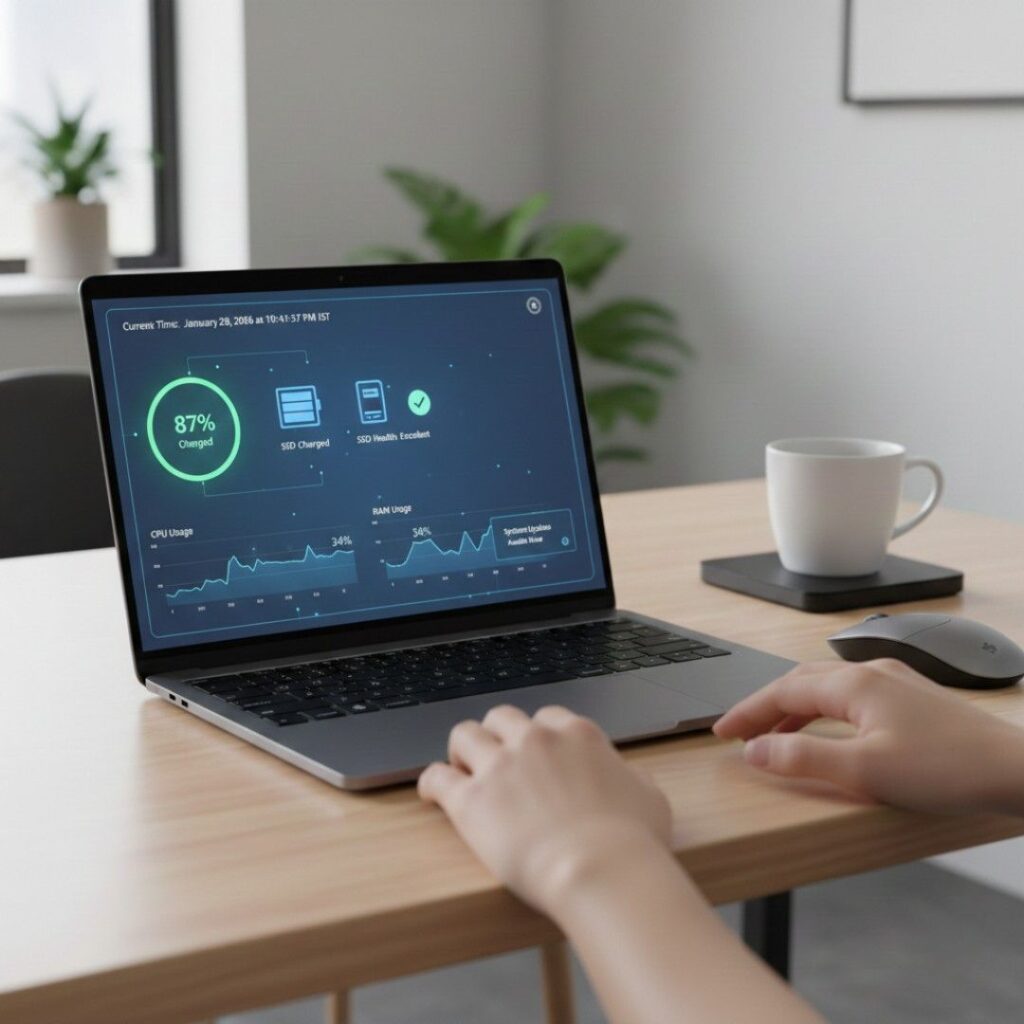
In practical terms, new laptop status refers to the overall condition, setup state, and system health of a newly purchased laptop. It answers key questions like:
Is the laptop brand new or refurbished?
Is Windows or macOS properly activated?
Are all hardware components functioning correctly?
Is the system updated, secure, and optimized?
From an expert perspective, checking your laptop’s status early helps you:
Avoid warranty issues later
Detect manufacturing or shipping defects
Improve long-term performance and battery life
Why Checking New Laptop Status Is Important (Real Experience)
From hands-on troubleshooting experience, one common mistake users make is skipping initial system checks. Many assume that “new” automatically means “perfect.”
In reality, we’ve seen cases where:
Windows was not activated, limiting features
SSD health showed early errors
Batteries were already over-cycled in display models
Outdated drivers caused overheating and lag
A 10–15 minute status check can save months of frustration.
How to Check New Laptop Status on Windows
If your laptop runs Windows 10 or Windows 11, here’s how to verify its status step by step.
1. Check Windows Activation Status
Go to:
Settings → System → Activation
You should see:
Windows is activated with a digital license
If activation is missing, contact the seller immediately.
👉 Official reference:
Microsoft Activation Guide – https://support.microsoft.com
2. View System Health & Device Status
Open Settings → Privacy & Security → Device Security
Look for:
Secure Boot: ON
TPM: Enabled
No security warnings
These indicate your laptop meets modern security standards.
3. Check Battery Health (Often Ignored)
Battery health matters more than most people realize.
You can generate a report:
Open Command Prompt (Admin)
Run:
powercfg /batteryreport
Open the generated HTML file
If the Full Charge Capacity is significantly lower than Design Capacity, your laptop may not be truly new.
4. Verify Storage & SSD Health
A new laptop should have:
Minimal disk usage
No bad sectors
Fast boot times
Tools like CrystalDiskInfo help check SSD health (external trusted tool).
How to Check New Laptop Status on macOS
For MacBook users, Apple provides excellent built-in tools.
Check Hardware Overview
Go to:
Apple Menu → About This Mac → System Report
Verify:
Battery cycle count (should be very low)
Storage condition: Normal
No hardware warnings
Apple’s official guide:
https://support.apple.com
Signs Your Laptop Is Truly Brand New
Based on real-world audits, a genuinely new laptop usually shows:
✅ Zero or very low battery cycles
✅ Clean OS without third-party junk software
✅ Manufacturer warranty starting from purchase date
✅ No unusual heat, noise, or lag
If anything feels off, trust your instincts.
Common New Laptop Issues (And How to Fix Them)
Here are frequent problems we help users solve at ZProStudio:
Slow performance out of the box
→ Update drivers and Windows/macOS immediatelyOverheating during basic tasks
→ Check background apps and BIOS updatesLow storage on a “new” laptop
→ Possible refurbished or display unit
👉 Related guide on ZProStudio:
Laptop Running Slow After Purchase – Fixes That Actually Work
https://zprostudio.com/
Expert Tips to Optimize Your New Laptop on Day One
To get the best experience long-term:
Update OS and drivers immediately
Remove unnecessary startup apps
Enable automatic backups
Install only trusted software
Create a restore point
These steps improve performance, security, and lifespan.
Where to Find Trusted Laptop Information
For accurate, up-to-date laptop guidance, rely on:
Official brand websites (Dell, HP, Lenovo, Apple)
Manufacturer support pages
Trusted tech platforms like ZProStudio, focused on real solutions—not hype
Final Thoughts: Your New Laptop Deserves a Smart Start
Your new laptop is an investment—not just money, but productivity, learning, and creativity. Understanding your new laptop status gives you control from day one and helps you avoid silent problems that grow over time.
At ZProStudio, our mission is simple:
clear, reliable, solution-focused tech content that actually helps.
If you found this guide useful:
Explore more laptop and device tutorials on ZProStudio
Bookmark this page for future reference
Share it with someone setting up a new laptop today
Smart tech decisions start with the right information—and you’re already on the right path.