AI Text to Video Free: Best Tools to Create Videos from Text in 2026
Creating a video no longer requires an expensive camera, professional editing software, or advanced technical skills. With artificial intelligence, you can describe a scene in a few sentences and turn your idea into a video.
If you are searching for AI text to video free tools, several platforms let you experiment without purchasing a subscription. Some generate cinematic clips directly from written prompts, while others turn scripts into videos with voiceovers, captions, music, and stock footage.
However, free plans come with limitations. You may encounter daily credits, monthly usage restrictions, watermarks, or limited video quality.
If you want to explore more than video creation, our guide to generative AI tools for creators explains how AI tools can help with images, voiceovers, editing and other creative tasks.
In this guide, we will explore the best free AI text-to-video tools, compare their features, explain how to use them, and help you choose the right option for your project.
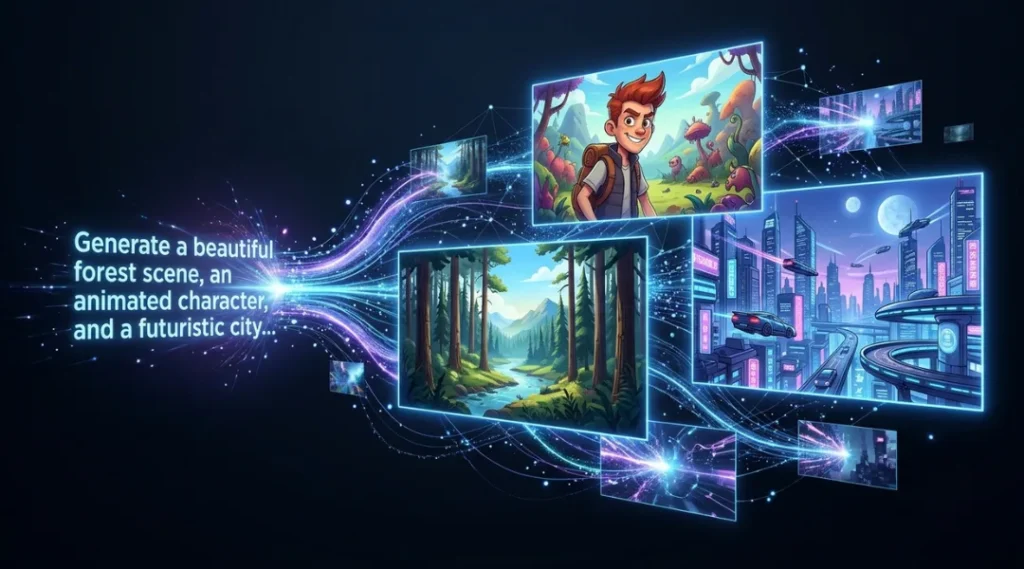
Table of Contents
ToggleWhat Is AI Text to Video?
AI text-to-video is a technology that converts written descriptions into moving video clips using artificial intelligence.
You enter a prompt explaining what you want to see. The AI model processes your instructions and generates visuals based on your description.
For example, you could enter:
“A cute baby panda walking through a colourful garden. Butterflies fly around the flowers while warm sunlight shines through the trees. The camera slowly follows the panda in a beautiful 3D animated style.”
The AI video generator interprets the description and creates a short video.
There are two common approaches:
Text-to-video generation: Creates original video footage from a written prompt.
Script-to-video creation: Converts a complete script into a video using visuals, narration, captions, and music.
Both methods save time, but they serve different purposes. Text-to-video is useful for cinematic scenes, while script-to-video works well for tutorials, explainers, and social media content.
Before opening a video generator, prepare your script and scene descriptions. You can also learn how ChatGPT helps with video creation and use it to prepare prompts for your chosen platform
Best AI Text to Video Free Tools in 2026
Here are four platforms worth exploring if you want to create videos without immediately paying for a subscription.
1. Google Flow
Google Flow is an AI filmmaking platform designed to create video clips and cinematic scenes.
It supports text-to-video generation and offers additional features such as image-to-video, reference-based video creation, and scene editing.
Free features:
50 daily Google Flow credits for eligible users without a subscription.
Text-to-video generation.
Image and reference-based video creation.
Different video generation models.
Limitations:
Generation access can be restricted during peak hours for non-subscribers.
Different models consume different amounts of credits.
Availability and visible watermark settings depend on account and location.
Google Flow is a good starting point if you want to experiment with AI-generated scenes.
Official website: https://labs.google/fx/tools/flow
2. Google Vids
Google Vids is an AI-powered video creation and editing application.
It allows users with eligible access to generate video clips from text prompts, animate images, and combine different elements into a video project.
Features:
Text-prompt-based video generation.
Image animation.
Video editing and scene arrangement.
Voiceovers and other AI-assisted features.
Limitations:
AI video generation requires an eligible account or subscription.
Personal accounts have restricted usage.
Monthly generation limits depend on the account type.
Google Vids is worth considering if you want to combine AI-generated clips with a simple video editing workflow.
Official website: https://workspace.google.com/products/vids/
3. Fliki
Fliki is designed for creators who want to turn written content into videos.
You can provide a script, an idea, or a blog post. The platform can combine your content with AI voices, visuals, captions, and background music.
Free features:
3 credits per month.
Script-to-video creation.
AI voices in multiple languages.
Video exports up to 720p.
Limitations:
Free exports include a Fliki watermark.
Monthly video generation is limited.
Commercial usage requires an eligible paid plan.
Fliki is particularly useful for educational videos, tutorials, product explainers, and social media content.
Official website: https://fliki.ai/
4. Runway
Runway is an AI-powered creative platform that provides video generation and editing capabilities.
Its tools are useful for creating cinematic visuals, experimenting with different styles, and developing creative video projects.
Free features:
125 one-time credits.
Access to selected creative AI tools.
5GB asset storage.
Limitations:
Free credits do not renew monthly.
Free-plan video outputs include a Runway watermark.
Not every video generation model is available on the free plan.
Runway is worth exploring if you want to test different AI creative features before choosing a paid subscription.
Official website: https://runway.com/
Free AI Video Generator Comparison
Before choosing a platform, compare the available free features and restrictions.
| Tool | Free allowance | Watermark | Best use |
|---|---|---|---|
| Google Flow | 50 daily credits | Location and settings dependent | Cinematic clips |
| Google Vids | Account-dependent | Check export settings | Video projects |
| Fliki | 3 credits/month | Yes | Script-to-video |
| Runway | 125 one-time credits | Yes | Creative experiments |
Remember that credits are not equal across platforms. One video generation may consume more credits than another. Check the current usage information before starting a large project.
Free plans are useful for testing, but they may not provide enough credits for regular production. If you want to compare more platforms and their features, see our guide to the best AI video generators.
How to Create a Video from Text for Free
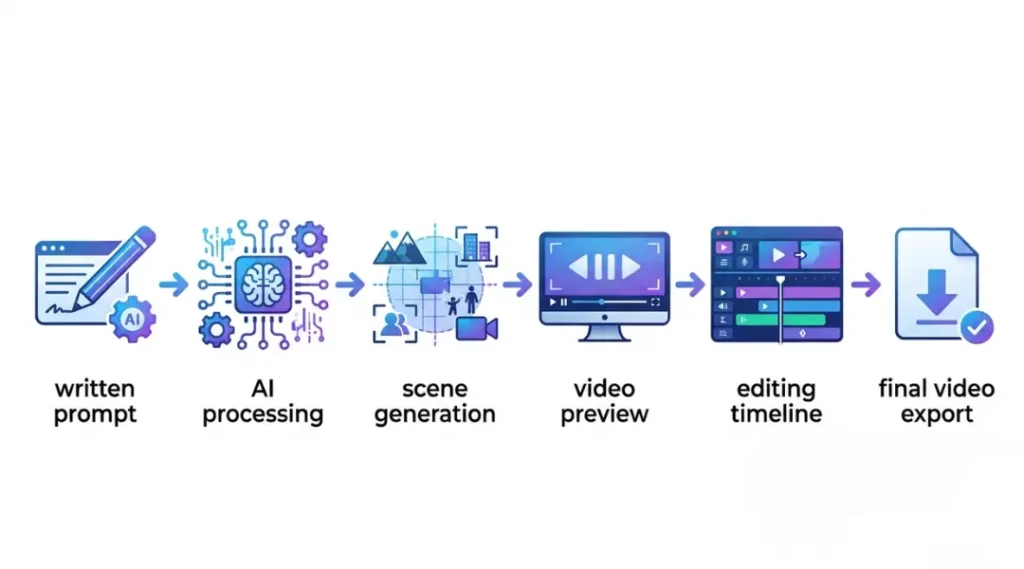
Creating an AI video is easier when you follow a clear process. Here is a beginner-friendly workflow using a text-to-video generator.
Step 1: Prepare Your Video Idea
Start with a simple idea. Decide what the video should communicate and who will watch it.
For example, if you are creating an educational video, choose one specific topic instead of trying to explain everything in a single clip.
Step 2: Write a Detailed Text Prompt
Your prompt should describe the subject, action, environment, visual style, lighting, and camera movement.
For example:
“Create an 8-second cinematic video of a small golden retriever running across a green meadow. Colourful flowers move gently in the breeze. Warm morning sunlight, smooth camera tracking, realistic fur, cheerful atmosphere, natural movement, 16:9 landscape format. No text or watermark.”
A detailed prompt generally gives the generator clearer instructions.
Step 3: Open an AI Video Generator
Choose a platform that supports the type of video you want.
For example:
Google Flow for cinematic video scenes.
Google Vids for AI-assisted video projects.
Fliki for converting scripts into narrated videos.
Runway for experimenting with creative video features.
Create an account if required and check the free usage allowance.
Step 4: Generate Your Video
Paste your prompt into the generator and select the available settings.
Depending on the platform, you may be able to choose:
Video duration.
Landscape or portrait format.
Visual style.
Resolution.
Generation model.
Click the generate option and wait for the result.
Step 5: Review and Edit the Output
AI-generated videos are not always perfect on the first attempt.
Check the movement, background, character appearance, and overall quality. If something looks incorrect, adjust the prompt and try again.
You can use a video editor to add narration, captions, music, transitions, and other finishing touches.
Step 6: Export Your Final Video
When you are satisfied, export the video in a suitable format.
For YouTube, 16:9 is generally suitable for regular videos, while 9:16 works well for Shorts.
Always check the export resolution, watermark, and usage rights before publishing.
Tips for Getting Better Results from AI Text-to-Video Tools
A good prompt can make a significant difference in the final output.
Try these practical tips:
Describe one main action: Avoid giving the AI too many actions to perform in a short clip.
Include camera movement: Mention whether the camera should zoom in, follow the subject, or remain stationary.
Choose a visual style: Specify realistic, cinematic, animated, or 3D storybook visuals.
Maintain character consistency: Use reference images when the platform supports them.
Keep prompts clear: Simple and specific descriptions are easier to interpret.
Review every generation: Do not publish the first result without checking it.
If you are creating multiple scenes for one project, maintain consistent descriptions of the characters, clothing, environment, and visual style.
Can You Create AI Videos Without a Watermark?
Yes, but it depends on the platform and its free-plan restrictions.
Some services allow certain exports without a visible watermark, while others reserve watermark-free downloads for paid subscribers.
For example, Fliki and Runway include watermarks on free-plan outputs. Google Flow has different watermark settings, including automatic visible watermarking for users in India who are not on the specified Ultra plan.
Before selecting a free AI video maker, check:
Whether the free plan adds a visible watermark.
Whether the downloaded video has an export restriction.
Whether the output can be used commercially.
Whether the platform requires a paid subscription for higher resolution.
Do not assume that every video advertised as free can be downloaded and published without restrictions.
Can You Use Free AI-Generated Videos on YouTube?
Yes, you can create and publish AI-generated videos on YouTube, provided you follow the platform’s policies and the video does not violate copyright, privacy, or other rules.
However, creating a video using AI does not automatically make it eligible for monetization.
Your content should provide original value through storytelling, meaningful editing, educational information, commentary, or creative presentation.
If your video contains realistic synthetic content that viewers could mistake for real events or people, check YouTube’s altered or synthetic content disclosure requirements.
You should also review the commercial-use terms of the AI platform before using generated videos for monetized content.
Frequently Asked Questions
Google Flow and Fliki offer free access with restrictions. Google Flow provides daily credits, while Fliki provides a limited monthly allowance. The best choice depends on whether you need cinematic footage or script-based videos.
Yes. Some platforms offer free credits or limited monthly usage. You can use these allowances to experiment with text prompts and create short video clips without purchasing a subscription.
Most AI video platforms restrict free usage through credits, generation limits, watermarks, or export restrictions. Unlimited free AI video generation is generally not a realistic expectation.
Yes. You can generate scenes, add narration, combine clips, and edit the final video for YouTube. Make sure your content follows YouTube's monetization and disclosure policies.
Google Flow is a useful starting point for generating cinematic clips from text. Fliki is another option if you want to convert scripts into narrated videos.
No advanced editing skills are required to generate a basic video. However, learning simple editing techniques can improve the final result by making the video more engaging and professional.
Final Thoughts
AI text-to-video tools make video creation more accessible to beginners, creators, and small businesses. You can start with a written prompt, generate a short clip, and improve it using simple editing techniques.
If you want to experiment without spending money, begin with a platform that offers free credits and understand its restrictions before creating a complete project.
Remember that AI is a creative assistant, not a replacement for your ideas. Good prompts, original storytelling, and careful editing are what turn generated clips into useful videos.
Explore different tools, test their free features, and choose the platform that fits your video creation needs.