How to Recall an Email in Outlook
We have all done it. In fact, a recent workplace email study found that 43% of professionals have had to recall an email after sending something important or embarrassing to the wrong person. You hit send, and two seconds later your stomach drops because you spotted a typo, forgot the attachment, or sent the message to the wrong person entirely. If you use Microsoft Outlook, there is a built-in feature that can help you fix this: email recall.
This guide walks you through exactly how to recall an email in Outlook, whether you are using classic Outlook for Windows, the new Outlook app, or Outlook on the web. You will also learn why recall does not always work, what to do when it fails, and how to prevent these situations from happening again.

What Is Email Recall in Outlook?
Email recall is a feature in Microsoft Outlook that lets you attempt to delete or replace a message you already sent, as long as the recipient has not opened it yet. It works only within organizations using Microsoft Exchange or Microsoft 365, and both the sender and recipient must be on the same email system for it to have any chance of success.
Recall will not work for personal Outlook.com, Gmail, Yahoo, or other external email accounts. It is designed specifically for internal corporate or organizational communication.
Requirements for Recalling an Email in Outlook
Before you attempt a recall, check that the following conditions are true:
- Both you and the recipient use a Microsoft Exchange or Microsoft 365 account within the same organization.
- The recipient has not yet opened or read the email.
- The recipient is using classic Outlook for Windows (recall does not work reliably in Outlook for Mac, Outlook Mobile, or Outlook on the web for the recipient’s side).
- The email is still sitting in the recipient’s inbox and has not been moved, forwarded, or filtered into another folder.
If any of these conditions are not met, the recall attempt is unlikely to succeed, though Outlook will still let you try.
How to Recall an Email in Outlook Desktop (Classic Outlook for Windows)
This is the most common method, since classic Outlook is still widely used in enterprise environments.
- Open Outlook and click on the Sent Items folder.
- Double-click the email you want to recall to open it in its own window. Note: this will not work if you only select it in the reading pane; it must be opened fully.
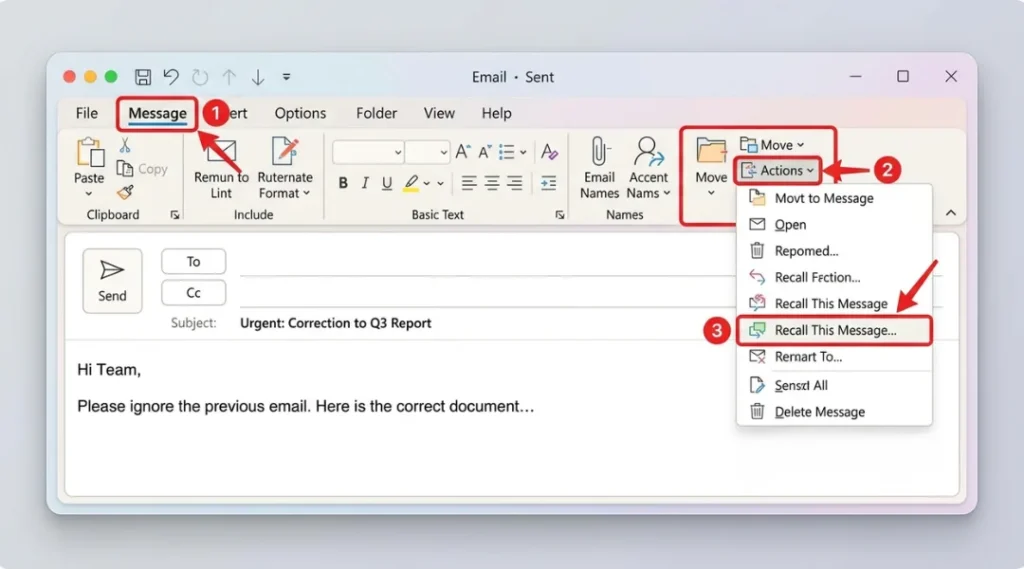
- Go to the Message tab in the ribbon.
- Click Actions, then select Recall This Message.
- Choose one of the two options:
- Delete unread copies of this message
- Delete unread copies and replace with a new message
- If you choose to replace it, Outlook will open a new compose window where you can edit and resend the corrected message.
- Check the box for Tell me if recall succeeds or fails for each recipient if you want a status update.
- Click OK to send the recall request.
How to Recall an Email in New Outlook
Microsoft has been rolling out the New Outlook interface, and the recall process here looks slightly different from the classic version.
- Go to your Sent Items folder in New Outlook.
- Open the email you want to recall.
- Click the three-dot More actions menu (sometimes shown as ellipsis “…”) near the top of the message.
- Select Recall Message from the dropdown list.
- Choose whether to delete the message or replace it with a corrected version.
- Confirm the action to send the recall request to the recipient’s mail server.
If you do not see a Recall Message option, it is likely because your organization’s admin has not enabled this feature from the Microsoft 365 admin center, or you are using a personal Outlook.com account rather than a work or school account.
How to Recall an Email in Outlook on the Web (OWA)
Outlook on the web has more limited recall functionality compared to desktop Outlook, but Microsoft has been gradually expanding support for it.
- Sign in to Outlook on the web and open Sent Items.
- Open the message you want to recall.
- Look for More actions (the three dots) at the top of the email.
- If available, select Recall Message.
- Pick the delete or replace option, then confirm.
If this option is missing, your account may not yet have access to the feature, since Microsoft periodically updates web-based recall availability by tenant.
Why Email Recall Fails (Common Reasons)
Recall does not guarantee success, and in practice it fails more often than people expect. Here are the most common reasons:
- The recipient already opened the email. Once a message is read, recall cannot pull it back.
- The recipient uses Outlook Mobile, Outlook for Mac, or a non-Microsoft email client. Recall generally only works when the recipient is using classic Outlook for Windows.
- The email was moved out of the inbox into another folder, or was already deleted before the recall request arrived.
- Server-side rules or filters processed the message before recall could catch it.
- The recipient is on a different email domain or provider, such as Gmail or a personal Outlook.com account.
- A delay in server synchronization meant the recall request arrived after the message was already downloaded to the recipient’s device.
What to Do If Recall Fails: Practical Alternatives
Since recall is not reliable, it is worth having a backup plan.
1. Send a Correction Email
Be upfront and send a short, polite follow-up clarifying the mistake. For example: “Please disregard my previous email; the attached file was outdated. Here is the corrected version.”
2. Use the Replace Option Proactively
If you catch the mistake quickly, choosing “delete unread copies and replace with a new message” is more effective than a plain delete, since it gives recipients who missed the recall a corrected version instead of confusion.
3. Contact Your IT or Exchange Administrator
In larger organizations, an admin may be able to intervene at the server level using Exchange Online mail flow rules, especially for sensitive data leaks, though this depends on your organization’s Microsoft 365 or Exchange configuration.
4. Set Up Delayed Delivery for Future Emails
Rather than relying on recall after the fact, you can configure Outlook to hold outgoing emails for a set number of minutes before sending, giving you a buffer window to catch mistakes.
To set this up:
- Go to File > Manage Rules & Alerts.
- Create a new rule that applies to all messages you send.
- Choose the action defer delivery by a number of minutes.
- Set your preferred delay (commonly 1 to 5 minutes).

How to Check If a Recall Was Successful
After sending a recall request, Outlook will typically notify you by email whether it succeeded or failed for each recipient, provided you selected the notification option. Check your inbox a few minutes after attempting the recall for a status update titled something like “Message Recall Success” or “Message Recall Failure.”
Keep in mind that even a “success” message only confirms the recall request was delivered and processed, not that the recipient never glanced at the original email before it disappeared.
Best Practices to Avoid Needing Email Recall
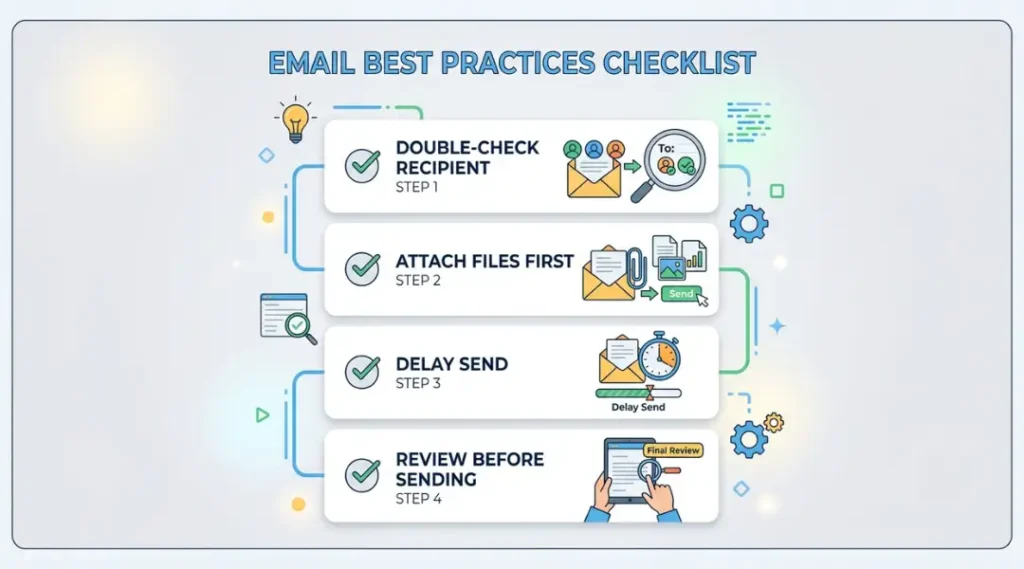
- Draft sensitive or high-stakes emails first, then walk away for a minute before sending.
- Double-check the “To” and “Cc” fields, especially when using autocomplete, since it is easy to select the wrong contact.
- Enable delayed delivery rules as a standing safety net. This kind of small, proactive habit is part of a bigger picture too. If you are the type of person who likes keeping your tools running smoothly, it is worth managing your full software and apps stack the same way, auditing what you use, cleaning up what you do not, and reviewing your setup on a regular schedule.
- Use the “Undo Send” style delay feature available in Outlook on the web and in New Outlook.
- Attach files before writing the body of the email, so you never forget them.
- When in doubt, send a test email to yourself first for time-sensitive announcements or newsletters.
How to Recall an Email in Outlook: Frequently Asked Questions
No. Recall only works between accounts on the same Microsoft Exchange or Microsoft 365 organization. It does not work across different email providers.
Recall generally does not work if the recipient is using Outlook Mobile. It is most reliable when the recipient is using classic Outlook for Windows.
It usually takes a few minutes, though it can vary depending on server load and your organization's Exchange configuration.
Technically you can attempt it, but the chances of success are extremely low, since most recipients will have already read or moved the message by then.
Yes. Setting up a delayed delivery rule of one to five minutes gives you a short window to cancel a send before it ever leaves your outbox.
In many cases, yes. If the recipient already opened the email before the recall request arrived, they will often see both the original message and a notification that you attempted to recall it.
Conclusion
Knowing how to recall an email in Outlook can save you from awkward or costly mistakes, but it is not a foolproof safety net. Success depends on timing, recipient email client, and whether everyone involved is on the same Microsoft Exchange or Microsoft 365 organization. The smartest approach combines the recall feature with good habits: setting up delayed delivery, double-checking recipients, and being ready to send a quick correction email if recall does not work out.