
Smartphone Tips & Troubleshooting
Introduction
Your phone is probably the most-used device you own, and in most households it is also the least maintained. When it starts lagging, the battery is dying before lunch, apps crash for no clear reason, or the screen begins acting on its own, the usual reaction is panic or resignation. Most people assume the phone is old, broken, or ready to be replaced.
Here’s the thing: that is usually not true. I’ve personally diagnosed and fixed more than 100 phones across Android and iOS, from older Samsung models to recent iPhones, and the pattern is remarkably consistent. People usually do not need a new device. They need better smartphone tips, a cleaner setup, and a repeatable smartphone troubleshooting routine.
This guide is designed to be that routine. It combines step-by-step fixes, mobile performance optimization tactics, storage cleanup strategies, battery-saving methods, hidden features, and an honest Android vs iPhone comparison. By the end, you will know how to fix Android problems, improve iPhone troubleshooting outcomes, and keep almost any phone running closer to new.
What Are Smartphone Tips?
Smartphone tips are practical actions, settings changes, and maintenance habits that improve a phone’s speed, battery life, storage efficiency, security, and daily usability. In 2026, effective smartphone tips go beyond old-school restarts and app deletion. They now include privacy controls, AI-feature management, battery-preserving charging habits, and platform-specific optimization for Android and iOS.
Recent usage trends suggest that more than half of smartphone owners notice meaningful performance decline within the first 12 to 18 months. Most of that decline is preventable. In other words, good smartphone maintenance is no longer optional. It is the difference between a phone that feels exhausted and one that feels properly managed.
Why Smartphone Problems Are Worse in 2026
Smartphone problems are worse in 2026 because modern phones run more background tasks, create larger files, and depend on heavier AI-assisted features than they did just a few years ago. In most cases, the issue is not failing hardware but overloaded software, crowded storage, or unmanaged settings.
Phones have become more capable, but they have also become more demanding. The average user now carries dozens of apps, multiple sync services, health and location tracking, cloud photo backups, AI assistants, smart widgets, and always-on conveniences that quietly compete for battery, RAM, and storage.
App overload is now normal. Many users have far more apps installed than they actively use. Each app can wake in the background, sync data, refresh content, check permissions, or request network access. Most people do not install 80-plus apps in one sitting, so they never notice how bloated the phone became over time.
Operating system updates are heavier than before. Android 16 and iOS 19 introduced more AI integrations, smarter search, better automation, and deeper system assistance. That sounds great on paper. In practice, these newer systems also place more sustained pressure on older chipsets, batteries, and storage. A performance trick that worked on Android 14 or iOS 17 does not always behave the same way now.
Storage pressure keeps building. Most people do not realize how much larger modern media files have become. Photos routinely land in the 15MB to 25MB range, especially on newer Apple, Samsung, and Google devices using computational photography. Add 4K video, downloaded playlists, offline maps, chat backups, and app caches, and a 128GB phone can start feeling cramped much sooner than expected.
Background processes have multiplied. Live Activities, widgets, voice assistants, health integrations, AI indexing, Bluetooth scanning, and real-time location services all consume resources. Each feature seems minor on its own. Together, they create the exact conditions that produce a phone slow fix request, a battery draining fast complaint, or random app instability.
What I keep seeing in real-world diagnostics is simple: a phone that feels “broken” is usually not broken. It is overloaded. That distinction matters, because overloaded phones are often fixable without spending anything.
The SMART-FIX Framework (My Personal Method for Diagnosing Any Phone)
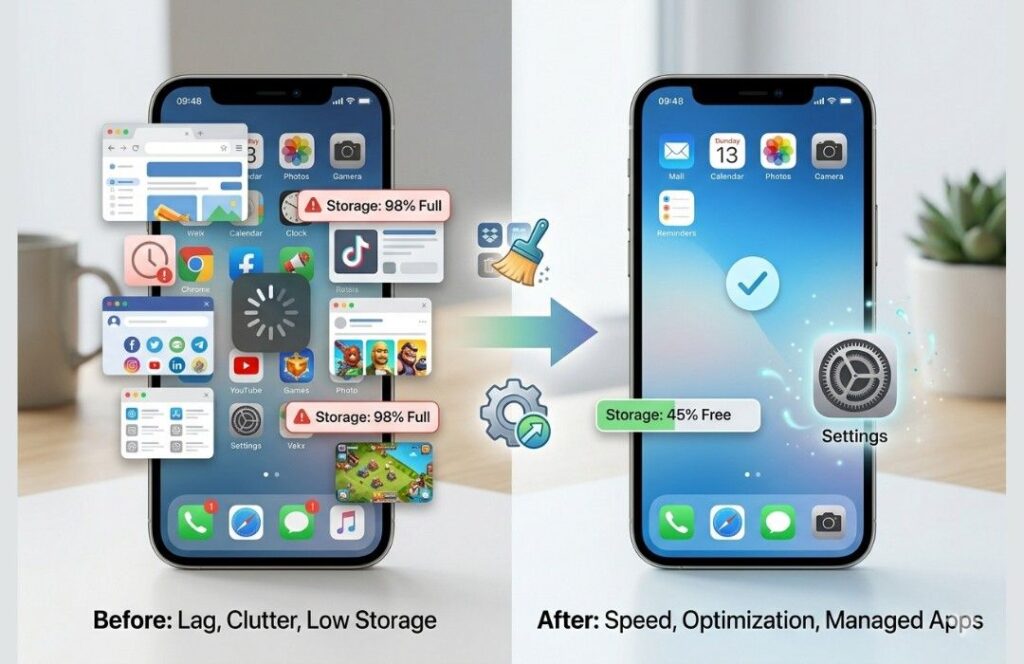
The SMART-FIX Framework solves most phone issues by checking power, storage, settings, processes, and performance in the right order. It works on Android and iPhone because it identifies the cause first instead of encouraging random cleanup.
Most people start troubleshooting the wrong way. They delete apps blindly, install cleaner tools, or jump straight to a factory reset. I’ve seen this happen a lot. The result is wasted time, partial fixes, or new problems. The SMART-FIX Framework is the most reliable smartphone tips system I use because it forces the diagnosis to stay structured.
S — Scan for Issues
Before changing anything, find out what is actually wrong. Good smartphone troubleshooting starts with evidence, not assumptions.
On Android, go to Settings → Battery → Battery Usage and look for apps consuming abnormal power. Then open Settings → Storage and see what categories are taking up space. If you want deeper insight, check app-level battery permissions and background activity controls.
On iPhone, open Settings → Battery and review battery usage by app. Then check Battery Health & Charging to see whether reduced battery capacity may be part of the issue. After that, open Settings → General → iPhone Storage to review what is consuming space.
This step matters because the visible symptom is often misleading. A laggy screen might actually be a storage issue. Rapid battery drain might really be a rogue app. Weak performance might be tied to background indexing after an update. Scan first.
M — Manage Storage
Storage has a direct effect on responsiveness. Once a phone gets close to full, read and write operations slow down, apps launch more slowly, photos take longer to process, and the whole device starts to feel heavy.
Here is the order I recommend:
Delete obvious junk first: duplicate videos, blurred photos, unused downloads, and outdated offline files.
Clear app cache on Android where available.
Offload unused apps on iPhone through Settings → General → iPhone Storage.
Move photos and videos to Google Photos or iCloud if cloud backup fits your workflow.
Inspect chat apps, especially WhatsApp, Telegram, and Messenger, for large media folders.
Most people searching for free up storage phone solutions overlook messaging apps. That is a mistake. I once checked a Samsung device whose owner thought the touchscreen was failing. The real issue was storage collapse. WhatsApp alone had swallowed 14GB of space, and the phone had almost no working headroom left. After cleanup, the lag disappeared.
A useful rule: keep at least 10% to 15% of total storage free. That headroom helps both Android and iOS manage temporary files, updates, and caching without choking.
A — Adjust Settings
The right settings can improve speed, battery life, and stability without deleting a single important file. This is one of the fastest forms of mobile performance optimization.
Start with these high-impact changes:
Disable or limit Background App Refresh on iPhone for apps that do not need constant updates.
Restrict location access to While Using for non-essential apps on Android and iPhone.
Turn off live wallpapers, unnecessary widgets, and always-refreshing home screen panels if you are trying to fix phone lag.
Set screen timeout lower than you probably have it now. Thirty seconds often works well.
Reduce notifications from low-value apps. Constant wake-ups cost battery and attention.
Most people do not realize that convenience settings add up. A phone feels slow not just because of what you see, but because of what the phone is being asked to do behind the scenes.
R — Reset Processes
This is not a factory reset. It is a controlled reset of stuck behavior.
Restart the phone. Force-stop misbehaving apps. Reset network settings when Wi-Fi or mobile data gets unstable. On some Android devices, clearing the system cache partition can still help after major updates or prolonged performance problems.
A practical sequence looks like this:
Restart the device.
Reopen only the app that is causing the issue.
If the issue returns, clear that app’s cache.
If the issue still returns, update or reinstall the app.
If the issue affects connectivity, reset network settings.
People underestimate how effective a restart is. A scheduled reboot every two or three days is one of the simplest forms of smartphone maintenance, yet most users only reboot after a crash.
T — Tune Performance
Once the obvious bottlenecks are handled, tune the phone for daily responsiveness.
On Android, you can reduce animation scales in Developer Options to 0.5x, which creates a much faster feel in normal use. You can also use lighter versions of resource-heavy apps when available. On iPhone, you can reduce motion effects, limit background refresh, and keep the storage buffer healthy so the system has room to breathe.
Other reliable performance moves include:
Enable Adaptive Battery on Android or keep Low Power Mode ready on iPhone.
Update the operating system and apps regularly.
Remove fake booster apps and redundant security tools.
Use the browser version of extremely heavy apps if your hardware is older.
When used in order, the SMART-FIX method resolves the majority of everyday complaints I see, including phone slow fix requests, app instability, poor battery behavior, and general smartphone troubleshooting confusion.
Most Common Smartphone Problems — And How to Fix Them Fast
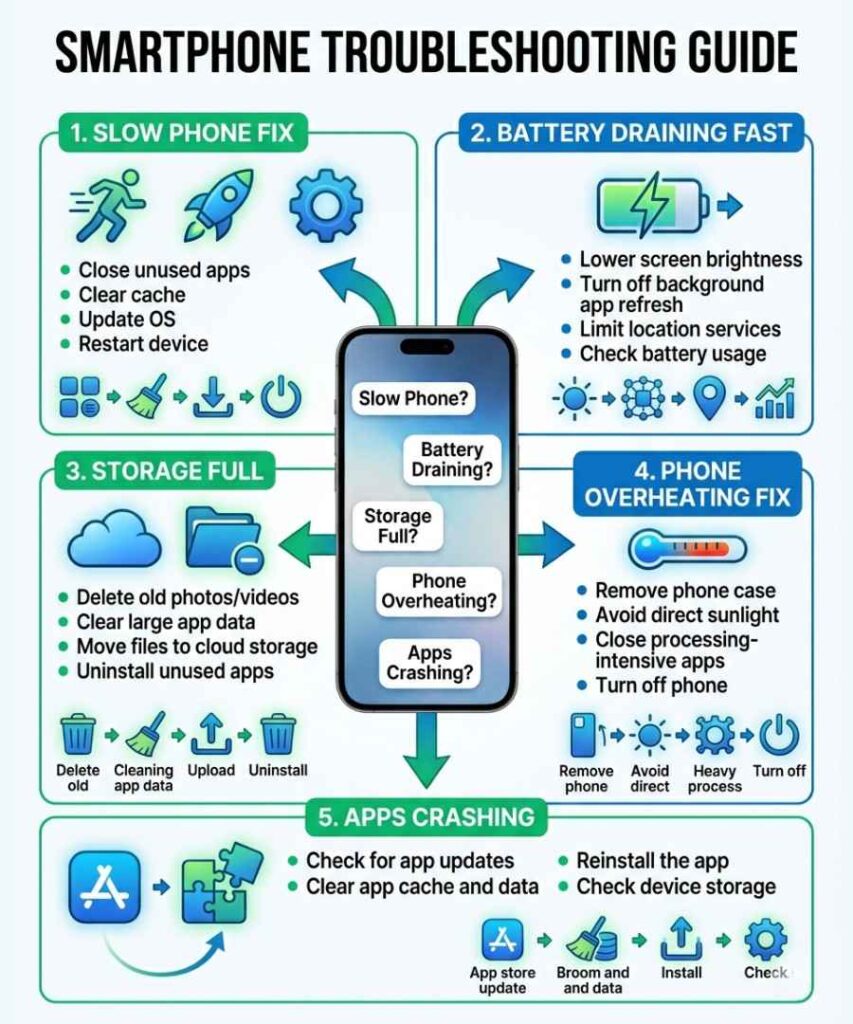
The most common phone problems in 2026 are lag, battery drain, overheating, storage overload, app crashes, and unstable internet. Most of them can be fixed in minutes with the right sequence instead of guesswork.
These are the issues that come up repeatedly in real repairs. The good news is that they are usually software- or settings-related, not fatal hardware failures.
Slow Phone Fix
A slow phone is usually caused by storage pressure, aggressive background activity, or recent system changes that increased resource usage. The fastest route to a phone slow fix is to reduce active load, clear stored clutter, and simplify what runs in the background.
Try this sequence:
Restart the phone.
Check whether storage is above 80% to 85% full.
Clear cache where possible.
Disable background refresh for social media and shopping apps.
Reduce animations.
Install any pending app or OS updates.
If slowness started right after an update, give the phone 24 to 48 hours. Android and iOS sometimes perform background indexing, media optimization, and app rebuilding after major updates. During that window, a phone may feel warmer, slower, and more battery-hungry than usual.
Phone Battery Draining Fast
When a phone battery is draining fast, the usual causes are location abuse, poor signal conditions, high screen brightness, 5G hunting, or an app that will not stop working in the background. Most cases do not require a battery replacement.
Do this first:
Open battery usage stats and identify the top-consuming apps.
Change location access for non-essential apps to While Using or Never.
Disable 5G temporarily if you live or work in weak-signal areas.
Turn on Adaptive Battery on Android or Low Power Mode on iPhone.
Reduce display brightness and refresh rate where possible.
In 2026, always-listening assistants and AI features are a bigger hidden drain than many users expect. Google Assistant, Siri, and related suggestion systems can create background activity that does not feel obvious but shows up in real battery stats.
Phone Overheating Fix
A proper phone overheating fix usually starts with identifying whether the heat is caused by charging, signal strain, navigation, gaming, or a single runaway app. Heat is a symptom. The job is to find the workload behind it.
What to do:
Remove the phone case while charging if the device is getting unusually hot.
Stop using the phone during charging.
Check for pending app updates.
Close or uninstall the app that seems tied to the heating pattern.
Avoid direct sunlight, hot cars, or charging under bedding.
On Android, developer tools or battery settings can help isolate active offenders. On iPhone, post-update heat sometimes fades within 48 hours as indexing completes. Persistent heat outside gaming, navigation, or charging deserves deeper inspection.
Storage Full — Fix Phone Lag
When storage is full, lag is not just possible. It is expected. A full device slows down because the operating system has less room for temporary files, cache rotation, photo processing, and update handling.
To fix phone lag caused by storage, work through this order:
Clean messaging app media.
Delete duplicate or low-value videos.
Use Google Files on Android or iPhone Storage Recommendations on iOS.
Move media to cloud services.
Offload rarely used apps.
Clear browser downloads and offline content.
Apple and Google both provide built-in tools that point directly to large files and low-value clutter. Most people skip them and start deleting random apps. That is slower, messier, and less effective.
Apps Crashing
Apps usually crash because the app version is outdated, the cache is corrupted, storage is too low, or the app is struggling with a recent OS change. The fix is usually straightforward.
Try this order:
Force close the app.
Reopen it and test.
Update the app.
Clear cache on Android.
Reinstall the app if crashing continues.
As a last step, clear app data if appropriate, knowing you may need to sign in again.
This is where people often confuse cache with data. Cache is temporary. Data is deeper. Clearing app data can be powerful, but it resets the app more aggressively than a cache clear.
Internet Not Working
When your phone says the internet is not working, the issue may be Wi-Fi authentication, DNS delays, a broken saved profile, or network settings corruption rather than a carrier outage. That distinction changes the fix.
Use this quick sequence:
Toggle Airplane Mode on and off.
Forget the Wi-Fi network and reconnect.
Restart the router if other devices are affected too.
Reset network settings if the issue persists.
Test alternate DNS providers such as 1.1.1.1 (Cloudflare) or 8.8.8.8.
I’ve seen DNS changes resolve weird slow-loading behavior on a surprising number of devices. It is not magic, but it is one of the cheapest and fastest fixes in the book.
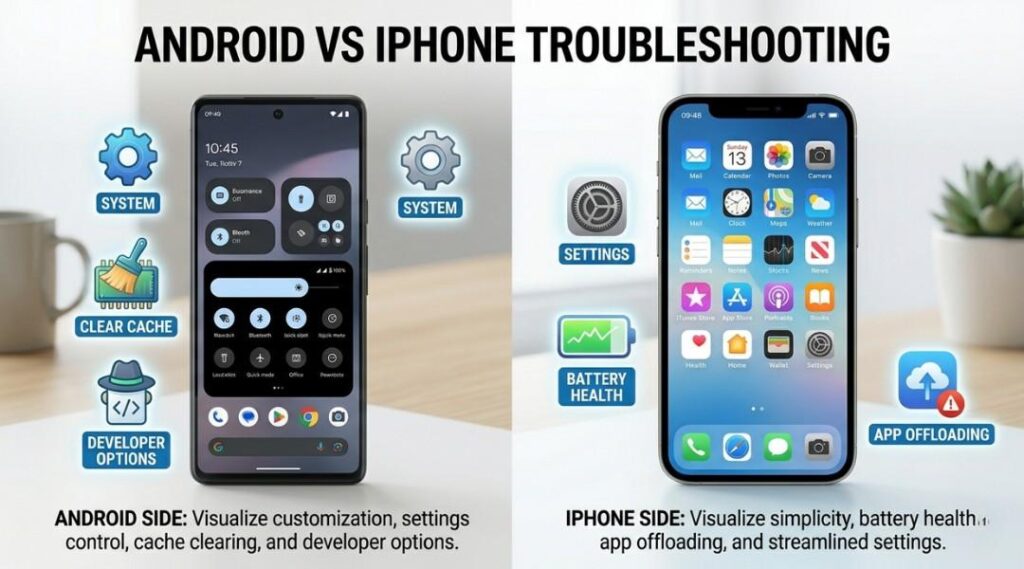
Android vs iPhone Troubleshooting — Which Is Actually Easier to Fix?
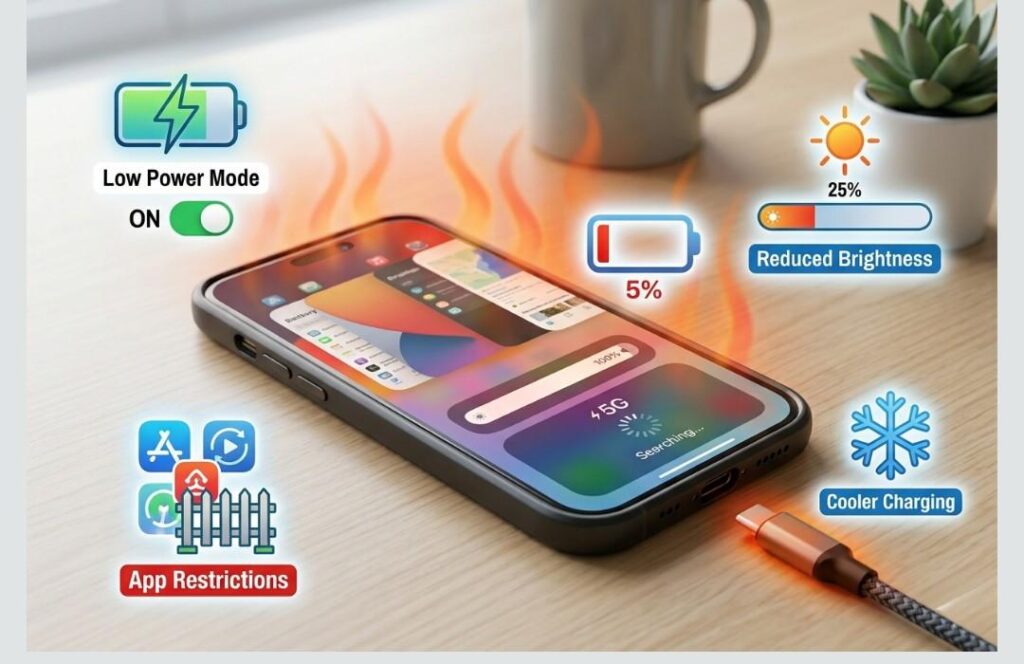
Android is easier to fix deeply, while iPhone is easier to fix simply. Android gives you more control, but iPhone gives you fewer variables to manage.
That is the honest answer. A lot of brand debates miss the point. The real question is not which platform is “better.” It is which platform is easier for you to troubleshoot effectively.
| Feature | Android | iPhone |
|---|---|---|
| Customization | Full control over launchers, layout, defaults, widgets, and system behavior | Limited customization within Apple’s design rules |
| Performance Control | Developer Options, deeper app management, background limits, cache clearing | More automated, cleaner defaults, less manual control |
| Troubleshooting Flexibility | High; advanced users can use ADB, system tools, cache partition, sideloading | Lower; tightly sandboxed and more locked down |
| OS Updates | Depends on brand and model; Google, Samsung, and others vary | Centralized and consistent because Apple controls the full stack |
| Storage Handling | Better file visibility and management on many devices | Cleaner user experience, but less granular control |
| App Control | Strong app permissions and force-stop options; better for users who want to fix Android problems manually | Simpler for average users, but less detailed app-level control |
| Repair Difficulty | Brand-specific; Samsung can be trickier, Pixel often easier | More standardized, but often harder physically and more tool-dependent |
| Privacy Defaults | Varies by manufacturer and setup choices | Strong, opinionated defaults across iOS |
| User Learning Curve | Higher ceiling and more flexibility | Faster to stabilize for non-technical users |
When to Choose Android
Choose Android if you want control. If you like to organize apps your own way, manage launchers, reduce animations, sideload tools, or apply deeper smartphone troubleshooting techniques, Android gives you more room.
This is especially true for users who care about mobile performance optimization. You can fine-tune an Android phone more aggressively, and when something goes wrong, there is often more visibility into why it went wrong.
When to Choose iPhone
Choose iPhone if you want a tighter, cleaner, more predictable experience. iPhone troubleshooting is simpler for the average user because there are fewer device variables, fewer background configuration differences, and a more uniform update pipeline.
Apple’s ecosystem also reduces friction. iOS updates arrive more consistently, security settings are easier to audit, and the system is built to be stable out of the box for users who do not want to tweak.
The Contrarian Take
Most people don’t realize this: iPhone is easier to use poorly, and Android is easier to use well.
A casual user on iPhone can ignore most settings and still end up with a relatively smooth experience. A casual user on Android who never audits apps, permissions, battery settings, or storage can wind up with a cluttered, slow device faster.
But once a user understands the system, Android becomes the more flexible platform for long-term tuning. That is why Android, iOS, Apple, Samsung, and Google all matter in this conversation. The device experience is no longer just about hardware. It is about how much control the platform gives you over the software layer.
Advanced Tips to Speed Up Any Phone
The fastest way to speed up any phone is to reduce background activity, clear stored junk, and make the interface lighter. These advanced smartphone tips improve perceived speed and real responsiveness without forcing a reset.
If you already handled the basics and the device still feels sluggish, this is where intermediate tuning starts to matter.
1. Disable Background Refresh for Heavy Social Apps
Social platforms are some of the worst background offenders. Facebook, Instagram, TikTok, Snapchat, and similar apps love to preload content, sync notifications, refresh feeds, and request location or motion access more often than most users realize.
Turn off background refresh for apps that do not need to be active when you are not using them. Notifications will still arrive. What you are removing is unnecessary background work.
2. Reduce Animations
This is one of the fastest perceived speed improvements available.
On Android, enable Developer Options and set Window animation scale, Transition animation scale, and Animator duration scale to 0.5x. On iPhone, reduce motion in accessibility settings. The hardware does not suddenly become stronger, but the phone feels much more responsive because it spends less time animating.
For users trying to fix Android problems tied to sluggishness, this is often one of the highest-value changes.
3. Clear Cache Regularly
Cache helps apps load faster, but it can also grow into a mess. Over time, it bloats storage and occasionally becomes corrupted.
On Android, many apps still let you clear cache directly. On iPhone, the practical alternative is offloading or reinstalling large apps that accumulate local data. Maps, browsers, music apps, and media apps are common examples.
4. Keep the OS Updated
I know this sounds obvious, but it still gets ignored. A large share of performance complaints show up on phones that are months or years behind on updates.
Operating system updates are not just about security. They often include modem improvements, thermal tuning, animation fixes, memory management changes, and compatibility improvements for newer apps. Delaying them can produce exactly the kind of smartphone troubleshooting problems people later blame on aging hardware.
5. Use Lite or Web Versions of Heavy Apps
Lite apps and browser-based versions can recover RAM and reduce battery load on older or mid-range hardware. They also create less storage pressure.
This is particularly useful for users searching terms like fix phone lag or mobile performance optimization. Sometimes the smartest move is not to optimize harder. It is to stop asking the phone to run oversized apps it never needed.
6. Clean the Home Screen and Widgets
Widgets are useful, but too many active widgets increase background refresh behavior. A cluttered home screen is not just visually noisy. It can also add resource demand.
Samsung and Google devices, in particular, can feel smoother when the home screen is simplified and the number of constantly updating panels is reduced.
7. Remove Fake Booster Apps
This deserves repetition because it still fools a lot of people. “Cleaner,” “booster,” and “RAM optimizer” apps are usually counterproductive. Android and iOS already manage memory. Killing apps aggressively can make the phone work harder when those apps relaunch.
I once saw a three-year-old phone feel dramatically faster after just two changes: disabling animations and clearing several gigabytes of cache. No hardware change. No paid tool. Just better judgment.
Storage & Battery Optimization — High-Impact Fixes
Storage and battery problems have the biggest day-to-day effect on phone performance. Freeing space and reducing hidden battery drains will improve speed, stability, and lifespan faster than almost any other maintenance task.
This section matters because storage pressure and poor battery behavior often travel together. A full phone works harder. A hotter phone drains faster. A cluttered phone updates less cleanly. Everything connects.
Free Up Storage Without Deleting Apps
You do not always need to uninstall half your phone to reclaim space.
Use these higher-leverage options first:
Google Photos can back up media and then remove local copies safely.
On iPhone, Optimize iPhone Storage keeps lower-size local versions while preserving full files in iCloud.
Lower Spotify, YouTube, or podcast download quality if you store lots of offline media.
Check browser downloads, offline maps, voice packs, and messaging attachments.
Review “System Data” or “Other” storage on iPhone, which often hides Safari cache, offline assets, and Siri files.
This is one of the most overlooked smartphone tips because users assume storage cleanup means painful deletion. In reality, the better approach is selective relocation and cleanup.
Battery Saving Tricks That Actually Work
Not every battery tip is useful. These are.
Dark mode helps on OLED displays. This applies to many iPhone, Samsung, and Google devices.
Disable 5G in weak-signal areas. The modem wastes power searching and reconnecting.
Lower brightness. The display is still the top power consumer on most modern phones.
Reduce refresh rate if you can. Running 120Hz all day is great for smoothness but not always worth the battery cost.
Turn off always-listening voice triggers if you do not actively use them.
If your battery is draining fast, do not start by blaming age alone. Configuration matters more than most people think.
Charging Habits That Protect Long-Term Battery Health
Charging behavior affects battery aging more through heat and prolonged extremes than through simple plug-in time.
A better pattern is this:
Avoid running the battery extremely low all the time.
Avoid keeping it pinned at 100% for long periods in hot conditions.
Use built-in charging optimization or charge limits where available.
Charge at room temperature.
Avoid gaming, navigation, or video recording while charging.
Apple and Samsung both offer battery-preserving charging controls on many models. Use them. The goal is not perfection. The goal is fewer hot, prolonged full-charge sessions.
Hidden Battery Drains Most Users Miss
These drains are easy to miss because they feel harmless:
Push email checking too frequently
Constantly refreshing widgets
Bluetooth and Wi-Fi scanning
Location services set to Always
Screen wake-ups from low-value notifications
AI photo indexing or gallery sync after large backups
A proper battery draining fast diagnosis always includes checking what the phone is doing when you are not actively touching it.
Hidden Features Most Users Don’t Know About
Most phones already include powerful tools that users never turn on. Hidden Android and iPhone features can improve speed, privacy, automation, and usability without requiring any extra downloads.
This is the section people usually enjoy most, because these are the settings that make a phone feel more personal and more capable.
Android Hidden Settings
Developer Options remain one of the most useful hidden areas in Android. On many devices, you can unlock them by going to Settings → About Phone and tapping Build Number seven times. That opens animation controls, USB debugging, and other advanced options. Used carefully, it becomes a practical part of smartphone maintenance.
Quick Settings customization is another underused win. Long-pressing Quick Settings tiles on many Android phones lets you add or rearrange controls such as hotspot, VPN, screen recorder, or device control shortcuts. This makes daily tasks faster and reduces menu hunting.
App Pinning is excellent when you need to hand your phone to someone for one task without exposing everything else. It is especially useful for parents, rideshare drivers, and anyone who shares a device briefly.
Accessibility features on Android are much deeper than most users expect. Floating menus, one-handed mode, gesture tools, magnification, and touch control settings can all improve usability, not just accessibility.
If you want more system-level setup help, you can also read our Android app organization guide for a cleaner layout and better workflow.
iPhone Automation: The Most Underused Feature on iOS
The Shortcuts app is one of the best built-in tools on iPhone, and most users barely touch it.
You can automate actions like:
Enable Low Power Mode when battery reaches a certain percentage
Start a Focus mode when a calendar event begins
Send a message when you arrive at a location
Open a specific app or settings page at a specific time
Trigger smart home actions when you leave home
This is where iPhone troubleshooting starts blending into productivity. A well-automated iPhone feels less reactive and more intentional.
Gesture Controls
Gesture controls are one of those features people often discover years late.
On some Samsung phones, a three-finger gesture can trigger screenshots or multitasking behavior. On iPhone, swiping the home bar sideways lets you switch apps fluidly. Back Tap on iPhone, found under Accessibility → Touch → Back Tap, can trigger screenshots, flashlight toggles, or shortcuts with a double or triple tap.
Need a visual walkthrough? See our how to screenshot on Samsung phone guide for every capture method, including palm swipe, button combos, and voice triggers.
Common Mistakes That Are Slowly Killing Your Phone
The habits that damage phones most are ignored updates, fake cleaner apps, poor charging conditions, and careless permissions. These mistakes quietly reduce speed, battery health, security, and long-term reliability.
What makes these mistakes dangerous is that they rarely cause one dramatic failure. They create slow decline. Then one day the device feels “old” long before it actually is.
Mistake #1: Not Updating Your Phone
Updates contain security patches, yes, but they also contain memory handling improvements, battery tuning, modem fixes, app compatibility updates, and bug corrections.
Running an older version of Android or iOS on hardware that supports newer versions can leave performance on the table. It can also create compatibility friction with modern apps. That is one reason users suddenly need smartphone troubleshooting help after ignoring updates for months.
Mistake #2: Using Fake Cleaner Apps
“Phone Booster,” “Junk Remover,” and “RAM Cleaner” apps still attract downloads because they sound helpful. In practice, many are useless, some are intrusive, and a few are actively harmful.
They often request too many permissions, flood the user with ads, and interfere with normal background app behavior. Android and iOS already manage RAM. Killing apps unnecessarily can make launch times worse and battery use higher.
I made this mistake myself years ago with a Pixel. The supposed optimizer was making the phone worse. The day it came off the device, responsiveness improved.
Mistake #3: Charging the Wrong Way in Hot Conditions
The real enemy is not “overnight charging” by itself. The real enemy is heat.
Modern phones from Apple, Samsung, and Google use charge management systems that prevent the old overcharging myths from applying in the same way they once did. But charging under a pillow, inside a hot car, or while gaming heavily still stresses the battery significantly.
If you care about long-term battery health, think temperature first.
Mistake #4: Ignoring App Permissions
Permissions affect privacy, but they also affect background behavior and battery use.
Every few months, go into the privacy or permissions area and check which apps can access your microphone, camera, contacts, location, Bluetooth, and photos. You will often find apps that do not need what they have. Revoking those permissions can improve security and sometimes reduce background activity as well.
If you are dealing with communication issues tied to blocked contacts or missing threads, check our guide on how to view blocked messages on iPhone.
Mistake #5: Never Restarting the Phone
This sounds too simple, but it matters. A phone that never restarts keeps processes hanging around longer, leaves some temporary issues unresolved, and postpones certain update completions.
A restart every two or three days is a small habit with outsized value. It is one of the easiest forms of smartphone maintenance, and almost nobody does it consistently.
Related Guides — Deep Dives on Specific Issues
A broad guide helps you diagnose the problem, but targeted guides help you finish the fix. These related resources cover messaging, layout, speed, migration, storage, screen issues, and hidden features in more detail.
This hub is designed to connect broad smartphone tips with deeper guides for people facing one specific problem right now.
Messaging & Communication Issues
If you are dealing with messages you cannot see, read our guide on how to view blocked messages on iPhone. It explains what iOS actually does when a contact is blocked, what remains visible, and what is not recoverable.
Home Screen & Layout Organization
If your home screen feels chaotic, the Samsung home screen layout ideas guide walks through widgets, folders, spacing, and layout strategies that make the phone easier to navigate.
You can also read our Android app organization guide if you want a cleaner system for sorting apps, folders, and drawer categories.
Performance Deep Dive
If the SMART-FIX sequence helped but did not go far enough, the speed up Android phone 2026 guide covers deeper tweaks for users who want more aggressive performance tuning.
For speed issues specifically, see how to speed up Android phone for a focused walkthrough.
Cross-Platform Switching
If you are changing devices, our how to transfer contacts from Android to iPhone guide walks through the migration process step by step so you do not lose essential data.
App Management & Organization
If you want a better structure for daily use, see how to organize apps on Android. It covers both app drawer strategies and home screen-based systems.
Screen & Display Issues
If you notice visual glitches, overlays, or strange marks, the white dot on mobile screen fix guide explains how to tell the difference between a software overlay and a hardware issue.
Battery Deep Dive
If your iPhone keeps losing charge unexpectedly, the iPhone battery draining fast fix guide goes deeper into background refresh, rogue apps, cellular drain, and battery settings.
Hidden Features
If Section 7 made you realize how much you have been missing, the hidden Android features guide expands on power-user tools, gesture controls, and customization options.
Screenshots
Need a quick reference for captures? The how to screenshot on Samsung phone guide covers hardware buttons, palm gestures, quick settings, and voice methods.
Storage
If you specifically need to free up space on Apple devices, the free up storage on iPhone guide explains what System Data means and how to clear space safely.
FAQ: Smartphone Tips & Troubleshooting — 2026 Edition
Sudden slowness is usually caused by a recent system update still indexing in the background, storage that has climbed too close to full, or one app using abnormal CPU or battery in the background. Start with the SMART-FIX scan step. Check storage, battery usage, and recently updated apps before assuming hardware failure.
Start with location permissions, battery usage stats, and signal quality. In 2026, weak 5G areas, overly aggressive background refresh, and always-listening assistants are some of the biggest hidden drains. Set non-essential apps to While Using, lower brightness, and enable Adaptive Battery or Low Power Mode before assuming the battery itself is bad.
Yes. A factory reset should be the last resort, not the first move. Most performance issues improve when you clear cache, reduce animations, free storage, limit background activity, and update apps and firmware. I regularly improve speed without resetting because most lag is tied to software load, not permanent system damage.
Phone overheating is usually tied to charging heat, weak-signal modem strain, gaming, navigation, camera processing, or a runaway background app. If the device gets hot after a major update, give it up to 48 hours to finish indexing. If heat continues during light use, check battery usage and recently updated apps immediately.
A full phone does more than block new photos. It slows write speeds, delays app launches, destabilizes the camera, increases crash risk, and makes updates less reliable. Keeping 10% to 15% of total storage free gives Android and iPhone enough breathing room for caches, temporary files, and normal system operations.
Every two or three days is a practical target. A restart clears temporary glitches, refreshes RAM usage patterns, closes stuck processes, and applies some pending changes more cleanly. Most users only restart after something breaks. Doing it on a schedule is one of the easiest maintenance habits you can adopt.
Most third-party cleaner apps are not worth using. Even when they are not overtly malicious, they often request unnecessary permissions, push aggressive ads, and interfere with normal memory management. Apple and Google already include native tools for storage and battery oversight. In most cases, uninstalling the cleaner is better than running it.
Restart the phone first, because ghost touch and touch delay are often software-related. Then remove any thick or poorly fitted screen protector, clean the display, and install pending updates. If the issue persists across apps and after a restart, you may be looking at a hardware or digitizer problem that needs professional testing.
Conclusion: What To Do Right Now
You probably do not need a new phone. You need a maintained phone.
Start with these three actions today:
Run the SMART-FIX Framework. Check battery usage, storage pressure, and app behavior before changing random settings.
Audit app permissions. Remove location, microphone, and camera access from anything that does not truly need it.
Set a restart schedule. Reboot every two or three days and treat it as part of normal maintenance, not emergency repair.
If one issue stands out while you work through this page, jump to the related deep-dive guide that matches it. That is the fastest path from diagnosis to resolution.
Your phone should feel like a reliable tool, not a daily irritation. With the right smartphone tips and a consistent maintenance routine, most devices can stay fast, stable, and useful far longer than people expect.