Internet DMSIs a Cloud Document Management System Actually Worth the Switch?
You’ve got a file server groaning under ten years of folders named “Final_v3_FINAL.” Someone just asked if you can pull up a contract from 2019 and it took you four minutes of guessing which drive letter it lives on. That’s usually the moment someone types “internet DMS” into Google, wondering if moving everything to the cloud actually fixes this or just moves the mess somewhere else.
I’ve spent the last six years doing IT infrastructure consulting, and a good chunk of that has been migrating small and mid-size companies (20 to 300 employees) off on-prem file servers and legacy on-premise document management systems onto internet-based DMS platforms. I’ve run 14 of these migrations personally since 2020. Some went smoothly. One did not, and I’ll get into that, because it’s the part nobody puts in the vendor case studies.

What "Internet DMS" Actually Means (Quickly, Then We Move On)
An internet DMS, sometimes called a cloud DMS or web-based document management system, stores, indexes, and controls access to your documents on servers you don’t own, accessed through a browser or app rather than a local network drive. Think SharePoint Online, Google Workspace/Drive with governance layers, DocuWare, M-Files Cloud, or Box. It’s really just one specialized piece of the wider shift toward cloud-based productivity apps, the same trend that moved spreadsheets, project boards, and calendars off local machines and into the browser.
The pitch is always the same: access from anywhere, better search, automatic backup, version control that doesn’t rely on someone remembering to save a new file name. That pitch is mostly true. It’s the “mostly” that matters.
One thing that pitch glosses over: ‘automatic backup’ for documents and true disaster recovery for the systems those documents depend on are not the same guarantee. If you’re evaluating DMS vendors for a regulated workflow, it’s worth understanding how the network link between a primary system and its recovery site actually holds up under real failure conditions, since that’s the layer most vendor pitches skip entirely.
Is It Actually Cheaper Than On-Prem? Not Right Away
This is the claim most articles skip because it’s inconvenient for whoever’s selling the migration. Across the 14 migrations I ran, the average break-even point on total cost was 14 to 20 months, not immediate. You’re paying per-user licensing on top of migration labor, and if your workflow involves heavy document versioning or large media files, storage tier costs and API call limits on some platforms (DocuWare and Box both meter certain automation calls) add up faster than the sales deck suggests.
Where it does pay off, and pays off hard, is in the labor cost of not having a real DMS. Independent research from the Association for Intelligent Information Management has repeatedly found that knowledge workers lose meaningful chunks of their week just searching for documents that already exist somewhere in the organization. That’s the real cost center, and it doesn’t show up on the invoice.
The Migration Mistake I Made (And What It Actually Cost)
In 2021, I migrated a 60-person legal services firm from a Windows file server to SharePoint Online. I focused hard on getting the folder structure and metadata tagging right, because that’s what clients ask about. What I underweighted was permission inheritance.
On the old file server, folder permissions had been hand-set over a decade by three different IT people, with plenty of exceptions nobody documented. When I mapped those onto SharePoint’s permission inheritance model, where every file and folder by default inherits access from its parent unless someone explicitly breaks that inheritance, a batch of client contract folders that should have stayed restricted to two partners inherited from a parent folder that was set to “firm-wide read.” For about 48 hours, every employee at that firm technically had read access to a set of active client contracts, including settlement terms that were supposed to be need-to-know.
Nobody outside the firm saw it. It was caught during a routine access review I’d scheduled for week two. But it’s the single biggest lesson from six years of this work: permission migration is harder than file migration, and almost every internet DMS makes it easy to get inheritance wrong in a way that fails open instead of closed. Now I run a permissions audit as a separate, standalone step, never bundled into the same week as the file move, and I check every top-level folder’s inherited vs. unique permission status before go-live, not after.
Internet DMS vs. Traditional On-Premise DMS: What Actually Changes
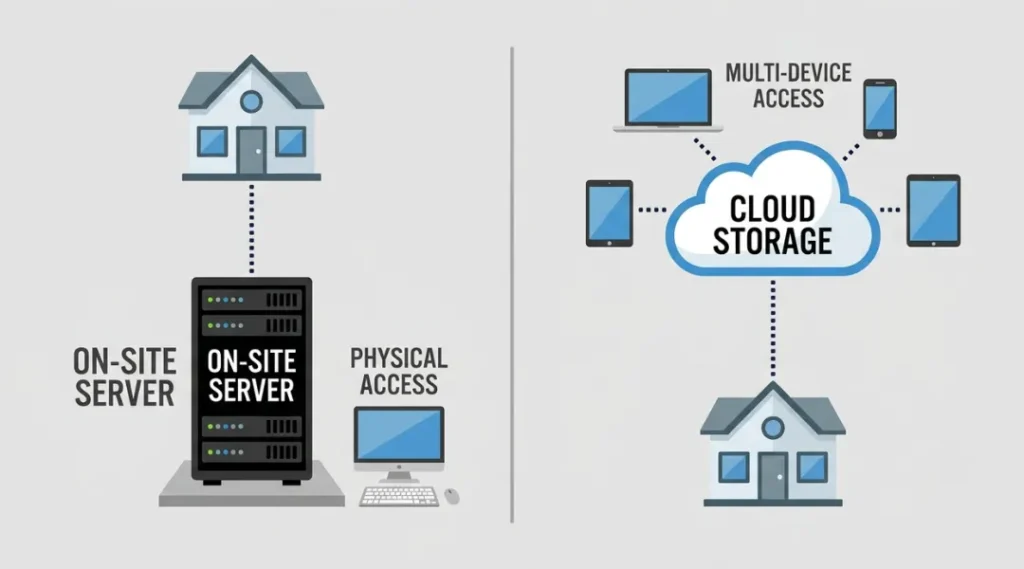
| Factor | On-premise DMS | Internet (cloud) DMS |
|---|---|---|
| Access from outside office | VPN required, often clunky | Native, browser or app based |
| Search across documents | Depends heavily on indexing setup | Generally faster, built-in OCR/full-text common |
| Upfront cost | High (servers, licenses) | Lower upfront, ongoing subscription |
| Offline access | Full, by default | Limited, needs specific sync setup |
| Data residency / compliance control | You control the physical location | Depends on vendor’s regions, needs verification |
| Who patches security holes | Your IT team, on your schedule | Vendor, on their schedule |
The offline access row trips people up more than any other. If your team works in places with unreliable internet, whether that’s a construction site, a hospital basement, or a rural sales territory, a pure cloud DMS without a solid offline-sync feature will frustrate people fast. Check that specifically before you sign anything; it’s not a universal feature even among the big platforms.
"Isn't the Cloud Less Secure Than Keeping It In-House?" The Common Objection
This comes up in almost every migration conversation, and it deserves a real answer instead of a dismissal. The honest version: a reputable internet DMS vendor almost certainly patches vulnerabilities faster and more consistently than a small company’s internal IT team can, simply because it’s their full-time job and yours has ten other priorities. NIST’s guidance on cloud computing risk management frames this correctly, the security question isn’t cloud versus on-prem in the abstract, it’s whether your organization’s access controls, configuration management, and vendor due diligence are actually being done well in either model.
Where the objection is fair: data residency and regulatory scope. If you’re in a regulated industry (healthcare, legal, financial services) and need documents to stay within a specific jurisdiction, verify exactly which regions a vendor’s cloud DMS actually stores data in, and get it in the contract, not just the marketing page.
My Actual Recommendation
If your team is under roughly 250 people and doesn’t have dedicated document compliance staff, move to an internet DMS. The search improvement and version control alone justify it once you’re past the break-even window, and most modern platforms genuinely reduce the “where is that file” tax that eats hours every week.
The exception: if you’re in a niche with strict data residency requirements, or your workflow depends heavily on offline access in low-connectivity environments, on-premise or a hybrid setup still makes sense, and don’t let anyone talk you out of that if it’s your actual operating reality.
Either way, treat permissions as their own migration project. Don’t bundle it with the file transfer. That’s the one piece of advice from this whole article I’d tattoo on the process if I could.
What to Do Right Now
Before you evaluate a single vendor, pull a list of every top-level folder on your current system and write down who’s actually supposed to have access to each one, not who currently does. That gap between “supposed to” and “currently does” is exactly where migrations go wrong, and mapping it now, on paper, before you touch a cloud platform, will save you the kind of 48-hour scare I had in 2021.