Task Manager Mac: How to Monitor and Manage Apps on macOS
When a Mac starts feeling slow, an application stops responding, or the fan suddenly becomes noisy, one of the first things you may look for is a task manager Mac users can rely on.
If you are moving from Windows to macOS, you may expect to find an application literally called Task Manager. macOS uses a different name: Activity Monitor. It provides many of the same functions, including monitoring CPU and memory usage, checking energy consumption, viewing running processes, and closing unresponsive applications.
Understanding how Activity Monitor works can help you identify what is consuming system resources instead of simply restarting your Mac every time something goes wrong.
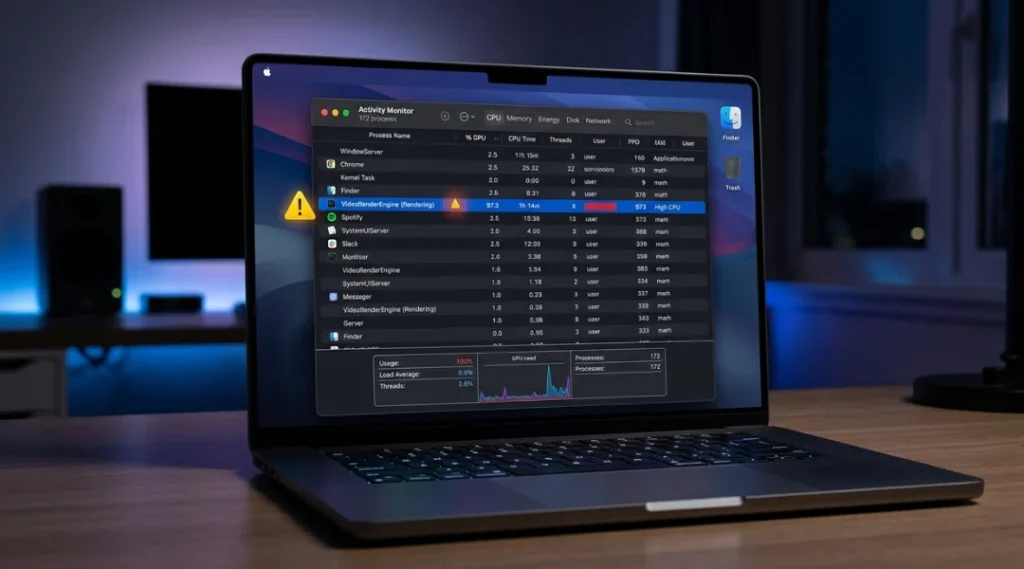
Table of Contents
ToggleIs There a Task Manager Mac Equivalent?
Yes. The closest built-in task manager Mac equivalent is Activity Monitor.
Activity Monitor is included with macOS and provides a live view of processes running on your Mac. Activity Monitor is included with macOS and provides a live view of processes running on your Mac. Apple’s official Activity Monitor documentation explains how the utility displays CPU, memory, energy, disk, and network information, making it a useful reference if you want to understand what each section means. You can use it to investigate CPU usage, memory consumption, energy impact, disk activity, and network activity.
To open Activity Monitor:
- Press Command + Space to open Spotlight.
- Type Activity Monitor.
- Press Return.
- Select the Activity Monitor application.
You can also find it inside Applications > Utilities.
Once it opens, you will see several categories that help you understand what your Mac is doing.
The CPU tab helps identify applications and processes using significant processor resources. The Memory tab shows how much RAM processes are consuming. The Energy tab can help you investigate applications that have a high energy impact, particularly when using a MacBook on battery power.
For everyday troubleshooting, Activity Monitor is generally the first place to investigate when your Mac suddenly becomes sluggish.
How the Task Manager Mac Alternative Works
Activity Monitor is more than a simple list of open applications.
A normal Mac application can have multiple processes running in the background. Some processes belong directly to applications, while others are system processes required by macOS.
This distinction is important because closing a visible application is not always enough to stop the process causing a problem.
Activity Monitor lets you sort processes by different measurements. For example, selecting the CPU column can help you identify processes consuming a large amount of processor capacity.
The Memory tab is useful when you suspect that available RAM is becoming limited. macOS manages memory dynamically, so seeing memory being used is not automatically a sign that something is wrong.
Instead, look at the overall memory picture and whether a particular application is consistently consuming an unusually large amount of memory.
CPU usage
CPU usage indicates how much processor capacity a process is using.
If an application is consuming a large percentage of CPU for an extended period without an obvious reason, it may be worth investigating.
However, high CPU usage is not always a problem. Video rendering, software compilation, gaming, photo processing, and other demanding tasks can legitimately use significant processor resources.
Memory usage
The Memory tab helps you identify applications and processes consuming RAM.
Instead of closing applications simply because they appear near the top of the list, look for patterns. If one application continually grows in memory consumption and your Mac becomes increasingly sluggish, that application may deserve further investigation.
Energy usage
The Energy section is particularly useful for MacBook users.
It can help identify applications that are using significant energy. If battery life seems worse than usual, checking this section can help you determine which applications deserve attention.
Disk and network activity
Activity Monitor can also provide information about disk and network activity.
This can be useful when an application appears stuck or the Mac seems busy even though you are not actively doing anything demanding.
How to Find a Problem Process
The easiest way to use a task manager Mac users have available is to start with the symptom you are experiencing.
If the Mac is slow, open Activity Monitor and check CPU and Memory.
If the battery is draining unusually quickly, check Energy.
If an application appears frozen, search for that application’s process.
You can sort the process list by clicking the appropriate column heading. This makes it easier to identify processes using the most resources.
Be careful with system processes. Not every process should be closed simply because it appears unfamiliar.
A process may belong to macOS or another application that depends on it. Terminating the wrong process can cause unexpected behavior.
If you are unsure what a particular process does, avoid terminating it immediately. Apple’s guidance on quitting processes in Activity Monitor explains the available options and what happens when a process is stopped, which is worth checking before using Force Quit on an unfamiliar process.
A safer approach is to investigate the process name first and only quit a process when you understand what it belongs to.
How to Force Quit an App on Mac
There are situations where you do not need to inspect every process. If an application is clearly frozen, macOS provides a quick Force Quit option.
Press:
Command + Option + Escape
The Force Quit Applications window appears.
Select the application that is not responding and choose Force Quit.
Keep in mind that force quitting an application can result in unsaved work being lost.
If the application does not appear in the Force Quit window or you need more detailed process information, Activity Monitor provides another option.
Force quitting through Activity Monitor
- Open Activity Monitor.
- Locate the application or process.
- Select it.
- Click the Stop button in the toolbar.
- Choose Quit first when appropriate.
- Use Force Quit if the process does not respond.
Apple explains that Force Quit immediately terminates the process, so files that are still open may not be saved.
For this reason, force quitting should generally be used when an application is genuinely unresponsive rather than as a routine way of closing applications.
Task Manager Mac vs Windows Task Manager
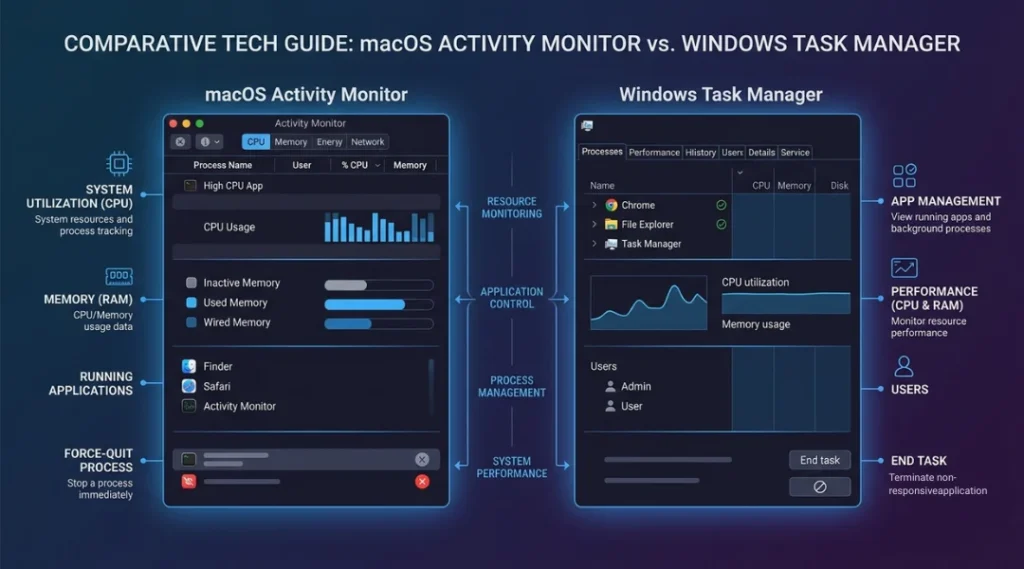
Users switching between Windows and macOS often compare Task Manager with Activity Monitor.
The basic purpose is similar: both provide information about running applications and processes and can help troubleshoot performance problems.
The interfaces and terminology are different.
Windows Task Manager provides sections such as Processes, Performance, Startup apps, Users, Details, and Services. macOS Activity Monitor focuses on areas such as CPU, Memory, Energy, Disk, and Network.
The important thing is not the name of the utility but what information it provides.
If you are searching for a task manager Mac users can open without installing third-party software, Activity Monitor is the native answer.
| Task | macOS | Windows |
|---|---|---|
| View running processes | Activity Monitor | Task Manager |
| Monitor CPU | Activity Monitor | Task Manager |
| Monitor memory | Activity Monitor | Task Manager |
| Check energy impact | Activity Monitor | Task Manager |
| Force quit applications | Activity Monitor / Force Quit | Task Manager |
| View network activity | Activity Monitor | Task Manager |
When Should You Use Activity Monitor?
You do not need to keep Activity Monitor open all day.
It is most useful when something unusual happens.
For example, open it when:
- Your Mac suddenly becomes slow.
- An application stops responding.
- The fan becomes unusually active.
- Battery life appears worse than normal.
- You want to identify a resource-heavy application.
- You suspect an application is consuming excessive memory.
- You want to inspect background processes.
- You need to close a process that is not responding normally.
Activity Monitor can help turn a vague complaint such as “my Mac is slow” into something measurable.
If you’re dealing with broader performance problems rather than a single application, our guide on why your laptop is so slow covers other common causes such as startup programs, storage pressure, background processes, and thermal issues.
Instead of guessing, you can check which processes are consuming CPU, memory, energy, disk, or network resources.
What Should You Avoid Closing?
One of the most important things to understand about a task manager Mac solution is that not every process is safe to terminate.
Some processes are part of macOS. Others support applications or system functions.
If you do not recognize a process, do not automatically force quit it.
A process using CPU or memory is not necessarily malfunctioning. Some processes are expected to use resources temporarily while macOS or an application performs a task.
If an application is performing a legitimate heavy operation, such as exporting a large video, terminating it may interrupt the work.
When troubleshooting, consider what you were doing immediately before the performance problem appeared.
What If Activity Monitor Does Not Solve the Problem?
Activity Monitor is useful for diagnosing processes, but it cannot fix every Mac problem.
If an application repeatedly freezes, check whether the application and macOS are up to date. Restarting the Mac can also resolve temporary software issues.
If the same application continues to crash or freeze, investigate the application itself. Compatibility problems, extensions, plug-ins, corrupted files, or application-specific bugs can all contribute to instability.
Apple also recommends checking recently connected peripherals and third-party plug-ins when investigating applications that freeze or quit unexpectedly.
If the problem is persistent and affects multiple applications, the issue may require broader troubleshooting rather than repeatedly force quitting individual processes.
Quick Troubleshooting Workflow
When your Mac becomes slow or an application stops responding, use this simple workflow:
Step 1: Identify the symptom
Is the entire Mac slow, or is only one application affected?
Step 2: Open Activity Monitor
Use Spotlight and search for Activity Monitor.
Step 3: Check CPU
Sort by CPU and look for unusually high usage.
Step 4: Check Memory
Look for applications consuming substantial memory and review the overall memory situation.
Step 5: Check Energy
If battery life is the concern, inspect the Energy section.
Step 6: Identify the application
Determine whether the process belongs to an application you recognize.
Step 7: Quit normally when possible
Use the application’s normal Quit command before forcing a process to terminate.
Step 8: Force quit only when necessary
Use Force Quit if the application is genuinely unresponsive.
Step 9: Restart if the issue continues
A restart can clear temporary application or system problems.
This workflow makes troubleshooting more systematic and reduces the temptation to randomly terminate processes.
Final Thoughts
If you searched for a task manager Mac users can use to monitor applications and troubleshoot performance, you do not need to install a Windows-style replacement just to perform basic process management.
Activity Monitor is macOS’s built-in tool for viewing processes, CPU activity, memory usage, energy impact, disk activity, and network activity. The Force Quit feature provides another quick way to close applications that have stopped responding.
The key is to use these tools carefully. High resource usage is not automatically a problem, and unfamiliar processes should not be terminated without understanding what they do.
Once you become comfortable with Activity Monitor, diagnosing common Mac performance problems becomes much more straightforward.
Frequently Asked Questions
Mac does not use the Windows name "Task Manager." Its built-in equivalent is Activity Monitor, which lets you inspect processes, CPU usage, memory, energy, disk activity, and network activity.
Activity Monitor is the main Task Manager equivalent on Mac. For quickly closing an unresponsive application, macOS also provides the Force Quit Applications window.
Press Command + Space, type Activity Monitor, and press Return. Activity Monitor can also be opened from Applications > Utilities.
Press Command + Option + Escape, select the unresponsive application, and choose Force Quit. You can also select a process in Activity Monitor and use the Stop button.
Yes. Activity Monitor has a CPU section that shows processor activity for running processes. You can sort the process list to identify applications or processes using significant CPU resources.
Yes. The Memory section of Activity Monitor shows memory usage for running processes and provides an overview of your Mac's memory situation.
Yes. Activity Monitor is a built-in macOS utility. However, you should be careful when terminating processes because some processes are required by macOS or other applications.
Not necessarily. High CPU usage can be normal during demanding tasks such as video processing or other intensive workloads. Investigate the application and the task it is performing before terminating it.