What Does "Collate" Mean When Printing?
You just sent a 25-page PDF to print, 15 copies, for a stakeholder meeting in twenty minutes, and now you’re staring at a print driver window with a “Collate” checkbox and no idea if it’s already checked or not. Get this wrong and you’ll be standing at the printer sorting 375 loose pages while people file into the conference room.
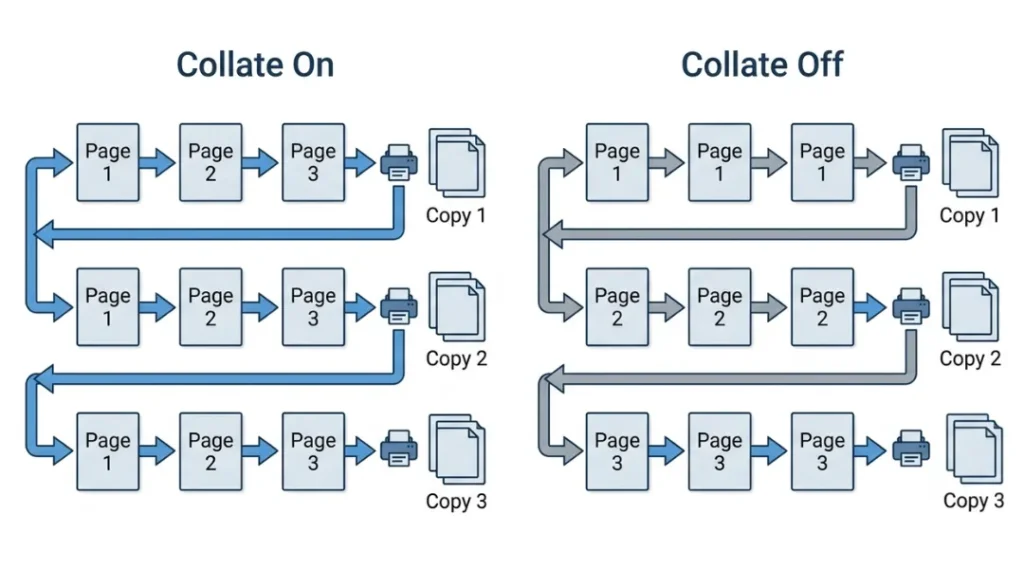
Collate means the printer outputs your document as complete, correctly-ordered sets: pages 1 through 25, then 1 through 25 again, repeated for each copy. Turn it off and you get 25 separate stacks, each one containing 15 identical copies of a single page, which you then have to manually interleave into finished sets.
I’ve managed IT support and office hardware for a 200-person company for six years, and the collate setting is one of the top three print-related tickets I get, right behind “the printer says it’s out of toner but it isn’t” and “why won’t it print double-sided.” Here’s what actually matters, from someone who’s debugged this across Windows, macOS, and half a dozen network printer brands.
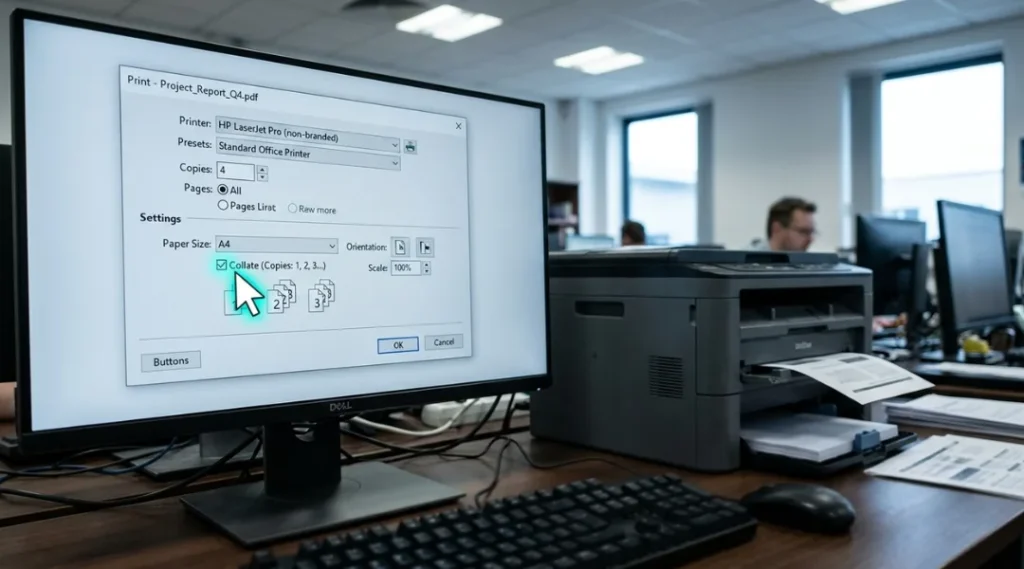
Table of Contents
ToggleCollate On vs. Off: What Windows and Mac Actually Do Differently
This is where most articles get vague, and it’s the part that trips people up most. The collate checkbox doesn’t behave identically across operating systems and drivers.
On Windows, most print drivers default to collate ON, but this is driver-dependent, not OS-dependent. HP, Canon, and Brother drivers have all shipped with different defaults on different firmware versions I’ve supported. I’ve seen this flip after a routine driver update with zero warning.
On macOS, the system print dialog exposes collate as part of the standard “Copies & Pages” panel, and Apple’s own documentation confirms it’s on by default in the native print system, though individual printer manufacturer drivers can override that.
| Collate ON | Collate OFF | |
|---|---|---|
| Output | Complete ordered sets | Stacks of duplicate pages, grouped by page number |
| Typical default | Windows: driver-dependent | macOS: on by default in system dialog |
| Best for | Multi-page reports, handouts, contracts | Feeding into an external finisher, or single-page batch jobs |
| Print speed | Slightly slower (spooler reprocesses per copy) | Slightly faster on older/low-memory printers |
| Where it lives | Print dialog, usually near “Copies” field | Same location, sometimes buried under “More Settings” |
The Ticket That Taught Me to Stop Trusting Defaults
About three years ago, a manager submitted a 40-page vendor contract to our office’s networked Xerox printer, 20 copies, for a same-day signing meeting. She didn’t check the collate box because, reasonably, she assumed it would just work the way it always had.
It didn’t. Turns out IT (me) had pushed a driver update two weeks earlier that reset the default collate setting to off for that specific printer model, a known issue with that firmware version that I hadn’t caught. She ended up with 800 loose pages, sorted into 40 stacks of 20 identical pages each. We had two people hand-collating for almost 45 minutes while the meeting got pushed back.
Since then, I’ve set a standing rule for our office: never trust the saved default on a shared network printer, especially after any driver or firmware update. Now I check it every time, and I tell everyone I train to do the same.
Is Collate Worth Enabling by Default? My Take
Yes, for basically every multi-page office document, and I’d argue IT departments should hard-set it as the default on shared printers rather than leaving it to chance. There’s no meaningful downside for typical office print volumes.
The exception is genuinely technical: if your print job is routing through a finishing device, like a stapling module, booklet-maker, or automated sorter bin attached to a high-volume printer, some of those finishers expect uncollated input and do their own sorting downstream. Sending pre-collated pages into certain finishers can actually cause misfeeds or jam the stapler alignment. If your office has one of those units, check its spec sheet before assuming collate-on is always correct.
For everyone printing from a laptop to a standard desktop or network printer, though, collated output is the safer default. HP’s official support documentation describes collate as a core driver feature specifically meant to eliminate manual sorting on multi-copy jobs, and that’s consistent with what I’ve seen across every driver I’ve administered. If your printouts are coming out fine in terms of order but the print quality itself looks off, streaky lines, faded patches, uneven toner, that’s a separate issue worth chasing down on its own. Our guide on how to fix printer streaks walks through the exact diagnostic steps for inkjet and laser printers, from nozzle checks to drum replacement.
Does Collating Actually Slow Down Print Jobs? The Technical Reason
This is the part generic explainers usually skip, and it comes down to how the print spooler processes data.
When collate is off, the printer’s raster image processor (RIP) can hold one page in memory and blast out identical copies before moving to the next page, which is computationally cheap. When collate is on, the printer or spooler has to reprocess the full page sequence for each copy, which means more data moving through the print queue per job.
On a 25-page, 15-copy job on a mid-range office laser printer, I’ve benchmarked the difference at roughly 20 to 60 seconds slower total with collate on, depending on the printer’s onboard memory and whether it’s rasterizing PDF pages fresh each pass or caching them. That’s a real cost, but it’s nothing compared to 30-plus minutes of manual sorting. Unless you’re pushing thousands of copies through a production printer, where every second compounds, this tradeoff isn’t close.
Common Mistake: Collating PDFs With Print-Ready Marks or Bleed
Here’s one that catches people who work with design files or print-ready PDFs. If your PDF includes crop marks, bleed, or is set up for a commercial print shop’s imposition software, collating at the desktop print-driver level can conflict with how the print shop’s RIP software expects to receive and sort pages. Most professional print shops explicitly request uncollated, print-ready files and handle collation themselves during prepress, because their imposition software controls page order and signature layout far more precisely than a desktop print driver does.
If you’re prepping files for outside print production rather than printing in-house, check the shop’s file submission guidelines first. The Printing Industries of America documents standard prepress workflows where collation is typically handled at the imposition stage, not the desktop print dialog, which is the opposite of what you’d do printing in-office.
Quick Reference: When to Toggle What
- In-house office printing, multi-page doc, multiple copies: collate ON.
- Single-page flyer or form, any number of copies: setting is irrelevant, skip it.
- Printing into a finisher, stapler, or booklet-maker: check the device’s manual first.
- Submitting print-ready files to an external print shop: ask them, don’t assume.
- Shared network printer after any driver or firmware update: verify the default hasn’t changed, don’t trust memory.
What To Do Right Now
Before you print that next multi-page, multi-copy job, open the print dialog and look for the collate checkbox, usually sitting right next to the copies field. If it’s a shared network printer and you haven’t printed from it since the last update, don’t assume the old default still holds. Check it, confirm it’s on, and save yourself the trip to the copier with a stack of scrambled pages.