iPhone Speaker Grayed Out
Your iPhone’s volume slider or speaker option is grayed out and you can’t adjust the sound, mute a call, or select where audio plays. You’ve probably already restarted it once and nothing changed. That’s normal, and it’s usually not the disaster it feels like.
I’m Marcus Webb. I ran an independent repair shop in Austin for seven years before moving into device diagnostics consulting, and “my speaker option is grayed out” is one of the top five tickets I still see walk through the door. Most people assume it’s a dead speaker. In my experience, it almost never is.
Table of Contents
ToggleIs Your iPhone Speaker Grayed Out, or Is Something Else Blocking It?
Here’s the thing nobody explains well: “grayed out” isn’t one bug, it’s a symptom that shows up in at least four different places, and each one has a different cause.
You might be seeing it in:
- The volume slider in Control Center
- The Ringer and Alerts slider under Settings > Sounds
- The audio output picker in an app (like during a FaceTime call)
- The Change with Buttons toggle in Sounds settings
I’ve had customers bring in phones convinced the internal speaker was fried, when the actual problem was a phantom Bluetooth connection eating the audio route. So before you touch anything hardware related, figure out which of these four you’re actually dealing with. It changes everything about the fix.
The Bluetooth Ghost Connection: My Most Common Fix
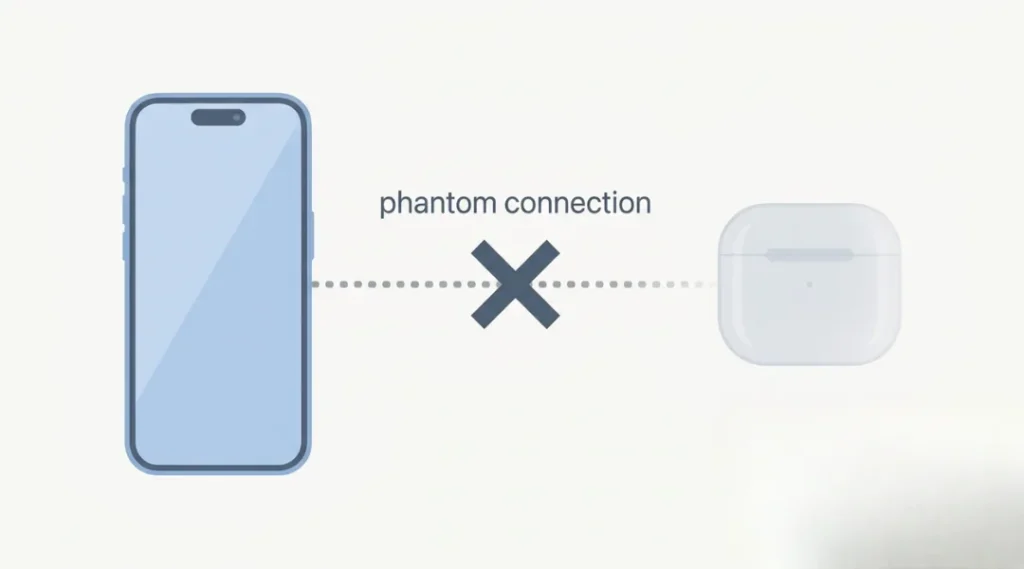
This is the one that surprises people. If your iPhone speaker is grayed out specifically inside an app, like Phone, FaceTime, or a video call app, nine times out of ten in my shop it traced back to a Bluetooth device the phone still thought was connected, even though nothing was physically paired nearby.
Here’s what actually happened with one customer in 2023. She came in swearing her speaker was broken during calls, audio only came through a AirPods case sitting in her junk drawer at home, miles away. Her iPhone had never fully forgotten the pairing after a software update, so iOS kept defaulting to that “ghost” output and grayed out the manual switch because it thought a device was active.
The fix took ninety seconds: Settings > Bluetooth, forget the device, restart the phone. Problem gone. No repair, no charge.
Try this first:
- Go to Settings > Bluetooth
- Forget every paired device you’re not currently using
- Turn Bluetooth off completely for 60 seconds
- Restart the iPhone
- Turn Bluetooth back on only if you need it
If the grayed-out control comes back once Bluetooth is on, you’ve found your culprit. According to Apple’s own support documentation on audio and Bluetooth, the system prioritizes the last connected accessory automatically, which is exactly the behavior that traps people.
Did You Check Screen Time Restrictions? Most People Skip This
This is the mistake I see constantly, and it costs people either time or money they didn’t need to spend. If the Ringer and Alerts slider specifically is grayed out under Settings > Sounds & Haptics, it’s frequently a restriction, not a hardware fault.
Go to Settings > Screen Time > Content & Privacy Restrictions > Volume Limit. If Screen Time is on and a volume limit restriction is active, that slider locks and grays out entirely. I’d estimate about one in twenty “broken speaker” tickets I took over the years turned out to be exactly this, usually on a family member’s phone that had parental controls set up years earlier and forgotten about.
This is the same restriction system that hides apps from your home screen without explanation, so if you’ve run into that too, it’s worth checking your Screen Time and Content & Privacy settings as a whole rather than fixing one symptom at a time.
Check that before you do anything else. It takes fifteen seconds and it’s free.
When It's Actually a Hardware Problem
Sometimes it is the speaker. Here’s how to tell the difference between a software lock and a genuine hardware fault, based on the patterns I saw repeatedly in the shop.
| Symptom | Likely Software | Likely Hardware |
|---|---|---|
| Grayed out only in one specific app | Yes, check Bluetooth routing | Rare |
| Grayed out everywhere, no sound at all, even on speakerphone | Sometimes | Yes, especially after water exposure |
| Slider works but sound is distorted or muffled | No | Yes, often debris in the mesh |
| Started right after an iOS update | Yes | No |
| Started right after a drop or liquid exposure | No | Yes |
If your phone has any liquid contact history, even from months ago, corrosion on the speaker’s connector is a real possibility, and no software reset fixes that. iFixit’s teardown guides consistently show that internal speaker connectors sit close to the charging port, which is exactly where moisture tends to collect and cause slow corrosion over weeks.
Should You Do a DFU Restore Right Away? I'd Say No
A lot of troubleshooting guides jump straight to “do a DFU restore” as step one. I disagree with that as a first move, and here’s my reasoning.
A DFU restore wipes your phone back to factory firmware. It’s the most aggressive fix available outside of hardware repair, and it absolutely can resolve a stuck audio-routing bug. But it also means restoring from backup afterward, which can take an hour or more depending on how much is on the phone, and if your backup is old or partial, you lose recent data.
I’d only recommend DFU restore after you’ve ruled out the Bluetooth ghost connection and Screen Time restrictions, and after a normal restart and a software update check haven’t helped. Save the nuclear option for when the easy fixes have already failed. Doing it first is like replacing the whole engine because your gas gauge looks off.
The Counterargument: "I Reset Network Settings and It Fixed It"
You’ll see this suggestion everywhere online, and to be fair, it does work sometimes. Resetting network settings clears out Bluetooth pairings along with Wi-Fi and cellular configs, so it can accidentally solve the ghost connection problem I described above.
My issue with recommending it as a first step is that it also wipes your saved Wi-Fi passwords and cellular preferences, which is a bigger inconvenience than just forgetting one Bluetooth device manually. Use the targeted fix first. Save the broader reset for when you genuinely can’t isolate which connected accessory is causing the problem.
What I'd Actually Do, In Order
- Check which specific control is grayed out (Control Center, Sounds settings, or an in-app picker)
- Forget all unused Bluetooth devices and restart
- Check Screen Time volume limit restrictions
- Update iOS if you’re not on the current version
- If none of that works and you have any liquid exposure history, get the speaker inspected
- Only then consider DFU restore or a service appointment
If you’ve been through steps one through four and the iPhone speaker is still grayed out, stop troubleshooting software. At that point you’re either dealing with a corroded connector or a failing speaker component, and no combination of settings resets will change that.
FAQ
This is almost always a Bluetooth routing issue. The phone thinks a paired accessory should handle the call audio even if that accessory isn't nearby. Forget unused Bluetooth devices in Settings and restart.
Check Screen Time > Content & Privacy Restrictions > Volume Limit. An active restriction locks that slider completely, and it's one of the most commonly overlooked causes.
Sometimes, especially if it's a temporary software glitch after an update. If a restart doesn't fix it, move on to checking Bluetooth connections and restrictions before assuming hardware failure.
Not usually. In my experience repairing phones for seven years, hardware failure accounted for a minority of these tickets. Most cases traced back to Bluetooth routing or a settings restriction.
I'd hold off. Try forgetting Bluetooth devices and checking Screen Time restrictions first. A full reset or DFU restore should be a later step, not your first move.
If you've ruled out Bluetooth and Screen Time causes, updated iOS, and the issue persists, especially if the phone has any liquid exposure history, it's time to have the speaker connector physically inspected.
Your Next Step
Open Settings right now and check two things in this order: Bluetooth (forget anything you’re not actively using) and Screen Time > Content & Privacy Restrictions > Volume Limit. Those two checks resolve the majority of grayed-out speaker cases I’ve seen, and they take less than two minutes combined. If both come back clean and the problem persists after a restart, book a diagnostic with Apple or a trusted independent repair shop rather than continuing to guess.