How to Force Quit on Windows
Your screen has that grayed-out, “please wait” look. You’ve clicked five times. Nothing. Maybe there’s a little “(Not Responding)” tag next to the app name, or maybe there isn’t, and the cursor just spins and spins. Either way, you don’t need a lecture on what an unresponsive program is. You need it closed, right now, without rebooting your whole machine.
I’ve spent the last 11 years doing desktop support for a mid-size manufacturing company, which means I’ve closed this exact ticket more times than I can count. Somewhere north of a thousand, easily. So here’s the short version first, then the details for when the short version doesn’t work.
The fastest fix: press Ctrl + Shift + Esc to open Task Manager directly, click the frozen app, and hit End Task. Skip Ctrl+Alt+Delete if you can, it adds an extra screen you don’t need.
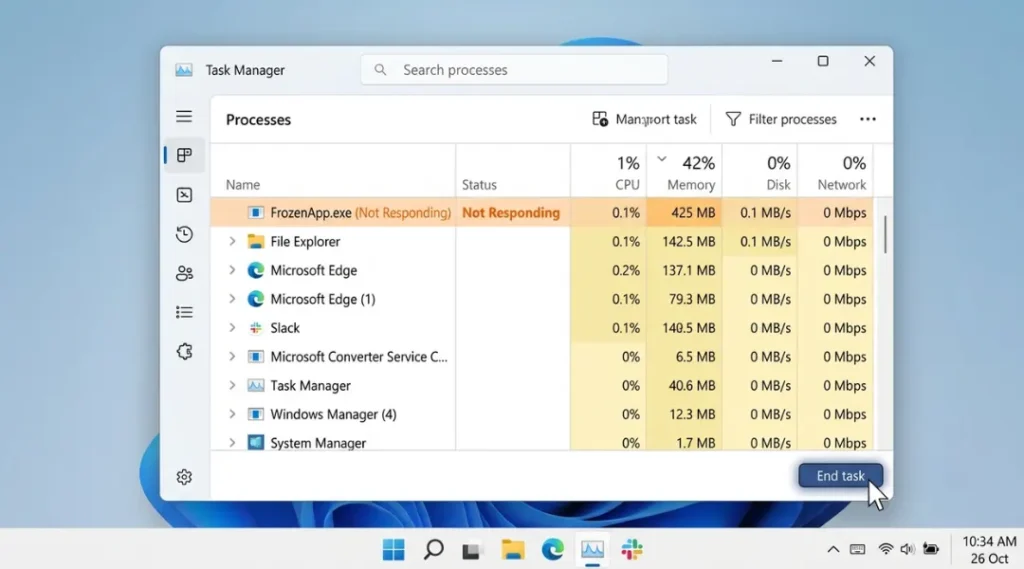
Table of Contents
ToggleWhy does a program freeze in the first place?
Usually it’s waiting on something: a network request that timed out, a file lock, a driver call that never returned. The app isn’t dead, technically. It’s just stuck in a loop or a wait state that it can’t get out of on its own. Windows keeps the window on screen but stops repainting it, which is why you get that frosted-glass look.
The problem is that Windows can’t always tell the difference between “stuck for two seconds” and “stuck forever.” So it waits before labeling something Not Responding, and in my experience that label shows up later than people expect, sometimes 30 to 60 seconds after the app actually stopped taking input. Don’t wait for the label. If clicking does nothing and the cursor won’t change, it’s frozen.
A single frozen program is a different problem from a laptop that’s sluggish all the time, though. If closing one app fixes things for an hour and then you’re back here again tomorrow, the freeze isn’t the real issue, something running in the background is. Our guide on why your laptop is running so slow walks through how to actually find that process instead of just guessing.
Ctrl+Alt+Delete or Ctrl+Shift+Esc? It matters more than you'd think
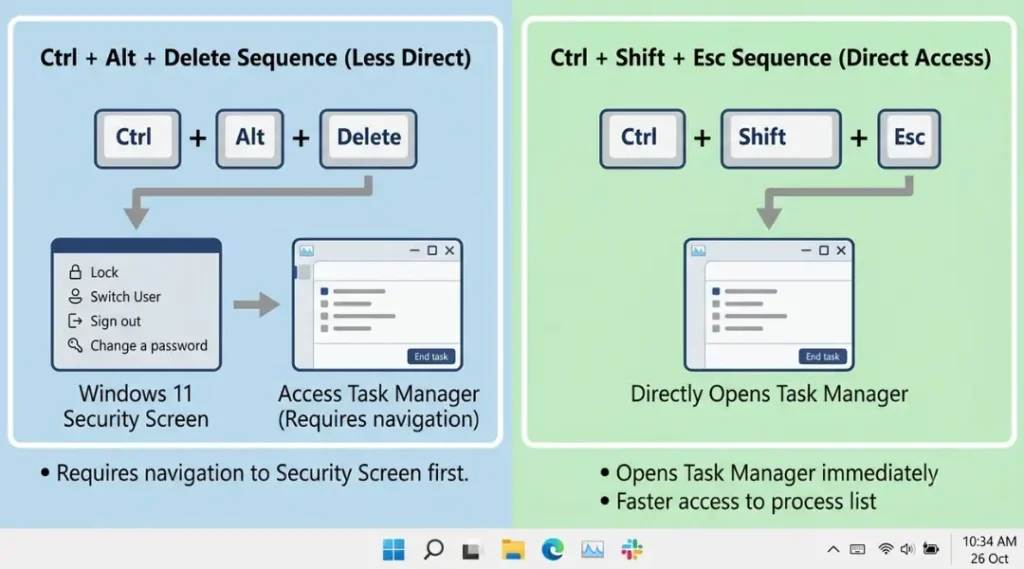
Almost every article about this topic treats the two shortcuts as interchangeable. They’re not, and the difference actually costs you time.
| Shortcut | What happens | Extra steps |
|---|---|---|
Ctrl + Alt + Delete | Opens a security screen with Lock, Switch User, Sign Out, and Task Manager as options | You still have to click “Task Manager” |
Ctrl + Shift + Esc | Opens Task Manager immediately | None |
If shortcuts like this one still feel unfamiliar, our beginner’s guide to operating a laptop covers the handful of keyboard shortcuts worth memorizing in your first week, this one included.
Ctrl+Alt+Delete was built for a different era, back when it doubled as a security gesture to make sure a fake login screen couldn’t intercept your password. It still does that job well. But if your only goal is to kill a frozen app, Ctrl+Shift+Esc gets you there in one step instead of two. I switched to teaching this shortcut to new hires around 2016 and it’s shaved a genuinely noticeable amount of time off every “my program froze” call since.
How to force quit a program using Task Manager
This is the method that works for the vast majority of freezes, and it’s the one Microsoft itself points to as the standard fix when a program is not responding and needs to be closed without restarting Windows.
- Press
Ctrl + Shift + Escto open Task Manager. - If it opens in the compact view, click “More details” in the bottom left.
- Find the frozen program under the Processes or Apps tab. It’ll usually say “Not Responding” next to it, though as I mentioned, don’t wait for that label if the app has clearly stopped responding.
- Click once to select it.
- Click End Task in the bottom right corner.
Give it a few seconds. Most apps close within 5 to 10 seconds of clicking End Task. If nothing happens after 15 or so, click End Task again, or move on to the command-line method below.
A faster route on Windows 11
If you’re on Windows 11, there’s a shortcut buried in Settings that skips Task Manager entirely: right-click the app’s icon on the taskbar and choose End Task directly. It has to be enabled first under Settings > System > For Developers, then flip on the “End Task” toggle. Once it’s on, you can kill an unresponsive app in a far quicker manner than the normal route just by right-clicking its taskbar icon. I’ve turned this on for every Windows 11 machine I’ve set up since I found it, and it genuinely saves a few clicks every single time.
The mistake almost everyone makes at least once
Here’s the one generic guides skip: when Task Manager is sorted by CPU or memory usage instead of name, the list reorders itself constantly while you’re trying to click the right row. I’ve watched someone end explorer.exe by accident because a Chrome tab spiked in usage right as they clicked, and the row underneath their cursor shifted at the last second. Ending explorer.exe kills your taskbar and desktop icons. It’s not catastrophic (open Task Manager, click File, Run new task, type explorer.exe, hit enter) but it’s a completely avoidable scare.
My fix: click the “Name” column header first so the list stops jumping around, then find your app. Takes two extra seconds and has saved me from that exact mistake more than once.
When Task Manager itself won't open, or the whole system is frozen
Sometimes the freeze is bigger than one app. If Ctrl+Shift+Esc does nothing at all:
- Wait 20 to 30 seconds. A busy disk or a Windows Update install can make the whole system unresponsive briefly.
- Try
Ctrl + Alt + Deleteinstead. It runs through a slightly different process (winlogon.exe) that occasionally responds even when Task Manager’s own shortcut doesn’t. - If neither works, hold the physical power button for 5 to 10 seconds to force a hard shutdown. This is the last resort, not the first move, because you risk unsaved work and, rarely, file corruption on an active save.
Is the command line actually faster? For some people, yes
If you’re comfortable with a terminal, taskkill can beat Task Manager on speed once you know the process name. Open Command Prompt or PowerShell and run:
taskkill /IM programname.exe /F
The /F forces the close instead of asking nicely. I use this constantly for remote sessions where I can’t click anything, only type. For a one-off freeze on your own laptop, though, Task Manager is still faster for most people, because you don’t need to know or type the exact executable name. I’d only recommend the command-line route if you already live in a terminal, or if you’re troubleshooting a machine remotely.
What about a single window, not the whole app?
If it’s a browser tab or one window inside a larger program, try Alt + F4 first, that closes just the active window and is gentler than force-quitting the entire process. It only works if the window has enough responsiveness left to register the keypress, which a fully frozen window often doesn’t. If Alt+F4 does nothing within a couple seconds, go straight to Task Manager. Don’t keep pressing it ten times hoping it’ll catch, that’s dead time you don’t need to spend.
If the application is not frozen but the screen itself is showing trails, flickering, or unusual image artifacts, see our guide on shadow on a computer monitor.
"Just restart it" isn't always the right answer
I get why people default to restarting the whole PC. It feels like the safe, thorough option. But a full restart takes anywhere from one to three minutes on a typical work laptop, versus the 10 to 15 seconds a force quit takes. If you’ve got five other apps open with unsaved work in them, or twenty browser tabs you don’t want to lose, restarting is the more destructive choice, not the safer one. Force quit the one offending app, keep everything else running, and you’re back to work in under a minute.
The exception: if the freeze keeps recurring in the same app within the same session, restarting is worth doing, because that pattern usually points to a memory leak or a corrupted temp file that a fresh force quit won’t fix. Microsoft’s own guidance backs this up too. There’s even a registry setting, AutoEndTasks, that can be tweaked to automatically close any application that has stopped responding, which tells you this is a common enough pattern that Microsoft built a workaround into the OS itself. I don’t recommend flipping that setting on for most people though, since it can also kill apps that were only briefly busy, not actually frozen.
What to do right now
Open Task Manager with Ctrl + Shift + Esc, click the Name column to stop the list from jumping around, select the frozen app, and click End Task. If you’re on Windows 11 and expect to do this often, go turn on the taskbar End Task toggle in Settings > System > For Developers so next time takes even less effort.
How to Force Quit on Windows: FAQ
A dedicated FAQ section makes sense here. This is a task-oriented, high-intent topic where readers commonly have quick follow-up questions (data loss risk, keyboard shortcuts, Mac comparisons) that don’t fit naturally into the main body but are worth a direct, scannable answer.
Yes, usually. Force quitting skips the normal save prompts, so any unsaved changes in that specific app are typically lost. That's the tradeoff for speed. If the app has autosave, check its recovery/draft folder after reopening it.
There isn't a single universal shortcut like Mac's Cmd+Option+Esc. The closest equivalent is Ctrl + Shift + Esc to open Task Manager, then manually selecting End Task. Alt + F4 closes a single active window but won't force-close a fully frozen one.
No. Ending processes tied to programs you recognize and aren't using is generally safe. Ending core Windows system processes (like explorer.exe or services running under System) can cause instability or crash your session, though most can be restarted without a reboot.
This usually happens with protected system processes or ones managed by security software like Windows Defender. It's Windows blocking you on purpose. If a specific process is genuinely causing a problem, look up what it does before trying to force it another way.
The concept is the same, but the mechanism differs. Mac uses Cmd+Option+Esc to open a dedicated Force Quit window listing open apps. Windows uses Task Manager, which shows far more detail (processes, services, startup items) alongside the option to end tasks.