Shadow on Computer Monitor
Seeing a shadow on computer monitor screens can be confusing, especially when the shadow appears behind text, windows, icons, or moving objects. Sometimes the problem looks like a faint duplicate image. In other cases, it may look like a dark patch, a leftover image, a bright area around the edges, or a trail that follows moving objects.
The important point is that “shadow” is not a single technical fault. It can describe several different display problems, including monitor ghosting, image retention, burn-in, backlight bleed, cable problems, incorrect display settings, or graphics driver issues.
For example, if a moving object leaves a faint trail behind it, the issue may be ghosting. If you can still faintly see a previous window after changing the screen content, image retention is a more likely explanation. Dell’s monitor documentation describes ghosting as a trailing shadow behind fast-moving images and image retention as a faint shadow from a static image left on the screen.
Before replacing the monitor, it is worth identifying exactly what kind of shadow you are seeing.
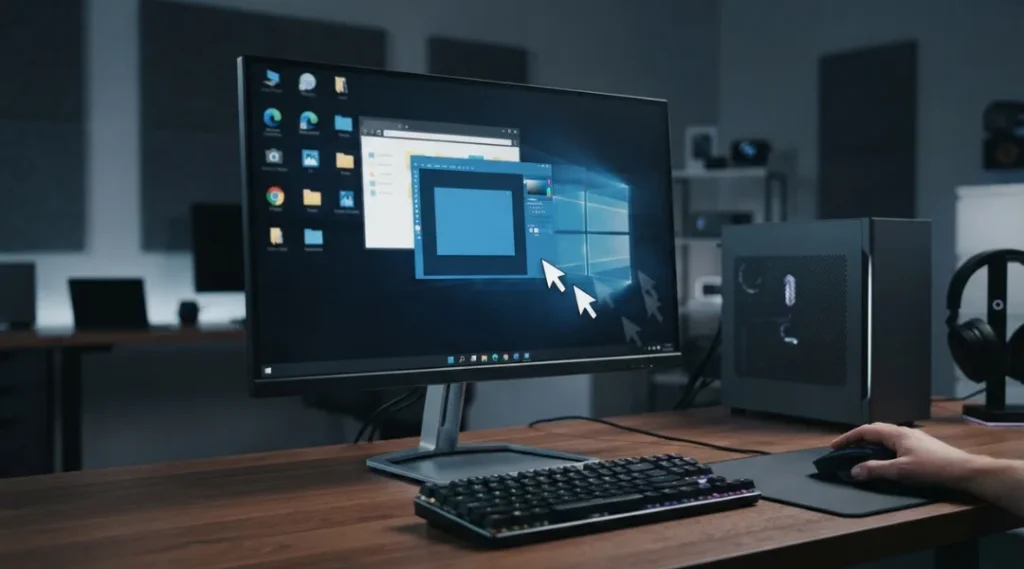
Table of Contents
ToggleWhat Causes a Shadow on Computer Monitor?
A shadow on computer monitor displays can have several causes. The appearance and timing of the problem can help narrow it down.
1. Monitor ghosting
Ghosting is one of the most common explanations when the shadow appears behind moving objects.
Suppose you move a window quickly across your desktop and notice a faint copy following it. Or, while playing a game, you see a trail behind a character or vehicle.
This can happen because the monitor’s pixels cannot change from one color or brightness level to another quickly enough for the displayed motion. Monitor response-time settings can also affect the appearance.
Some gaming monitors use aggressive response-time or overdrive settings. While these settings are designed to improve motion performance, excessive overdrive can itself introduce visible artifacts. Dell specifically notes that setting response time to the fastest option can produce ghosting and recommends experimenting with different response-time settings.
2. Image retention
Image retention is different from ordinary motion ghosting.
If you have displayed the same window, browser interface, taskbar, spreadsheet, or other static content for a long period, a faint version of that content may remain visible after the screen changes.
This is another common reason for a shadow on computer monitor displays.
Some LCD monitors can show temporary image retention after displaying static content. Dell recommends power-management features or a dynamically changing screensaver to reduce the possibility of retention.
3. OLED burn-in
OLED displays require additional consideration.
Permanent or persistent image retention can occur when static elements remain on screen for extended periods. This is different from temporary retention because the visible pattern may remain even after normal content changes.
Many OLED monitors therefore include panel-maintenance or pixel-refresh functions. If your monitor has such a feature, check the manufacturer’s instructions rather than repeatedly running refresh cycles without understanding what the function does.
4. Backlight bleed
Backlight bleed can sometimes be mistaken for a display shadow.
It generally appears as brighter areas around the edges or corners of an LCD display, particularly when viewing dark content in a dim room. Dell describes light leakage or backlight bleeding as being especially noticeable around screen edges or sides when displaying dark backgrounds.
This is different from a shadow that follows moving objects.
5. Graphics driver problems
Not every shadow on computer monitor problem is caused by the physical monitor.
A graphics driver problem can cause flickering, distorted images, strange artifacts, or other display abnormalities. Microsoft recommends checking whether Task Manager flickers along with the rest of the screen to help distinguish a display-driver problem from an incompatible application.
If the problem started immediately after a graphics driver or Windows update, software should be part of your investigation.
6. Damaged or poor-quality display cables
HDMI, DisplayPort, USB-C, and other display connections can also cause visual problems.
A loose connection, damaged cable, faulty adapter, or problematic port can result in flickering, intermittent display problems, lines, or abnormal images.
Microsoft recommends checking the cable connection and trying another cable or display when troubleshooting external monitor problems.
Shadow on Computer Monitor: Ghosting vs Image Retention
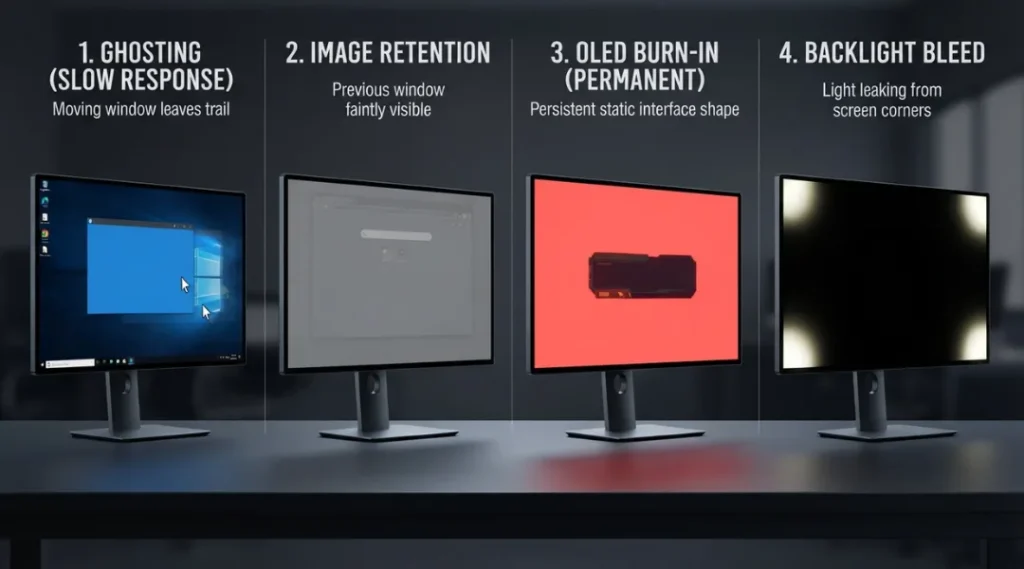
Understanding the difference between ghosting and image retention can save you a lot of unnecessary troubleshooting.
| Symptom | Likely issue | What you may notice |
|---|---|---|
| Trail follows moving objects | Ghosting | Faint duplicate image during movement |
| Previous window remains faintly visible | Image retention | Static content remains after changing screens |
| Same logo or interface remains permanently | Burn-in | Persistent image pattern |
| Bright areas around corners | Backlight bleed | Light visible around screen edges |
| Flickering or distorted image | Driver, cable, or hardware | Screen changes unexpectedly |
| Problem appears only in one application | Software/app issue | Other apps look normal |
| Problem appears before Windows loads | Hardware/display path | Issue visible during boot or BIOS |
This distinction matters because the solution for each problem is different.
For example, changing a monitor’s response-time setting may help ghosting, but it will not repair a damaged cable. Similarly, replacing a cable will not normally fix permanent OLED burn-in.
How to Fix a Shadow on Computer Monitor
Start with simple checks before making major hardware or software changes.
Step 1: Identify when the shadow appears
First, ask yourself when the problem happens.
Does it appear:
- Only when objects move?
- After displaying a static image?
- Around the screen edges?
- Inside one application?
- Throughout Windows?
- Even before Windows starts?
- Only when using a particular refresh rate?
Write down the pattern. This can quickly narrow down the cause.
Step 2: Check whether it is ghosting
Open a simple moving-object test, game, or rapidly scrolling page.
If the shadow moves with the object, check the monitor’s Response Time, Overdrive, or similar setting.
If the setting is currently at its fastest or most aggressive level, try a more moderate setting. Dell documents that excessive panel overdrive can introduce ghosting artifacts.
Do not assume the fastest setting is always the best setting.
Step 3: Test for image retention
Display a completely different image or a plain background.
If a previous window, logo, toolbar, or other static element remains faintly visible, you may be dealing with image retention.
Turn the monitor off for a while and allow the panel to rest. Also enable automatic display sleep or a changing screensaver rather than leaving the same static content displayed continuously.
If your monitor has a manufacturer-provided pixel-refresh or panel-refresh function, follow its instructions.
Step 4: Check the cable
Turn off the computer and monitor before reseating the display connection.
Disconnect the HDMI, DisplayPort, USB-C, or other display cable and reconnect it securely.
If possible, test:
- A different cable.
- A different video port.
- Another computer.
- Another monitor.
This process helps determine whether the problem follows the monitor, computer, cable, or port.
Microsoft’s external monitor troubleshooting guidance also recommends checking connections, trying another cable, and testing another system when diagnosing display problems.
Microsoft also recommends trying another cable or system when troubleshooting external monitor problems.
Step 5: Check the refresh rate
An incorrect or unstable refresh-rate configuration can contribute to display problems.
In Windows, open your display settings and check the available refresh rates for the monitor.
If the problem began after changing refresh rate, resolution, variable refresh rate, or another display option, return to a previously stable configuration and test again.
Step 6: Reset the graphics driver
If the problem appears to be software-related, Windows provides a useful graphics-driver reset shortcut.
Press:
Windows + Ctrl + Shift + B
The screen may briefly flicker while Windows resets the graphics driver. Microsoft lists this shortcut as a troubleshooting step for certain blank-screen and display problems.
If the problem repeatedly returns, investigate the graphics driver rather than relying on the shortcut as a permanent fix.
Step 7: Test Task Manager
Open Task Manager using Ctrl + Shift + Esc.
Watch both the desktop and Task Manager.
If Task Manager flickers along with everything else, Microsoft says the display driver is a likely cause. If Task Manager remains stable while the rest of the screen flickers, an incompatible application may be responsible.
For Microsoft’s recommended diagnostic approach, see its Windows screen flickering troubleshooting guidance, which explains how Task Manager behavior can help distinguish a display-driver problem from an incompatible application.
This is a simple but useful diagnostic test.
If another application is causing the display problem or has become unresponsive, you can also learn how to force quit on Windows before continuing with more advanced troubleshooting.
Step 8: Update or roll back the graphics driver
Open Device Manager > Display adapters and check your graphics adapter.
If the issue started after a recent driver update, rolling back the driver may be appropriate. If the driver is outdated or corrupted, updating or reinstalling it may help.
Microsoft recommends updating, rolling back, or uninstalling the display driver depending on when the flickering problem started.
Step 9: Test another monitor
Connect the computer to another monitor or TV if one is available.
If the shadow disappears, the original monitor becomes the main suspect.
If the same problem appears on the second display, investigate the computer, graphics card, driver, cable, or display output instead.
This is one of the most useful ways to separate a monitor problem from a PC problem.
Step 10: Check the monitor’s built-in diagnostics
Some monitors provide self-test or diagnostic functions through the on-screen display.
Run the available diagnostic test according to your monitor manufacturer.
If the abnormal image appears during the monitor’s own diagnostic process without the computer connected, that provides useful evidence that the problem may be within the monitor or panel rather than Windows.
When Should You Replace the Monitor?
A shadow on computer monitor can sometimes be fixed through settings, cables, drivers, or usage changes. However, replacement or professional service may be appropriate when the problem is persistent and clearly tied to the panel.
Consider contacting the manufacturer when:
- The shadow appears on every input.
- The problem remains after changing cables.
- Another computer produces the same result.
- The issue appears in the monitor’s diagnostic mode.
- A permanent burn-in pattern is visible.
- The panel has physical damage.
- Lines or artifacts remain after software troubleshooting.
- The monitor is still covered by warranty.
Do not immediately assume that a visible shadow means the monitor is defective. First isolate the source.
How to Prevent Monitor Shadows
Prevention depends on the type of problem.
For general LCD and OLED use:
- Avoid leaving static images on screen for unnecessarily long periods.
- Use automatic display sleep.
- Use a changing screensaver when appropriate.
- Keep the monitor’s firmware updated when the manufacturer provides updates.
- Avoid unnecessarily aggressive response-time settings.
- Use good-quality display cables.
- Avoid bending or stressing display cables near their connectors.
- Keep graphics drivers reasonably current.
- Use the monitor’s built-in panel-maintenance features when recommended.
- Give the display adequate ventilation.
For OLED monitors in particular, pay attention to the manufacturer’s recommendations for pixel and panel maintenance.
For gaming monitors, do not automatically select the most aggressive response-time mode. As Dell notes, excessive overdrive can introduce visible artifacts.
Quick Diagnostic Checklist
If you notice a shadow on computer monitor, use this sequence:
- Check whether the shadow appears only during movement.
- Check for image retention after static content.
- Change the monitor’s response-time setting.
- Try another HDMI or DisplayPort cable.
- Try another video port.
- Test another refresh rate.
- Reset the graphics driver.
- Check Task Manager for flickering.
- Update or roll back the graphics driver.
- Test another computer or monitor.
- Run the monitor’s built-in diagnostic.
- Contact the manufacturer if the problem remains.
This approach helps prevent unnecessary purchases because you are testing the most likely causes systematically.
Final Thoughts
A shadow on computer monitor does not automatically mean that the display panel has failed. The symptom could be ordinary ghosting, temporary image retention, backlight bleed, a cable problem, an incorrect display setting, or a graphics-driver issue.
The appearance of the shadow is the biggest clue. A trail behind moving objects points toward ghosting. A faint previous image points toward image retention. Brightness around the edges suggests backlight bleed. Flickering or distorted output may require checking the graphics driver, application, cable, or display connection.
Start with simple tests, isolate the component responsible, and only then consider repair or replacement. This approach is faster, safer, and usually more cost-effective than immediately buying a new monitor.
FAQ
A shadow can be caused by monitor ghosting, image retention, OLED burn-in, backlight bleed, graphics-driver problems, display settings, or a faulty cable. The appearance and behavior of the shadow help identify the likely cause.
First determine whether it is ghosting, image retention, or another display problem. Check the response-time setting, try another cable, test another display port, check the refresh rate, reset the graphics driver, and test the monitor with another computer.
Usually, monitor ghosting is a motion-related visual artifact rather than permanent physical damage. Changing response-time or overdrive settings can sometimes reduce it. Dell notes that excessive overdrive can itself introduce ghosting artifacts.
A faint previous image can indicate image retention. It can happen after static content remains displayed for an extended period. Some monitors provide panel or pixel-refresh features to address or manage image retention.
A damaged or poorly connected HDMI cable can cause abnormal display behavior, including flickering, signal interruptions, or visual artifacts. Try another known-good cable and another port to isolate the problem. Microsoft recommends cable and connection checks when troubleshooting external displays.
Yes. Graphics driver problems can produce flickering, distortion, or other display abnormalities. Microsoft recommends checking Task Manager behavior and updating, rolling back, or reinstalling the display driver when appropriate.
If you see brighter areas around the corners or edges, especially on a dark screen in a dark room, you may be seeing backlight bleed rather than a shadow. Some degree of light leakage can occur with LCD displays.
Not necessarily. Test the cable, input port, refresh rate, graphics driver, and another computer first. If the same problem remains across different sources and appears in the monitor's own diagnostic mode, contact the manufacturer or consider replacement.