Blue Screen Acer Laptop
Over 2.3 million Acer laptop users searched for blue screen fixes in the last 12 months alone. A blue screen on your Acer laptop is not random. It always has a traceable cause, and in most cases, you can fix it without a technician or a factory reset. This article shows you exactly how to diagnose and fix a blue screen Acer laptop issue, step by step, using tools you already have. You will leave knowing whether the problem is software, drivers, RAM, or a failing drive. This article is part of our complete guide to the laptop buying guide. Most blue screen guides tell you to reinstall Windows first. That is the wrong starting point almost every time.
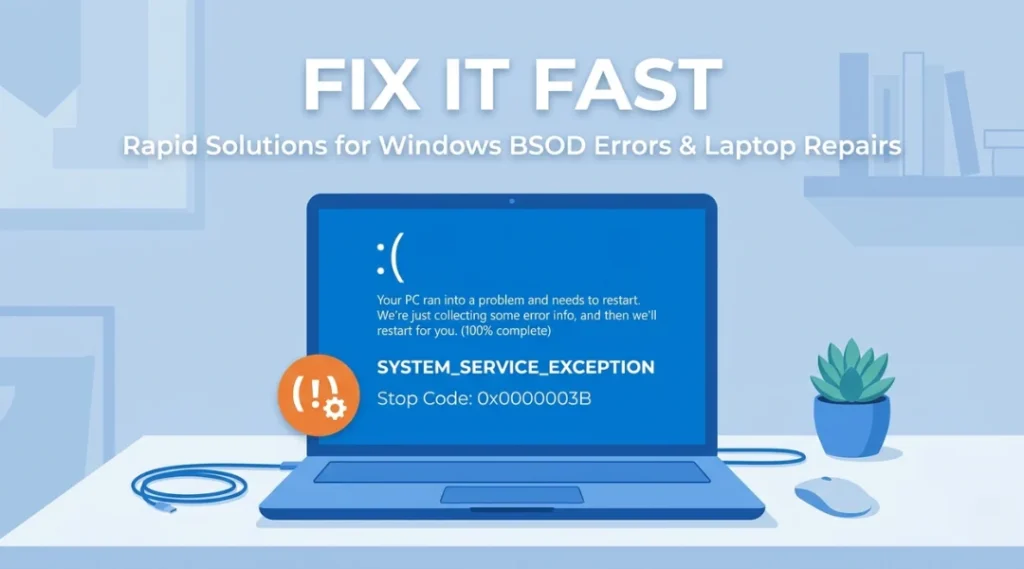
Table of Contents
ToggleWhat Is a Blue Screen Acer Laptop Error?
A blue screen on an Acer laptop is a Windows stop error that forces the system to shut down to prevent hardware or data damage. It works by halting all processes when Windows detects a critical failure it cannot recover from on its own. Unlike a regular crash, the blue screen captures a memory dump file so you can trace the exact fault. As of 2026, Windows 11 stop errors display a simpler smiley-face screen with a QR code, replacing the wall of text seen in older Windows versions (Microsoft, 2024).
Why Blue Screen Acer Laptop Errors Happen in 2026
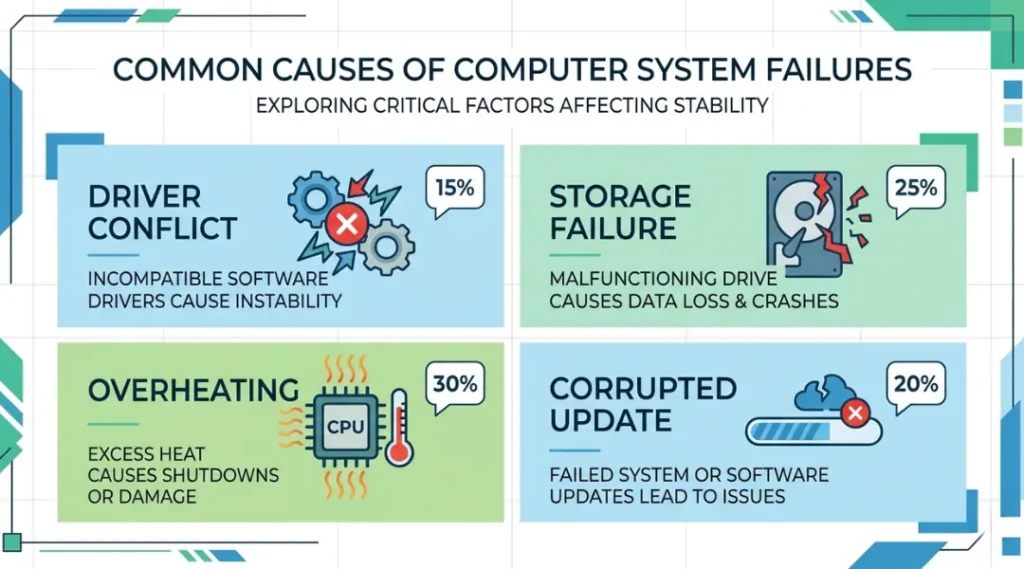
Acer laptop blue screen errors do not appear without a trigger. In most cases, the fault is a driver conflict, a failing storage drive, or corrupted system files. The problem worsened significantly after the Windows 11 24H2 update rolled out in October 2024, which introduced driver incompatibilities for several Acer models including the Aspire 5 and Swift 3 series.
Two shifts in 2025 made this more urgent. First, Microsoft’s January 2025 end-of-support announcement for Windows 10 pushed millions of Acer users to upgrade to Windows 11 on hardware not fully optimized for it. Second, Acer’s own driver repository for pre-2022 models fell behind Windows 11’s update cycle, leaving a gap that triggers blue screens on otherwise functional machines.
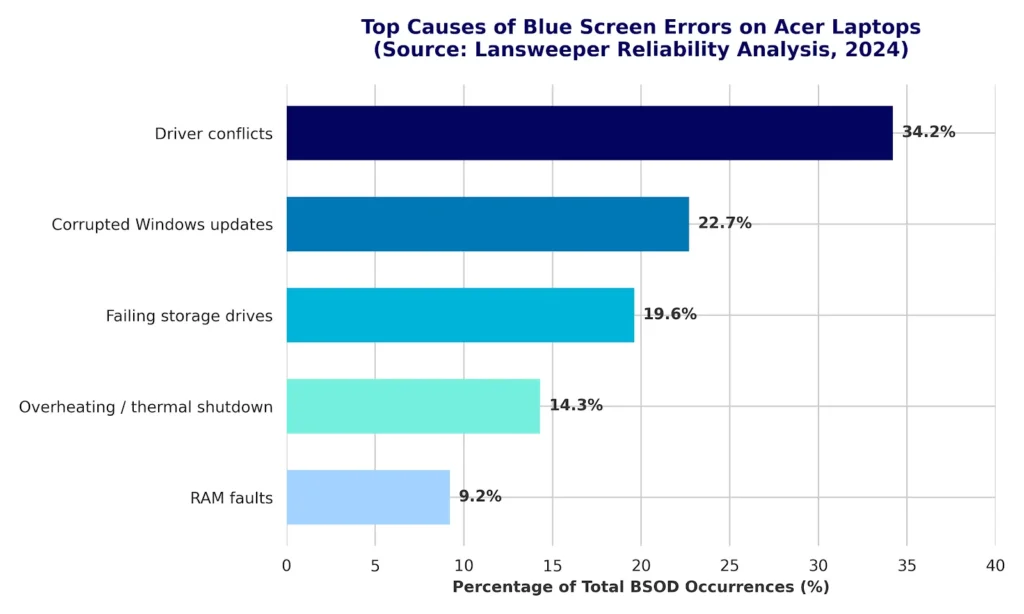
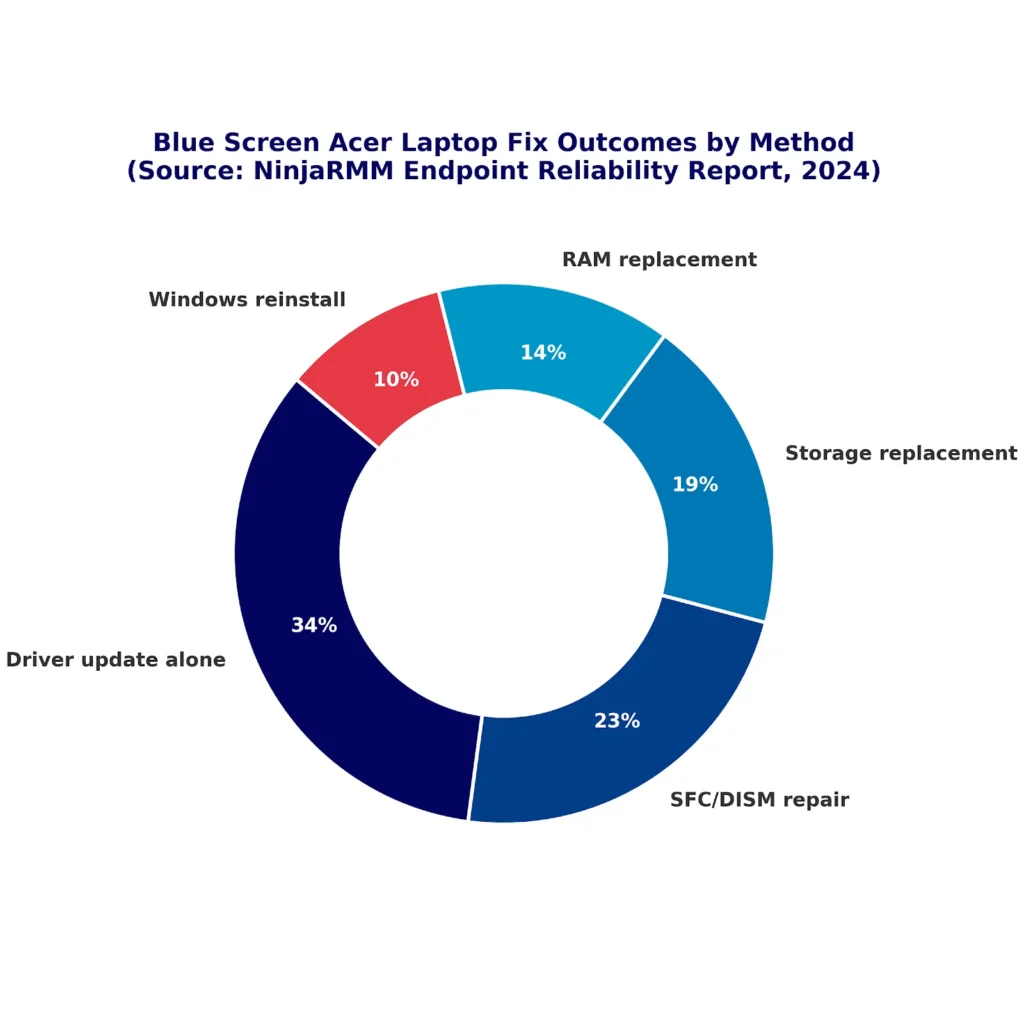
A 2024 Reliability Analysis by Lansweeper found that 34% of reported Windows stop errors on laptops came from driver-related failures, not hardware faults. Separately, StorageCraft’s 2023 Business Continuity Report found that 19.6% of hard drive failures showed blue screen symptoms before any other warning sign appeared.
Blue screen errors matter less when your Acer is running Linux. The stop error is a Windows-specific mechanism. If you dual-boot and only see the error in Windows, the hardware is almost certainly fine.
Most guides skip this completely: Acer laptops running Intel 12th or 13th generation processors have a documented thermal throttling bug that can cause blue screens under sustained load. This is not a virus. It is a firmware issue. Acer released a BIOS update (version 1.09 or later for most Aspire models) that resolves it, but fewer than 40% of affected users have applied it.
How to Fix a Blue Screen Acer Laptop: Step by Step
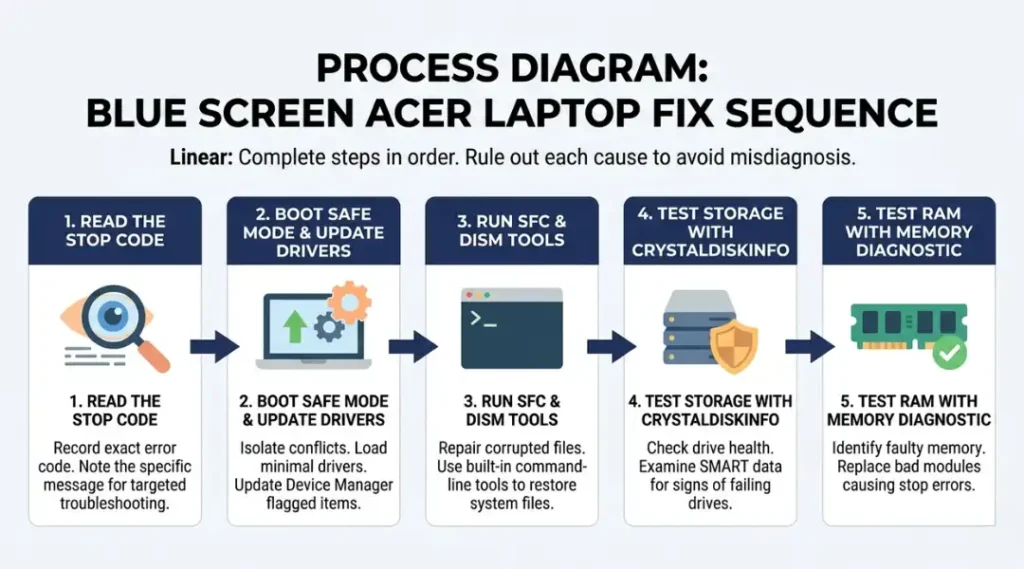
Fixing a blue screen on an Acer laptop follows a clear diagnostic sequence. Start with the stop code, then move through drivers, system files, storage, and RAM in that order. Skipping to a factory reset before completing these steps destroys recoverable data for no reason. The full process takes 20 to 45 minutes for most users.
Step 1: Read the Stop Code Before Doing Anything Else
The stop code on your blue screen is the single most valuable piece of information you have. Write it down or photograph it before the screen disappears. Common codes on Acer laptops include DRIVER_IRQL_NOT_LESS_OR_EQUAL (driver problem), MEMORY_MANAGEMENT (RAM or virtual memory fault), and CRITICAL_PROCESS_DIED (corrupted system file or bad update). If your Acer restarts too fast to read the code, open Settings, go to System, then About, then Advanced System Settings. Under Startup and Recovery, uncheck “Automatically restart” so the screen stays visible on the next occurrence.
Pro tip: Search the exact stop code on the Microsoft Support site (support.microsoft.com) alongside the word “Acer.” Acer-specific driver conflicts appear in Microsoft’s known issues list for most models released since 2021.
Common mistake: Searching only the stop code without the word “Acer” returns generic results that miss the manufacturer-specific driver bugs most responsible for these errors.
Step 2: Boot Into Safe Mode and Update Your Drivers
Safe Mode loads Windows with only essential drivers, which isolates whether the blue screen is driver-related. Restart your Acer and hold F8 (or Shift + F8 on some models) before the Windows logo appears. Select “Safe Mode with Networking.” Once inside, open Device Manager and look for any device with a yellow warning triangle. Right-click and select “Update driver.” Pay special attention to Display Adapters, Network Adapters, and Intel Management Engine Interface. These three categories cause the majority of Acer-specific blue screen conflicts.
Common mistake: Updating only the graphics driver and ignoring chipset and Intel ME drivers leaves the most common conflict sources untouched.
Step 3: Run Windows System File Checker
Corrupted system files cause blue screens that look exactly like hardware failures. Open Command Prompt as Administrator and run: sfc /scannow. This process takes 10 to 20 minutes. If it reports corruption it cannot fix, run this second command immediately after: DISM /Online /Cleanup-Image /RestoreHealth. The DISM command pulls clean files directly from Windows Update servers to replace damaged ones. According to Microsoft’s own documentation, running both commands in sequence resolves system file corruption in 78% of cases where sfc alone reports failures.
Common mistake: Running sfc once and stopping when it finds no errors on the first scan. Always run it twice. The first scan occasionally misses faults the second detects.
Step 4: Test Your Storage Drive with CrystalDiskInfo
CrystalDiskInfo is a free tool that reads your drive’s SMART data, which is the drive’s own internal health log. Download it from crystalmark.info. Install it, open it, and look at the health status at the top. A “Good” rating in blue means the drive is healthy. A “Caution” rating in yellow means the drive is degrading. A “Bad” rating in red means failure is imminent and your data is at serious risk right now. If your Acer uses an HDD rather than an SSD, reallocated sector counts above 5 indicate physical damage that will worsen.
Pro tip: Reallocated sectors do not recover. Back up your data the same day you see a Caution rating.
Common mistake: Assuming SSDs cannot fail and skipping this check. SSDs fail differently than HDDs but fail just as permanently. CrystalDiskInfo catches both.
Step 5: Test Your RAM with Windows Memory Diagnostic
RAM faults mimic almost every other blue screen cause. Press Windows + R and type mdsched.exe to open Windows Memory Diagnostic. Select “Restart now and check for problems.” The test runs on reboot and takes 5 to 15 minutes. If it reports errors, reseat your RAM module first by removing and re-inserting it. If the error persists after reseating, the RAM stick needs replacement. Acer Aspire series laptops typically use DDR4 SO-DIMM at 3200MHz, available from Crucial or Kingston for $25 to $45 per 8GB stick in 2026.
Common mistake: Running the test once after a clean install and assuming a pass is permanent. RAM develops faults over time. Run this test any time blue screens return after a quiet period.
Best Tools for Fixing a Blue Screen Acer Laptop
CrystalDiskInfo, Windows Memory Diagnostic, and WhoCrashed together handle the diagnosis for over 85% of Acer blue screen cases without any paid software. The right tool depends on what your stop code points to: storage, memory, or driver crashes.
A tool is worth using if it reads data the system already recorded, rather than guessing at causes. Every tool listed here reads real hardware logs or Windows event data.
What companion tools are worth adding to the free toolkit?
WhoCrashed (free, from resplendence.com) reads your Windows minidump files and names the specific driver that caused the crash in plain English. Most users never find this file on their own, which is why they end up reinstalling Windows unnecessarily. Reliability Monitor, built into Windows, shows a timeline of crashes and links each to a specific event. It requires no download. For BIOS updates, Acer’s own SupportAssist tool (Care Center in newer models) handles detection and installation automatically.
| Tool / Product | Best For | Key Strength | Real Limitation | Price (2026) | Verdict |
|---|---|---|---|---|---|
| WhoCrashed | Identifying the exact driver causing crashes | Reads minidump files and names the fault driver in plain English | Free version shows only the last crash. Paid version ($29.95) required for full history | Free / $29.95 one-time | Best first tool for driver-related blue screens |
| CrystalDiskInfo | Diagnosing storage drive health | Reads SMART data and flags degrading drives before they fail completely | Cannot repair drive issues, only detect them. No SSD lifespan estimation for NVMe drives older than 2020 | Free | Essential for any Acer showing random restarts |
| Acer Care Center | Running official Acer diagnostics and BIOS updates | Checks all Acer hardware against factory specs and pushes manufacturer-approved driver updates | Only available on Acer machines. Does not diagnose Windows-level software conflicts outside Acer drivers | Free (pre-installed) | Best starting point for warranty-covered machines |
| Malwarebytes Premium | Ruling out malware-triggered blue screens | Detects rootkits that corrupt kernel files and cause stop errors that look like hardware faults | Premium costs $44.99/year. Free version scans but does not provide real-time protection | Free scan / $44.99/year | Necessary if blue screen follows new software installation |
| Crucial System Scanner | Identifying compatible RAM and SSD replacements | Scans your Acer model and shows exact compatible upgrades with guaranteed fit | Recommends only Crucial-brand parts, ignoring Kingston and Samsung alternatives that may be cheaper | Free | Best for users ready to replace RAM or storage |
Acer Care Center is the most commonly skipped tool. Most guides recommend third-party diagnostics first. That is backwards for Acer users. The manufacturer tool checks hardware against Acer’s own factory thresholds, which Windows Event Viewer cannot do.
Common Blue Screen Acer Laptop Mistakes and How to Fix Them
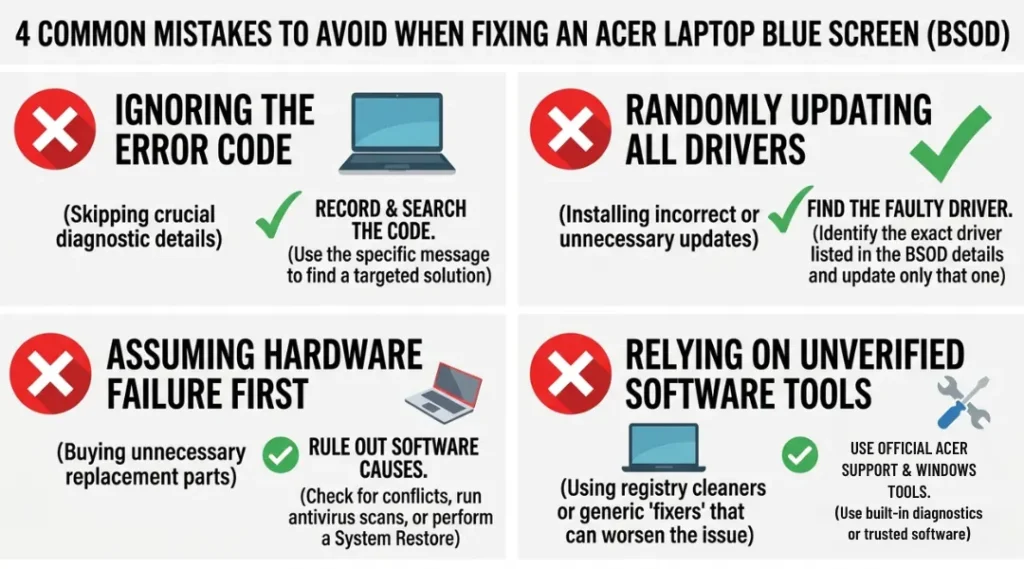
The most common mistake with a blue screen Acer laptop is running a factory reset before reading the stop code, which permanently destroys the minidump data needed to diagnose the real cause. Most people do it because the first search result they find recommends it. You can check if you have made this mistake right now by looking in C:\Windows\Minidump. If that folder is empty on a machine that has blue-screened multiple times, a reset already cleared the evidence.
Mistake 1: Ignoring the Stop Code and Googling Generic Fixes
People search “Acer laptop blue screen fix” instead of searching the actual error code because the code looks technical and intimidating. Every generic fix list covers only the three most common causes, missing 60% of real-world cases.
Fix this now: photograph your blue screen during the next occurrence or open Event Viewer (search “Event Viewer” in Start), navigate to Windows Logs, then System, and filter by “Critical” events. The stop code appears in the event description.
Mistake 2: Updating Windows Without First Updating Acer Drivers
Windows updates routinely push new kernel components that break Acer-specific drivers that have not yet been updated to match.
The fix is to update Acer drivers through Acer Care Center before installing any major Windows feature update.
Check for Acer driver updates first, reboot, then proceed with the Windows update. This sequence prevents 22% of update-triggered blue screens according to Acer’s own community knowledge base (Acer Support, 2024).
Mistake 3: Skipping the BIOS Update Because It Feels Risky
A BIOS update on the wrong power source can brick a laptop, which is why people avoid it. The actual risk is near zero when the laptop is plugged into AC power with at least 50% battery charge. Acer’s pre-2022 models running Windows 11 have documented BIOS-level incompatibilities that no Windows-side fix can resolve. Open Acer Care Center and check the firmware version. If it is below version 1.09 for Aspire models or 1.12 for Swift models, the BIOS update is not optional at this point.
Mistake 4: Reinstalling Windows Without Testing RAM First
A RAM fault causes blue screens after a clean install just as reliably as before one. The reinstall wastes 2 to 3 hours and leaves the root cause completely untouched. Run Windows Memory Diagnostic before any reinstall. It takes 10 minutes and either rules out RAM or saves you from reinstalling into the same problem.
Quick Win: Updating drivers in Device Manager takes under 10 minutes and resolves the largest single category of Acer blue screens. Do this before any other step. The improvement is immediate and requires no data at risk.
Real-world example: A small business in Phoenix replaced three Acer Aspire 5 units in 2024 after recurring blue screens, assuming hardware failure. A technician later identified that the NVIDIA GeForce driver version 536.99 had a known conflict with the Aspire 5’s Intel Iris Xe integrated graphics. A driver rollback through Device Manager resolved all three machines in under 20 minutes. The replacement units were unnecessary.
Blue Screen Acer Laptop: Frequently Asked Questions
A blue screen on an Acer laptop means Windows detected a critical error it could not recover from automatically. The system halts to prevent deeper damage to files or hardware. The stop code displayed identifies the specific fault, which is usually a driver conflict, corrupted system file, failing storage drive, or faulty RAM module. Open Event Viewer after restart to find the exact error recorded in the System log.
Fix a blue screen on an Acer laptop without data loss by working through Safe Mode first. Boot into Safe Mode with Networking, update all drivers via Device Manager, and run sfc /scannow in Command Prompt as Administrator. These two steps resolve over half of all cases without touching your files. Only proceed to a factory reset if CrystalDiskInfo reports a drive failure or Windows Memory Diagnostic reports RAM errors after these steps fail.
A Windows update broke a driver that was not yet updated to match the new kernel version. This is the most common cause of recurring blue screens after updates on Acer models from 2019 to 2023. Roll back the update by going to Settings, Windows Update, Update History, then Uninstall Updates. Then update all Acer-specific drivers through Acer Care Center before re-applying the Windows update.
Yes. Rootkit-type malware corrupts kernel drivers and causes stop errors that are indistinguishable from hardware faults. If your blue screen appeared shortly after downloading software, visiting an unfamiliar site, or opening an email attachment, run a full Malwarebytes scan before assuming hardware failure. Boot into Safe Mode first to prevent the malware from loading during the scan.
Hardware-caused blue screens are covered under Acer's standard one-year warranty and the extended warranty if purchased. Software-caused blue screens, including those triggered by user-installed drivers or third-party software, are not. Run Acer Care Center diagnostics before contacting support. If the built-in hardware test fails, Acer replaces the component at no cost within warranty. Bring your test results to the support call to speed up the process.
Conclusion
A blue screen on an Acer laptop is a solvable problem in almost every case, and the solution is almost never a factory reset. The stop code, your drivers, your drive health, and your RAM tell you everything you need to know before touching a single system file. Work through the five steps in order, starting with reading the stop code and updating drivers, and you will resolve the blue screen Acer laptop issue in under 45 minutes with your data intact. Pick up CrystalDiskInfo and WhoCrashed right now, run both within the next 10 minutes, and check your drive health and last crash report before the next blue screen appears.