How to Add Signature in Gmail (Without It Breaking on Someone Else's Phone)
If you’re reading this, you probably already found the Signature setting in Gmail. That’s not the hard part. The hard part is that your signature looked perfect on your screen and then arrived at your client’s inbox as a wall of mismatched fonts, or worse, didn’t show up at all when you replied from your phone at the airport.
I’ve set up Gmail signatures for somewhere north of 200 small business clients over six years of freelance IT and email support work. This is one of dozens of small settings people get stuck on with everyday tools; if you’re troubleshooting other apps or software beyond email, our full software and apps guide hub covers those too.
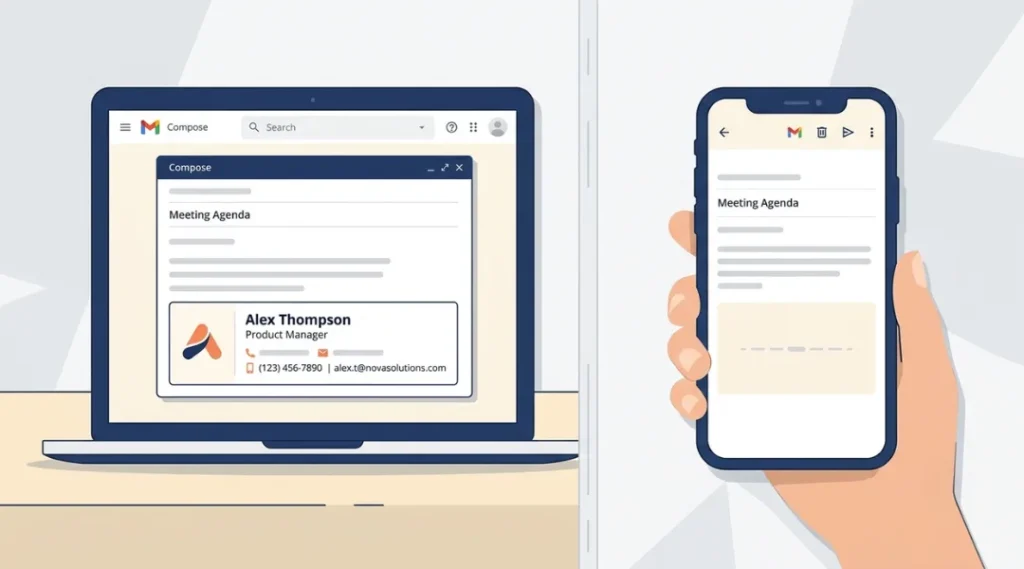
Table of Contents
ToggleHow to actually add a signature in Gmail (desktop)
Here’s the straightforward version, confirmed against Google’s own Gmail signature instructions: open Gmail, go to Settings, then See all settings, and add your signature text in the Signature section of the General tab.
You can format it with bold, links, or an image right there, and Google notes that any image you add counts toward your character limit, so if you hit an error, try resizing the image before you assume something’s broken.
A few things worth doing while you’re in there:
- Keep the formatting simple. Two font sizes, max. One accent color.
- If you use a logo or headshot, keep the file under 100KB. I’ll explain why below.
- Set your Signature defaults. Gmail lets you choose a default signature for new emails and a separate one for replies and forwards, which most people skip and then wonder why every reply in a long thread has a giant signature block stacked five times.
- Click Save Changes at the bottom. This step sounds obvious, but I’ve had at least a dozen clients call me confused about why their signature “didn’t save.” They’d built it and just closed the tab.
Mobile signatures are a completely separate setting, and this trips up almost everyone
Here’s the thing nobody tells you clearly enough: the signature you build on desktop does not automatically apply to the Gmail app on your phone. The email signature you create on Gmail’s web version is not applied to emails you send from your phone, unless you’re using a third-party tool that syncs across devices.
I had a client, a real estate agent, who spent an afternoon building a polished signature with her headshot and brokerage logo, then sent me a panicked message two days later asking why none of her signature was showing up when she emailed leads from her phone at open houses. She’d never touched the mobile setting. On Android, you have to open the Gmail app, go to Settings, choose the account, and tap Mobile signature separately. On iPhone or iPad it’s under Settings, Signature settings, where you have to turn on Mobile signature specifically before adding or editing it.
If you send even 20% of your email from your phone, do this now. It takes two extra minutes and it’s the single most common gap I find when I audit someone’s setup.
The mistake almost everyone makes: pasting straight from Word or Canva
This one’s a bigger deal than people think. If you design your signature in Canva, Word, or even a Google Doc and then copy-paste it into the Gmail signature box, you’re not just pasting text. You’re pasting a pile of invisible inline CSS from that program’s export engine: font-family stacks, weird line-height overrides, margin values that mean nothing in an email context.
I once rebuilt a signature for a nonprofit’s director that had been copy-pasted from a Word template. On desktop Gmail it looked fine. On Outlook, the recipient’s client, the fonts reverted to Times New Roman and the spacing collapsed the whole block onto one crammed line. It took me about 40 minutes to strip it back down and rebuild it directly inside Gmail’s editor instead of importing it. My rule now: build the signature inside Gmail’s own formatting toolbar, or use a dedicated signature generator that outputs clean HTML. Never paste from a word processor or design tool.
Should your signature use an image, or just text?
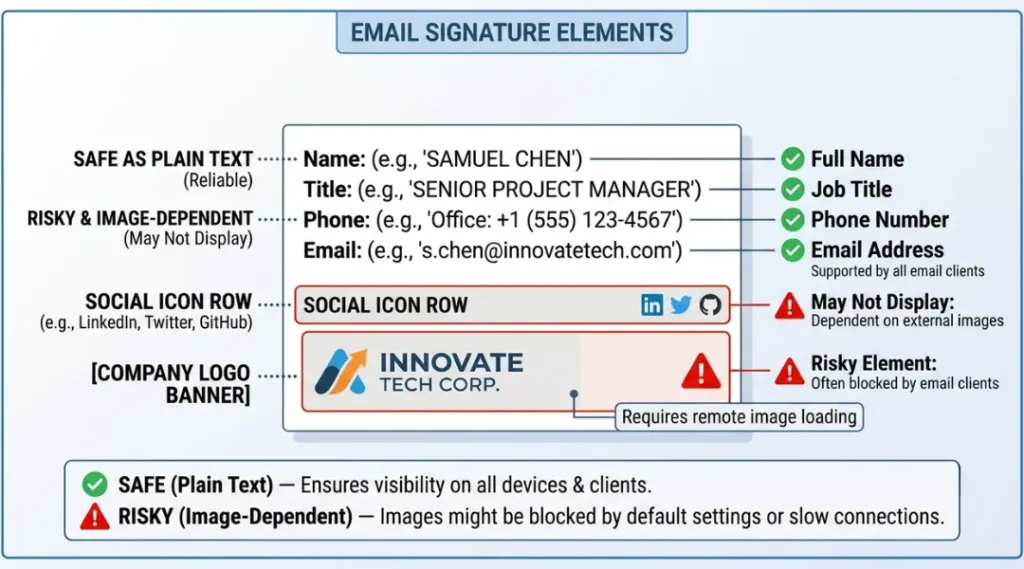
This is where I’ll take a position most articles won’t: skip the flashy embedded banner image unless you have a specific reason for it.
Here’s why. A meaningful share of recipients never see embedded images by default. Litmus data on Gmail image blocking found that 43% of Gmail users read their emails without images displayed at all, and separate research on this shows Outlook desktop clients remain the biggest holdout, still blocking images by default for a large share of users. If your signature’s entire identity is a logo graphic, a chunk of your recipients see a broken image icon or a blank box instead of your name.
My actual recommendation: use text for your name, title, and contact info (that’s always visible), and if you want a logo, keep it small, use real alt text, and treat it as decoration rather than the main event. Skip the animated GIF signature banners entirely. I’ve seen them get flagged as spam triggers more than once.
Is a signature generator like WiseStamp or HubSpot worth it?
Depends entirely on your situation. Here’s how I actually break it down for clients:
| Situation | Built-in Gmail signature | Third-party generator (WiseStamp, Newoldstamp, HubSpot) |
|---|---|---|
| Solo user, simple contact info | Best choice, no extra cost, no extra login | Overkill |
| Team of 5+ needing consistent branding | Painful to manage manually across accounts | Worth it, centralized templates |
| Need it synced across desktop and mobile automatically | Not possible natively | This is the actual reason to pay for one |
| Want click tracking on signature links or social icons | Not available | Standard feature |
If you’re one person answering your own email, don’t overthink this: the native Gmail editor does everything you need. If you’re managing signatures for a team, or you live in the Gmail mobile app and refuse to babysit two separate settings, a generator earns its keep.
The counterargument: "But I want my signature to look like a real design"
Fair. Some people want a genuinely designed signature with a photo, social icons, and brand colors, and that’s reasonable for client-facing sales roles. If that’s you, just test it before you rely on it: send yourself a test email and open it in Outlook (or ask a colleague who uses Outlook to forward you a screenshot), because Outlook’s rendering engine is notoriously the one that mangles HTML formatting other clients handle fine.
What to do right now
Open Gmail Settings today and do three things in this order: build your signature using Gmail’s own editor (not pasted from another program), set your desktop defaults for new mail versus replies, then go set the mobile signature separately in the app on your phone. That last step is the one 80% of people I talk to have never touched; it’s the one that actually determines whether your signature shows up when it matters most.