How to Delete Cookies on iPhone
If websites keep signing you out, pages are loading incorrectly, or you simply want to remove stored website information, you may be wondering how to delete cookies on iPhone.
Cookies are small pieces of website data stored by your browser. They can remember login sessions, preferences, shopping activity, and other information that makes websites easier to use. Over time, however, you may want to remove them for troubleshooting, privacy, or simply to start fresh with a website.
The important thing is that deleting cookies depends on the browser you use. Safari, Chrome, and Firefox have different menus and controls on iPhone.
This guide explains how to delete cookies on iPhone using Safari, Chrome, and Firefox, how to remove cookies from individual websites, what happens after you delete them, and when clearing cookies can help solve browsing problems.

Table of Contents
ToggleHow to Delete Cookies on iPhone in Safari
Safari is the default browser on iPhone, and Apple provides two main ways to remove website data.
You can clear your browsing history and website data together, or remove website data while keeping your browsing history.
Method 1: Delete Safari Cookies and Browsing History
If you want to remove cookies, cached website data, and Safari browsing history together, follow these steps:
- Open Settings on your iPhone.
- Tap Apps.
- Select Safari.
- Scroll down and tap Clear History and Website Data.
- Choose the timeframe you want to clear if prompted.
- Tap Clear History to confirm.
This is the quickest option when you want to completely clean up Safari browsing data.
Apple notes that clearing Safari history and website data does not remove your AutoFill information. If the button is unavailable or gray, there may be no data to clear, or a Screen Time restriction may be affecting the setting.
Method 2: Remove Cookies and Website Data but Keep History
Sometimes you want to remove cookies without deleting your browsing history. In that situation, use Safari’s Website Data section.
- Open Settings.
- Tap Apps.
- Tap Safari.
- Scroll down and tap Advanced.
- Tap Website Data.
- Tap Remove All Website Data.
- Tap Remove Now to confirm.
This removes website data used by websites to remember information such as login sessions and preferences while allowing you to keep your Safari history.
This method is especially useful if you are troubleshooting a website that suddenly stopped working correctly but do not want to lose your complete browsing history.
Apple provides additional instructions for clearing Safari history, cookies, and website data, including what happens when you remove stored website information. You can review Apple’s instructions for clearing Safari website data if you want to check the available options on your iPhone.
How to Delete Cookies on iPhone Without Clearing History
If your goal is specifically how to delete cookies on iPhone without removing your Safari history, the Website Data option is usually the more targeted choice.
Safari stores website data separately from your browsing history. Removing all website data can cause websites to forget information they previously saved on your device.
For example, you may need to sign in again to websites after clearing their stored data. Shopping sites may also forget some preferences, while websites that depend on cookies may ask you to accept cookie settings again.
Remove Cookies From a Specific Website
You do not always need to remove every website’s data.
If you only have a problem with one website, check Settings > Apps > Safari > Advanced > Website Data and look for the website in the list.
Depending on your iOS version and available controls, you can remove individual website data rather than clearing everything.
This is a useful approach when one website has a login problem, keeps showing outdated information, or behaves differently from other websites.
What Happens After You Delete Safari Cookies?
Understanding the result is an important part of how to delete cookies on iPhone safely.
After website data is removed:
- Some websites may sign you out.
- Website preferences may be reset.
- Shopping carts or saved website sessions may disappear.
- Some sites may ask you to accept cookie preferences again.
- Cached website resources may need to download again.
- Your Safari browsing history can remain if you used the Website Data option rather than Clear History and Website Data.
Deleting cookies does not delete photos, contacts, messages, apps, or personal files stored elsewhere on your iPhone.
How to Delete Cookies on iPhone in Chrome
If you use Google Chrome instead of Safari, how to delete cookies on iPhone is handled inside the Chrome app.
Google’s current instructions provide a dedicated Delete Browsing Data option.
To clear cookies in Chrome:
- Open Chrome on your iPhone.
- Tap the More menu.
- Tap Delete Browsing Data.
- Select the time range you want.
- Choose Cookies, Site Data.
- Leave other categories unchecked if you do not want to remove them.
- Tap Delete Browsing Data.
- Confirm the deletion if Chrome asks you to do so.
- Tap Done when finished.
Google explains that Chrome cookies and site data can include information used to make websites easier to use, including saved browsing information. Removing cookies can also sign you out of websites and remove saved site preferences.
Chrome provides its own controls for deleting cookies and site data. If you want to review the available options, see Google’s Chrome cookie instructions for iPhone and iPad.
Should You Delete Chrome Cache Too?
If you are learning how to delete cookies on iPhone because a website is displaying an old version of a page, clearing only cookies may not always solve the problem.
Chrome separates cookies and site data from cached images and files. If the problem appears to be caused by an outdated cached page, you can select Cached Images and Files along with cookies when deleting browsing data.
Do not select additional categories unnecessarily. For example, saved passwords and autofill information are separate types of data and should only be removed if you specifically want to remove them.
Why Should You Delete Cookies on an iPhone?
There are several practical reasons someone may search for how to delete cookies on iPhone.
Fix Website Login Problems
A corrupted or outdated website session can sometimes cause repeated login problems. Removing the website’s stored data forces the site to create a fresh session.
Fix Website Loading Problems
If a website loads incorrectly while other websites work normally, stored website data can be one of the things worth clearing.
Apple also recommends clearing Safari website data as one troubleshooting step when Safari has website loading problems.
Remove Old Website Preferences
Websites may store preferences, permissions, and session information. Clearing website data can reset those stored choices.
Improve Privacy
Deleting stored cookies can remove information saved locally by websites, although it should not be treated as a complete privacy solution. Websites and online services can retain information independently of the browser data stored on your iPhone.
If privacy is your main concern, Safari also provides Private Browsing and other privacy controls. Apple says Private Browsing prevents Safari from remembering visited pages and search history in the normal browsing history.
Cookies vs Cache vs Browsing History
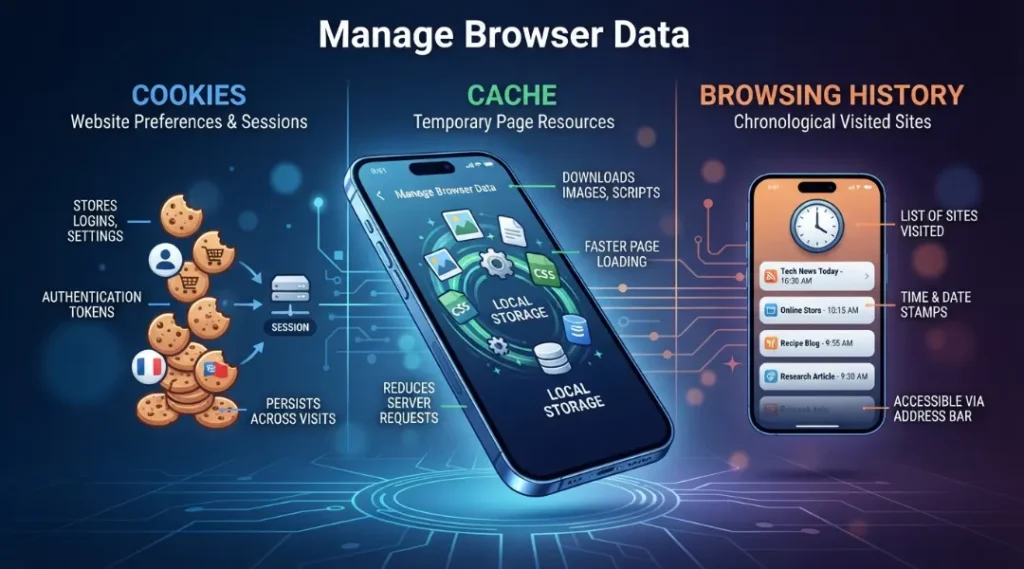
Before deciding how to delete cookies on iPhone, it helps to understand the difference between these three types of browser data.
| Data type | What it generally contains | Why you might clear it |
|---|---|---|
| Cookies | Login sessions, preferences, website information | Website troubleshooting or privacy |
| Cache | Temporary website files such as images and page resources | Pages displaying old or broken content |
| Browsing history | Records of websites you visited | Privacy or device cleanup |
These categories are related, but they are not identical.
For example, deleting browsing history does not necessarily mean you have removed every piece of data associated with a website. Similarly, clearing cache does not automatically mean that every cookie or login session has been removed.
Understanding the difference helps you avoid deleting more information than necessary.
Cookies and cache are not the same thing. If your main problem is outdated temporary files or a website displaying an older version of a page, you may also want to learn how to clear cache on iPhone and when clearing cached data is useful.
What to Do If Deleting Cookies Does Not Fix the Problem
If how to delete cookies on iPhone did not solve your website problem, do not immediately assume the iPhone has a hardware issue.
Try these checks:
- Reload the website.
- Check whether other websites work normally.
- Confirm that your internet connection is stable.
- Restart the browser.
- Restart the iPhone if necessary.
- Check for browser or iOS updates.
- Try the website in a private browsing session.
- If only one website is affected, check whether the website itself is experiencing an outage.
- If the issue occurs only in Chrome, clear Chrome browsing data rather than Safari data.
- If the issue occurs only in Safari, focus on Safari’s website data and privacy settings.
Google specifically lists cookies, extensions, memory usage, network conditions, and website problems among possible causes of Chrome loading issues.
Should You Block All Cookies on iPhone?
Deleting cookies and blocking cookies are two different actions.
If you are researching how to delete cookies on iPhone, you may also notice Safari’s Block All Cookies setting.
Apple allows users to enable this option under Settings > Apps > Safari > Advanced. However, Apple warns that blocking all cookies can cause websites to stop working correctly. Some sites may prevent you from signing in or display messages saying that cookies are required.
For most people, completely blocking cookies is not necessary simply because they want better privacy.
Safari already includes privacy features such as Prevent Cross-Site Tracking and tracking protections.
A better approach is to use the privacy controls that match your needs rather than disabling every cookie.
Frequently Asked Questions
Not normally. Safari's cookie and website-data controls are separate from your saved password information. Chrome also treats passwords as a separate data category when deleting browsing data.
It can. Cookies may contain information used to maintain website sessions, so removing them can cause websites to ask you to sign in again.
There is no fixed schedule that everyone needs to follow. Delete cookies when you have a specific reason, such as troubleshooting a website, resetting stored website data, or managing local browsing information.
Yes, Safari and some third-party browsers provide controls for individual website data. This is preferable when one website is causing problems and you do not want to clear everything.
It may help with a specific browser or website problem, but deleting cookies is not a general performance upgrade for the entire iPhone. If your iPhone is slow, other factors such as available storage, software issues, or demanding apps may be more relevant.
No. Private Browsing is designed to limit what Safari saves during a private session. Deleting cookies removes stored website data from your existing browsing environment. They serve different purposes.
Final Thoughts
Knowing how to delete cookies on iPhone gives you a simple way to reset website sessions, remove stored website data, and troubleshoot certain browsing problems.
For Safari, you can either clear history and website data together or go to Settings > Apps > Safari > Advanced > Website Data to remove website data while keeping your history.
For Chrome, use the browser’s Delete Browsing Data option and select Cookies, Site Data. Firefox provides its own privacy and website-data controls.
The key is to choose the smallest amount of data you actually need to remove. If one website is causing trouble, targeted website-data removal may be enough. If you want a complete Safari cleanup, clearing history and website data is the broader option.
Once you understand the difference between cookies, cache, and browsing history, how to delete cookies on iPhone becomes a straightforward maintenance and troubleshooting task rather than something you need to do blindly.