How to Fix Phone Speaker
There is nothing more frustrating than missing an important call because your phone speaker suddenly sounds muffled, tinny, or completely silent. Whether you own an iPhone or an Android device, speaker problems are one of the most common hardware complaints, and the good news is that most of them can be fixed at home in under fifteen minutes.
In this guide, I will walk you through every practical method to fix a phone speaker, starting with the simplest software checks and moving into deeper cleaning and hardware troubleshooting. As someone who has spent over 12 years repairing and diagnosing mobile devices, I have seen the same handful of causes behind almost every speaker issue people bring in, and I will show you exactly how to identify and solve yours.
This guide is part of our broader smartphone troubleshooting series, where we cover everything from battery drain to charging port issues, so bookmark it if you run into other phone problems down the line.
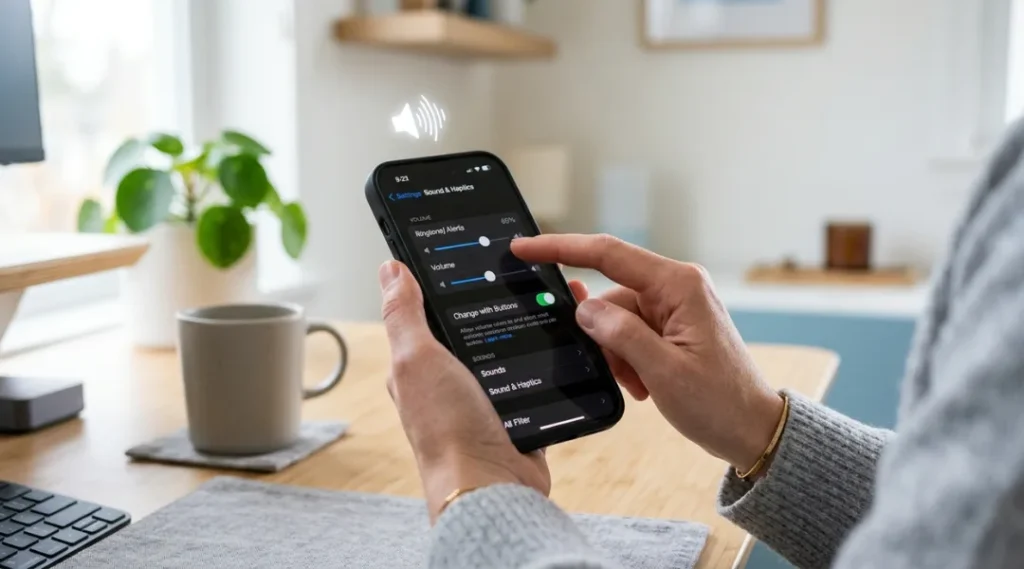
Table of Contents
ToggleWhy Is My Phone Speaker Not Working?
Before jumping into fixes, it helps to understand what usually causes the problem. In most repair cases I have handled, phone speaker issues fall into one of these categories:
- Dust, lint, or debris trapped inside the speaker grille
- Liquid exposure, even a small splash, that leaves moisture inside the speaker chamber
- Software glitches after an update or app installation
- Volume or audio settings accidentally changed or restricted
- Bluetooth or accessory conflicts where the phone thinks a headset is connected
- Physical damage to the speaker component itself from a drop or long-term wear
Once you know which category your issue falls into, fixing it becomes much easier. Let’s go through the solutions in order, from quickest to most advanced.
Quick Fixes to Try First
Restart Your Phone
It sounds basic, but a simple restart clears temporary software conflicts that silently mute or distort audio output. This resolves a surprising number of “phone speaker not working” complaints without touching a single setting.
Check the Volume and Mute Settings
Double check that your ringer volume, media volume, and call volume are all turned up separately. On many Android phones, these are controlled independently, so one silent slider can make it seem like the entire speaker has failed.
Remove Your Phone Case
Thick or poorly fitted cases can partially cover the speaker grille, which is one of the leading causes of a fix muffled phone speaker complaint. Take the case off and test the sound again before assuming there is a hardware fault.
Disconnect Bluetooth and Wired Accessories
If your phone was ever paired with a Bluetooth speaker, earbuds, or a car audio system, it may still be routing sound there even if the device is out of range. Go to your Bluetooth settings and forget any accessories you are not actively using, then restart the phone.
Turn Off Do Not Disturb and Silent Mode
Check the physical mute switch on iPhones and the notification settings on Android. It is easy to bump these accidentally in a pocket or bag.
How to Clean a Phone Speaker Safely
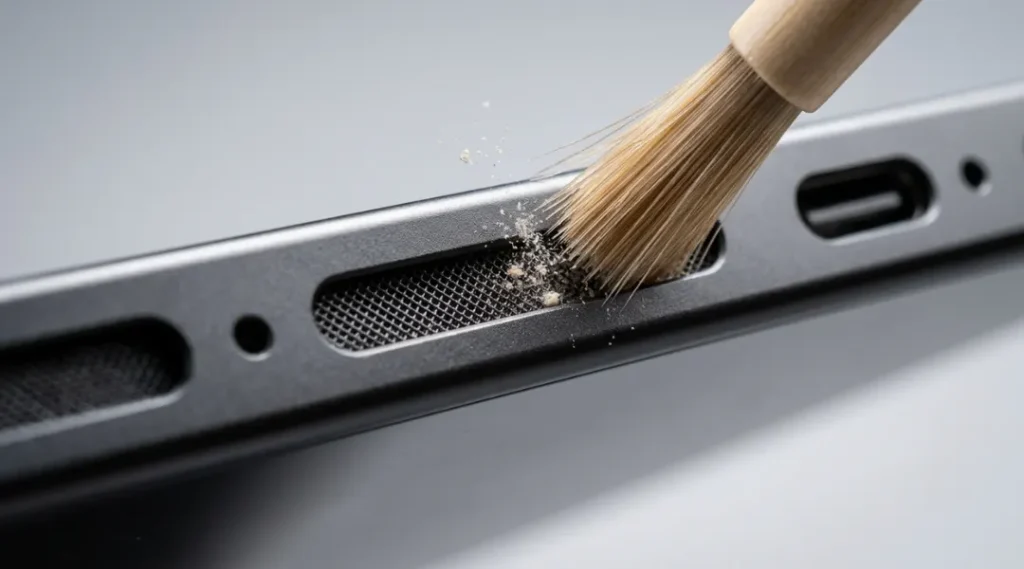
Dust and pocket lint are, by far, the most common reason speakers sound crackling, distorted, or quiet. Here is the safest way to clean phone speaker openings without causing damage.
Use a Soft, Dry Brush
A clean, soft-bristled brush, such as a new paintbrush or a dedicated phone cleaning brush, works best. Gently sweep across the speaker grille in one direction to loosen trapped debris. Avoid anything metal or sharp that could push dust deeper inside or scratch the mesh.
Try Blue Painter’s Tape
Press a small piece of low-tack tape against the speaker opening and peel it away slowly. This lifts out fine dust particles without pushing them further in, and it is a trick I still use during in-shop diagnostics because it is gentle enough for even delicate mesh speakers.
Use Compressed Air Carefully
Hold a can of compressed air at least six inches from the phone and use short bursts at an angle rather than straight into the speaker. Blasting air directly into the grille can force dust deeper or damage the diaphragm, so angle and distance matter here.
This lines up with official device cleaning guidance, which also recommends keeping liquids and moisture away from any device openings.
Run a Sound-Cleaning App
Apps that use targeted sound frequencies to physically vibrate water or dust out of the speaker chamber have become a legitimate first step in phone speaker water damage repair. They will not fix internal corrosion, but for minor moisture or light debris, they can noticeably improve clarity within a few cycles.
Fixing a Muffled or Distorted Speaker
If your phone speaker sounds muffled specifically, rather than silent, the cause is almost always partial blockage or a software equalizer setting rather than full hardware failure.
Check Your Equalizer and Sound Enhancement Settings
Some phones apply audio enhancements or equalizer presets by default that can make sound seem boosted in the wrong frequencies, giving a muffled or tinny effect. Reset any custom sound profile to default and test again.
Inspect for a Cracked or Loose Speaker Cover
Drop damage can crack the plastic speaker cover or loosen its seal, changing how sound resonates. If you notice a visible crack or the cover feels loose when pressed gently, this usually needs a technician to reseat or replace the part.
Fixing a Phone Speaker After Water Exposure
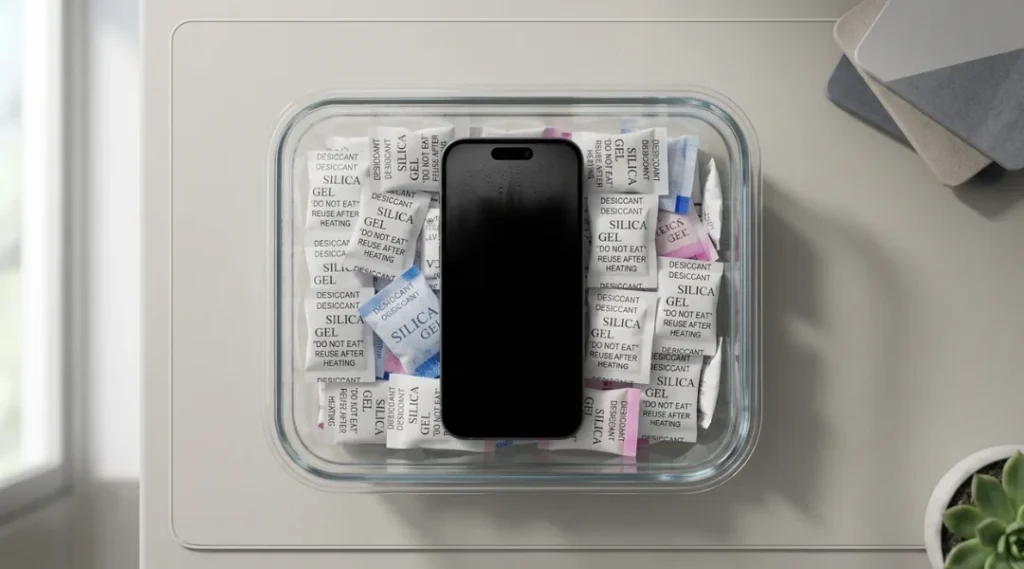
Liquid exposure is one of the trickiest issues to resolve safely at home, and rushing it can make things worse.
Power Off Immediately and Dry Externally
If your phone has been near water, turn it off right away and wipe down the exterior. Do not charge it or plug in accessories until you are confident it is fully dry, since doing so risks a short circuit.
Use Rice or Silica Gel the Right Way
Placing the phone in a container with silica gel packets (uncooked rice works in a pinch, though silica gel is more effective) for 24 to 48 hours helps draw out trapped moisture before you power the device back on.
Avoid Heat Sources
Never use a hairdryer, oven, or direct sunlight to speed up drying. Excess heat can warp internal components or damage the battery, turning a simple speaker fix into a much larger repair.
It also helps to remember that even water-resistant phones only carry splash, water, and dust resistance under specific lab conditions, not full waterproofing, so the same caution applies regardless of your phone’s rating.
Software-Level Fixes for iPhone and Android
Update or Reset Your Phone’s Software
An outdated operating system occasionally causes audio routing bugs. Check for pending updates in your settings, and if the problem started right after installing an app, try uninstalling it to see if the speaker returns to normal. On iPhones, resetting all settings (not erasing content) can also clear stuck audio configurations without deleting your data.
iPhone Speaker Not Working: Specific Checks
iPhones route audio differently depending on whether a call, media, or Siri response is playing, which is why the issue can seem inconsistent. Check Settings, then Sounds and Haptics, to confirm the ringer and alert volumes are active, and make sure the phone is not mistakenly connected to a saved AirPods or CarPlay profile under Bluetooth settings.
Android Speaker Fix: Specific Checks
On Android, open Settings, then Sound and Vibration, to review separate volume sliders for media, calls, and notifications. Many Android manufacturers also include a “Sound Enhancer” or “Dolby Atmos” toggle that can distort output on certain speakers when left on the wrong preset, so testing with it disabled is worth doing before assuming a hardware fault.
When to See a Professional
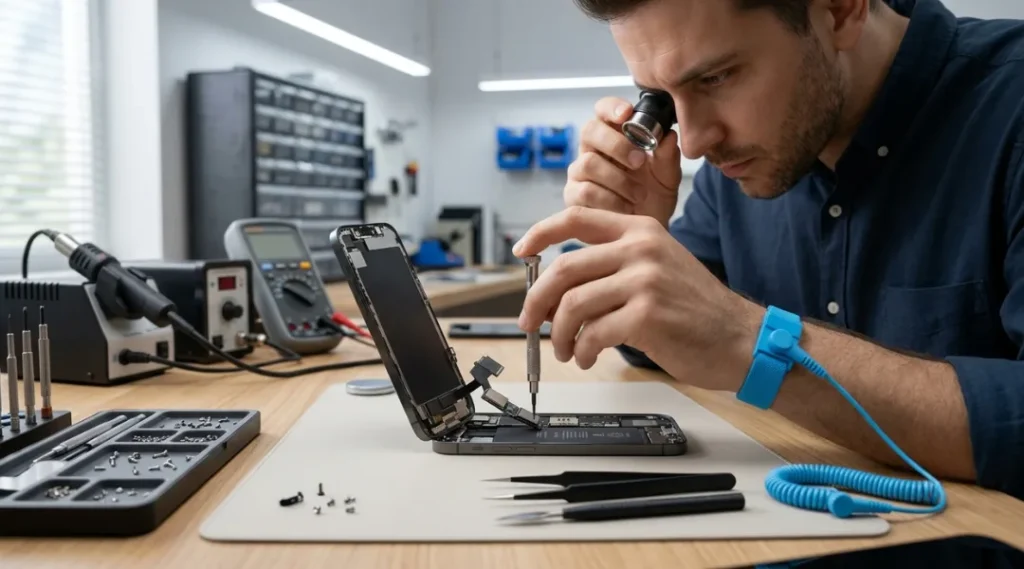
If you have tried the steps above and your phone speaker still sounds crackling, muffled, or completely silent, it is likely a hardware issue such as a damaged speaker coil, corroded connector, or a loose internal cable. At this point, professional diagnostics are the safer route rather than opening the device yourself, since modern phones use tightly sealed components that are easy to damage without the right tools.
How to Prevent Future Speaker Problems
- Use a case that does not overlap the speaker grille
- Avoid using your phone in dusty environments, like sanding or woodworking areas, without protection
- Keep your phone away from pools, sinks, and rain whenever possible, even with water-resistant models
- Clean your speaker grille gently once a month as routine maintenance
- Keep your software updated to avoid recurring audio bugs
How to Fix Phone Speaker: Frequently Asked Questions
The most common causes are trapped dust or lint in the grille, a phone case covering part of the speaker, or an audio enhancement setting that is distorting the output.
Sometimes, if the moisture is minor and evaporates on its own within a day or two. However, persistent water exposure can lead to corrosion, so using a sound-cleaning app or professional inspection is safer for anything beyond a light splash.
No. Sharp objects can tear the delicate speaker mesh or push debris deeper into the chamber. Stick to soft brushes, tape, or compressed air.
If the sound problem appears across all apps, calls, and alerts consistently, it is more likely hardware. If it only happens with certain apps or after a specific update, it is usually software related.
Final Thoughts
Most phone speaker issues, from a muffled call to a completely silent ringer, come down to dust, moisture, or a stray software setting rather than permanent damage. Working through the steps in this guide in order will resolve the vast majority of cases without a repair visit. If the sound still is not right after trying everything here, that is your signal that it is time for a professional diagnostic rather than continuing to troubleshoot on your own.