How to Stop Windows Update
Windows Update is meant to keep your PC secure, but for many users it becomes a source of frustration: sudden restarts during work, bandwidth eaten up by background downloads, and updates that occasionally break drivers or apps.
If you have ever searched for how to stop Windows Update, you are not alone. Millions of users look for ways to pause, delay, or permanently disable automatic updates every year. If you are still new to operating a laptop, it also helps to get comfortable with basic navigation before making changes to system settings like these.
In this guide, I will walk you through every reliable method to stop Windows Update on both Windows 10 and Windows 11, from the simplest built in options to advanced Group Policy and Registry tweaks. I will also cover the risks involved so you can make an informed decision, not just a quick fix.
Table of Contents
ToggleWhy Do People Want to Stop Windows Update?
Before jumping into the steps, it helps to understand the common reasons behind this search:
- Unexpected restarts that interrupt active work or presentations
- Limited or metered internet connections where large update downloads consume the data quota
- Compatibility issues where a new update breaks a driver, printer, or legacy application
- Older or low spec hardware that slows down significantly during update installation
- Business environments where IT teams need centralized control over update timing
Whatever your reason, Windows gives you several legitimate ways to control this behavior, ranging from a temporary pause to a complete service level shutdown.
Method 1: Pause Windows Update Temporarily (Easiest Option)
This is the safest and most recommended method for most users, since it does not touch system files or the registry.
Steps for Windows 10 and Windows 11:
- Open Settings (Windows key + I)
- Go to Windows Update (in Windows 10, this is under Update & Security)
- Click Pause updates for 7 days, or use the dropdown to pause for up to 5 weeks
- To resume earlier, click Resume updates
This method is ideal if you just need a short break, for example during a client demo or a critical project deadline. Once the pause period ends, Windows will automatically resume checking for updates.
Method 2: Set Your Connection as Metered
Windows treats metered connections differently and holds back most automatic updates to save data.
Steps:
- Go to Settings > Network & Internet
- Select your active Wi-Fi network
- Toggle on Set as metered connection
Note that this does not block critical security updates, but it does stop most feature and driver updates from downloading automatically in the background.
Method 3: Stop Windows Update Service via Services Manager
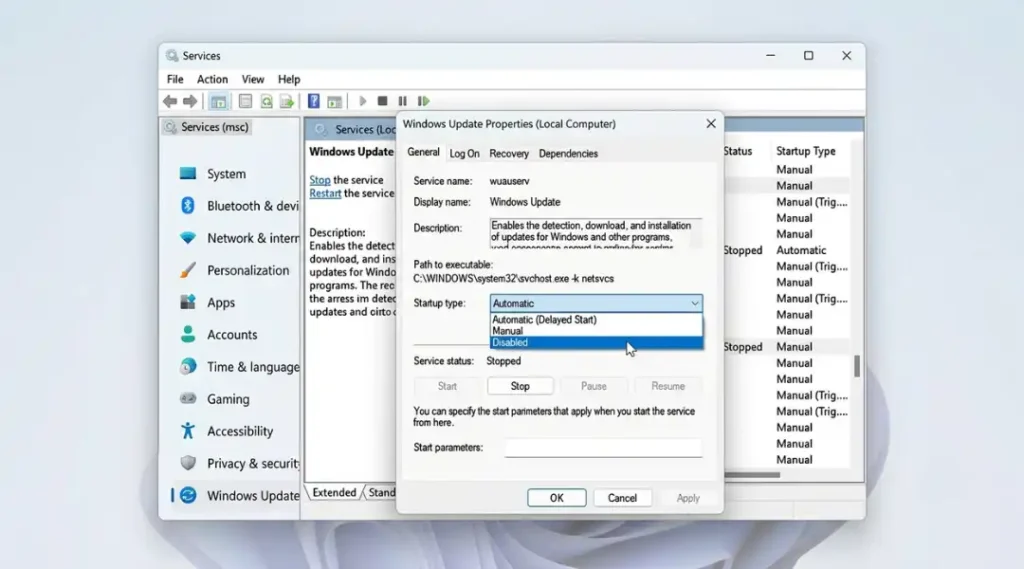
This method stops the background service responsible for checking and downloading updates. It works on both Home and Pro editions.
Steps:
- Press Windows key + R, type
services.msc, and hit Enter - Scroll down to find Windows Update
- Right click and select Properties
- Under Startup type, choose Disabled
- Click Stop, then Apply and OK
This is one of the most searched methods for how to stop the Windows Update service, and it is reversible at any time by setting the startup type back to Automatic.
Method 4: Use Group Policy Editor (Windows 10/11 Pro, Enterprise, Education)
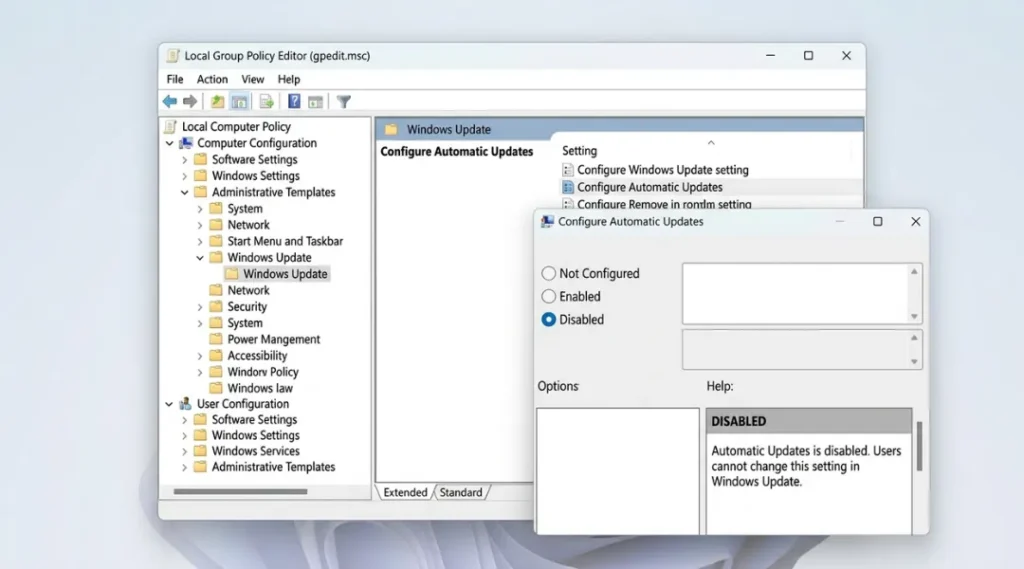
Group Policy Editor gives you granular control and is the preferred method for power users and IT administrators, a workflow detailed in Microsoft Learn’s guidance on managing update policies. It is not available on Windows Home editions by default.
Steps:
- Press Windows key + R, type
gpedit.msc, and press Enter - Navigate to: Computer Configuration > Administrative Templates > Windows Components > Windows Update
- Find Configure Automatic Updates
- Set it to Disabled, or configure a custom schedule
- Apply the changes and restart your PC
You can also use this same location to disable driver updates specifically, without affecting critical security patches, which is a good middle ground for most business users.
Method 5: Edit the Registry (Windows Home Edition)
Since Windows Home does not include Group Policy Editor, the Registry is the alternative for similar control. Always back up the registry before editing it.
Steps:
- Press Windows key + R, type
regedit, and press Enter - Navigate to:
HKEY_LOCAL_MACHINE\SOFTWARE\Policies\Microsoft\Windows - Right click on the Windows key, select New > Key, and name it
WindowsUpdate - Inside that, create another key named
AU - Inside
AU, right click, select New > DWORD (32-bit) Value, name itNoAutoUpdate - Set its value to 1
- Restart your computer
This method effectively blocks automatic update checks until you manually change the value back to 0.
Method 6: Disable Updates Using Local Group Policy for Feature Updates Only
If you only want to block major feature updates while keeping security patches active, this targeted approach works well.
- Open Group Policy Editor as shown in Method 4
- Navigate to Windows Update > Manage updates offered from Windows Update
- Find Select the target Feature Update version
- Enable it and set your preferred Windows version to lock feature updates while still receiving monthly security fixes
This is the method IT professionals often recommend because it balances security with stability, avoiding the risks of a fully disabled update service.
Method 7: Use Windows Update Delivery Optimization Settings
Not exactly a full stop, but useful for reducing update related disruption. Go to Settings > Windows Update > Advanced options > Delivery Optimization and turn off “Allow downloads from other PCs.” This limits background bandwidth usage tied to updates, a process explained in full in Microsoft’s Delivery Optimization documentation, which is often mistaken for the update process itself.
Risks of Permanently Disabling Windows Update
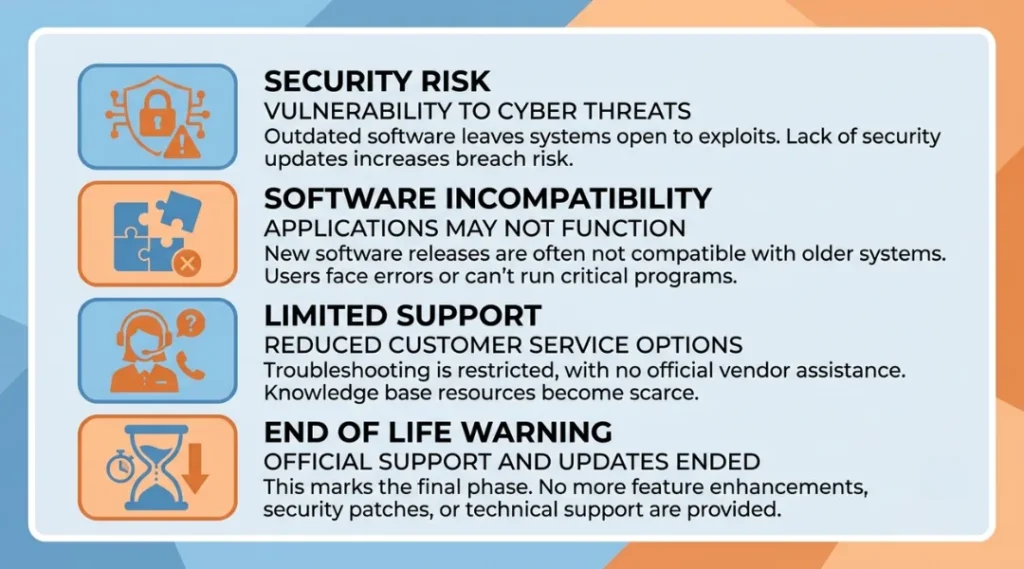
Before you block Windows Update permanently, keep these risks in mind:
- Security vulnerabilities: Microsoft regularly patches zero day exploits and the National Institute of Standards and Technology’s patch management guidelines emphasize why timely updates remain a core part of any security strategy.. Disabling updates indefinitely leaves your system exposed.
- Software incompatibility: Some applications require the latest cumulative updates to function correctly.
- Support limitations: If you contact Microsoft or a hardware vendor for support, an outdated system may not be eligible for troubleshooting help.
- End of support risk: If you are avoiding updates because you are on an older Windows version nearing end of life, it is safer to plan an upgrade path than to block updates entirely.
A safer long term strategy is to pause or schedule updates rather than disabling them permanently, especially for personal or business critical machines.
How to Stop Windows Update: Frequently Asked Questions
It is not recommended for most users, since it stops critical security patches too. Pausing or scheduling updates is a safer alternative for most situations.
Yes. Windows Home users can use the Settings app to pause updates, set a metered connection, or edit the Registry for more permanent control.
No, in most configurations Microsoft Defender security intelligence updates are delivered separately from feature and quality updates as described in Microsoft Defender's security intelligence update process.so your antivirus protection typically remains active.
Reverse the same steps: set the Windows Update service back to Automatic, change the Group Policy setting to Not Configured, or reset the Registry value to 0.
Temporarily, yes, since background downloads and installation processes consume CPU, disk, and network resources. However, this is not a long term performance fix, and outdated systems can eventually run slower due to missing optimizations.
Final Thoughts
Learning how to stop Windows Update gives you control over when and how your system changes, which matters a lot if you rely on your PC for uninterrupted work. For most users, pausing updates or using the metered connection trick is enough. Power users and IT administrators who need long term control should use Group Policy or Registry edits, while keeping security updates active whenever possible.
Whatever method you choose, review your update settings periodically. Software environments change fast, and a setting that made sense six months ago might need revisiting today.