How to Fix Phone Not Charging
You plug in your phone before bed, and by morning the battery is still at 12%. Or worse, the screen shows the charging icon but the number never climbs. If your phone is not charging, the cause is usually one of a handful of common culprits, and most of them you can fix yourself in under ten minutes. For issues beyond charging, our complete smartphone troubleshooting guide covers everything from unresponsive screens to storage and performance problems.
In this guide, I will walk you through every fix in the order you should actually try them, from the fastest checks to the deeper software and hardware solutions.
Table of Contents
ToggleQuick Diagnostic Checklist
Before you dig into individual fixes, run through this checklist. It solves the issue for most people in under five minutes.
| Check | What to Look For |
|---|---|
| Cable | Frayed wires, bent connector, visible damage |
| Wall adapter | Try a different one rated for your phone |
| Charging port | Lint, dust, or debris blocking the pins |
| Wattage | Adapter output matches your phone’s fast-charging spec |
| Software | Recent update pending or battery-related bug |
| Case | Thick case interfering with wireless charging |

If none of these solve it, move on to the detailed fixes below.
1. Test With a Different Cable
Cables are the single most common reason a phone won’t charge. The inner wires fray from bending near the connector long before the outer coating shows damage. Borrow a cable you know works, ideally an MFi-certified one for iPhones or a USB-C cable rated for your Android’s wattage, and see if the phone starts charging immediately.
Look for a cable that meets the official USB-C charging standards rather than an unbranded one, since spec compliance is what actually determines safe wattage delivery.
2. Swap the Wall Adapter or Charging Brick
Even if the cable is fine, the adapter itself can fail silently. Try plugging your phone into a different wall adapter, a laptop USB port, or a car charger. If the phone charges from one source but not another, the adapter is the problem, not the phone.
3. Clean Out the Charging Port
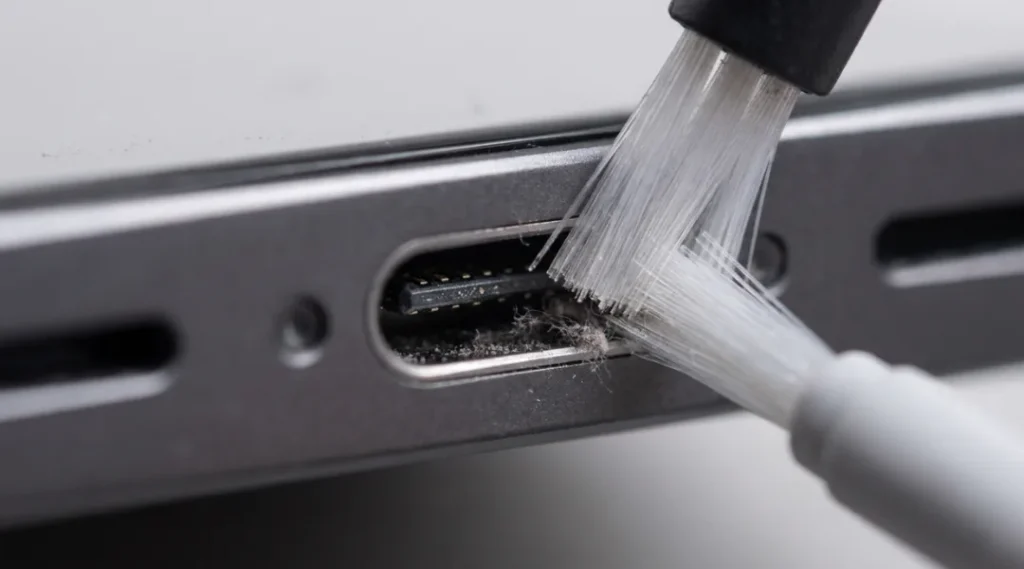
Lint, pocket dust, and debris build up inside the charging port over time and physically block the connector pins from making contact. This is one of the most overlooked reasons for a “phone plugged in but not charging” situation.
- Power off the phone completely.
- Use a dry, soft-bristled brush (an anti-static brush or a clean, unused toothbrush works well).
- Shine a flashlight into the port to check for lint or corrosion.
- Gently brush outward; never insert metal objects like pins or paperclips.
- Compressed air in short bursts can also dislodge debris.
4. Restart Your Phone
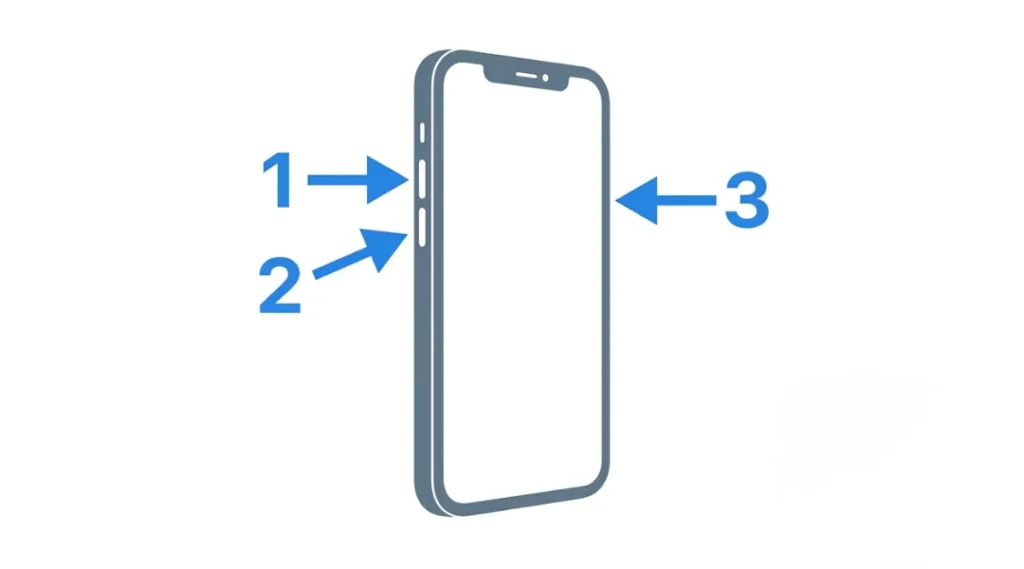
A simple restart clears temporary software glitches that interfere with the charging controller. On most Android phones, hold the power button and select restart. On iPhones, hold the side button and either volume button until the slider appears, then power off and back on.
5. Check for a Pending Software Update
Charging bugs are occasionally introduced by buggy firmware and later patched. Go to Settings > Software Update (Android) or Settings > General > Software Update (iPhone) and install anything pending. This is a frequently missed step, but it resolves charging inconsistencies more often than people expect.
6. Inspect for Physical or Water Damage
If your phone was recently dropped, exposed to moisture, or shows a swollen back panel, stop charging it immediately. A swollen battery or water-damaged charging port is a safety risk, not just an inconvenience. In this case, skip the DIY fixes and take the phone to a certified repair center.
7. Try a Different Power Outlet
Faulty outlets, tripped circuits, or a smart plug with power-saving settings can quietly cut power to your charger. Test the same charger and cable in a different outlet in your home before assuming the phone itself is at fault.
8. Force Restart or DFU Restore (iPhone-Specific)
If your iPhone shows no response at all, even the Apple logo or charging animation, a force restart can help:
- iPhone 8 or later: Press and quickly release Volume Up, press and quickly release Volume Down, then hold the Side button until the Apple logo appears.
- iPhone 7: Hold Volume Down and the Sleep/Wake button together.
- iPhone 6s and earlier: Hold Home and the Sleep/Wake button together.
If the phone still won’t charge or turn on, a DFU (Device Firmware Update) restore through Finder or iTunes on a computer can resolve deeper firmware-level charging faults.
9. Boot Into Safe Mode (Android-Specific)
A rogue third-party app can sometimes interfere with battery management. Boot your Android phone into Safe Mode (usually by holding the power button, then long-pressing “Power off” until the Safe Mode prompt appears) to see if charging resumes normally. If it does, a recently installed app is likely the cause, and you should uninstall the most recent additions one at a time.
10. Check Battery Health Settings
Both iPhone and Android let you view battery health directly:
- iPhone: Settings > Battery > Battery Health & Charging
- Android (varies by brand): Settings > Battery > Battery Health or via Device Care
If battery health has dropped significantly (commonly cited as below 80% maximum capacity), it’s a normal part of how battery degradation over time works in every lithium-ion cell, and a replacement is the long-term fix rather than another cable.
11. Disable Optimized or Adaptive Charging Temporarily
Modern phones use adaptive charging features that slow down charging speed to protect long-term battery health, especially overnight. This can look like your phone “not charging” when it is actually charging deliberately slowly. Turning this feature off temporarily helps you confirm whether this is the real cause.
12. Let the Phone Cool Down (or Warm Up)
Lithium-ion batteries stop accepting a charge outside their safe temperature range, generally between 0°C and 35°C (32°F to 95°F). If your phone has been in direct sun, a hot car, or a cold environment, let it return to room temperature before charging again.
13. Fix Wireless Charging Issues
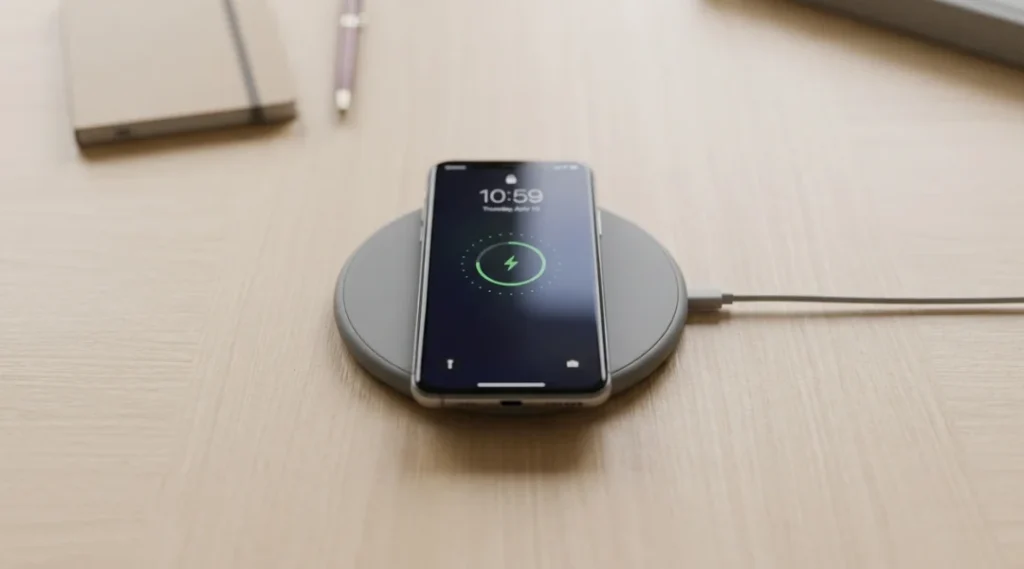
If your phone is not charging on a wireless pad specifically:
- Remove thick cases, especially ones with metal components or credit cards stored on the back.
- Center the phone precisely on the charging coil; even a small misalignment stops the charge.
- Confirm the wireless charger’s wattage supports your phone (Qi and Qi2 standards vary by output).
- Try a different wireless charger to rule out a faulty pad.
14. Reset Network or System Settings (Software-Level Fix)
On some Android devices, a corrupted system cache related to power management can be resolved by wiping the cache partition (accessible through recovery mode) or performing a general software reset. Always back up your data first.
15. Get a Professional Diagnostic
If you have gone through every fix above and your phone still won’t charge, the issue is likely a failing charging port connector, a damaged logic board, or a battery that needs replacing. At this point, a certified repair technician can run a proper diagnostic rather than guessing further. Continuing to force a charge on a phone with internal damage risks further harm to the device.
Why Is My Phone Charging Slowly Instead of Not at All?
Slow charging is a related but distinct issue, usually caused by:
- Using a lower-wattage adapter than your phone supports.
- Charging over Wi-Fi-heavy USB hubs instead of a direct wall outlet.
- Using the phone actively (gaming, video calls) while charging.
- A worn cable that still makes contact but with resistance.
- Battery health degradation reducing the maximum charge rate the battery accepts.
How to Fix Phone Not Charging: Frequently Asked Questions
This typically points to a very weak power source, an old cable that only partially connects, or a battery that is close to end of life and can only trickle-charge.
Modern phones are built to handle this safely thanks to overcharge protection and adaptive charging features, though unplugging once it hits 100% is still a good habit for long-term battery health.
Yes. Firmware bugs have occasionally caused charging irregularities in the past, which is why checking for a pending update is one of the first troubleshooting steps worth trying.
If the phone charges fine with a different cable and adapter but wireless charging or a wired connection at a different angle helps, the port is likely loose or damaged. If nothing changes regardless of accessory, the battery itself is the more likely suspect.
Certified third-party chargers that meet USB-IF or MFi standards are generally safe. Uncertified, extremely cheap chargers are a common source of both slow charging and long-term battery damage.
Sticking to UL-certified charging accessories is the simplest way to confirm a third-party charger has passed real safety testing before it reaches your phone
Final Thoughts
Most “phone not charging” problems come down to a worn cable, a dusty port, or a temporary software hiccup, all of which you can resolve at home without any tools. Work through the fixes in order, starting with the cable and port, before assuming the worst about your battery. If you have ruled out every fix on this list and the phone still refuses to charge, it is time to let a professional take a look rather than risk further damage.