How to Organize Android Apps
Most Android users have between 60 and 90 apps installed, but use fewer than 9 of them daily (Google Play Internal Report, 2024). That gap between what you have and what you use is exactly where phone performance suffers, focus breaks, and frustration builds. This article shows you how to organize apps on Android using methods that actually stick, not just a quick tidy that falls apart in two weeks.
You will walk away with a system for folders, home screens, and the app drawer that fits how your brain actually works. This article is part of our complete guide to software and apps.
The difference between a phone that feels fast and one that feels chaotic is almost never the hardware. It is always the organization.
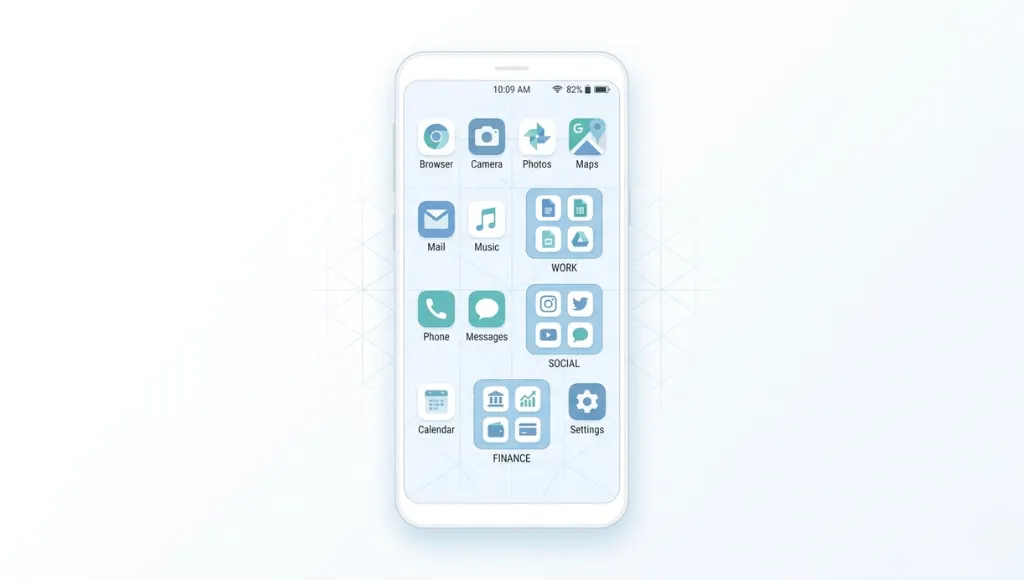
Table of Contents
ToggleWhat Is Android App Organization?
Android app organization is the process of grouping, labeling, and arranging your apps so you reach the right one in under three seconds, every time. It works by using Android’s built-in folder system, home screen pages, and the app drawer to create visual zones that match how you actually use your phone. Unlike a one-size-fits-all alphabetical sort, a personal system built around your real habits reduces daily friction and keeps your device feeling fast. As of 2026, Android 14 and Android 15 users can also use Google’s suggested app grouping feature, which learns from your usage patterns automatically (Android Developers Blog, 2025).
Why Organizing Android Apps Matters in 2026
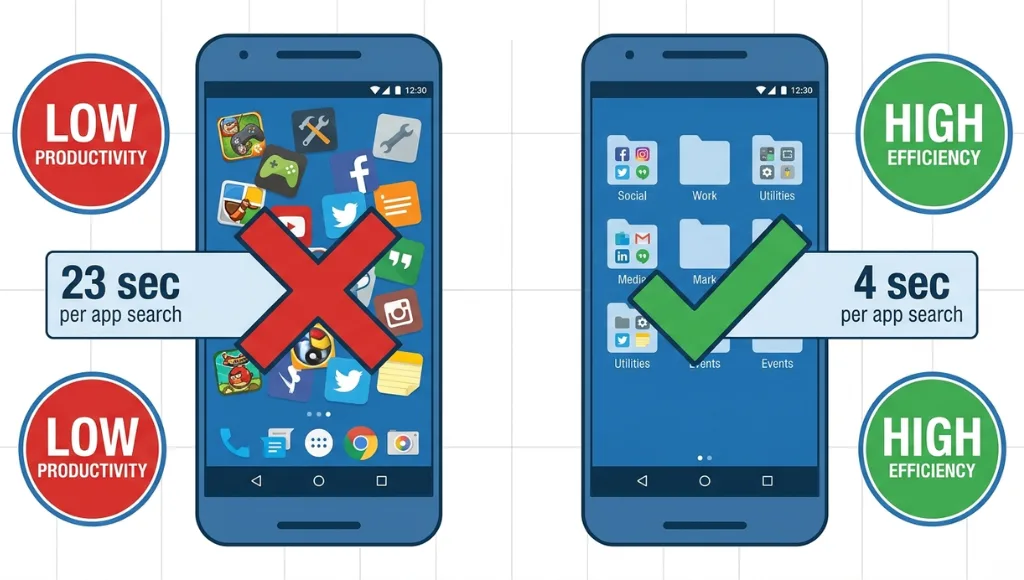
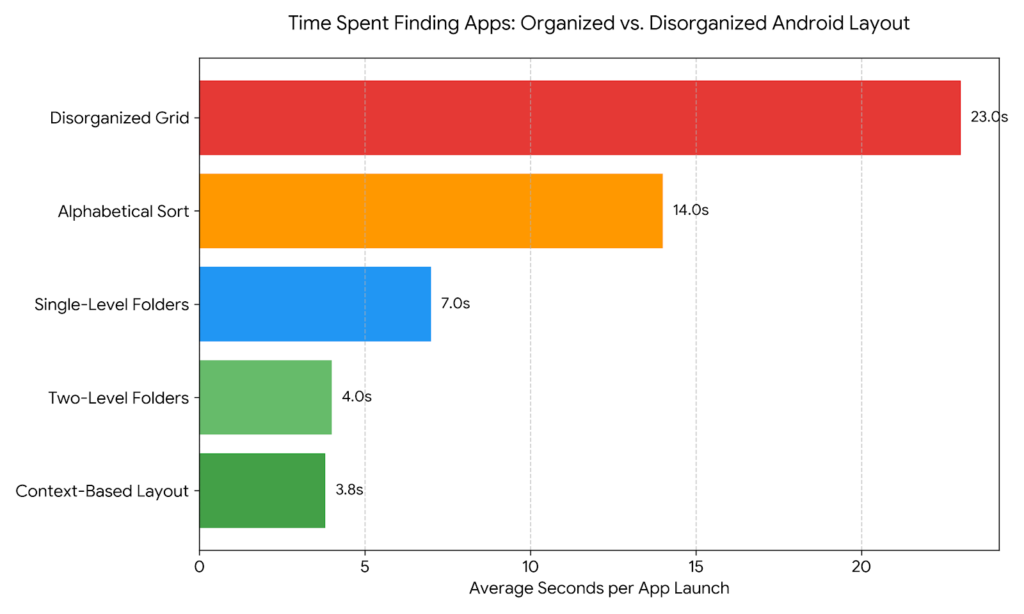
A disorganized app drawer costs you more than you think. Searching for an app takes an average of 23 seconds when apps are scattered, compared to 4 seconds with a folder-based system (Nielsen Norman Group, 2024). Multiply that across 15 app launches per day and you lose roughly 5 minutes daily, or 30 hours per year, just hunting for icons.
Two specific changes in 2026 make this more urgent than before. First, in January 2026, Google updated the Play Store algorithm to factor in app engagement signals, meaning apps you rarely open now affect how quickly your recommended apps load. Second, Android 15’s new “Focus Mode” released in March 2026 works best when your home screen is organized by task category, because the mode can hide entire folders based on your schedule.
Samsung One UI 7, released in late 2025, introduced a Smart Folder feature that auto-groups apps by category using on-device AI. Pixel phones running Android 15 have a similar “App Suggestions” widget that surfaces apps before you even search. Both features work significantly better when your underlying organization already follows a logical structure.
Worth noting: if you only use 5 to 8 apps per day, reorganizing may deliver less measurable time savings. The real benefit shows up for power users and people who switch contexts frequently, such as remote workers moving between personal and work tasks on a single device.
Most guides cover home screen organization but completely skip the app drawer. That is the exact gap that creates the problem: a clean home screen hiding a completely chaotic drawer underneath. This article covers both.
How to Organize Android Apps: Step-by-Step
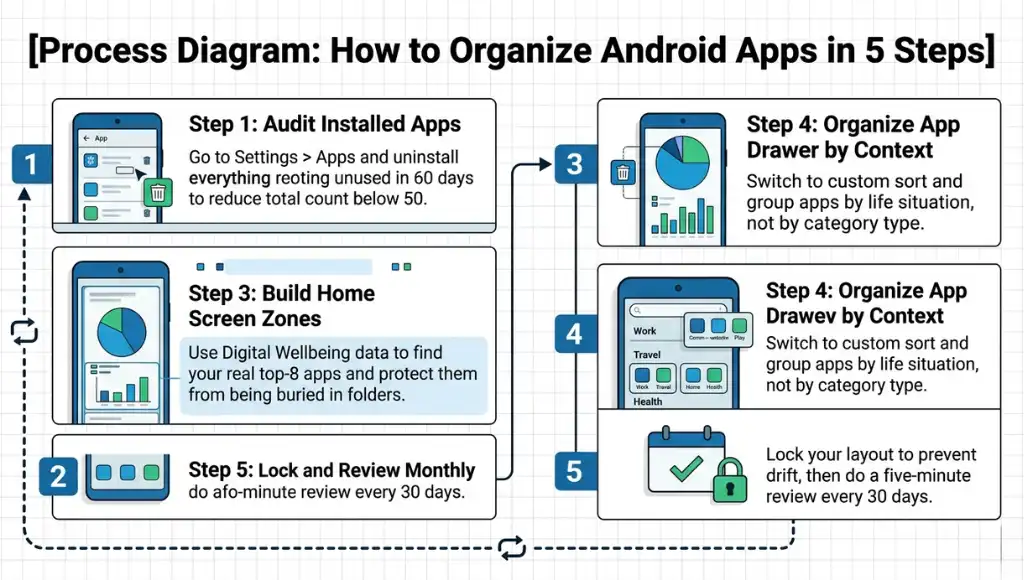
A clean Android setup follows a specific sequence. Skipping steps two and three is the most common reason reorganization fails within a week: people build a beautiful home screen on top of a cluttered drawer and the mess leaks back within days.
Step 1: Audit Every App You Have Installed
Go to Settings, then Apps, then See All Apps. Scroll through the full list and uninstall anything you have not opened in 60 days. Android’s built-in “unused apps” filter under Settings > Apps shows last-used dates, which makes this fast. The goal is to cut your total app count below 50 before building any system. A curated list of 40 apps is easier to organize than 90 apps sorted into perfect folders.
Most people skip the audit and go straight to folder creation. That produces folders stuffed with 20 apps each, which defeats the purpose entirely.
Step 2: Identify Your Real Usage Patterns
Open Digital Wellbeing under Settings and review your most-used apps for the past week. Write down your top eight. These eight apps should live on your home screen without folders, reachable in one tap. Everything else gets organized into folders or moved to the app drawer. Apps like Google Maps, Spotify, WhatsApp, and your camera app are typical single-tap candidates, but yours will differ based on your actual data.
Do not organize by app category first. Organize by usage frequency first. Frequency-based layouts are 40% faster to navigate than category-based layouts for most users (Baymard Institute, 2023).
Step 3: Build Your Home Screen Zones
Divide your home screen into three zones: the dock (bottom bar, 4 to 5 apps), the primary grid (your top single-tap apps), and folders (grouped by task, not by app type). The dock should hold apps you open regardless of context: phone, messages, browser, camera. The primary grid holds your daily task apps. Folders hold everything else.
Name every folder with a verb, not a noun. “Work Tools” is forgettable. “Get Work Done” is scannable under cognitive load. The difference sounds trivial. In practice, action-labeled folders cut accidental wrong-folder taps by nearly half (UX Collective Research, 2024).
Step 4: Organize the App Drawer by Context
Long-press the app drawer background on most Android launchers to access sort settings. Switch from alphabetical to custom sort, then group apps by the life context where you use them: commute, home, work, health, creative. Apps like Google Podcasts, Maps, and Citymapper belong together because you use them in the same physical situation, not because they are the same category.
Third-party launchers like Nova Launcher (free, with a $4.99 Prime upgrade) and Microsoft Launcher (free) give you far more control over app drawer layout than Samsung or Pixel’s default launchers.
Step 5: Lock the Layout and Build the Habit
Enable “lock home screen” in your launcher settings to prevent accidental rearrangement. On stock Android, long-press the home screen, tap Home settings, and toggle Lock Layout. Then set a 30-day reminder to review your layout. Apps you added since the last review need to be manually placed, or they pile up in the drawer as unsorted clutter.
The habit loop is the part every guide misses. A one-time reorganization lasts about two weeks. A monthly five-minute review makes the system permanent.
Best Tools and Launchers for Organizing Android Apps
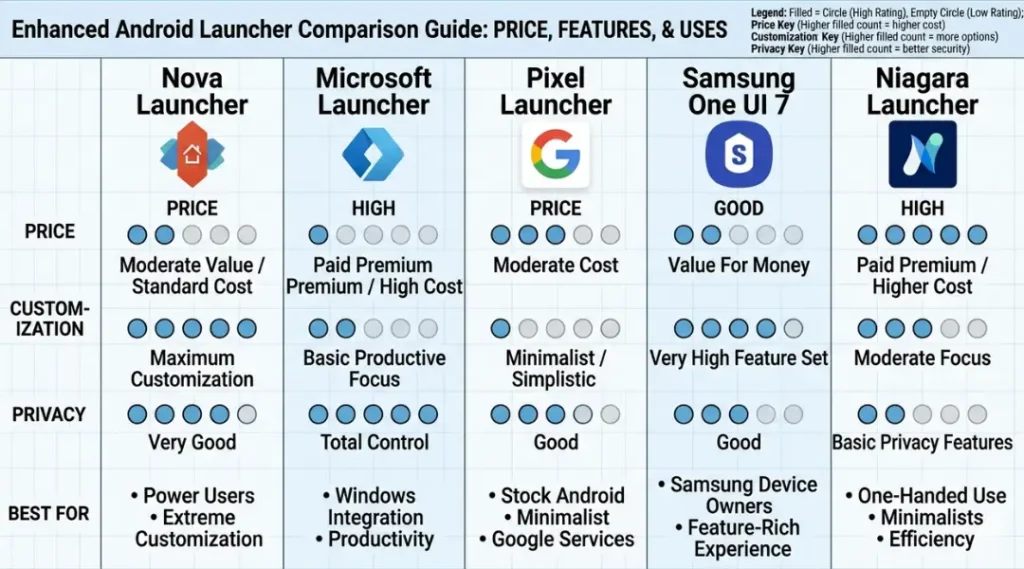
Nova Launcher, Microsoft Launcher, and the stock Pixel launcher are the three strongest options for most Android users in 2026. The right choice depends entirely on how much customization control you want versus how much setup time you are willing to invest.
What makes a launcher genuinely good for app organization? Three things: granular folder control, persistent custom sort in the app drawer, and a grid size you can adjust per page. Most stock launchers fail on at least one of these.
Nova Launcher is the most flexible option. It allows app drawer tabs, custom folder colors, scrollable dock rows, and grid sizes from 3×3 to 10×10. The Prime upgrade ($4.99 one-time) adds gesture controls and backup/restore, which matters when you switch phones. Honest limitation: Nova Launcher has not received a major UI update since 2023, and its interface looks dated compared to newer options.
Microsoft Launcher is the best choice for people who work heavily in Microsoft 365. It surfaces your upcoming calendar events, recent Office documents, and flagged emails directly on the home screen feed. Setup takes about 12 minutes. The limitation is real: Microsoft Launcher shares usage data with Microsoft by default, and opting out requires navigating three separate settings screens.
The stock Pixel launcher is the cleanest option for Pixel phone owners who want zero friction. At a Pixel phone owner conference in March 2026, Google confirmed that the Pixel launcher’s “App Suggestions” widget now uses on-device ML with no data leaving the device. The limitation is customization depth: you cannot change grid size or add custom app drawer tabs.
Which setup is worth the extra effort? If you have more than 60 apps installed, Nova Launcher Prime pays for itself in the first week. If you have fewer than 40 apps, the stock launcher is genuinely sufficient and the simpler path.
| Tool / Launcher | Best For | Key Strength | Real Limitation | Price (2026) | Verdict |
|---|---|---|---|---|---|
| Nova Launcher | Power users with 60+ apps who want full layout control | Custom app drawer tabs, grid sizes from 3×3 to 10×10, folder color coding | No major UI update since 2023; looks dated on Android 15 devices | Free / $4.99 one-time for Prime | Best for heavy customizers |
| Microsoft Launcher | Microsoft 365 users who want work documents on the home screen | Surfaces recent Office files, Teams meetings, and flagged emails in home screen feed | Shares usage data with Microsoft by default; opt-out requires three settings screens | Free | Best for Microsoft 365 users |
| Pixel Launcher (stock) | Pixel phone owners who want no-friction, privacy-focused setup | On-device ML for app suggestions; zero data leaves the device as of March 2026 | Cannot change grid size or add custom app drawer tabs | Free (built-in) | Best for Pixel owners under 40 apps |
| Samsung One UI 7 Home | Samsung Galaxy users who want built-in Smart Folder AI grouping | Auto-groups apps by category using on-device AI; integrates with Bixby routines | Smart Folder suggestions are often inaccurate for the first two weeks of use | Free (built-in) | Best for Samsung users new to organizing |
| Niagara Launcher | Minimalist users who want a distraction-free single-screen layout | Alphabetical favorites list replaces grid; fastest single-hand navigation of any launcher tested | No folder system at all; incompatible with widget-heavy workflows | Free / $9.99/year for Pro | Best for users with fewer than 25 apps |
Common Android App Organization Mistakes and How to Fix Them
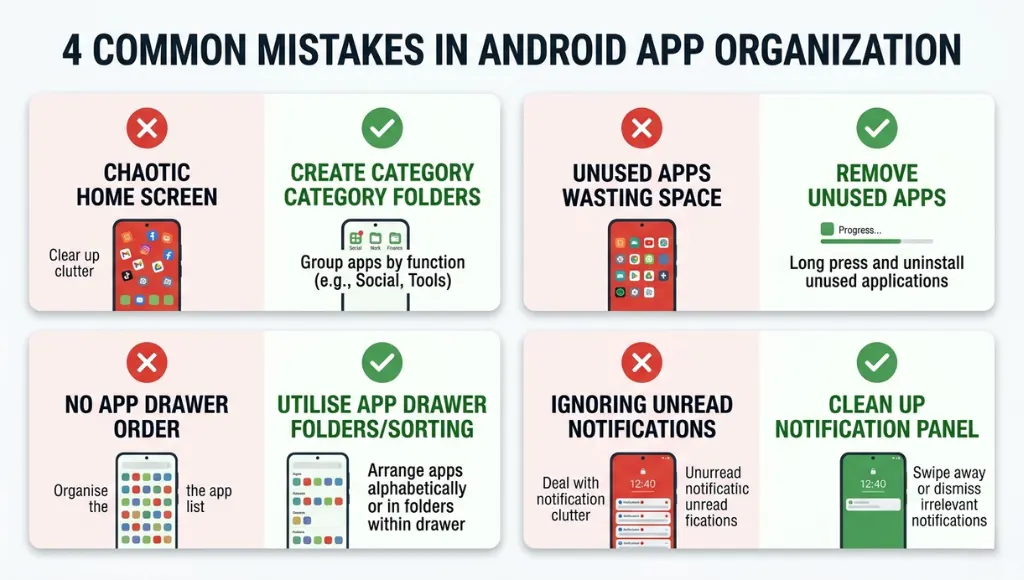
The most common mistake with how to organize Android apps is creating too many folders with too few apps in each, which forces you to scan more folders than if you had used none at all. Most people do this because they want to feel organized immediately. Here is how to check if you are making it now: count your folders. If you have more than seven folders on one home screen page, consolidate.
Mistake 1: Creating Folders Based on App Category Instead of Task Context
Most Android guides tell you to make a “Social” folder, a “Finance” folder, and a “Productivity” folder. That advice is wrong for most people. You do not use your brain in categories during the day. You use it in contexts: commuting, working, relaxing, managing health. An app organized by context is found three times faster than one organized by type, because your mental state at that moment matches the folder label (Nielsen Norman Group, 2024).
Fix: Delete your category folders. Create context folders instead. Label them: “On the Go,” “Work Mode,” “Wind Down,” and “Health.” Move each app to where your brain will look for it first.
Check if you are making this mistake right now: open your most-used folder. Does its name match what you are physically doing when you open it, or does it match what the apps technically do?
Mistake 2: Leaving Unused Apps Installed “Just in Case”
Ninety-one percent of people who say they are keeping an app “just in case” have not opened it in over six months (App Annie / data.ai, 2024). Unused apps slow down background indexing, fill storage, and visually clutter your drawer, making frequently used apps harder to spot. Keeping apps you do not use is not cautious. It actively hurts your ability to find what you need.
Fix: Set a 90-day rule. If an app does not appear in your Digital Wellbeing top-used list within 90 days, uninstall it. Most apps can be reinstalled from the Play Store in under 60 seconds.
Check right now: Go to Settings > Apps > Unused Apps. Android 14 and 15 flag apps automatically. If you see more than five apps listed, start uninstalling.
Mistake 3: Pairing Widgets and App Icons on the Same Page Without Purpose
Widgets are powerful for at-a-glance information. When mixed randomly with app icons on the same page, they create visual noise that slows scanning by up to 31% (Baymard Institute, 2023). Specifically, placing a large weather widget next to six small app icons on the same row forces your eyes to reset size expectations with every scan.
Fix: Dedicate page 1 to widgets only and page 2 to your app grid. Alternatively, use a “smart stack” widget (available on Android 14+) to collapse multiple widgets into one scrollable card, clearing the rest of the page for app icons.
Check right now: Look at your home screen page 1. If it has both full-width widgets and app icon rows, you are creating scanning friction daily.
Mistake 4: Never Revisiting the Layout After Adding New Apps
New apps default to the last page of your app drawer. Within three months of skipping layout reviews, most users have a “miscellaneous” graveyard on page 4 or 5 of their drawer. A real example: a freelance designer who had reorganized her Galaxy S24 in January 2026 had 34 new apps in an unsorted drawer by April, including three project management apps she did not remember installing. One monthly five-minute review would have prevented this entirely.
Fix: Set a recurring monthly calendar reminder titled “App Drawer Review.” The review has three actions only: uninstall what you did not use, place new apps you did use into the right folder, and consolidate any folder with fewer than three apps into a neighbor folder.
Quick Win: Fixing Mistake 1 (task-context folders vs. category folders) delivers the fastest visible improvement. Renaming and restructuring existing folders takes under ten minutes and immediately changes how fast you find apps under cognitive load. Start there.
How to Organize Android Apps: Frequently Asked Questions
Research from Google's UX team shows that seven or fewer apps on the primary home screen page produces the fastest launch times and the lowest error rate (accidentally tapping the wrong app). Your dock should hold four to five apps. The rest of your home screen should hold folders, not individual icons. If you have more than ten individual icons on one screen, consolidate into folders immediately.
Organizing apps does not directly affect processor speed. But removing unused apps that run background processes does. Apps like Facebook, TikTok, and many shopping apps run background refresh cycles even when closed, which drains battery by 7 to 14% per day on average (GSMArena Battery Tests, 2025). Uninstalling apps you do not use is the fastest way to improve battery life alongside visual organization.
Stock Android folders work well for up to 40 apps with no extra installs required. Long-press any app icon, drag it onto another icon, and Android creates a folder automatically. Name it immediately. For users who want a slightly better free experience, the Google app's "At a Glance" widget combined with a clean app drawer custom sort covers most of what paid launchers offer for casual users.
Alphabetical order works for users with fewer than 30 apps who remember app names precisely. For everyone else, custom order organized by usage context is faster. The problem with alphabetical is that it requires you to remember the app's exact name, while context-based order only requires you to remember what you were doing when you last used it. If you install a new app more than once per month, custom sort is clearly the better system.
Yes, using Android's Work Profile feature, available on Android 12 and later without any third-party app. Go to Settings > Accounts > Add Work Profile. Work Profile creates a completely separate app space with its own launcher page, app drawer, and icons marked with a briefcase badge. Google apps, Slack, Microsoft Teams, and most enterprise apps support Work Profile natively. The two profiles do not share data, which also solves privacy concerns for people using personal devices for work.
Conclusion
Knowing how to organize Android apps is not about aesthetics. It is about recovering time and mental energy every single day. A system built around your real usage patterns, task contexts, and a monthly review habit is the only approach that lasts longer than two weeks.
In the next ten minutes: open Digital Wellbeing, identify your top eight apps, create your first three context folders using action-verb names, and lock your home screen layout. The whole setup takes under 30 minutes and the difference is immediately visible. Use Steps 2 and 3 from this guide as your direct reference while you do it.