Generative AI Tools for Creators: The Complete Beginner’s Guide for 2026
Choosing generative AI tools for creators can feel like walking into a huge electronics store without a shopping list. Every shelf says “powered by AI.” Every price tag uses a different system of credits, tokens, or minutes. And everyone online has a favorite, but no two favorites match.
I have spent more than 12 years writing about software and testing the products people actually pay for. This guide is the plain-English version of what I wish someone had handed me when this wave started.
You will learn what these tools do, which ones are worth your time, how to build a simple workflow, and how to avoid mistakes that waste money or cause legal trouble. No technical background needed.
Table of Contents
ToggleKey Takeaways
- The best AI tools for content creators are not one app. They are a small set of tools, each picked for one job.
- Start with the job you do most, such as thumbnails, voice-overs, or editing. Then add tools slowly.
- Free plans are for testing. Regular publishing usually needs a paid plan.
- Video is the most expensive and least predictable category, so budget for retries.
- AI works best as your assistant. You still bring the idea, the taste, and the final decision.
- Copyright rules reward human input, so edit, arrange, and add your own work.
What Are Generative AI Tools for Creators?
Generative AI tools for creators are apps that make new content from your instructions. You type a short description, upload a reference file, or share an existing clip. The tool then produces something new: an image, a video, a voice recording, a song, or a draft of text.
The word “generative” simply means the tool creates something that did not exist before. Older software only changed what you already had. A photo editor adjusts your photo. A generative tool can build a brand-new, photo-style image from one sentence.
Most of these products handle one of five jobs:
- Images: thumbnails, social graphics, product mockups, concept art, and illustrations.
- Video: short clips, background footage, animated pictures, and ad variations.
- Voice: narration, voice-overs, translations, and dubbing into other languages.
- Music and sound: background tracks, intros, and sound effects.
- Editing and repurposing: cutting long recordings into short clips, removing filler words, and writing summaries.
Chat assistants such as ChatGPT, Gemini, and Claude sit on top of all five. They help with planning, scripts, outlines, titles, and captions.
Here is the useful part. You rarely need one tool that does everything. You need one dependable choice for each job you actually do, plus an easy way to move files between them.
Who These Tools Are For
You do not have to be a full-time influencer to benefit. These tools help:
- YouTubers and short-form video creators who want faster editing, thumbnails, and voice work.
- Podcasters who need cleaner audio, transcripts, and promo clips.
- Bloggers and newsletter writers who need visuals, outlines, and social posts.
- Designers and social media managers who produce lots of on-brand graphics.
- Small business owners who make their own marketing without a big team.
- Musicians and filmmakers who want to sketch ideas before spending real money.
How Generative AI Tools Work
You do not need to understand the math. A few basic ideas will save you hours of frustration.
A Prompt Is Just an Instruction
A prompt is the text you type. “A cozy home studio at sunset, warm light, wide shot” is a prompt.
Better prompts say who or what is in the scene, the style, the lighting, the camera angle, and the mood. You will find more tips in the prompting section below.
A Model Is the “Brain” Behind the Tool
Each app runs on one or more models. A model is the trained system that actually produces the result.
Some apps use only their own model. Others give you a menu of models from different companies. Adobe’s Firefly web app, for example, now runs partner models from Google, OpenAI, Runway, Luma, Kling, and ElevenLabs next to its own, all under one login. This “hub” approach is popular because you can try several styles without opening five accounts.
Credits Are Your Fuel
Most tools measure usage in credits. Every action burns some. A simple image may cost very little. A long, high-quality video may cost a lot.
On many plans, credits for video, audio, and partner models reset each billing cycle and do not roll over. Think of them like mobile data that expires at the end of the month.
References Make Results More Consistent
A reference is an image, video, or audio file you upload to guide the result. Want the same character, outfit, or product in several scenes? References are the secret. Without them, every generation looks like a stranger.
Iteration Is Normal
Almost nobody gets a perfect result on the first try. You generate, look, tweak the prompt, and generate again. That loop is the work.
A good habit is to set a limit, such as five tries per image, so you do not burn credits chasing perfection.
AI Image Generators
AI image generators are the easiest place to start. They are fast, cheaper than video, and useful almost immediately for thumbnails, blog headers, social posts, and mood boards.
Midjourney: Best for Artistic, Stylized Images
Midjourney is known for beautiful, art-directed results. Its V8.1 model followed detailed prompts better, rendered text more cleanly, and added an HD mode with four times the resolution of the older V7.
One third-party guide reports that version 8.2 became the default on July 24, 2026.
Midjourney is a great pick for concept art, thumbnails with a strong look, album covers, and mood boards. It is less ideal if you need editable layers or strict brand templates. Also note that its video feature works from images only. There is no text-to-video.
Adobe Firefly: Best When Commercial Safety Matters
Firefly is popular with teams that worry about licensing. Adobe trained its own models on Adobe Stock, licensed content, and public domain material, which is why it markets them as the commercially safe option. Firefly also plugs into Photoshop, Illustrator, and Express, so it fits neatly into an existing design workflow.
There is one catch. Partner models come from third parties, each with its own capabilities and terms. Organizations should give them the same brand, legal, and privacy review they would give those providers directly. In simple terms, Adobe’s own models and partner models are not the same thing. Read the terms before client work.
You can compare plans on the Adobe Firefly page.
Canva: Best for Beginners and Busy Social Teams
Canva puts its AI features inside the app where people already design posts, slides, and videos. Magic Studio is the umbrella name for those features. Dream Lab handles text-to-image using Leonardo.ai.
One feature solves a real pain point. Magic Layers splits an AI-generated poster into editable layers, so you can fix a typo or move a logo without regenerating the whole image.
Canva is the fastest route to on-brand content for people who are not designers. Keep an eye on usage, because the newer AI 2.0 features consume credits at higher rates.
Nano Banana Models: Best for Keeping Characters Consistent
Google’s Nano Banana line is popular for editing images with plain-language instructions and keeping a character or product consistent across scenes. Version 2.1 can generate images up to 4K and combine up to 14 reference images. You can reach these models through Google’s own apps and through hubs such as Runway.
Quick Advice for Image Tools
- Make thumbnails and social graphics first. They are low risk and quick to test.
- Save your best results as reference images for later video work.
- Always check text inside images. AI still makes spelling mistakes.
- Need a logo? Hire a designer, or use AI only for rough ideas.
AI Video Generators
Video is where the excitement is, and also where the headaches are. AI video generators can turn a sentence or a still picture into a short moving clip. They work well for b-roll, music visuals, social ads, product teasers, and storyboards.
They are not yet a replacement for a film crew.
Video is the hardest part of using generative AI tools for creators. It costs more, takes longer, and fails more often than images. Plan for rejects.
Runway: Best for Short Cinematic Clips
Runway is a favorite among filmmakers and ad creators. Its Gen-4.5 model creates short clips from text or images.
On the Runway pricing page, the free plan gives you a small one-time pack of credits. On a paid plan, 625 credits equal about 52 seconds of Gen-4.5 video. Paid plans also unlock third-party video models such as Seedance 2.0 and Kling 3.0 Pro.
One thing to remember: Gen-4.5 makes video without embedded audio. You will add voice, music, and sound effects in a separate step.
Google Flow and Gemini Omni: Best for Mixing Different Inputs
Flow is Google’s workspace for AI filmmaking. Google merged Flow, Whisk, and ImageFX into one place, so you can create an image and use it as a video frame without switching apps.
Gemini Omni goes a step further. It accepts any mix of text, images, audio, and video, then produces one coherent result. That is handy when you have a photo, a voice clip, and a rough idea and want them stitched together.
Omni output carries SynthID watermarking for transparency. One launch review also noted that its raw cinematic quality sat below some top rivals at launch. Test it against your own needs before you commit.
Kling: Best for Longer, Detailed Scenes
Kling is a strong video family from Kuaishou. Kling 4.0 was announced with clips up to 30 seconds in one pass, 4K output, multiple keyframes, and stereo audio.
Rollouts like this often happen in stages, so check which version your account can actually use.
Grok Imagine Video: A Budget Option With Sound
xAI’s Grok Imagine Video 1.5 adds native audio. A Lite version starts at about $0.02 per second at low resolution. It is worth a test if you make lots of quick social clips and care about cost.
How to Keep Video Costs Under Control
- Plan with still images first. They are far cheaper than video.
- Keep clips short. Three to eight seconds is plenty for most edits.
- Reuse reference images to keep your look consistent.
- Cap your retries. If a shot fails five times, rewrite the idea instead of regenerating forever.
- Keep your own copies of every prompt and reference file. If a tool changes pricing or disappears, you can move in a day.
That last lesson became clear when OpenAI closed the Sora app on April 26, 2026, with the API following on September 24, 2026.
AI Voice, Dubbing, and Music Tools
An AI voice generator is often the quickest win. Good narration used to require a microphone, a quiet room, and many retakes. Now you can produce clean narration from a script in minutes.
ElevenLabs: The Best-Known Voice Platform
ElevenLabs covers text-to-speech, voice cloning, dubbing, music, and sound effects. Its Eleven v3 model supports expressive, multi-speaker speech in more than 70 languages. You can even add emotion cues to your script. Inline audio tags such as [whispers] or [excited] control how a line is delivered.
Dubbing is the standout feature for creators with a global audience. Dubbing v2 uses the original performance to preserve tone, pacing, and emotional intent. A YouTuber can reach new language audiences without recording every version.
ElevenLabs also makes songs. Eleven Music creates and edits songs from prompts, and Music v2 can regenerate a single section. That means you can redo just the chorus instead of the whole track.
How to Use Voice Tools Well
- Read the script out loud first. If it feels awkward to say, the AI voice will sound awkward too.
- Use short sentences. They sound more natural.
- Test two or three voices. The right one depends on your audience.
- Mix in your real voice where personality matters, such as intros and opinions.
- Never clone a voice without permission. Use your own voice, or one you have written consent to use.
Music Tips
AI music works well for background tracks, intros, and mood pieces. Check the license terms for commercial use before you publish. If you plan to monetize a channel, keep a record of where each track came from.
AI Editing and Repurposing Tools
Many creators find that generating content is not their biggest bottleneck. Editing is. Cutting a long interview, removing “um” and “uh,” making clips, and writing show notes can eat your whole week. Editing tools fix that.
Descript: Edit Video by Editing Text
Descript turns your recording into a transcript. You edit the media by editing the words.
Its Underlord co-editor can remove filler words, spot bad takes, suggest b-roll, and create social clips from plain-language prompts. Keep in mind that generative features use AI credits separately from media minutes, so heavy use can drain your allowance.
What to Automate and What to Keep
Good tasks to automate:
- Removing silence and filler words
- Creating first-draft captions
- Finding highlight moments for short clips
- Writing a first draft of show notes or descriptions
- Resizing one video into vertical, square, and wide formats
Tasks to keep human:
- Choosing the story and the order of events
- Deciding which jokes, pauses, and emotions stay
- Final review of facts, names, and numbers
- Anything involving sensitive or personal topics
AI Writing and Planning Assistants
Chat assistants are the glue between all the other tools. They will not replace your voice, but they make the early stages much faster.
Use them to:
- Brainstorm topics and angles for a month of content
- Outline a video script or a long article
- Write several title and thumbnail text options
- Turn one long post into ten social captions
- Build a shot list from a script
- Check your draft for clarity and gaps
Here is a simple trick. Keep a short “style note” and paste it into every session. Include your tone, favorite phrases, words you never use, and a sample paragraph you like. Your drafts will sound far more like you.
Always fact-check what an assistant tells you, especially numbers, dates, and quotes. These tools can sound confident while being wrong.
Side-by-Side Comparison of the Top AI Tools for Creators
Tool | Best for | Strength | Watch out for |
|---|---|---|---|
Midjourney | Artistic images | Strong style and detail | Video is image-to-video only |
Adobe Firefly | Commercial work | Licensed-data approach, Adobe integration | Credits do not roll over |
Canva | Beginners and social teams | Easy, editable layers | Newer features use more credits |
Nano Banana | Consistent characters | Many reference images | Check access and terms |
Runway | Short cinematic clips | Many models in one place | No built-in sound |
Google Flow and Omni | Mixed-input video | Text, image, audio, and video together | Quality still catching up |
Kling | Longer, detailed scenes | Long clips, keyframes | Staged rollouts |
ElevenLabs | Voice, dubbing, music | Expressive voices, 70+ languages | Voice consent and licensing |
Descript | Editing and clips | Edit by editing text | AI credits are separate |
A Step-by-Step AI Content Workflow You Can Copy
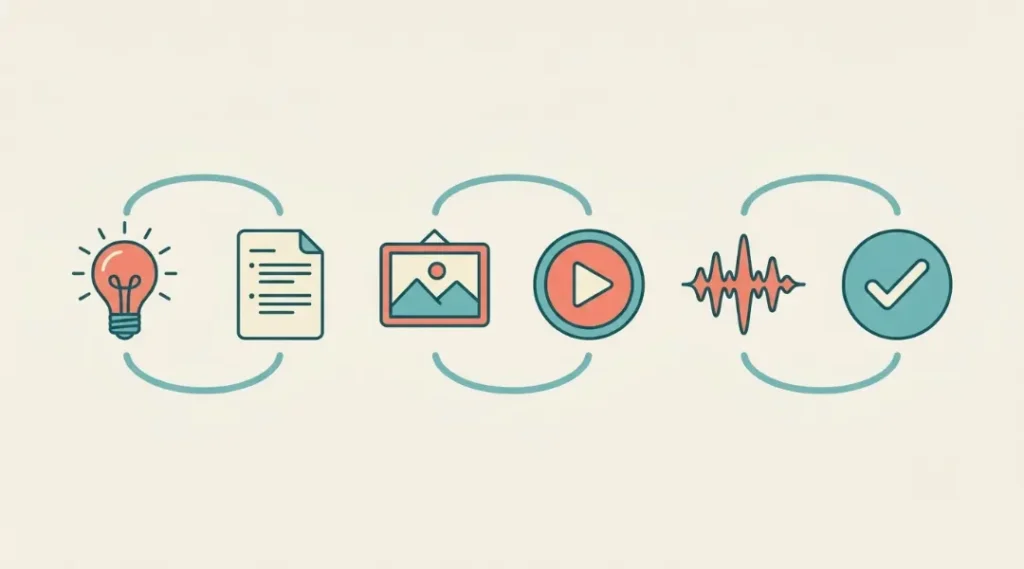
Here is a simple way to use generative AI tools for creators on a real project. Once your templates are ready, a 60-second video takes me about two to four hours instead of a full day.
Step 1: Define the Goal and Your Human Anchor
Write one sentence about who the video is for and what you want them to do. Then decide what only you will provide. That might be your voice, your face, your opinion, or your own footage.
This “human anchor” keeps the piece from feeling generic.
Step 2: Draft the Script and Shot List
Ask a chat assistant for a few outline options. Pick one, then rewrite it in your own words. Break the script into short scenes and list what each one needs: an image, a clip, a voice line, or music.
Step 3: Make Still Images First
Stills are cheap and fast. Generate ten to twenty options in Midjourney, Firefly, Canva, or a Nano Banana model. Pick the best three and save them as reference images so later scenes match.
Step 4: Add Motion
Feed your best stills into a video tool such as Runway or Google Flow. Keep clips short and generate a few versions. Keep only the strongest.
If a result looks strange, change the prompt or the reference image. Do not repeat the same request.
Step 5: Add Voice, Music, and Sound
Record your own voice for the parts that need personality. Use a voice tool for narration, translation, or backup lines. Then add music and basic sound effects. Balance the volume so the voice stays clear.
Step 6: Edit, Label, and Publish
Assemble everything in Descript or your usual editor. Trim slow moments, add captions, and double-check facts. Add an AI disclosure label where the platform asks for one. Save your prompts, drafts, and original files so you can show your creative contribution later.
Quick Workflow Checklist
- Goal written down
- Script rewritten in your voice
- Reference images saved
- Clips reviewed and cleaned up
- Audio balanced
- Disclosure added if needed
- Files and prompts backed up
How to Choose the Best Generative AI Tools for Creators
With so many options, filter by your needs before you look at features. Ask these six questions in order.
1. What Job Am I Trying to Do?
Write down your top three tasks. If you mostly edit podcasts, a fancy video generator will not help. Start where your time goes.
2. Can I Use the Output Commercially?
Read the license terms. Some plans allow commercial use and some limit it. If you create work for clients, this question comes first.
3. How Do Credits and Pricing Work?
Look at what each action costs, whether credits expire, and what happens when you run out. Compare the price per finished piece, not just the monthly fee.
4. Can I Export and Leave?
Make sure you can download your files in common formats. Avoid tools that lock your projects inside.
5. How Stable Is the Company?
New tools appear and vanish. Prefer tools with clear pricing, regular updates, and a track record. Keep your prompts and references outside the tool, as covered earlier.
6. What Happens to My Uploads?
Check privacy settings and whether your files can be used to train models. This matters most for client work, unreleased products, and personal photos.
Recommended Starter Stacks
- YouTubers: an editing tool first, then a voice tool, then an image generator for thumbnails. Add video generation only for b-roll you cannot film.
- Podcasters: transcript-based editing, an AI voice tool for intros or translations, and a simple graphics tool for episode art.
- Social media managers: Canva or Firefly for graphics, a chat assistant for captions, and a clip tool for repurposing long videos.
- Solo filmmakers and musicians: images in Midjourney or a Nano Banana model, motion in Runway or Flow, and sound in ElevenLabs.
- Small businesses: one hub tool, one chat assistant, and a clear approval step before anything goes public.
Rolling these tools out across a team? Read our article on why AI transformation is a problem of governance before you buy seats. Clear rules about who can use which tool, and who approves the output, prevent most problems.
Prompting Tips That Actually Help
You do not need a secret formula. A few habits make a big difference.
- Use a simple structure. Try this order: subject, action, setting, style, lighting, camera, mood. For example: “A young chef plating dessert, in a small bright kitchen, soft documentary style, warm morning light, close-up shot, calm and focused.”
- Say what you do not want. If the tool allows it, add exclusions like “no text, no extra fingers, no blurry background.”
- Change one thing at a time. If a result is close but not right, adjust one detail. Changing everything at once hides what works.
- Keep a prompt library. Save winning prompts with the tool, version, and settings. A prompt that works today may behave differently after an update.
- Use references instead of long descriptions. One good reference image can replace a paragraph of text and gives steadier results.
- Do a final human pass. Check faces, hands, text, logos, product details, and background objects. Small errors are easy to miss and easy for audiences to spot.
Copyright, Disclosure, and Safety
Using generative AI tools for creators does not remove your legal responsibilities. A few basics will keep you safer.
Who Owns AI-Generated Work?
In the United States, the Copyright Office has said that prompts alone do not give users enough control to count as the author of the output. Using AI as a tool to assist human creativity, however, does not limit protection. A person who creatively selects or arranges AI output can also receive protection for the resulting compilation.
- Edit and refine the output instead of publishing it untouched.
- Combine AI material with your own writing, footage, music, or design.
- Keep drafts, prompts, and original files as proof of your contribution.
Laws differ by country and change over time. This is general information, not legal advice. For big commercial projects, talk to a qualified lawyer.
Labeling AI Content
Many platforms ask you to label realistic AI-generated images, video, or voices, especially when viewers could mistake them for real events or real people. Rules change, so read the current policy for each platform you publish on. Honest labeling protects your reputation.
Keep Content Credentials Intact
Some tools attach tags that show how content was made. Adobe automatically adds Content Credentials that show whether content came from a Firefly model or a partner model. Avoid stripping this data unless you have a clear reason.
Respect People and Brands
- Do not create realistic images, videos, or voices of real people without permission.
- Do not copy protected characters, logos, or distinctive brand styles.
- Do not use AI to mislead audiences about real events.
Policy and regulation are changing fast around the world. Our explainer on AI governance covers principles that apply to solo creators as much as to large companies.
What Generative AI Tools Really Cost
Pricing is one of the most confusing parts, so here is a simple way to think about it.
Free Plans Are for Testing
Free generative AI tools for creators are real, but they are trials. Canva’s free plan includes a limited amount of Magic Studio use. ElevenLabs offers a free tier of 10,000 characters per month. Runway’s free plan gives a small one-time credit pack. Use them to learn, not to run a business.
Video Is the Expensive Category
Images and voice are fairly cheap. Video burns credits fast. For API users, a five-second Gen-4.5 clip costs about $0.60. That sounds small until you multiply it by ten rejected takes for every keeper.
Ways to Save Money
- Track cost per finished piece. Divide your monthly spend by the number of finished videos or posts.
- Cap retries. Five tries per shot is a good rule.
- Prototype cheaply. Plan with stills and rough audio before spending video credits.
- Pay monthly first. Switch to yearly billing only after a tool survives a full project.
- Cancel what you do not use. Review your subscriptions every month.
- Use hubs wisely. A hub with many models can replace several subscriptions, but check how credits are charged for each model.
A Sample Monthly Budget
A solo creator might pay for one editing tool, one voice tool, one image or design tool, and occasional video credits. Prices change often, so check each vendor’s pricing page before you plan. The principle matters more than the numbers: start small, measure results, and expand only when a tool clearly saves time or earns money.
Common Mistakes to Avoid
The biggest mistake with generative AI tools for creators is letting the tools do everything. When every step is automatic, your content starts to look like everyone else’s. Watch out for these traps too:
- Buying too many subscriptions at once. Finish one project with one tool before adding another.
- Locking assets inside one platform. Keep prompts, references, and exports in your own folders.
- Skipping the human anchor. Audiences connect with a person, not a pile of generated clips.
- Trusting outdated advice. A tool list older than six months may already be wrong.
- Publishing without checking. Wrong spellings, strange hands, and incorrect facts damage trust.
- Ignoring labels and permissions. Skipping disclosure or cloning a voice without consent can get you banned or sued.
- Chasing perfection. Set a retry limit and move on.
- Forgetting backups. Save finished files and project data in at least two places.
Frequently Asked Questions
It depends on the job. For images, try Midjourney, Adobe Firefly, or Canva. For video, try Runway or Google Flow. For voice, dubbing, and music, try ElevenLabs. For editing, try Descript. Most creators only need one tool per category.
Yes, but with limits. Canva, ElevenLabs, and Runway all have free plans that are good for testing. Regular publishing usually needs a paid plan because of credit limits, watermarks, or commercial-use restrictions.
Yes, many creators do. You need to follow each tool’s commercial terms and each platform’s rules. Add your own value through editing, storytelling, and expertise. Purely automatic content tends to perform poorly and may not be protected by copyright.
In the United States, purely AI-generated output is generally not protected, and prompts alone usually do not change that. Human edits, selection, and arrangement can be protected. Rules vary by country.
Often, yes, especially for realistic images, video, or voices. Platform rules differ and change over time, so check the policy wherever you publish.
Start with a tool that offers a free trial and simple controls. Runway and Google Flow are common starting points. Practice with short clips and still images before you pay for a plan.
AI changes how work gets done, but audiences still follow people for their personality, taste, and trust. Creators who learn these tools well usually work faster and earn more. The tools are strongest when guided by human judgment.
Use your own voice, footage, stories, and opinions. Use reference images for a consistent style, edit heavily, and avoid default settings. A recognizable creative point of view is the hardest thing for AI to copy.
Check your stack every few months. Prices, features, and even whole products change. Keep notes on what you use and why, so switching is easy.
Final Thoughts
Generative AI tools for creators work best when you pick them with care. Start with one job, choose one tool, finish one project, and learn from it. Then add the next piece.
The tools will keep changing. Your taste, your stories, and your point of view are what keep your work worth following.