How to Lock a Chat in WhatsApp
WhatsApp’s Chat Lock feature quietly became one of the most requested privacy tools on the platform after Meta rolled it out in May 2023. Over 2 billion people use WhatsApp daily, yet a surprising number still hand their phone to someone and wince the moment they do it. Chat Lock fixes exactly that problem. It moves your most private conversations into a separate, password-protected folder that no one can access without your device biometric or WhatsApp PIN even if your phone is already unlocked.
This guide walks you through exactly how to lock a chat in WhatsApp on Android and iPhone, what changes after you lock it, and the specific mistakes that trip people up. For a broader look at privacy settings, notifications, and shortcuts across the whole app, the full WhatsApp tips and tricks guide covers everything else in depth.
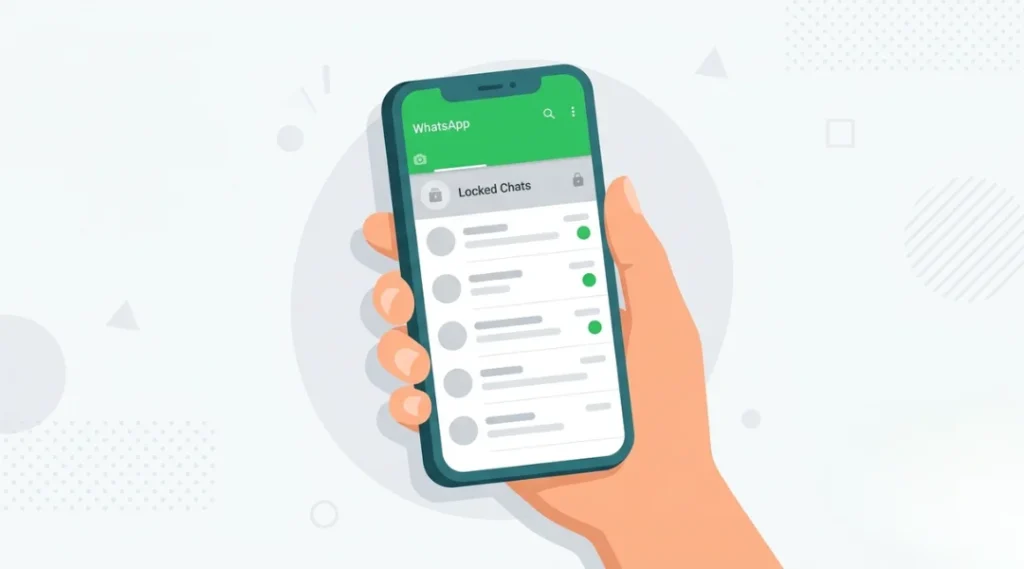
Table of Contents
ToggleWhat Is WhatsApp Chat Lock?
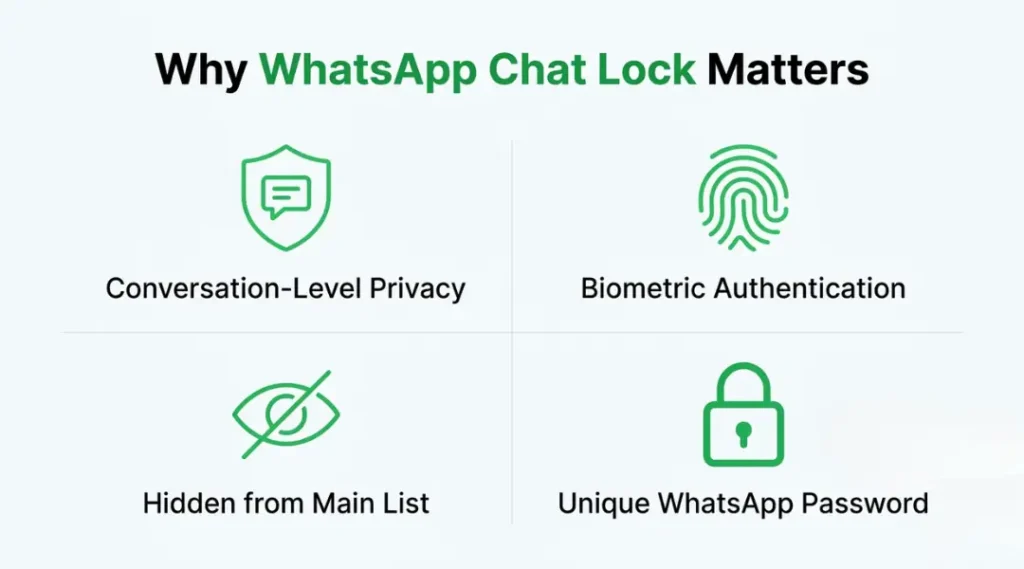
Chat Lock is a built-in WhatsApp privacy feature that places individual conversations inside a hidden, biometric-protected folder. Locked chats disappear from your main chat list and only reappear when you authenticate with your fingerprint, Face ID, or a WhatsApp-specific PIN. It is different from the app lock setting, which secures the entire WhatsApp app; Chat Lock works at the conversation level, so you can lock two chats without affecting the rest.
Why Chat Lock Matters in 2026
Privacy expectations have shifted sharply in the last two years. WhatsApp expanded Chat Lock to group chats in late 2023 and added the ability to use a unique password separate from your phone’s lock screen — a significant change that arrived in the December 2023 update cycle. Before that addition, anyone who knew your phone PIN could access locked chats; now they require a dedicated WhatsApp credential.
The practical stakes are real. Shared devices in households, a phone handed to a child, or a colleague needing to make a quick call — these are the everyday scenarios where a single unguarded conversation can create a serious problem. Chat Lock addresses each of them without requiring third-party apps or workarounds.
One place Chat Lock matters less: if you use WhatsApp Web on a shared browser and leave the session open. Chat Lock is a mobile-only control; it does not extend to your desktop session. Logging out of WhatsApp Web after every session remains necessary.
How WhatsApp Chat Lock Works: Step-by-Step
Chat Lock is built directly into each conversation. There is no settings menu to navigate first you start from inside the chat itself.
Step 1: Open the chat you want to lock. Tap on any individual or group conversation in your main chat list. This works for both one-on-one and group chats on WhatsApp version 23.10 or later. If your app is outdated, the lock option will not appear; update through your device’s app store first.
Step 2: Tap the contact name or group name at the top. This opens the contact info or group info screen. On Android, tap the three-dot menu at the top right if the option does not appear directly. Scroll until you see “Chat Lock” it sits below Media and Starred Messages on most builds.
Step 3: Toggle Chat Lock on. WhatsApp immediately asks you to authenticate with your fingerprint or Face ID. Once confirmed, the chat disappears from your main list and moves to the locked folder. A small lock icon confirms the action.
Step 4: Access locked chats when you need them. Scroll slowly to the very top of your main chat list and pull down. A “Locked Chats” folder appears. Tap it, authenticate, and your locked conversations are visible for the duration of that session.
Step 5: Set a unique WhatsApp password (recommended). In WhatsApp Settings, go to Privacy, then scroll to “Chat Lock.” Here you can enable “Use your WhatsApp password” and set a dedicated PIN or password. This is the step most users skip, and it is the most important one for genuine privacy. Without it, your phone’s biometric alone protects the folder which means anyone else enrolled on your device (a partner, family member) can open it.
A common mistake: locking a chat and then leaving WhatsApp notifications turned on. Notification previews will still show message content on your lock screen even after the chat is locked. Go to Settings, then Notifications, and disable “Show Preview” for the specific contacts you have locked, or switch your notification style to “No Preview” globally. WhatsApp’s official support page covers the notification settings in detail at faq.whatsapp.com.
How to Find a Locked Chat in WhatsApp
Once a chat is locked, it does not show up in your normal search results either this trips up many people who later cannot locate their own conversations.
To find any locked chat: pull down from the top of the chat list to reveal the Locked Chats folder, authenticate, and use the search bar inside that folder. Searching from the main WhatsApp search bar will not surface locked chats. This is intentional design, not a bug, and it is worth knowing before you lock an important work conversation and then spend ten minutes looking for it.
How to Lock a Chat in WhatsApp on iPhone
The iPhone process is nearly identical, with one difference in where the Chat Lock option appears. After tapping the contact name at the top of a conversation, scroll down to find “Chat Lock” below the Disappearing Messages setting. Face ID is the default authentication method on iPhone. If your device uses Face ID for multiple enrolled faces (a common setup for couples), set a unique WhatsApp password as described in Step 5 above; otherwise, the second enrolled face will open your locked folder just as easily as yours.
Apple’s Screen Time feature offers a secondary layer if you want to prevent changes to WhatsApp settings entirely Apple’s Screen Time documentation explains how to restrict app settings without blocking the app itself.
How to Lock a Specific Chat in WhatsApp (Without Locking All Chats)
Chat Lock is per-conversation by design. You can lock one chat and leave every other conversation visible in your main list. There is no “lock all chats” setting, and WhatsApp has not indicated plans to add one. If you want to protect multiple conversations, you lock each one individually through the same contact info process described above.
The practical limit is usability. Locking more than four or five conversations tends to push people toward enabling the app lock instead, which is a coarser but simpler solution. App lock lives in Settings under Privacy and secures the entire WhatsApp app with biometrics a reasonable choice if you are not comfortable distinguishing which chats need individual protection.
Best Methods to Protect WhatsApp Chats: Chat Lock vs. App Lock vs. Archive
Three options exist for protecting WhatsApp conversations, and each solves a different problem.
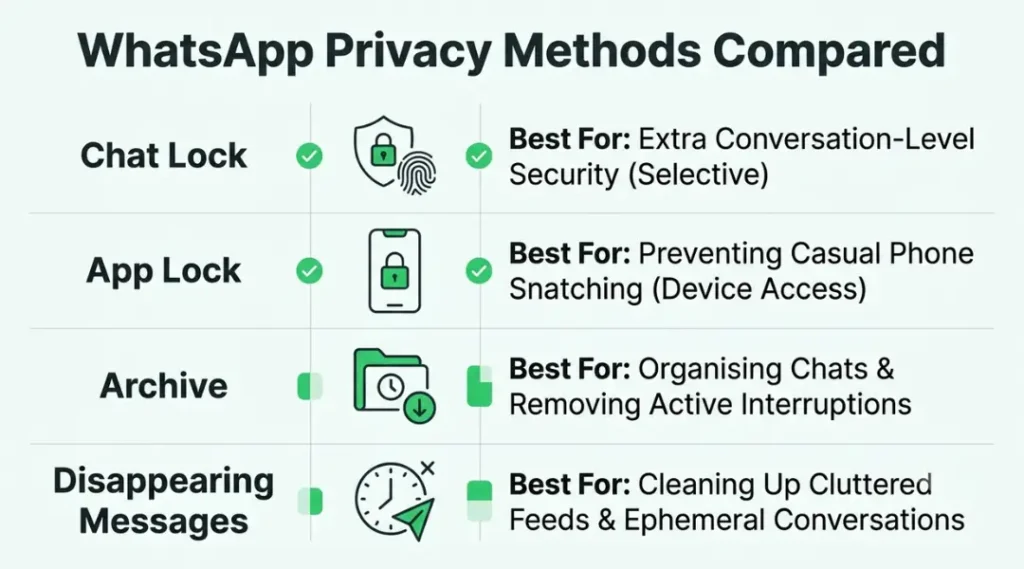
| Method | Best For | Key Strength | Real Limitation | Available On |
|---|---|---|---|---|
| Chat Lock | Hiding 1–5 specific chats | Conversation-level control; unique password option | Does not hide notifications unless you disable previews separately | Android and iOS (WhatsApp 23.10+) |
| App Lock | Securing all of WhatsApp from casual access | One-step protection for the whole app | Anyone with your biometric enrolled opens everything | Android and iOS |
| Archive | Decluttering your list; soft visibility reduction | Zero friction; reversible instantly | Archived chats are not password-protected; a search finds them | Android and iOS |
| Disappearing Messages | Reducing message history automatically | Content deletes after 24 hours, 7 days, or 90 days | Recipients can screenshot before deletion; does not hide the chat itself | Android and iOS |
If you want genuine privacy for a specific conversation, Chat Lock with a unique WhatsApp password is the right choice. App Lock is easier to set up but coarser. Archive is not a privacy tool; it is an organization tool that people sometimes mistake for one.
WhatsApp’s privacy architecture is documented at the WhatsApp Privacy Center, which outlines what the app protects at the platform level versus what individual settings protect at the device level. For questions about what WhatsApp shares with Meta, the Meta Privacy Policy provides the full technical detail. Understanding the difference between device-level privacy (what Chat Lock provides) and platform-level privacy (what end-to-end encryption provides) is essential before treating Chat Lock as your only privacy measure.
How to Open a Lock Chat in WhatsApp
Opening a locked chat is a two-step action, and the friction is intentional.
Pull down from the very top of your main chat list. The “Locked Chats” folder appears at the top. Tap it, authenticate with your fingerprint, Face ID, or WhatsApp password, and the folder opens. Your locked conversations appear normally inside. Tap any one to open it. When you exit the folder and return to the main chat list, the folder collapses and the locked chats disappear again.
One edge case worth knowing: if you receive a message in a locked chat while WhatsApp is open, you will not hear a separate notification sound for it unless you have set individual notification tones for that contact. The message arrives silently in the locked folder. This is a feature, not a flaw but it means you need to check the folder periodically if you expect messages there.
Common Chat Lock Mistakes And How to Fix Them
Mistake 1: Leaving Notification Previews On
Many people lock a chat and then receive a notification that displays the first line of the message on their lock screen. The chat itself is hidden, but the content leaks through the notification.
Fix this by going to WhatsApp Settings, then Notifications, and setting message previews to “No Preview” for the contacts you have locked. Android users can also set this at the system level through the notification settings for WhatsApp in device Settings.
Self-check: Can you read any message content from a locked chat without unlocking your phone? If yes, your previews are still active.
Mistake 2: Not Setting a Unique WhatsApp Password
The default Chat Lock setup uses your device biometric. If your partner, child, or anyone else is enrolled as a fingerprint or Face ID user on your phone, they can open your locked folder without restriction. Setting a unique WhatsApp password under Privacy, Chat Lock is the fix. Pick something you have not used elsewhere.
Self-check: Go to Settings, Privacy, Chat Lock, and check whether “Use your WhatsApp password” is toggled on. If it is off, anyone with biometric access to your phone has access to your locked chats.
Mistake 3: Assuming Lock Hides the Chat from WhatsApp Web
Chat Lock is a mobile feature only. If you have an active WhatsApp Web or WhatsApp Desktop session, locked chats are visible there without any additional authentication. Log out of active desktop sessions when you are not using them. You can see and end all active sessions at Settings, Linked Devices.
Self-check: Go to Settings, Linked Devices. Are there any sessions you do not recognize or have not actively ended?
Quick Win: Lock your most sensitive chat right now, then pull down to test that the Locked Chats folder appears and authenticates correctly. The whole setup takes under two minutes, and you will immediately know whether your notification previews are leaking content.
How to Lock WhatsApp Chat on iPhone: FAQ
Pull down from the very top of your main WhatsApp chat list. A "Locked Chats" section appears above your pinned chats. Authenticate with Face ID or your WhatsApp password to open it. Standard search from the main screen will not surface locked chats by design.
Can the other person in a locked chat tell that I locked it?
Chat Lock settings do not transfer automatically when you migrate WhatsApp to a new device. After restoring your backup on a new phone, you will need to re-lock any conversations you previously had locked. Your messages will be there; the lock status will not.
Yes, WhatsApp Business supports Chat Lock through the same contact info process as the standard app. The setting appears in the same location and uses the same authentication options.
No. Locking a chat only moves it to a hidden folder. No messages are deleted. If you unlock the chat later, all messages remain intact.
Conclusion
Locking a chat in WhatsApp takes under two minutes and requires no third-party app. Open the conversation, tap the contact name, toggle Chat Lock, authenticate, and the chat is gone from your main list. The one step most people skip setting a unique WhatsApp password in Privacy settings is also the most important one. Without it, anyone with biometric access to your phone can still open your locked folder.
Key Takeaways:
- Chat Lock moves individual conversations to a hidden, authentication-protected folder on your device
- Pull down from the top of your chat list to access the Locked Chats folder
- Set a unique WhatsApp password (Settings, Privacy, Chat Lock) to prevent other enrolled biometric users from opening your locked chats
- Disable message notification previews for locked contacts otherwise the content still appears on your lock screen
- Chat Lock does not extend to WhatsApp Web or Desktop; log out of linked devices when not in use
Take ten minutes now: lock your most sensitive chat, set a unique WhatsApp password, and confirm that notification previews are off. That combination covers the real-world scenarios where privacy matters most.