WhatsApp Tips and Tricks
WhatsApp has over 3 billion users, and most of them are still using maybe 10% of what the app can actually do. That’s not a guess. It’s what happens when an app adds a major feature every few months and never makes you read a changelog. You open the app, send your message, close it. The Chat Lock button, the Secret Code setting, the AI photo editor sitting one tap away in your camera roll: all invisible until someone points them out.
This guide points them out. Every tip below reflects WhatsApp’s app as it works right now in 2026, not the version that existed when most “WhatsApp tricks” articles were written. You’ll learn how to tell if someone actually blocked you, lock a chat without anyone knowing it’s locked, message a number without saving it, and fix the small annoyances that make WhatsApp feel cluttered. By the end, you’ll be using the app the way people who’ve actually read the settings menu use it.

Key Takeaways
- WhatsApp’s blocking signals (no last seen, single grey tick, frozen profile photo) are suggestive on their own, but only become reliable when three or more line up at once.
- Chat Lock and its companion Secret Code feature are separate settings. Lock alone just moves a chat into a folder; the Secret Code is what actually hides that folder from view.
- You can message any number on WhatsApp without saving it first, using a free wa.me link that works the same on a phone or a desktop browser.
- Deleted messages are not retrievable from WhatsApp itself. The only way to see one is if your device already logged the notification before it disappeared, and that window is short.
- The most overlooked 2026 feature isn’t a privacy setting. It’s WhatsApp’s built-in AI Writing Help, which drafts a reply for you based on the conversation, entirely on-device.
Table of Contents
ToggleWhat Is WhatsApp Tips and Tricks?
“WhatsApp tips and tricks” means the features built into the app that solve a specific problem, things like locking a private chat, messaging someone without saving their number, or telling whether you’ve been blocked, that most users never discover because WhatsApp doesn’t surface them by default. They’re not hacks or workarounds. Every tip in this guide uses an official, built-in setting (per WhatsApp’s own Help Center).
Why WhatsApp Tips and Tricks Matter in 2026
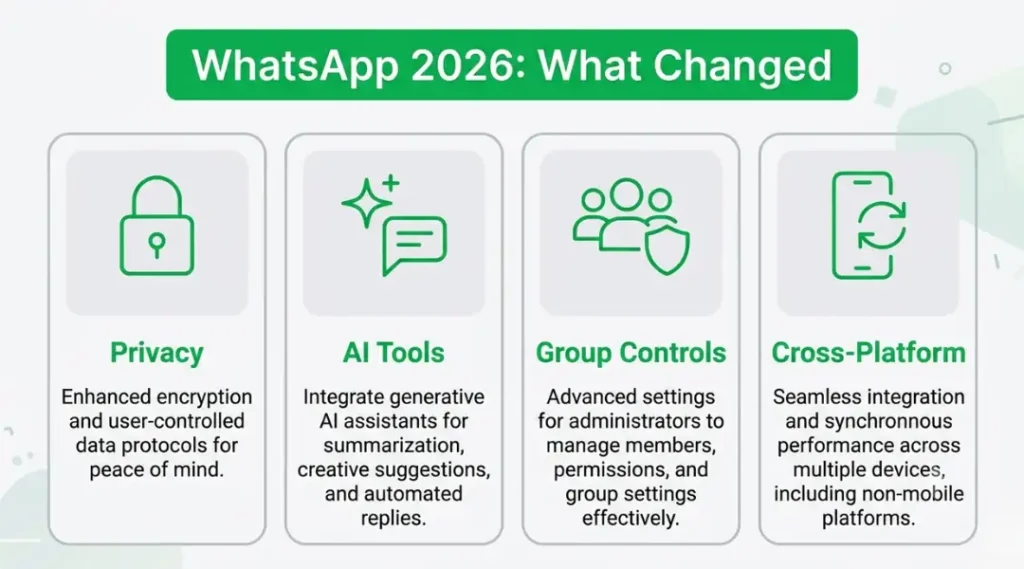
WhatsApp shipped three changes in the first half of 2026 that quietly reshaped how people use it day to day. In March, WhatsApp rolled out cross-platform chat transfer between Android and iPhone, dual accounts on iOS, and on-device AI photo touch-ups inside the chat window, with Meta’s own announcement framing the update as letting people manage multiple accounts, clear out storage without losing history, and move chats between operating systems in only a few steps. Around the same window, WhatsApp’s AI Writing Help moved from a novelty to something genuinely useful, since it now drafts a suggested reply based on the actual conversation rather than a generic template.
The bigger shift is on the privacy side. Group admins gained tighter controls in 2026, including admin-only announcement modes, approval-based joining, and the ability to reset an invite link at any time to lock out anyone who shouldn’t have it, per a 2026 feature roundup from Omnichat. At the same time, Advanced Chat Privacy can block someone from exporting your chat content at all, and View Once now extends to voice messages, which auto-delete the instant they’re played.
There’s a quieter pattern underneath all of this worth naming directly: WhatsApp’s chat list ranking now favors recently active conversations, which means a group that’s gone quiet for a few weeks gradually drops out of sight for its members, according to the same Omnichat roundup. For anyone running a community, club, or small business group, this isn’t cosmetic. An inactive group effectively becomes invisible to the people in it, regardless of how important its content is, so staying visible in 2026 means posting with some regularity, not just creating the group and walking away.
Voice messaging has also moved from a casual, walking-and-talking feature into something closer to professional communication. WhatsApp’s built-in voice transcription now converts a long audio message into readable text directly inside the chat, according to a 2026 feature breakdown from Odysense, which means a two-minute voice note someone sends during your meeting no longer has to interrupt it; you can read the gist in seconds and decide whether it needs your full attention.
Here’s where this actually matters less: if you only use WhatsApp for the occasional family group chat with three relatives, most of this won’t change your day. The privacy tools matter most if you’re managing sensitive conversations, running a small business account, or sharing a phone with people you’d rather not have browsing your message history.
How WhatsApp's Best Features Work: Step-by-Step
Each feature below is a direct setting change. No third-party apps required for any of these.
Step 1: Find Out If Someone Actually Blocked You
WhatsApp never sends a notification when you’re blocked, by design, to protect the privacy of the person doing the blocking. Instead, you have to read the signals. Open the chat and check four things: their last seen and online status disappear, their profile photo stops updating or shows the default grey icon, your messages show only one grey checkmark and never go to two, and you can’t add them to a new group chat (you’ll get an error like “Couldn’t add participant”).
Pro tip: Run all four checks before concluding anything. A single missing signal usually means something else, like a privacy setting they changed or a dead phone battery.
Common mistake: Assuming a single grey tick is proof. It also happens if their phone is off, they’re somewhere with no signal, or they deleted the app entirely.
Step 2: Lock a Chat So It’s Invisible Even If Someone Has Your Phone
Open the chat you want to protect, tap the contact or group name at the top, and select Lock Chat. Confirm with your fingerprint, Face ID, or phone PIN. That chat now lives inside a separate Locked Chats folder, away from your main chat list.
On its own, this only gets you halfway. Anyone who picks up your phone and scrolls down past your chat list will still see a “Locked Chats” folder sitting there, which invites the exact question you were trying to avoid. The fix is the Secret Code: open the Locked Chats folder, tap the three-dot menu, go to Chat Lock Settings, and choose Secret Code. Set a code (letters, numbers, or emoji all work), confirm it, then turn on Hide Locked Chats. From that point, the folder vanishes completely from your chat list. The only way back in is typing your secret code into the search bar.
Pro tip: Pick something you’ll actually remember. If you forget your secret code, recovery means clearing the entire Locked Chats folder, which deletes everything inside it unless you have a separate backup.
Common mistake: Locking a chat and stopping there, assuming that’s the same as hiding it. It isn’t. Lock alone is visible; Secret Code is what actually hides it.
Step 3: Message Someone Without Saving Their Number
Open any browser, type https://wa.me/ followed by the phone number in full international format (country code first, no plus sign, no spaces, no leading zero), and hit enter. WhatsApp opens a chat window with that number directly. For example, an Indian number would look like https://wa.me/919876543210.
You can also pre-fill a message by adding ?text= followed by your message after the link. This works identically on mobile and desktop, and the recipient doesn’t need to have your number saved either, the link bypasses the contact requirement on both sides.
Pro tip: Bookmark a version of this link with a blank number field if you do this often for quick one-off contacts like delivery drivers or shop inquiries.
Honest limitation: This only works for individual chats. If you need to message 50 new leads who’ve never saved your number, a wa.me link for each one becomes impractical fast, that’s a job for the WhatsApp Business API, not a personal trick.
Step 4: Try to Read a Message After It’s Been Deleted
There’s no built-in “undo delete” on WhatsApp. Once someone deletes a message for everyone, your only realistic paths are external to the app itself.
On Android, if Notification History was already turned on in your phone’s Settings under Notifications before the message arrived, the original text may still be sitting in that log even after the chat shows “This message was deleted.” Go to Settings, Notifications, Notification History to check. The catch: this only captures text that triggered a notification, and most Android builds only retain that history for roughly 24 hours.
On iPhone, there’s no equivalent built-in log. Your only option is restoring an iCloud backup made before the deletion happened, which will also roll back every other chat to that backup’s timestamp.
Honest limitation: Neither method recovers photos, videos, or voice notes, only text that already generated a visible notification.
Step 5: Download Someone’s Status Without Them Knowing
Open the Updates tab, tap the status you want to save, and use the download icon if one appears directly in the viewer (availability varies by region and app version). If it’s not there, the more reliable route is a screen recording or screenshot, taken the same way you’d capture anything else on your phone.
Common mistake: Assuming the other person gets notified when you save their status. They don’t, WhatsApp doesn’t send a save alert, though they can still see that you viewed the status if your view receipts are turned on.
Step 6: Change Your WhatsApp Keyboard Theme
This isn’t a WhatsApp setting at all, it’s a phone-level keyboard setting that happens to apply inside WhatsApp too. On Android, open your keyboard app (Gboard, SwiftKey, or similar), tap the theme or customization icon usually visible above the keys, and pick a new color scheme or background. On iPhone, the system keyboard has more limited theming, so most people use a third-party keyboard app from the App Store for a custom look.
Honest limitation: There’s no WhatsApp-specific keyboard skin. If you’ve seen ads promising one, they’re either a generic keyboard app rebranding itself or not legitimate.
Step 7: Introduce Yourself Properly in a New Chat
Skip “Hi, who is this?” Open with your name, how you know the person or why you’re reaching out, and one clear next step. “Hi, I’m Keerthika from the design team, following up on the file Raj mentioned” gets a faster, friendlier reply than a blank “Hello” ever will, because it removes the guesswork on the other end.
Pro tip: If you’re messaging someone cold (a vendor, a landlord, a service provider found online), add one line of context about where you got their number. It signals you’re not a random spam contact, which matters more than people realize on a platform where unsolicited messages are common.
Common mistake: Sending “Hi” or “Hello” alone and then waiting in silence for them to ask who you are. Most people simply won’t reply to an unexplained greeting from an unsaved number, especially on a business account.
Step 8: Customize Notifications So Group Chats Stop Taking Over Your Phone
Not every chat deserves the same buzz on your phone. Open the specific chat, tap the contact or group name at the top, and look for the Notifications option. From there you can set a custom tone, turn off vibration, or mute the conversation entirely for a set period (8 hours, 1 week, or always).
This matters most for the one group chat everyone has, the big family thread, the building society group, the old college WhatsApp that’s somehow still active in 2026, that pings constantly with content you don’t need to see in real time. Muting it doesn’t mean missing it; messages still arrive and sit in your chat list, you just stop getting interrupted by each one.
Pro tip: Mute the noisy groups, but keep notifications fully on for the two or three threads that actually need a fast reply. Selective muting beats either extreme (notifying for everything, or going fully silent).
Honest limitation: Muting a group doesn’t change how the message badge counter behaves; unread messages still pile up visually on your app icon even when notifications are silenced.
Step 9: Search a Specific Chat Instead of Scrolling for It
If you remember roughly what was said but not when, WhatsApp’s search bar inside a single chat works better than scrolling. Open the conversation, tap the contact name (or the menu icon on Android), select Search, and type any word from the message you’re hunting for. Every match appears in a list, ordered by date, and tapping one jumps straight to that point in the conversation.
This becomes especially useful for practical details: an address someone sent months ago, a confirmation number, a restaurant recommendation buried in a thread that’s otherwise mostly small talk. Searching by date also works; typing a date in DD/MM/YYYY format will surface messages sent on that specific day, which helps when you remember roughly when something happened but not what was said.
Pro tip: Combine a keyword with a date range mentally. If you know it was “sometime in March,” search a few likely keywords first since narrowing by content is usually faster than scrolling toward an approximate date.
Best Tools and Methods for Getting More Out of WhatsApp
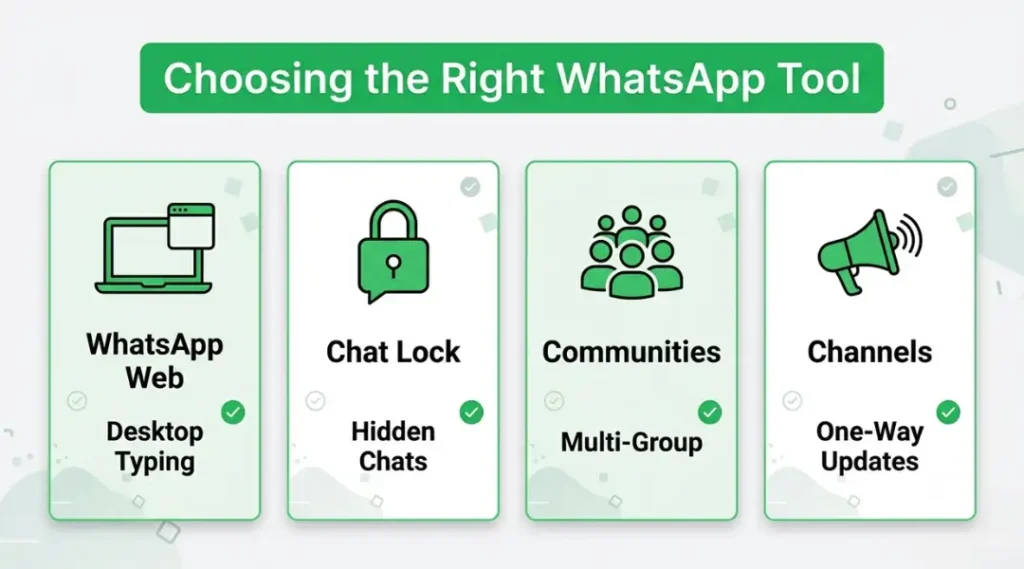
The tips above cover individual actions. These four features are less about a single task and more about how you organize WhatsApp day to day. Each does something the others can’t, so they’re not really competing with each other; they’re solving different problems.
WhatsApp Web deserves the top recommendation if you spend your day at a keyboard, since typing on a laptop beats thumb-typing for anything longer than a quick reply. Chat Lock with Secret Code wins for anyone who shares a device or just wants certain conversations genuinely private. Communities make sense once a single group chat has grown unmanageable. Channels exist purely for one-way updates from people or brands you follow, not for two-way conversation.
| Tool / Product | Best For | Key Strength | Real Limitation | Price (2026) | Verdict |
|---|---|---|---|---|---|
| WhatsApp Web (on mobile) | Typing on a real keyboard | Syncs instantly with your phone, no install needed on desktop | Your phone must stay connected to the internet for it to keep working | Free | Best for desk-bound users |
| Chat Lock + Secret Code | Hiding sensitive conversations | Hides the entire folder, not just message previews | Forgetting the code means clearing the whole folder to get back in | Free | Best for shared devices |
| Communities | Managing several related groups | One umbrella with shared announcements across sub-groups | Overkill for fewer than three active groups | Free | Best for large organizations |
| Channels | Following one-way updates | No group noise, just the updates you actually opted into | You can’t reply or message the channel owner directly | Free | Best for following brands or creators |
WhatsApp Web on Mobile: Setup and Real Use
WhatsApp Web isn’t only a desktop tool. On a tablet or a second phone, open a browser, go to web.whatsapp.com, and scan the QR code shown using the main WhatsApp app’s Linked Devices menu (Settings, Linked Devices, Link a Device). The session stays active until you manually log it out or your phone goes offline for an extended period.
Honest limitation: Linked devices depend entirely on your primary phone’s connection. If your phone’s battery dies or it loses signal, WhatsApp Web stops syncing new messages until it reconnects.
Communities: When a Group Chat Outgrows Itself
If you’re running, say, a school parent group that’s split into five different topic threads inside one chat, a Community solves that mess. Open the Communities tab, tap New Community, and follow the setup prompts to create sub-groups under one shared umbrella, each with its own focus, all reachable from a single place.
A Business Profile, Even If You’re Not Running a Business
If you use one WhatsApp number for anything resembling work, freelance clients, a small shop, tutoring, switching that number to a WhatsApp Business profile costs nothing and adds tools the standard app doesn’t offer: a catalog to share product or service listings directly in chat, automated greeting and away messages so a first-time message doesn’t sit unanswered for hours, and basic labels to sort conversations by status (new lead, in progress, paid).
This isn’t the same as the WhatsApp Business API, which is a separate, paid, developer-level product built for high-volume automated messaging. The free Business app is simply a version of regular WhatsApp with a few extra small-business tools layered on top, and it runs as its own separate app alongside your personal WhatsApp if you want to keep the two numbers distinct.
Honest limitation: A Business profile is genuinely unnecessary if you only message friends and family. Adding catalog and away-message tools to a personal-use number just adds settings you’ll never touch.
Channels: Following Without the Noise
Channels are one-way: you follow a brand, public figure, or organization and receive their posts, but you can’t reply in the channel itself. Open the Updates tab, tap the plus icon next to Channels, search for the one you want, and tap follow.
The honest use case here is narrower than Communities. If you want to follow your favorite sports team’s official updates, a news outlet, or a creator without the noise of a comment section, Channels does exactly that and nothing more. Channel admins can post text, images, polls, and short videos, but the channel itself never shows you as a follower to anyone else; your subscription is private.
Common mistake: Expecting a reply when you message a channel. There’s no inbox on the follower side for that, channels function strictly as a broadcast feed, closer to a one-way newsletter than a chat.
Disappearing Messages: Setting Conversations to Self-Clean
For chats where you’d rather not keep a permanent record, sensitive logistics, a temporary address, a one-time code, Disappearing Messages clears new messages automatically after a set window. Open the chat, tap the contact name, select Disappearing Messages, and choose 24 hours, 7 days, or 90 days. You can also set this as the default for every new chat you start, under Settings, Privacy, Default Message Timer.
This doesn’t retroactively delete anything already in the conversation; it only applies going forward from the moment you turn it on. It also doesn’t stop the other person from screenshotting a message before it disappears, the feature manages your chat history, not what someone does with a message in the seconds before it clears.
Honest limitation: Disappearing Messages and Chat Lock solve different problems and don’t substitute for each other. Locking hides a chat from view; disappearing messages reduces how long content exists at all. Use both together for the highest-sensitivity conversations.
Benefits of WhatsApp Tips and Tricks, With Real Examples
Knowing these features changes specific, measurable parts of how you use the app, not just vague “convenience.”
Faster Conversations
Speeding up voice message playback to 1.5x or 2x lets you get through a long voice note from a chatty relative in a fraction of the time, without losing the words (pitch stays normal, only speed changes). Tap the play icon on any voice message, then tap the speed indicator that appears to cycle through 1x, 1.5x, and 2x.
Genuine Privacy Control
Hiding your last seen status from specific people, rather than everyone, means you can stay visible to close contacts while avoiding the colleague who messages at 10pm expecting an instant reply. This sits in Settings, Privacy, Last Seen and Online, where you can exclude individual contacts rather than going all-or-nothing.
Cleaner Organization
Starring a message (long-press, then tap the star icon) means you stop scrolling through six months of chat history hunting for an address or a confirmation number. Everything starred lives in one list under Settings, Starred Messages.
Less Friction for One-Off Contacts
Using a wa.me link instead of saving a number means your contact list doesn’t fill up with one-time entries like “Plumber Guy” or “Delivery March 2026” that you’ll never message again after this week. For anyone who orders frequently from small shops, books appointments through WhatsApp, or fields one-off inquiries for a side business, this single habit change keeps the contact list usable instead of cluttered with names you won’t recognize in six months.
Who Benefits Most
People managing a high volume of conversations, small business owners, parents juggling several group chats, and anyone sharing a device with family members get the most out of this list. If you mostly use WhatsApp for one or two chats with people you trust completely, several of these tips (Chat Lock, blocking-signal detection) simply won’t be relevant to you, and that’s fine.
When WhatsApp Tips and Tricks Underperform
A few of these features have real ceilings worth knowing before you rely on them:
- Blocking detection is never 100% certain. Even four matching signals together are still circumstantial, not confirmed.
- Chat Lock doesn’t work on WhatsApp Web unless you’ve already set a Secret Code on your phone; without one, locked chats simply don’t appear on desktop at all.
- Deleted message recovery has a tight window. Once that 24-hour Android notification log clears, the message is genuinely gone unless it exists in an older backup.
Common WhatsApp Mistakes and How to Fix Them
Mistake 1: Treating One Blocking Signal as Proof
People panic over a single grey tick and assume the worst. In practice, a phone with no signal produces the exact same single grey tick as an actual block.
The fix: Check all four signals (last seen, profile photo, tick status, group-add ability) before drawing any conclusion.
Self-check: if even one of those four still looks normal, you probably haven’t been blocked.
Mistake 2: Confusing Chat Lock With Hiding the Folder
This is the single most common setup error with WhatsApp’s privacy tools: locking a chat, then assuming it’s now invisible, when the Locked Chats folder is still sitting in the chat list for anyone to find and tap on.
The fix: Always pair Lock Chat with the Secret Code and the Hide Locked Chats toggle.
Self-check: open your chat list right now. If you see a “Locked Chats” row at all, your secret code isn’t set up yet.
Mistake 3: Relying on Notification History After It’s Already Too Late
Notification History only works if it was switched on before the message arrived. Turning it on after the fact captures nothing retroactively.
The fix: Turn on Notification History in your phone settings now, as a standing precaution, not as a reaction after you’ve already lost a message you wanted back.
Self-check: go to Settings, Notifications, Notification History on your Android phone right now and confirm the toggle is already on.
Mistake 4: Assuming a Saved Number Is Required to Message Anyone
Plenty of people manually add a throwaway contact just to send one message to a delivery driver or a shop, then have to remember to delete it later.
The fix: Use a wa.me link instead, as shown in Step 3 above, and skip the contact list entirely.
Self-check: if you’ve added more than two “temp” or “delete later” contacts this month, you’re solving this the slow way.
Mistake 5: Ignoring AI Writing Help Because It Sounds Gimmicky
WhatsApp’s AI Writing Help drafts a suggested response based on your actual conversation, keeping the process private to your device, rather than producing a generic template reply.
The fix: Try it once on a low-stakes reply before dismissing it. It’s a starting draft you edit, not a final answer you send blind.
Self-check: if you’ve never tapped the writing-help icon in the message box, you haven’t actually tested it yet.
Quick win: Run the four-signal blocking check on one contact you’ve been wondering about, then set up your Secret Code immediately afterward. Both take under three minutes combined, and they’re the two changes most likely to actually matter this week.
Real example: a small business owner managing customer inquiries through a personal number could use a wa.me link on their Instagram bio to take orders without ever manually saving a single customer’s number.
Frequently Asked Questions
No single sign guarantees it; WhatsApp never sends a block notification by design. The closest you'll get to certainty is checking all four signals together (last seen, profile photo, single grey tick, group-add failure) over a few days. If every one stays consistent and unchanged, that combination is a strong, though still not 100% definitive, indicator.
No. Chat Lock is entirely one-sided and invisible to the other person. They'll never see any indication on their end that you've locked your copy of the conversation, and their messages and notifications continue arriving normally.
It works without your phone being physically nearby, but not without your phone having an internet connection. Linked devices sync through your phone's active connection, so if your phone goes offline, WhatsApp Web stops receiving new messages until it reconnects.
No, WhatsApp doesn't send a save or download alert. They can see that you viewed their status (if view receipts are enabled), but viewing and saving are tracked completely separately, and only viewing is visible to them.
Yes. Deleting a contact from your phone's address book doesn't delete the WhatsApp chat itself; the conversation stays in your chat list, just labeled by phone number instead of a saved name going forward.
You need at least one chat already locked before the Secret Code option becomes available. If you've never used Lock Chat on any conversation yet, lock one first, then the Secret Code setting will appear inside the Locked Chats folder's settings menu.
Yes, WhatsApp doesn't have its own separate keyboard or theme engine. Whatever keyboard app and color theme you've set at the system level on your phone is exactly what displays inside WhatsApp, and every other app, automatically.
Communities group several two-way group chats under one shared umbrella, so members can post and reply in each sub-group. Channels are strictly one-way broadcasts. You can follow and read, but you can't post a reply inside the channel itself.
What to Read Next
- How to Know If Someone Has Blocked You on WhatsApp – walks you through every reliable signal, explains the one method that comes closest to a definitive answer, and helps you tell the difference between being blocked and a phone that is simply offline.
- How to Lock a Chat on WhatsApp (Full Walkthrough): a deeper, screenshot-by-screenshot guide to Chat Lock and Secret Code than the summary above, including troubleshooting if the option doesn’t appear.
- How to Delete a Contact on WhatsApp : Walks through both platforms, what actually happens to your chat history afterward, and the one situation where blocking is the better move than deleting
- WhatsApp Without Saving a Number: Every Method Compared: covers wa.me links, QR codes, and group-tap shortcuts in more depth than the single method shown here.
- How to Download a WhatsApp Status (All Methods, All Regions): addresses the regional and version differences in the in-app download icon that this guide only touches briefly.
- How to Read Deleted WhatsApp Messages: What Actually Works: expands on the Notification History and backup-restore methods with screenshots and Android-version-specific menu paths.
- WhatsApp Web on Mobile: The Complete Setup Guide: full walkthrough of linking a second device, including what happens when your primary phone disconnects.
This pillar page is your starting point. The guides above go deeper on each part of the process.
Key Takeaways and Next Steps
If you only act on three things from this guide, make them these: run the four-signal check before assuming you’ve been blocked, set up Chat Lock with a Secret Code on at least one sensitive conversation, and turn on Android Notification History now, before you need it rather than after. The counterintuitive one: more privacy settings don’t always mean more safety. Hiding the Locked Chats folder is genuinely useful, but only if you’ll actually remember the code you set, the failure mode of forgetting it is worse than never locking anything at all.
In the next 15 minutes: open WhatsApp, lock one chat, set a Secret Code you’ll actually remember, and turn on Notification History in your phone’s settings. That’s the entire list, and it takes less time than reading this conclusion took.