How to Download WhatsApp Status
A WhatsApp Status disappears exactly 24 hours after it’s posted, and WhatsApp has never added a built-in “save” button for someone else’s photo or video update. That gap is exactly why so many people search for how to download WhatsApp status the moment they spot something worth keeping: a friend’s travel clip, a business promo, a memory they don’t want to lose. This guide covers the methods that actually work in 2026: the free built-in trick on Android, the no-app workaround on iPhone, and the status saver apps worth trusting. It also covers the one mistake that costs people the file they were trying to save. For the full picture of getting more out of the app, see our WhatsApp tips and tricks guide.

Table of Contents
ToggleWhat Is Downloading a WhatsApp Status?
Downloading a WhatsApp Status means copying someone else’s Status photo, video, or on-screen text before it auto-deletes after 24 hours, since WhatsApp doesn’t offer an in-app save option for other people’s Status. Per WhatsApp’s own Help Center, Status updates work like Stories: visible for a day, then removed from both the app and WhatsApp’s servers for good.
Why Downloading a WhatsApp Status Matters in 2026
Two shifts make this more relevant now than it was a couple of years ago. First, newer Android builds increasingly tuck the hidden Status cache inside a deeper system path, so the old “WhatsApp > Media > .Statuses” shortcut many older guides still describe doesn’t always work anymore [VERIFY: exact folder path can vary by phone manufacturer and Android version]. Second, WhatsApp has been rolling out status mentions, letting people tag others directly inside a Status, which means more shared content is worth saving than before. For most casual users, though, this barely matters: if you only save the occasional status from a close friend, a quick screenshot still does the job fine.
Most existing guides cover the Android folder trick and stop there, skipping the iPhone method entirely and glossing over the real downsides of status saver apps. That’s the gap this page fills.
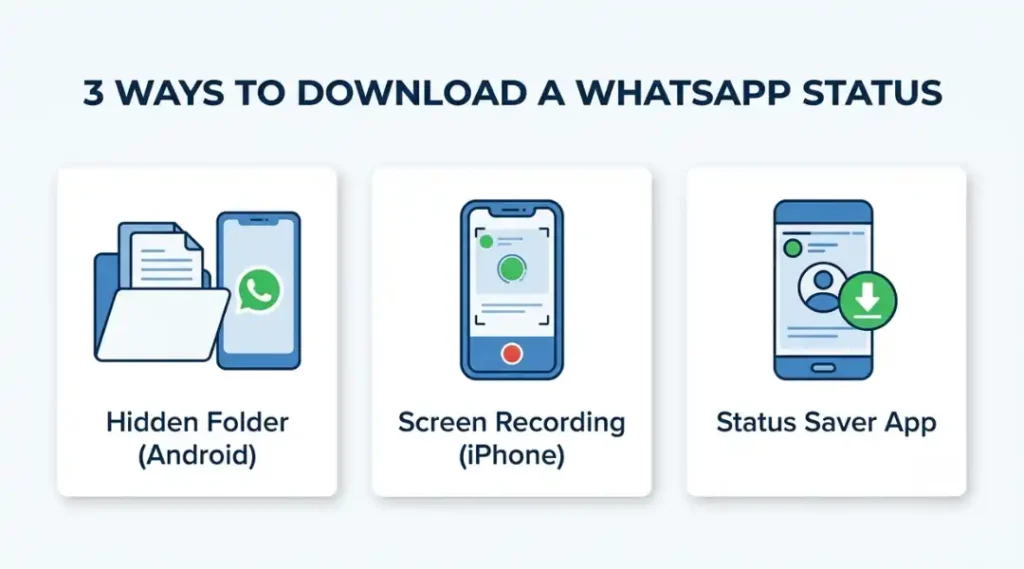
How to Download WhatsApp Status: Step-by-Step
The right method depends on your phone. Android has a free, built-in file trick. iPhone needs a workaround, since Apple’s sandboxing blocks direct folder access. Here’s every method that still works.
Step 1: View the status first, on either platform
WhatsApp only caches a status locally after you’ve actually opened and viewed it inside the app, so this step comes before everything else, on both Android and iPhone. Open the Status tab, tap the contact’s photo, and let images load fully or videos play through at least once.
Common mistake: jumping straight to the hidden folder or an app first, then finding nothing there because the file was never viewed and cached in the first place.
Step 2: On Android, open the hidden .Statuses folder
This finds the raw cached files without installing anything. Open a file manager (Files by Google or your phone’s built-in one), turn on “Show hidden files” in its settings, then browse to Android/media/com.whatsapp/WhatsApp/Media/.Statuses on Android 13 and newer, or WhatsApp/Media/.Statuses on older builds. Google’s own storage documentation explains why this path keeps shifting: newer Android versions restrict how apps and file managers can reach another app’s media folder, which is exactly why the “old” path stops working after an OS update.
Common mistake: checking only the old top-level WhatsApp folder and giving up when nothing’s there. On Android 13 and up, that folder no longer holds the cache at all.
Step 3: On iPhone, use screen recording or a screenshot
Apple’s sandboxing means there’s no equivalent hidden folder to dig through, so screen capture is the practical no-app route. Go to Settings > Control Center and add Screen Recording. Open the status, swipe down to reach Control Center, tap the record button, let the video play through fully, then stop the recording and find the clip in Photos. Apple’s own support page walks through the exact taps if your Control Center layout looks different. For a photo status, press the Side button and Volume Up together for a screenshot instead.
Common mistake: starting the recording after the status has already begun playing, which clips off the first second or two of a video.
Step 4: Use a dedicated status saver app for regular use
If you save statuses often, a one-tap app beats digging through folders every time. Install a reputable status saver app (see the comparison below), grant only the storage or media permission it asks for, open the app after you’ve viewed a status inside WhatsApp, then tap save.
Common mistake: granting broad “manage all files” access to an app that only needs to read media, or picking an app with no clear developer name and a wall of intrusive ads.
Step 5: Save from WhatsApp Web on a computer
Handy if you’re already at a desk. Log into web.whatsapp.com, open Status, and either use a trusted browser extension built for this or simply screen-record the status window with your operating system’s built-in recorder.
Common mistake: installing a browser extension that asks for “read and change all your data on every website” when a narrower permission would do the same job.
Best Status Saver Apps and Methods for Downloading WhatsApp Status
For most people, the built-in folder trick on Android or screen recording on iPhone is the safer, no-cost choice. Reach for a dedicated app only if you save statuses daily and want everything sitting in one gallery. Judge any option on three things: real developer information, the narrowest permission set that still works, and whether it needs an internet connection to function at all.
| Tool / Method | Best For | Key Strength | Real Limitation | Price (2026) | Verdict |
|---|---|---|---|---|---|
| Files by Google (Android hidden folder) | One-off saves, privacy-conscious users | Free, works fully offline, no account needed | Doesn’t capture text-only statuses; you must view the status first | Free | Best default for Android |
| Status Saver – Download Status (Play Store) | Frequent Android savers | One-tap save with a built-in preview gallery | Ad-supported; requests broad storage access on setup | Free, ad-removal tier [CONFIRM PRICE] | Good for daily use if permissions are trimmed |
| Status Saver: Video, Photo Save (App Store) | iPhone users who save often | Simple interface built around iOS’s photo library | Still depends on you viewing the status in WhatsApp first; can’t bypass Apple’s sandbox for uncached content | Free, ad-removal tier [CONFIRM PRICE] | Closest thing to a one-tap iPhone option |
| Built-in Screen Recording (iPhone) | iPhone users who save occasionally | Native, offline, zero extra app or permission | Re-records rather than copies the original file, so quality can dip slightly on longer videos | Free | Best default for iPhone |
| WhatsApp Status Downloader (Chrome extension) | Desktop users on WhatsApp Web | Adds a direct download button beside each status | Desktop-only; useless if you’re mostly on mobile | Free | Good for desk-bound heavy users |
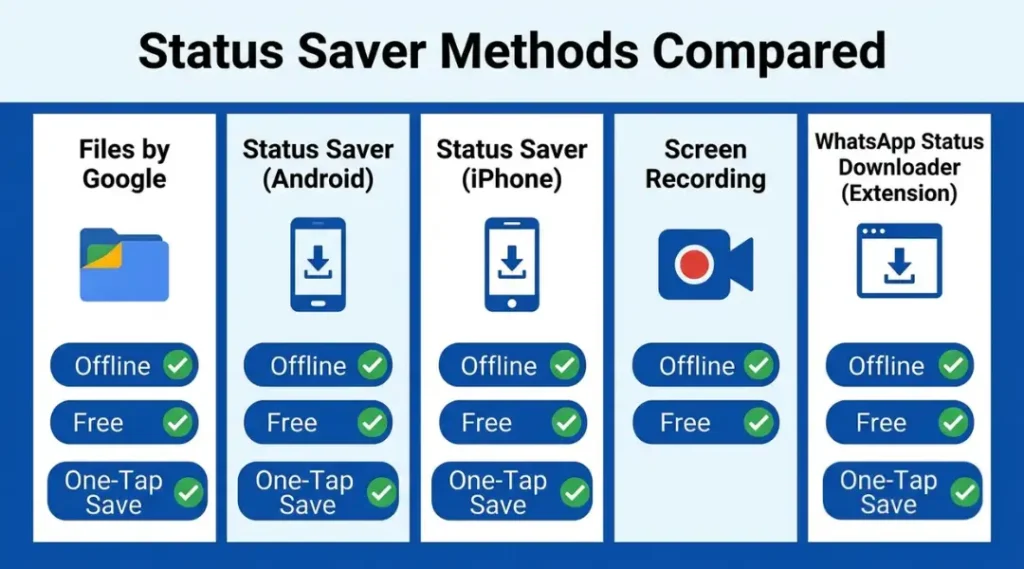
Files by Google (or any file manager with a “show hidden files” toggle) is the closest thing to a universal answer on Android. It costs nothing, never leaves your device, and works the moment you flip one setting. Its one real gap: text-only statuses aren’t cached as files, so you’ll still need a screenshot for those.
Status saver apps, including the Play Store option and the App Store option, earn their place if you’re saving statuses several times a week and don’t want to dig through folders each time. The honest trade-off is permissions and ads: read exactly what storage access the app requests before installing, and skip anything that asks for more than media access.
Screen recording on iPhone is free, fully native, and needs no permission grant beyond what’s already built into iOS. It’s slightly lossier than a direct file copy for long videos, but for a status that’s already compressed by WhatsApp, most people won’t notice the difference.
One angle most comparison posts skip entirely: whether the tool works offline. The Android folder trick and iPhone screen recording both work with the internet switched off, since nothing ever leaves your device. Any app or extension that needs a live connection just to “process” a save is routing your friend’s photo through a server you don’t control, which is worth knowing before you tap install.
Common WhatsApp Status Download Mistakes, and How to Fix Them
Most failed downloads come down to timing or permissions, not the method itself. Here are the four that trip people up most often.
Mistake 1: Waiting too long to save
People plan to “save it later” and forget, or the status was muted so it never got cached in the first place.
Fix: view and save within the 24-hour window, ideally right away.
Self-check: is the contact’s status ring still showing? If yes, you still have time.
Mistake 2: Downloading without asking
It feels harmless since it’s “just a photo.”
Fix: ask the poster before saving or resharing anything personal, especially content tied to a business or another person’s likeness.
Self-check: would you be fine with the roles reversed?
Mistake 3: Granting a status saver app more access than it needs
Apps often request broad “all files” access during setup, and it’s easy to tap allow without reading the prompt.
Fix: check the exact permission being requested and stick to storage or media access only.
Self-check: does this app ask for contacts, camera, or location it has no real reason to need for saving photos?
Mistake 4: Trusting an outdated “hidden folder” path
Many older guides still point to the pre-Android-13 path, which no longer exists on current phones.
Fix: confirm your Android version first, then adjust the file manager path. This community thread on r/WhatsApp is a good real-world example of users troubleshooting exactly this path problem across different phone models.
Self-check: are you on Android 13 or newer? Then look under Android/media/com.whatsapp/... instead of the old top-level WhatsApp folder.
Quick win: turn on “Show hidden files” once in your file manager and leave it on. Every future status is then one tap away, with no repeated setup.
How to Download WhatsApp Status: Frequently Asked Questions
No. Once the 24-hour window closes, WhatsApp deletes both the visible status and the locally cached copy on your device, so there's no way to recover it afterward unless you already saved it somewhere else beforehand.
No. Saving a status through the hidden folder or a screen recording doesn't send any extra notification. Only the original view, if read receipts are on, shows up in their viewer list, the same as normal.
Yes. Android's built-in file manager can reach the cached Status folder directly, and an iPhone's screen recording tool captures video statuses without installing anything extra at all.
Usually because hidden files are switched off in your file manager's settings, or because a newer Android version moved the folder to a deeper system path. Check Android/media/com.whatsapp/WhatsApp/Media/.Statuses first before assuming it's missing.
Saving a status for personal use is generally considered fine, but reusing someone's photo or video publicly, especially for a business or promotion, without asking first can raise real privacy and ownership concerns. When in doubt, ask the person before you reshare anything.
Related Topics Worth Exploring
- How to Delete a Contact on WhatsApp: What actually happens to your chat history afterward, and the one situation where blocking is the better move than deleting.
- WhatsApp Without Saving a Number: useful if the real goal is avoiding contact clutter in the first place, using wa.me links instead of saving every one-off number.
- How to Lock a Chat in WhatsApp: for keeping a sensitive conversation private without deleting the contact or the chat at all.
Conclusion
Downloading a WhatsApp status doesn’t need a shady app or a workaround that breaks next update. Android’s hidden .Statuses folder and iPhone’s built-in screen recording cover almost every case for free, and a dedicated status saver app only earns its place if you’re saving content daily.
Key takeaways: view the status first before trying to save it, check your Android version before hunting for the hidden folder, and read the permission prompt before installing any app. In the next 10 minutes, open your file manager, turn on “Show hidden files,” and see if a status you meant to keep is still sitting in the cache.