How to Delete a Contact on WhatsApp
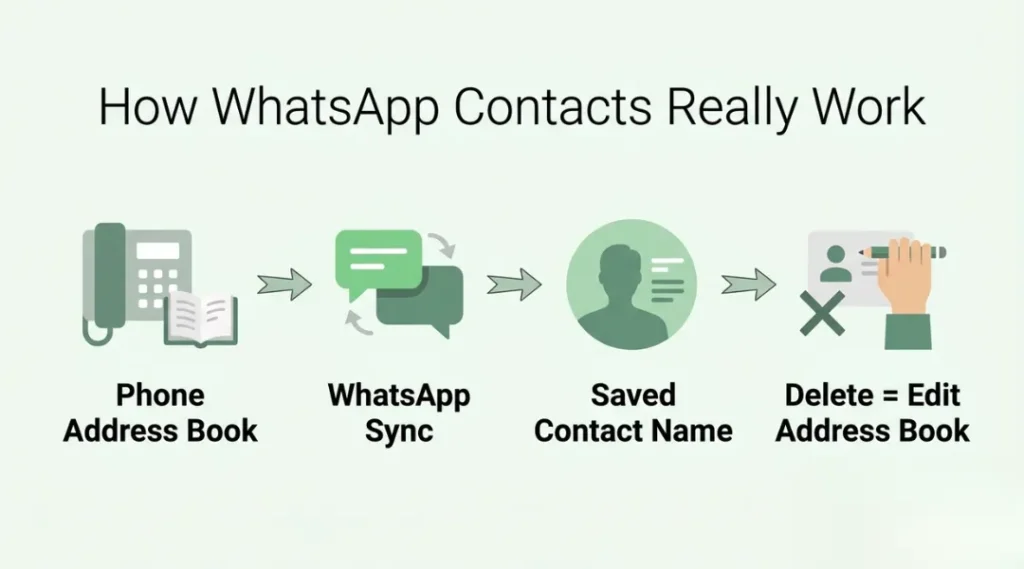
There’s no “Delete Contact” button sitting inside WhatsApp’s own menus, and that single fact is why so many people give up halfway through. WhatsApp doesn’t keep a separate contact list at all. It mirrors whatever is already saved in your phone’s address book, so deleting a contact on WhatsApp really means deleting it from your phone, then letting WhatsApp catch up. Once you know that, the process takes under a minute on either Android or iPhone.
This guide walks through both platforms, what actually happens to your chat history afterward, and the one situation where blocking is the better move than deleting. For the full set of WhatsApp settings most people never touch, the WhatsApp tips and tricks guide covers everything from Chat Lock to AI Writing Help.
Table of Contents
ToggleWhat Is Deleting a Contact on WhatsApp?
Deleting a contact on WhatsApp means removing that person’s name and number from your phone’s address book, which strips their saved name out of WhatsApp too. It does not delete the conversation, block the number, or stop them from messaging you. The chat stays in your list, just labeled by phone number instead of a name from that point forward.
Why Deleting a WhatsApp Contact Matters in 2026
A cluttered contact list slows down search, group creation, and the “New Chat” screen, and in 2026 that list grows faster than ever thanks to wa.me links, one-off business chats, and QR-code contact sharing. WhatsApp’s March 2026 update added cross-platform chat transfer and dual accounts on iOS, according to Meta’s own announcement, which means more people are merging contact lists from two devices into one and discovering duplicates and dead numbers they never meant to keep. At the same time, Google’s contact-sync settings now apply more aggressively across Android and Workspace accounts, so a contact deleted only inside WhatsApp’s interface can silently reappear an hour later if it’s still sitting in a synced Google account.
Here’s a real case this trips people up on: someone deletes a contact through WhatsApp’s “View in address book” shortcut, sees it vanish, then watches it come back the next day because the same number was also saved under a Google account linked to a second device. The fix isn’t in WhatsApp at all, it’s checking Google Contacts directly.
This matters less if you rarely add new numbers and your contact list is already small and stable; a once-a-year cleanup is plenty in that case. It matters most for anyone running a side business through a personal number, since one-off customer contacts pile up fast and clutter the chat list within weeks.
How to Delete a Contact on WhatsApp: Step-by-Step
The exact tap sequence differs slightly between Android and iPhone, but the underlying logic is the same on both: open the contact’s entry, find the edit option, and delete it from there.
Step 1: Open the Contact’s Chat or Profile
On either platform, start from the Chats tab and tap open the conversation with the person you want to remove. Tap their name at the top of the screen to open their contact profile. This works whether the contact has an active chat history or not.
Common mistake: Trying to delete from the main contact-picker screen (the one that opens when starting a new chat) instead of from inside the individual chat. On most builds, that screen doesn’t expose an edit option at all.
Step 2: Find the Edit Option
On iPhone: From the contact profile, tap Edit in the top-right corner. This opens the standard iOS contact-editing screen, the same one your Phone and Contacts apps use, and the same flow Apple documents for editing or deleting any iPhone contact.
On Android: Tap the three-dot menu in the top-right corner of the chat or profile screen and choose View in address book (wording varies slightly by Android version and phone manufacturer). This hands control over to your phone’s native Contacts app, where deleting works the same way Google outlines for managing and syncing Android contacts generally.
Step 3: Delete the Contact
Scroll to the bottom of the edit screen and tap Delete Contact. A confirmation prompt appears; confirm again to finish. On iPhone, this single action removes the entry from both your iPhone’s address book and WhatsApp. On Android, the deletion happens in your phone’s Contacts app, and WhatsApp picks up the change on its own sync cycle.
Common mistake: Backing out at the confirmation prompt because the wording mentions deleting the contact from the phone, not just WhatsApp. That phrasing is accurate, since WhatsApp has no separate list to delete from.
Step 4: Force a Refresh If the Contact Still Appears
If the name still shows up in WhatsApp after a minute, the sync hasn’t caught up yet. Go to the New Chat screen, open the three-dot menu, and select Refresh. WhatsApp rescans your address book and drops anyone no longer on it. On iPhone, simply closing and reopening WhatsApp usually achieves the same result.
Honest limitation: There’s no built-in way to delete several WhatsApp contacts at once from inside the app. Bulk cleanup is faster done directly in your phone’s Contacts app or in Google Contacts on the web, where multi-select is supported.
Best Methods for Removing a WhatsApp Contact
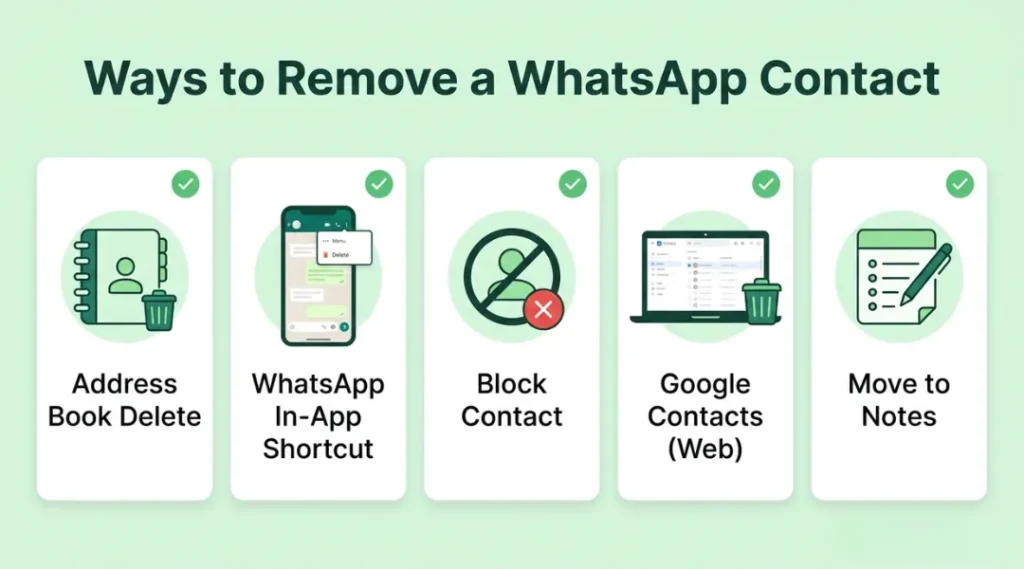
Not every situation calls for full deletion. Pick based on whether you want the number gone entirely, hidden from contact suggestions, or just silenced.
| Tool / Product | Best For | Key Strength | Real Limitation | Price (2026) | Verdict |
|---|---|---|---|---|---|
| Phone address book deletion | Permanently removing the number | Removes it from WhatsApp and every other app that reads your contacts | Deletes the number everywhere, not just inside WhatsApp | Free | Best for true cleanup |
| WhatsApp in-app shortcut (Edit / View in address book) | Quick deletion without leaving WhatsApp | Two or three taps from an open chat | Still routes through the phone’s native Contacts app behind the scenes | Free | Best for speed |
| Block instead of delete | Stopping contact without losing the saved entry | Cuts off messages, calls, and status visibility instantly | The contact stays in your list and can still see your old messages they’ve already received | Free | Best for unwanted contact, not clutter |
| Google Contacts (web) | Bulk deletion across synced devices | Multi-select deletion that propagates to every linked Android device | Changes can take a few minutes to reflect inside WhatsApp | Free | Best for cleaning many contacts at once |
| Move to phone Notes (keep number, remove from WhatsApp) | Keeping the number without it cluttering WhatsApp | Number stays accessible for calls without appearing in any WhatsApp list | You lose one-tap calling and autofill since it’s no longer a real contact entry | Free | Best for numbers you rarely need |
Phone Address Book Deletion
This is the only method that removes a number for good, across WhatsApp, your dialer, and any other app reading your contacts. Open your phone’s native Contacts app (not WhatsApp), find the entry, and delete it the same way you’d remove any contact. The honest limitation: if that number is also saved under a synced Google account, it can reappear unless you remove it there too.
WhatsApp’s In-App Shortcut
For most people, this is the faster path since it never requires leaving the WhatsApp app. The trade-off is invisible: it’s quietly performing the exact same address-book deletion under the hood, so the result is identical, just reached through fewer taps.
Blocking as an Alternative
Blocking solves a different problem than deleting. According to WhatsApp’s Help Center, a blocked contact can’t call you, message you, or see your last seen, profile photo, or status updates, but their entry stays untouched in your contact list. Choose blocking over deleting when the goal is stopping contact, not tidying your list, since a deleted contact can still message and call you using your saved phone number.
Common Mistakes When Deleting a WhatsApp Contact
People assume deletion is final, then watch the contact resurface because the number was also saved in a synced Google account or a second linked device.
The fix: After deleting locally, check Google Contacts on the web if your Android phone uses contact sync, and remove the entry there as well.
Self-check: If the contact reappears within a day of deleting it, sync is the cause, not a WhatsApp bug.
Mistake 2: Confusing Deletion With Blocking
Deleting a contact does not stop them from messaging or calling you. Their number still works exactly the way it did before, just without a saved name attached on your end.
The fix: If the actual goal is to stop hearing from someone, block them instead, or block in addition to deleting.
Self-check: Ask whether the problem is clutter (delete) or unwanted contact (block). They call for different actions.
Mistake 3: Expecting the Chat History to Disappear With the Contact
The conversation thread doesn’t go anywhere when a contact is deleted. It just loses the name label and shows the phone number going forward.
The fix: If clearing the chat itself matters, delete the conversation separately from inside the Chats tab.
Self-check: Open your Chats list after deleting a contact. If the thread is still there under a phone number, that’s expected behavior, not an error.
Quick win: Delete one contact today using the in-app shortcut, then check your Chats tab afterward to confirm the conversation stayed put. That single test clears up most of the confusion this process causes.
How to Delete a Contact on WhatsApp: Frequently Asked Questions
No. The chat thread stays exactly where it was in your Chats list. The only visible change is that the contact's saved name is replaced with their raw phone number in the chat header and in any new message notifications.
No. WhatsApp doesn't send any notification when a contact is deleted, the same way it doesn't notify anyone when they're blocked. The other person's experience of the chat stays completely unaffected on their end.
Not directly through the standard delete option, since WhatsApp pulls contacts straight from your phone's address book. The workaround is moving the number into your phone's Notes app instead of a contact entry, which keeps it accessible without it showing up anywhere in WhatsApp.
Usually because the sync hasn't refreshed yet, or the same number is saved in a linked account like Google Contacts. Force a manual refresh from the New Chat screen, and check any synced account if the issue continues after that.
Block if the goal is stopping all contact, since deleting alone doesn't prevent calls or messages. Delete if the goal is simply decluttering a list of numbers you no longer need easy access to.
Related Topics Worth Exploring
- How to Know If Someone Has Blocked You on WhatsApp: covers the four-signal check for the reverse situation, when you suspect someone else has blocked you.
- WhatsApp Without Saving a Number: useful if the real goal is avoiding contact clutter in the first place, using wa.me links instead of saving every one-off number.
- How to Lock a Chat in WhatsApp: for keeping a sensitive conversation private without deleting the contact or the chat at all.
Key Takeaways
- WhatsApp has no contact list of its own; deleting a contact means deleting it from your phone’s address book, and WhatsApp follows.
- The chat history, photos, and messages stay put. Only the saved name disappears, replaced by the phone number.
- A contact that keeps reappearing is almost always a sync issue, most often a linked Google account holding onto the same number.
- Block, not delete, if the actual goal is to stop someone from reaching you.
In the next 5 minutes: open one chat with a contact you no longer need, delete it using the steps above, and confirm the conversation itself is still sitting in your Chats tab. That single check resolves nearly every question people have about what this process actually does.